

Status Flow
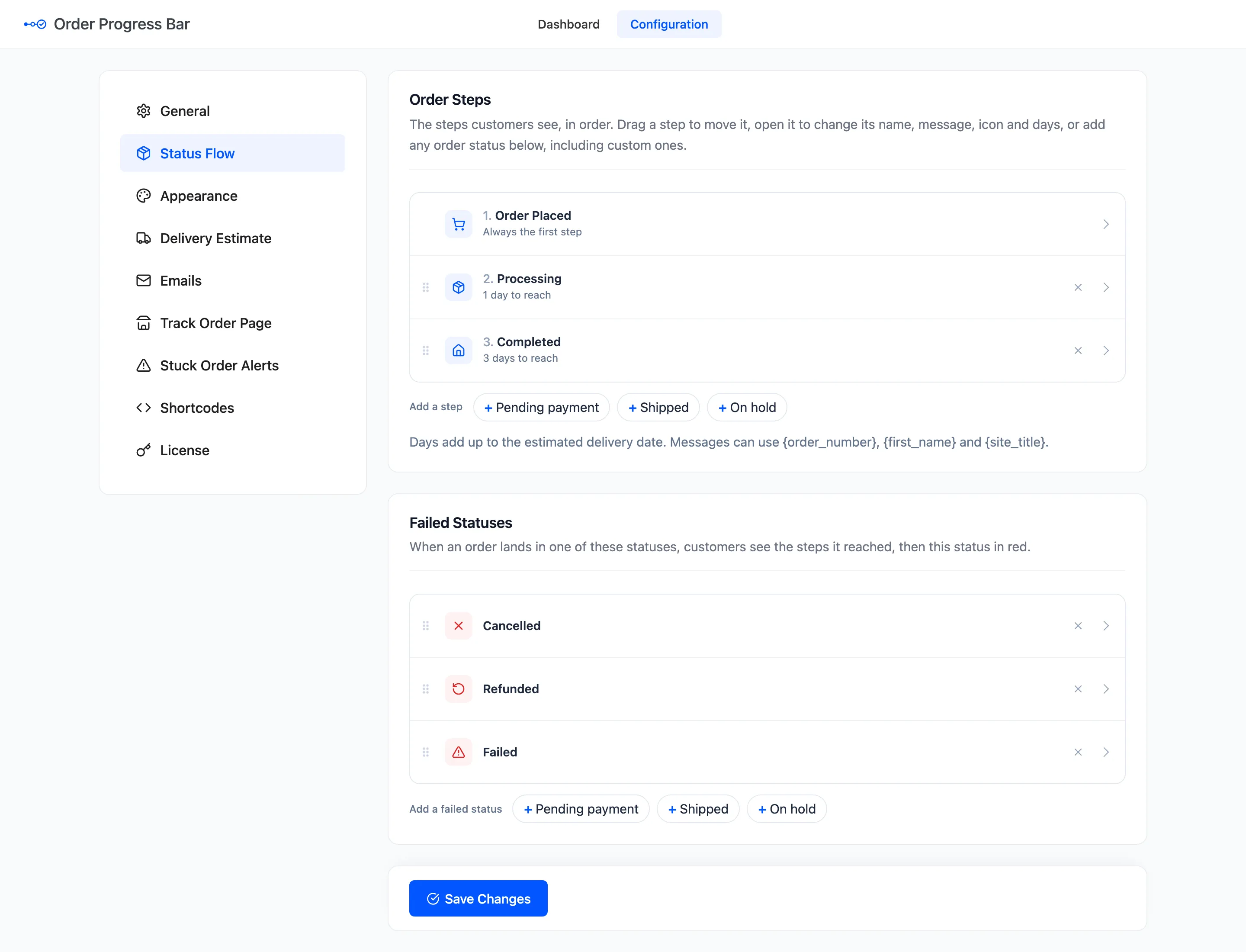
The Status Flow tab is the list of steps customers see. Each step is an order status, in the order you put them. Open DevDiggers Plugins → Order Progress Bar → Configuration → Status Flow.
Order Steps
Section titled “Order Steps”The first step, Order Placed, is always there and cannot be moved. It is dated when the order was created. Under it come the statuses you add. The shipped flow is Processing, then Completed.
- Drag a row by the dots on its left to move it.
- Click a row to open its settings.
- × takes a status out of the flow. Its settings are kept, in case you add it back.
- Add a step lists every order status not in either list, as a + button.
The last step in the list is the end of the journey. Reaching it fills the bar and shows Delivered with its date.
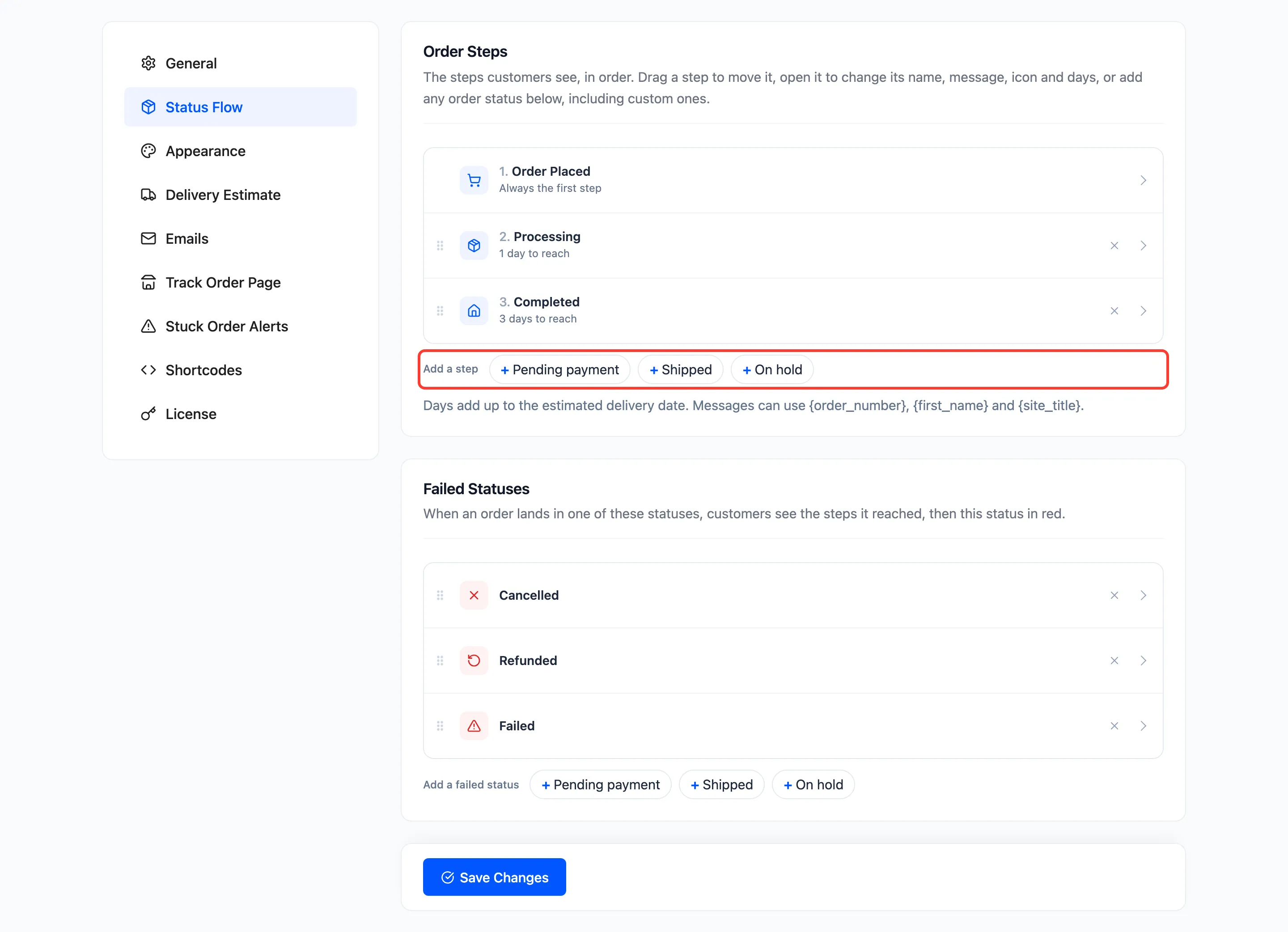
Add a step includes custom statuses from other plugins, such as Shipped or In production. The plugin does not create statuses. It shows the ones WooCommerce knows.
A step’s settings
Section titled “A step’s settings”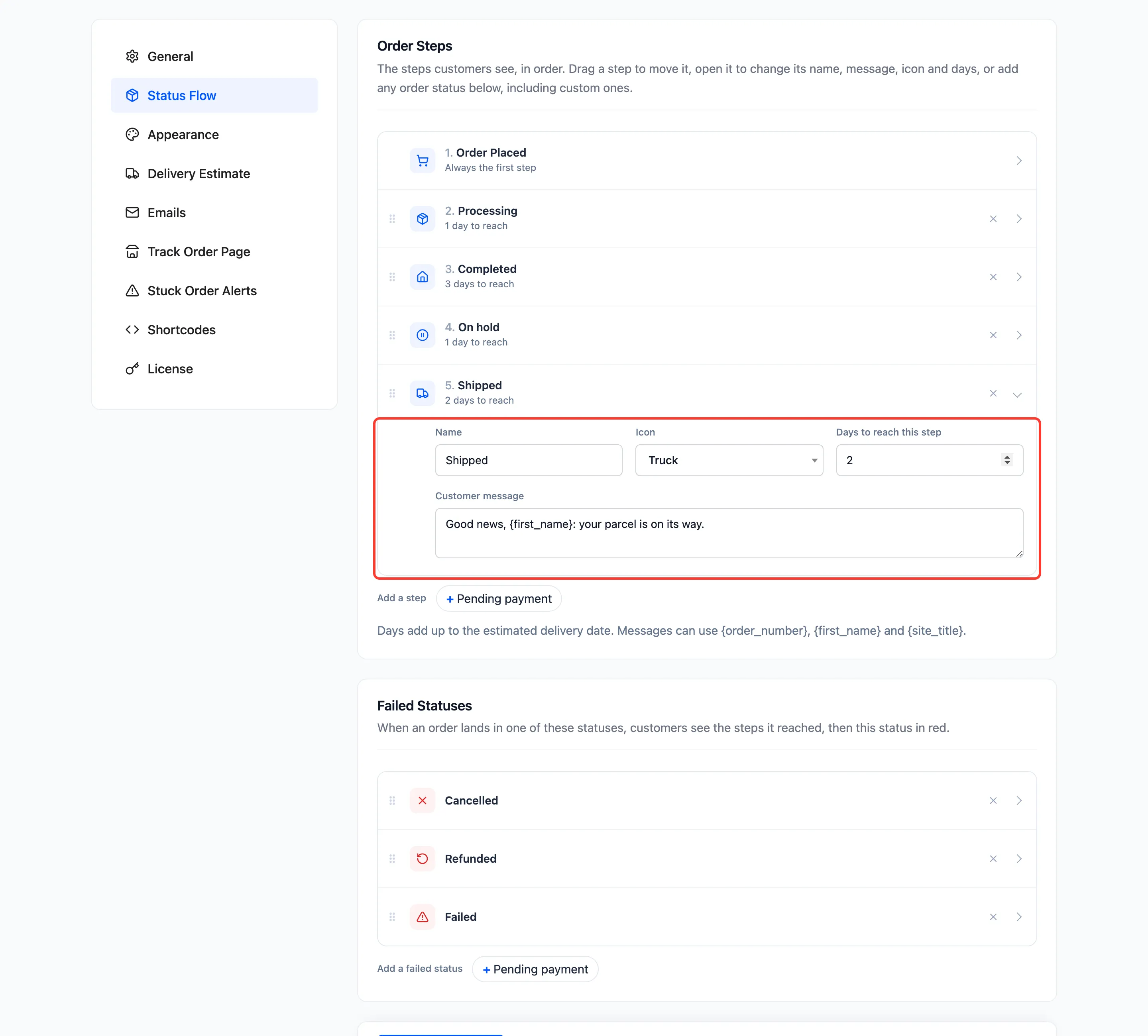
- Name: What customers read. Defaults to the status name. An emptied name goes back to it.
- Icon: One of 14 icons, such as Package, Truck, Store pickup or Delivered.
- Days to reach this step: How long the step usually takes after the one before. They add up to the delivery estimate.
- Customer message: Shown under the step name while the order is in this step. It can use
{order_number},{first_name}and{site_title}. Leave it empty for no message.
Order Placed has only Name and Customer message.
The row’s summary line follows what you type, its name, icon and days, before you save.
Shipped defaults
Section titled “Shipped defaults”| Status | Icon | Days | Message |
|---|---|---|---|
| Pending payment | Clock | 0 | We are waiting for your payment to arrive. |
| On hold | Pause | 1 | Your order is on hold while we confirm your payment. |
| Processing | Package | 1 | We are preparing your order for shipping. |
| Completed | Delivered | 3 | Your order is complete. Thank you for shopping with us! |
| A custom status | Truck | 1 | (none) |
Failed Statuses
Section titled “Failed Statuses”When an order lands in one of these, customers see the success steps it reached, then this status in red. The shipped list is Cancelled, Refunded and Failed. A failed status has a name, an icon and a message, but no days, because it is not on the way to delivery.
| Status | Icon | Message |
|---|---|---|
| Cancelled | Cross | This order was cancelled. |
| Refunded | Refund | This order was refunded. |
| Failed | Warning | The payment failed. Please try again or contact us. |
Statuses outside both lists
Section titled “Statuses outside both lists”An order in a status that is in neither list shows no bar. The shipped flow leaves out Pending payment and On hold, so a new bank transfer or cheque order has no bar until it is paid. Its order screen says so. Add On hold to show the bar from the start: see How to Add On Hold to the Progress Bar.
Changing the flow changes the bar of every order straight away, old ones included, because the dates were recorded all along.
Click Save Changes at the bottom of the tab. A status can only be in one list at a time.