

Delivery Estimate Settings
The Delivery Estimate tab decides whether customers see when to expect their order. Open DevDiggers Plugins → Order Progress Bar → Configuration → Delivery Estimate.
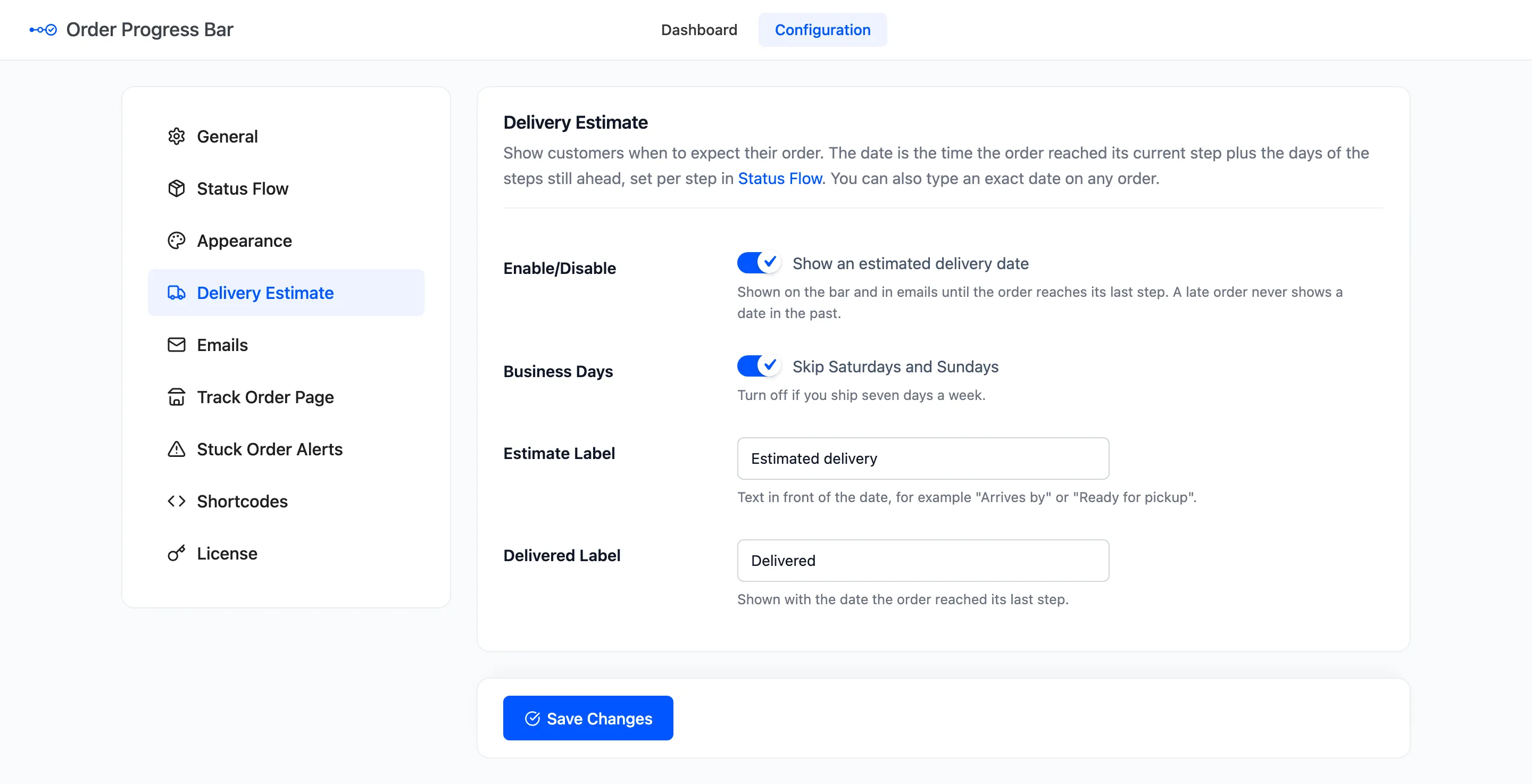
The fields
Section titled “The fields”- Enable/Disable: “Show an estimated delivery date”. On by default. It shows on the bar and in emails until the order reaches its last step.
- Business Days: “Skip Saturdays and Sundays”. On by default. Turn it off if you ship seven days a week.
- Estimate Label: The text in front of the date. Default Estimated delivery. “Arrives by” or “Ready for pickup” work too.
- Delivered Label: Shown with the date the order reached its last step. Default Delivered.
How the date is worked out
Section titled “How the date is worked out”The estimate is the date the order reached its current step, plus the Days to reach this step of every step still ahead. The days are set per step under Status Flow.
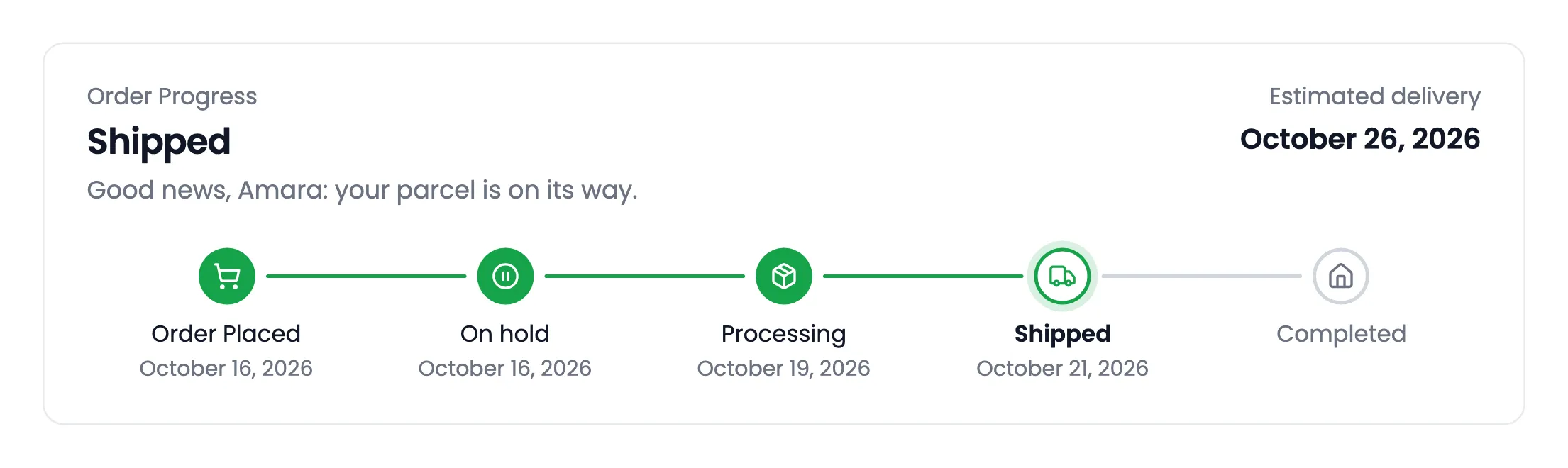
With the shipped days, a Processing order expects 3 more days for Completed. On the demo’s flow, with On hold 1, Processing 1, Shipped 2 and Completed 3:
| Current step | Reached on | Days still ahead | Estimated delivery |
|---|---|---|---|
| On hold | Wednesday 21 October | 1 + 2 + 3 | Thursday 29 October |
| Processing | Friday 16 October | 2 + 3 | Friday 23 October |
| Shipped | Wednesday 21 October | 3 | Monday 26 October |
The first row is Nina’s guest order and the last two are Amara’s. All three skip the weekend.
Rules worth knowing
Section titled “Rules worth knowing”- The estimate moves with the order. It is worked out again at every step, from that step’s date.
- A late order never shows a date in the past. When the estimate has passed, it shows today.
- No days ahead means no estimate. Set every step’s days to 0 and the bar shows the percentage instead, if Percentage is on under Appearance.
- Cancelled, refunded and failed orders never show an estimate.
- A date typed on one order replaces its estimate. See How to Set a Delivery Date on One Order.
Public holidays are not skipped. Add a day to the step that usually waits for them, or type the date on the orders affected.
Click Save Changes at the bottom of the tab.