

How to Get Alerts for Stuck Orders
An order that sits in Processing for a week is a complaint on its way. The alert finds it first, every morning.
Step 1: Open Stuck Order Alerts
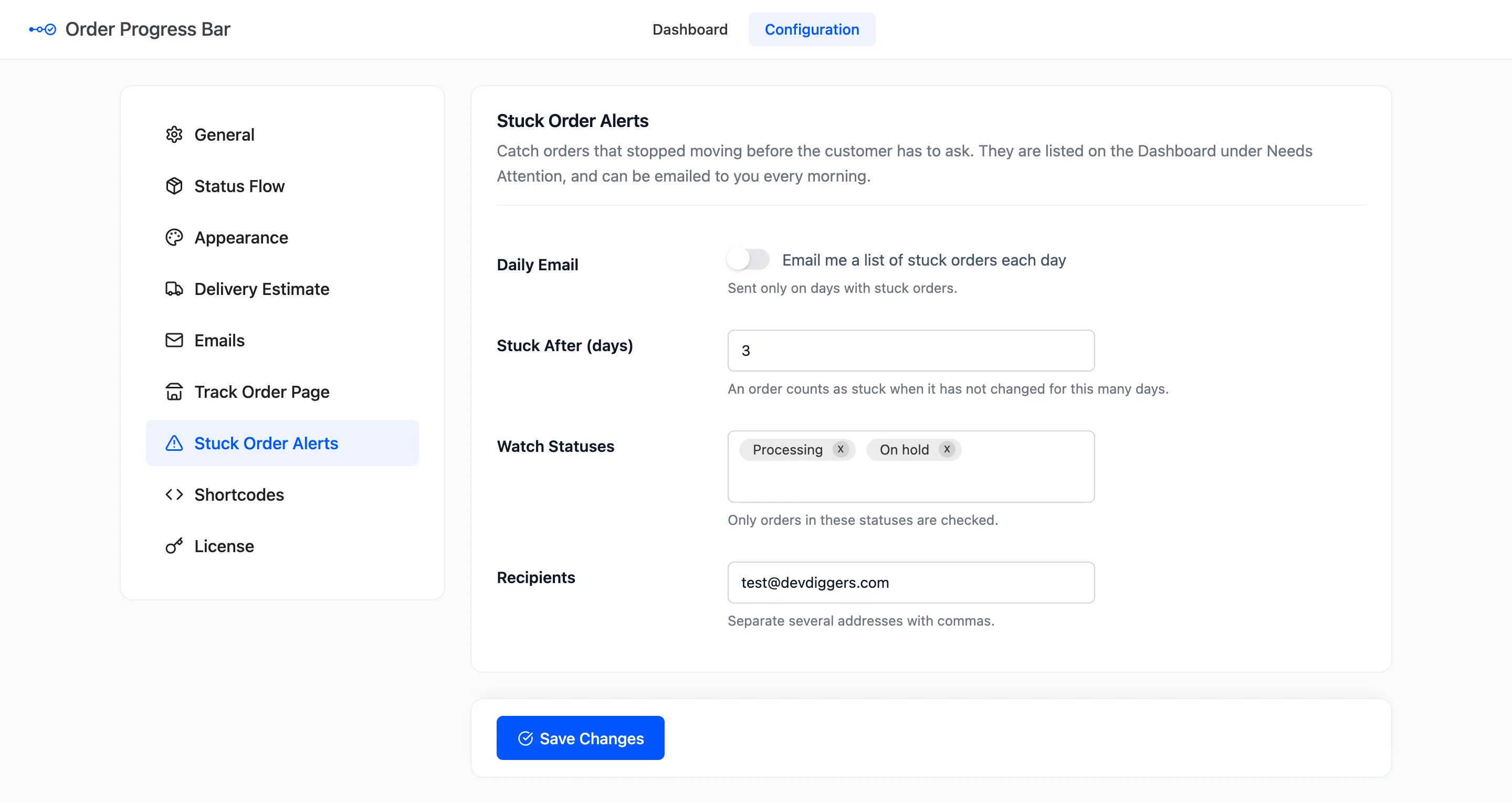
Section titled “Step 1: Open Stuck Order Alerts”Go to Configuration → Stuck Order Alerts.
Step 2: Turn on the daily email
Section titled “Step 2: Turn on the daily email”Tick Daily Email. It is off by default.
Step 3: Set the days and statuses
Section titled “Step 3: Set the days and statuses”- Stuck After (days): How long an order may keep its status. Default 3.
- Watch Statuses: Default Processing and On hold. Add a custom status, such as Shipped, to catch parcels that never arrive.
Step 4: Set the recipients
Section titled “Step 4: Set the recipients”Recipients defaults to the site’s admin email. Add your fulfilment team, separated by commas. Click Save Changes.
Step 5: Read the email
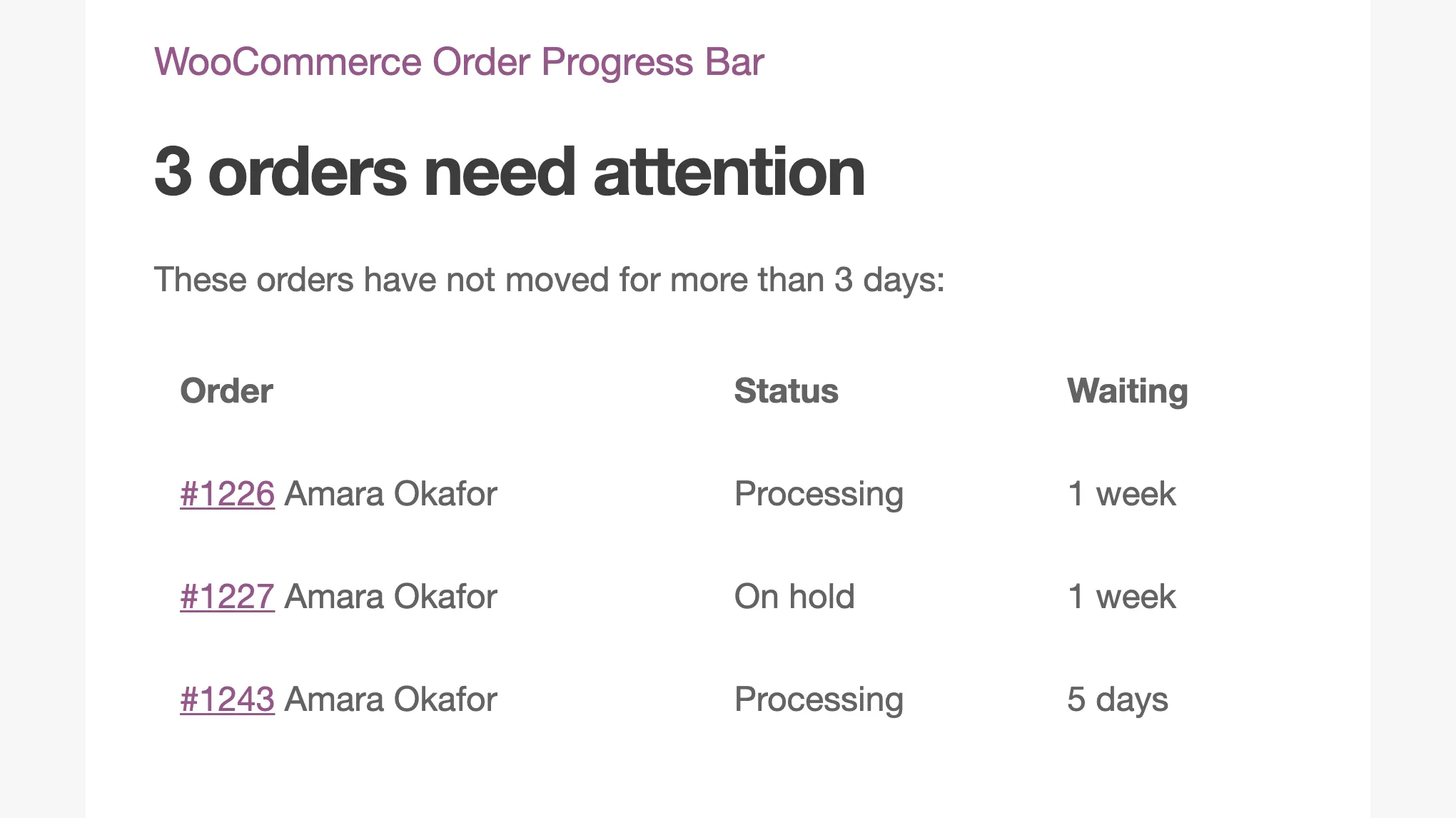
Section titled “Step 5: Read the email”The check runs at 8:00 in your site’s time zone, and the email goes out only on days with stuck orders. On the demo it listed three orders, each linked to its order screen.
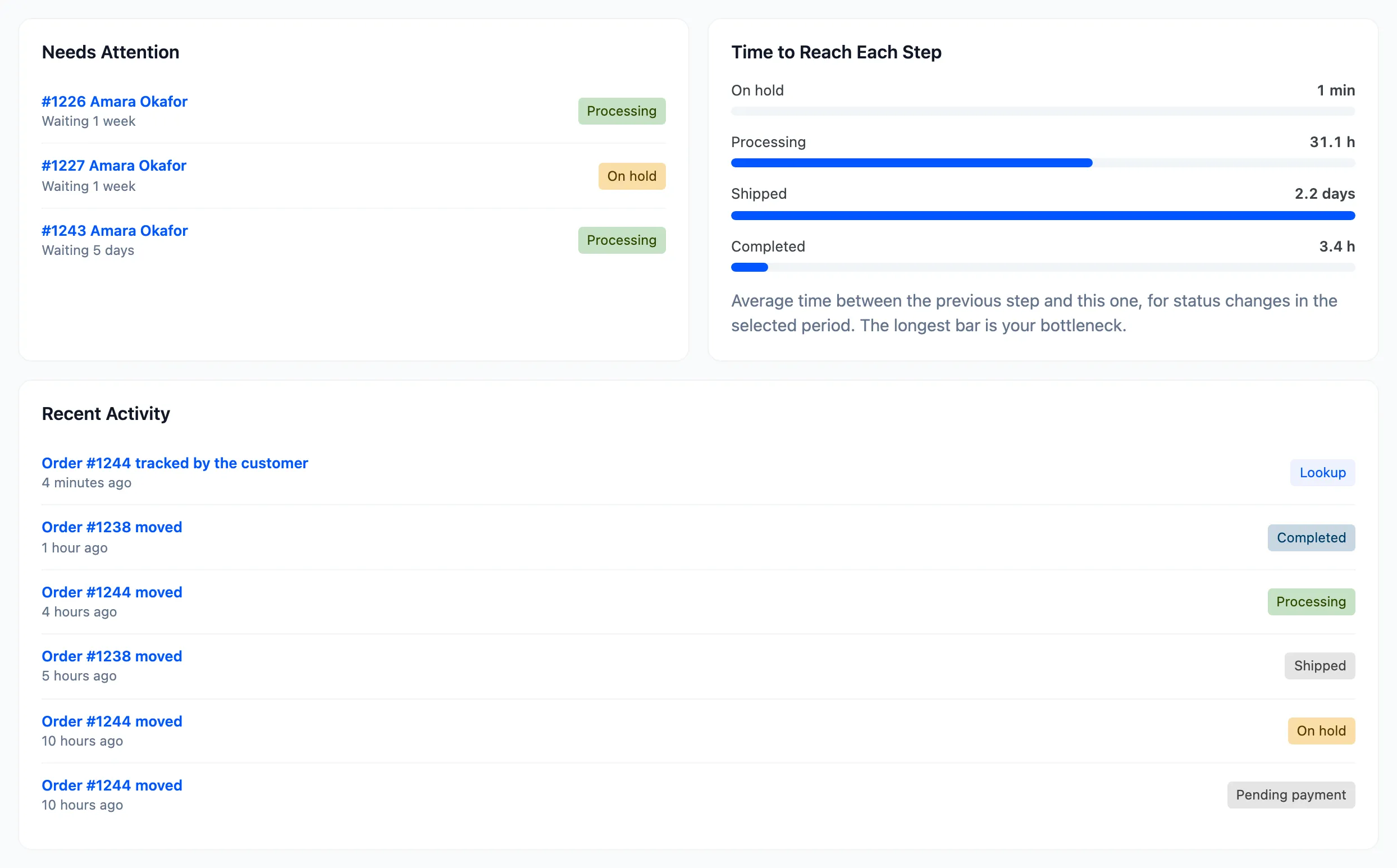
The same orders, up to six, are on the dashboard under Needs Attention, whether the email is on or not.
What takes an order off the list
Section titled “What takes an order off the list”Only a status change. A note, an edit or a delivery date saved on the order does not count as moving it. On the demo, the late order stayed listed after its delivery date was set by hand.
Orders from before the plugin was installed count from the order’s last change, because no status change was recorded for them.