

How to Pause the Progress Bar
Rebuilding your steps, or a busy week where estimates would be wrong? Switch the bar off for customers while the plugin keeps recording.
Step 1: Switch it off
Section titled “Step 1: Switch it off”Under Configuration → General, untick Enable/Disable and click Save Changes.
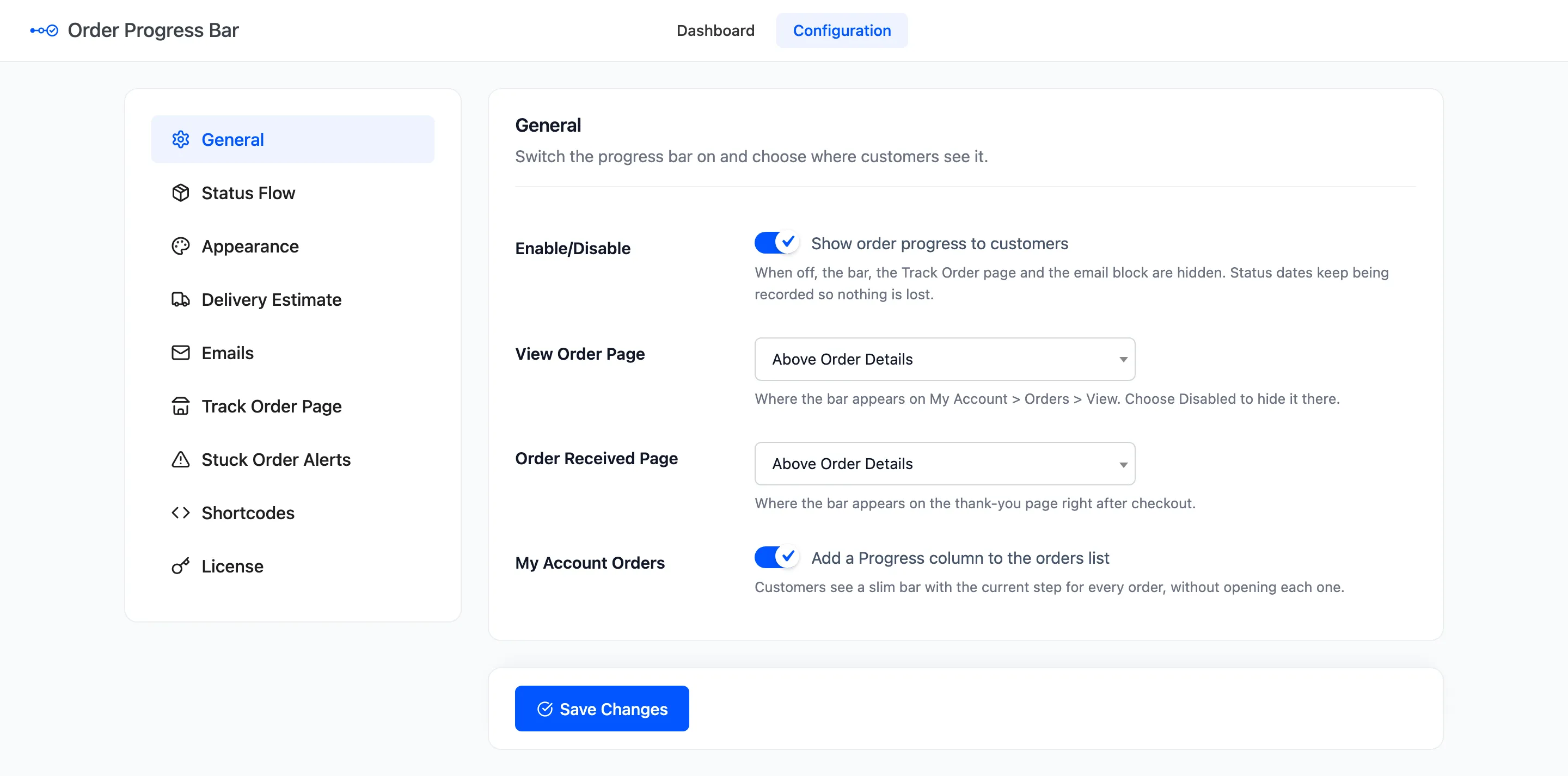
Customers then see:
- No bar on the thank-you and View Order pages, and no Progress column.
- No bar in emails, and no Order update email.
- Nothing where the Track Order form or a shortcode sat. The page stays, without the form.
Step 2: Make your changes
Section titled “Step 2: Make your changes”The Order Progress box on each order screen keeps showing the bar to you, so you can check new steps on real orders before customers see them.
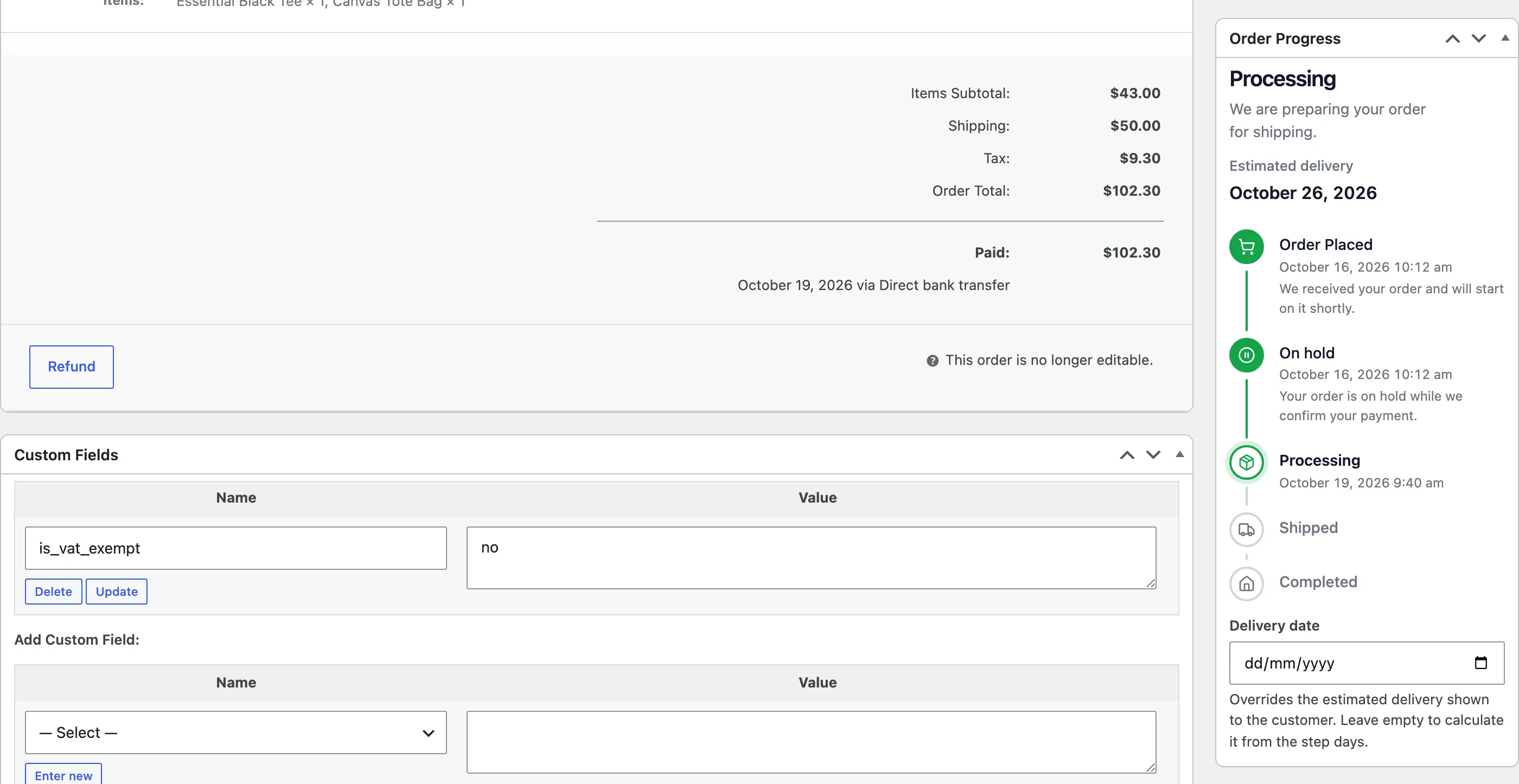
Every status change is still recorded. On the demo, an order completed while the bar was off showed its customer nothing, and the completed date was recorded all the same.
Step 3: Switch it back on
Section titled “Step 3: Switch it back on”Tick Enable/Disable and save. Every order’s bar comes back, with the dates of what happened while it was off.
What keeps working
Section titled “What keeps working”- The dashboard and its counts.
- The stuck order email, if it is on.
- The order screen box and its delivery date.
To hide the bar on one page only, set that position to Disabled instead.