

General Settings
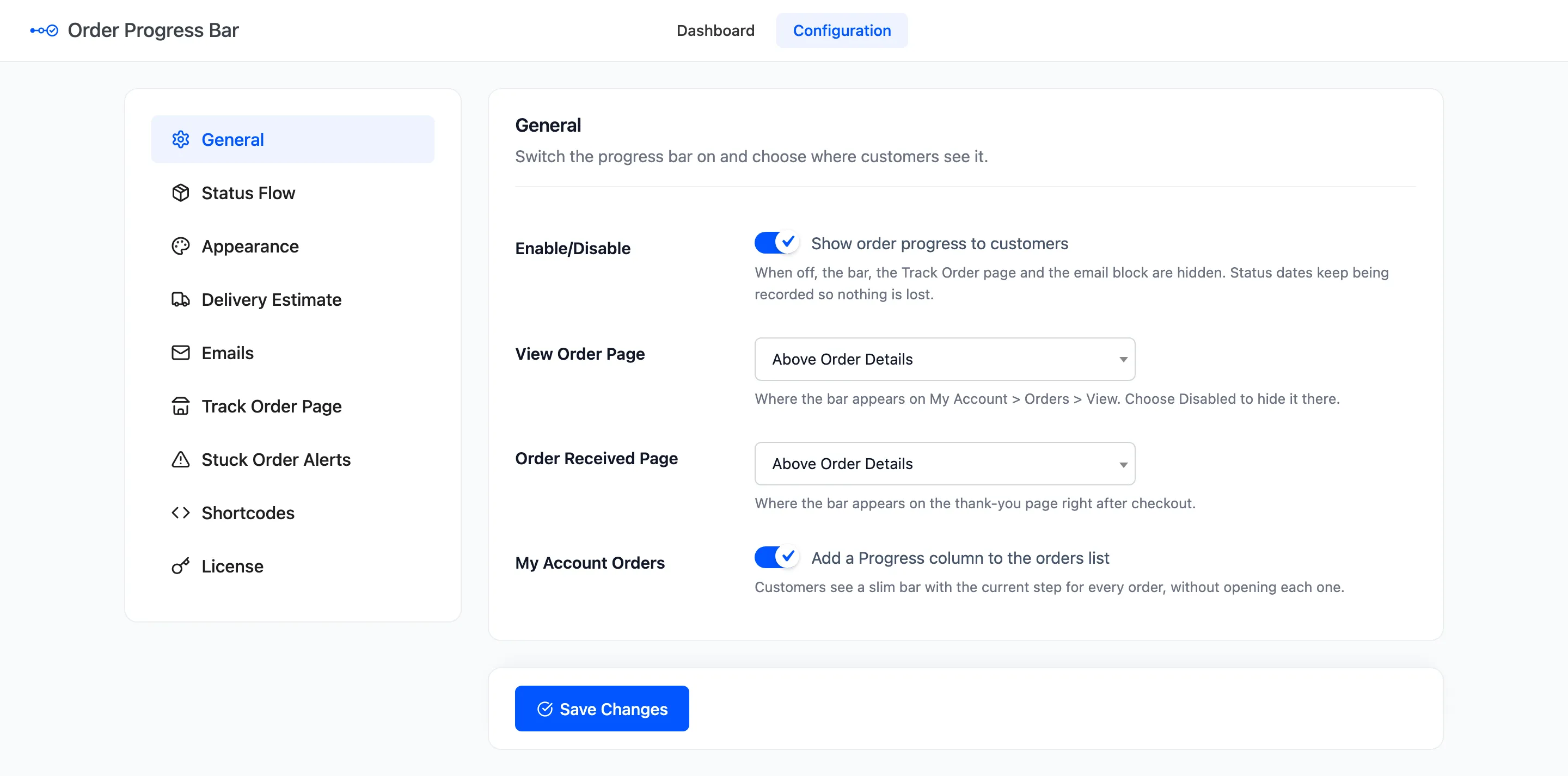
The General tab switches the plugin on and decides where the bar appears on the storefront. Open DevDiggers Plugins → Order Progress Bar → Configuration → General.
The fields
Section titled “The fields”- Enable/Disable: “Show order progress to customers”. On by default. Off, customers see no bar, no Track Order form, no My Account column and no email bar. No step update email is sent either. Status changes are still recorded, so the dates are complete when you switch it back on.
- View Order Page: Where the bar sits on My Account → Orders → View. Default Above Order Details. Choose Disabled to hide it there.
- Order Received Page: Where it sits on the thank-you page right after checkout. Default Above Order Details.
- My Account Orders: “Add a Progress column to the orders list”. On by default.
The positions
Section titled “The positions”Both position menus offer the same choices. Above Order Details, the default, looks like this:
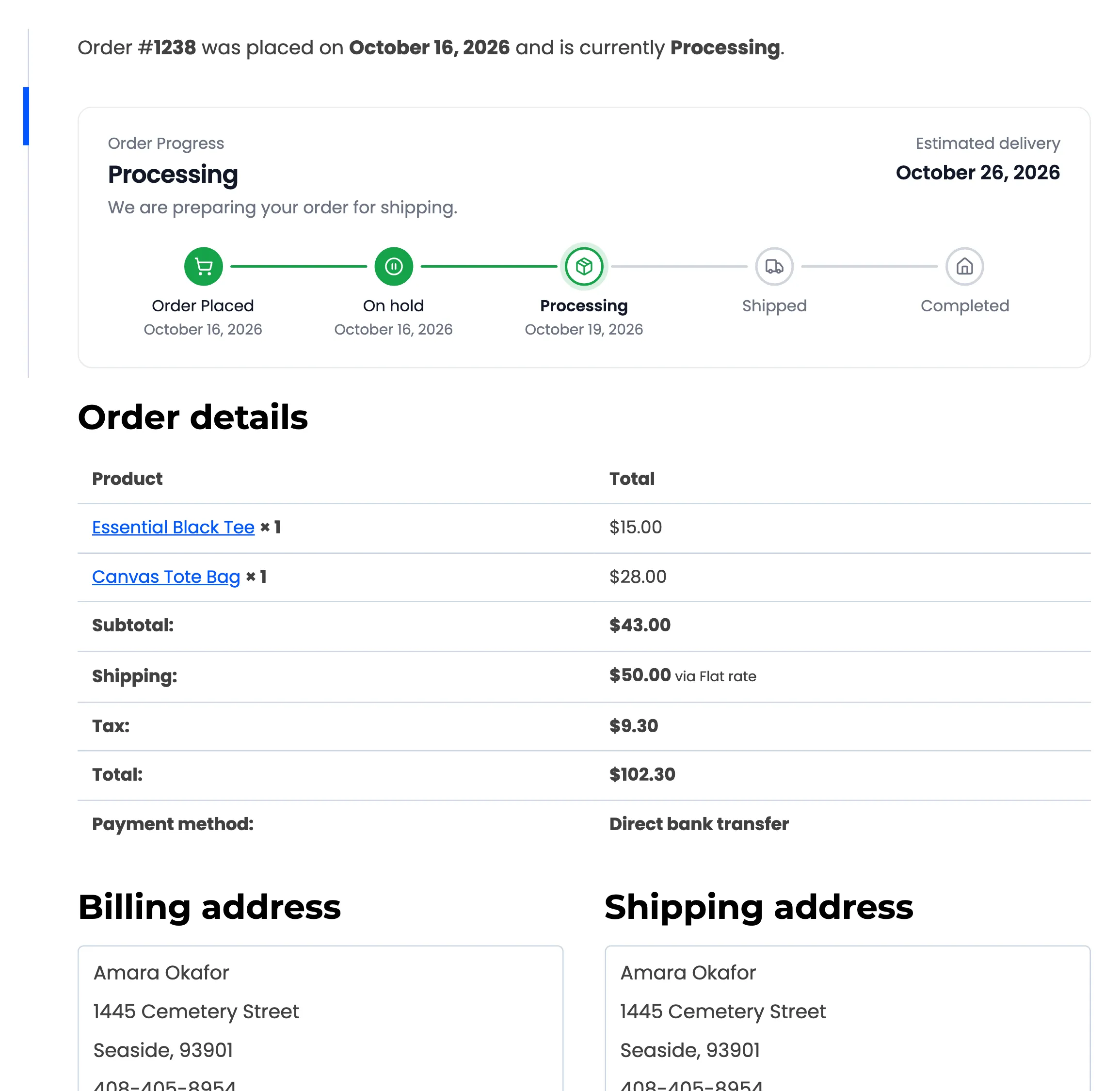
- Above Title or Above Account Menu.
- Above Order Details or Below Order Details.
- Above Customer Details or Below Customer Details.
- Disabled.
Each choice is a place in WooCommerce’s own page markup, so it works with most themes. A theme that renames
those parts can leave the bar with nowhere to go. Then pick another position, or place the bar yourself with
the [ddwcopb_progress] shortcode. See How to Place the Progress Bar with a Shortcode or Block.
A store upgraded from version 1.x may also see a Custom position entry, such as Custom position: article .woocommerce. That is the selector 1.x used, kept so the next save does not switch the bar off.
What switching off does not stop
Section titled “What switching off does not stop”Enable/Disable off is a pause, not an uninstall:
- Every status change is still recorded with its date.
- The dashboard, the order screen box and the stuck order email keep working.
- A shortcode on a page prints nothing, rather than its raw tag.
On the demo, an order completed while the plugin was off showed the customer no bar, and the change was still recorded with its date.
Click Save Changes at the bottom of the tab.