

How to Add a Shipped Step with a Custom Status
WooCommerce’s own statuses stop at Processing and Completed, which says nothing about the parcel leaving the warehouse. A custom status fills the gap, and the bar shows it like any other step.
Step 1: Create the status
Section titled “Step 1: Create the status”Order Progress Bar shows the statuses WooCommerce knows. It does not create them. Add one with an order status plugin, or with a snippet. The demo registered Shipped with this one, placed after Processing:
add_action( 'init', function () {  register_post_status( 'wc-shipped', [    'label'                     => 'Shipped',    'public'                    => true,    'show_in_admin_status_list' => true,    'show_in_admin_all_list'    => true,    'label_count'               => _n_noop( 'Shipped (%s)', 'Shipped (%s)' ),  ] );} );
add_filter( 'wc_order_statuses', function ( $statuses ) {  $result = [];  foreach ( $statuses as $key => $label ) {    $result[ $key ] = $label;    if ( 'wc-processing' === $key ) {      $result['wc-shipped'] = 'Shipped';    }  }  return $result;} );
Step 2: Add it as a step
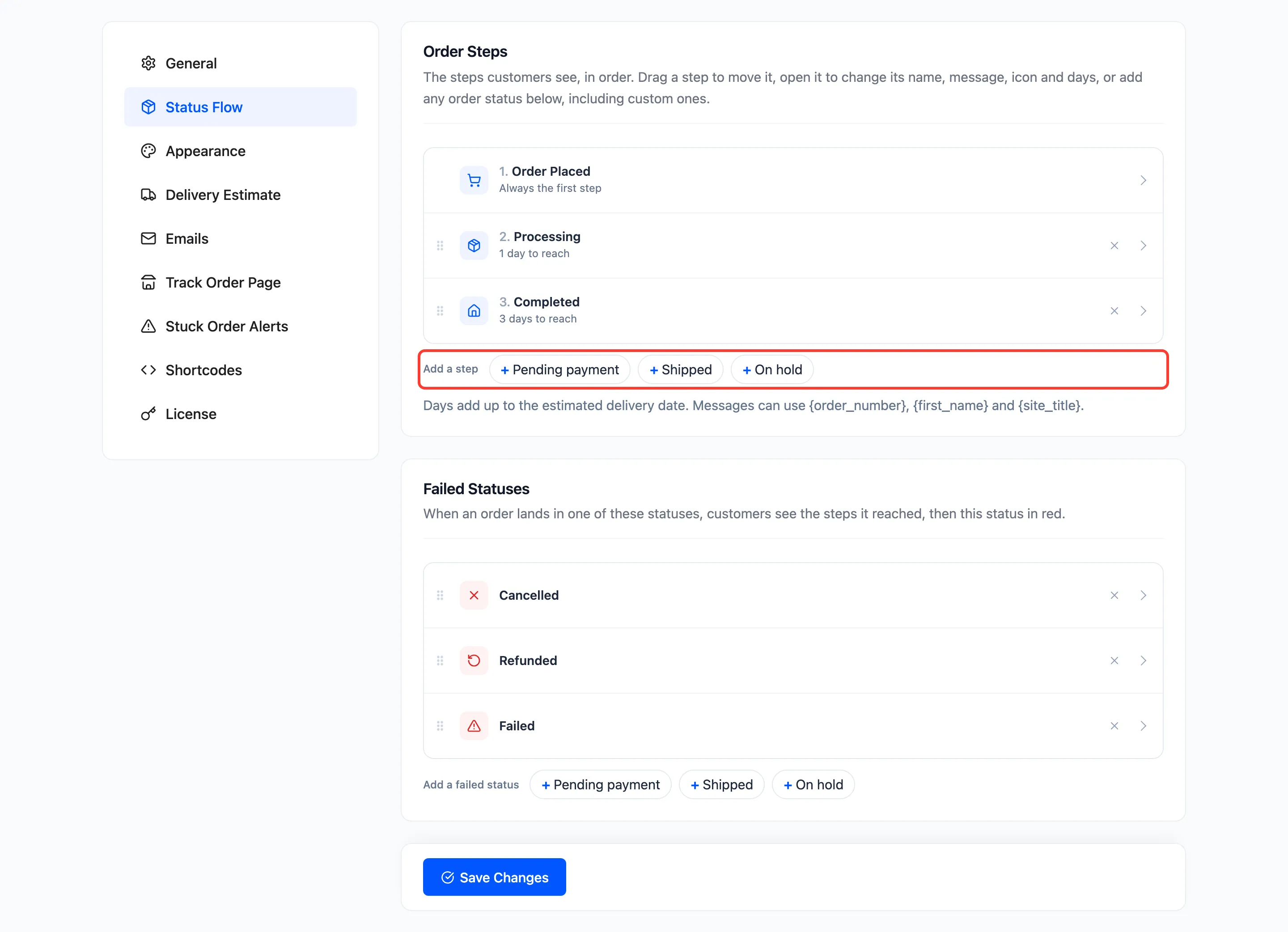
Section titled “Step 2: Add it as a step”Open Configuration → Status Flow. Shipped now appears under Add a step. Click it.
Step 3: Set its name, icon, message and days
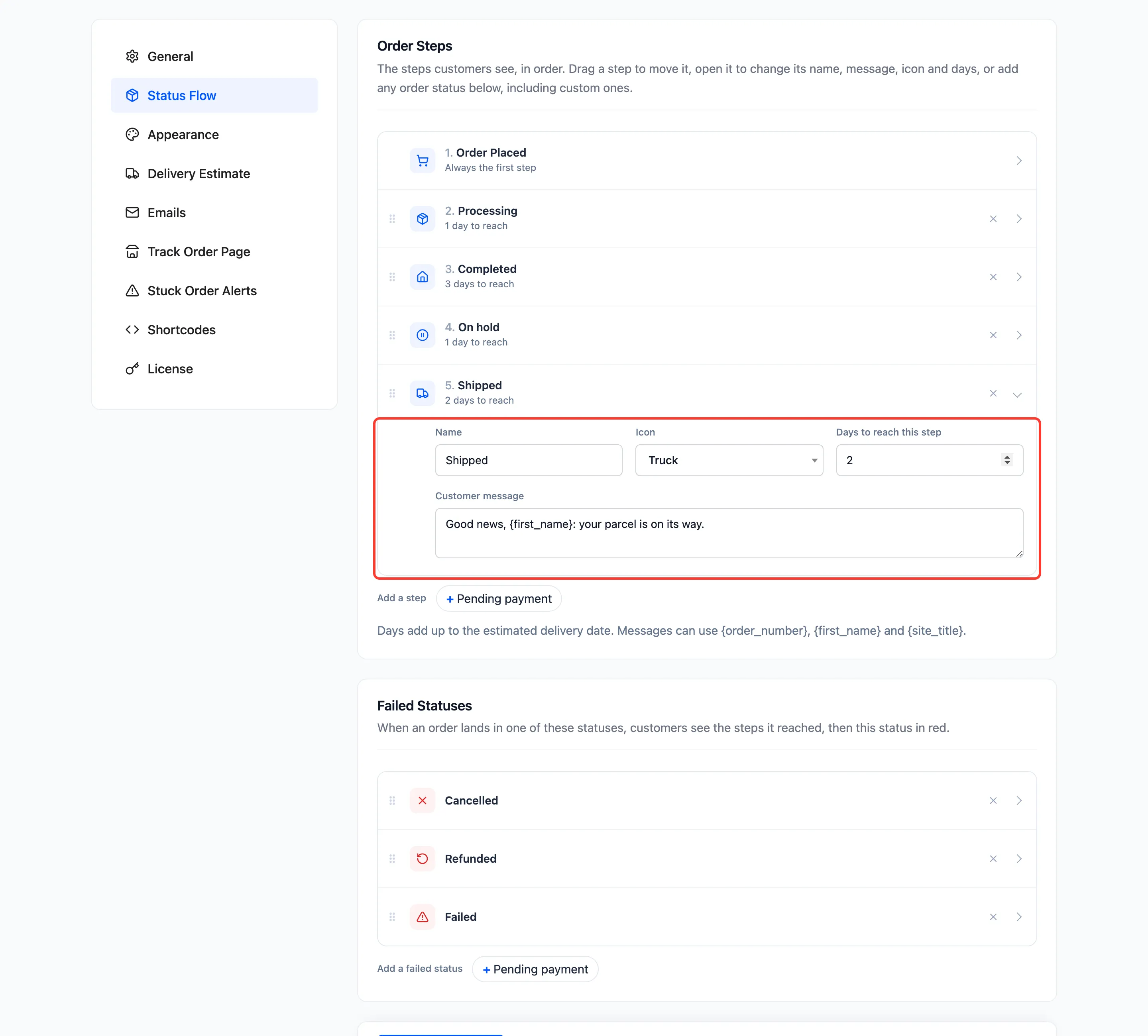
Section titled “Step 3: Set its name, icon, message and days”The row opens. A custom status starts with the Truck icon, 1 day and no message. The demo set:
- Name: Shipped.
- Icon: Truck.
- Days to reach this step: 2.
- Customer message: “Good news, {first_name}: your parcel is on its way.”
Step 4: Put it in place
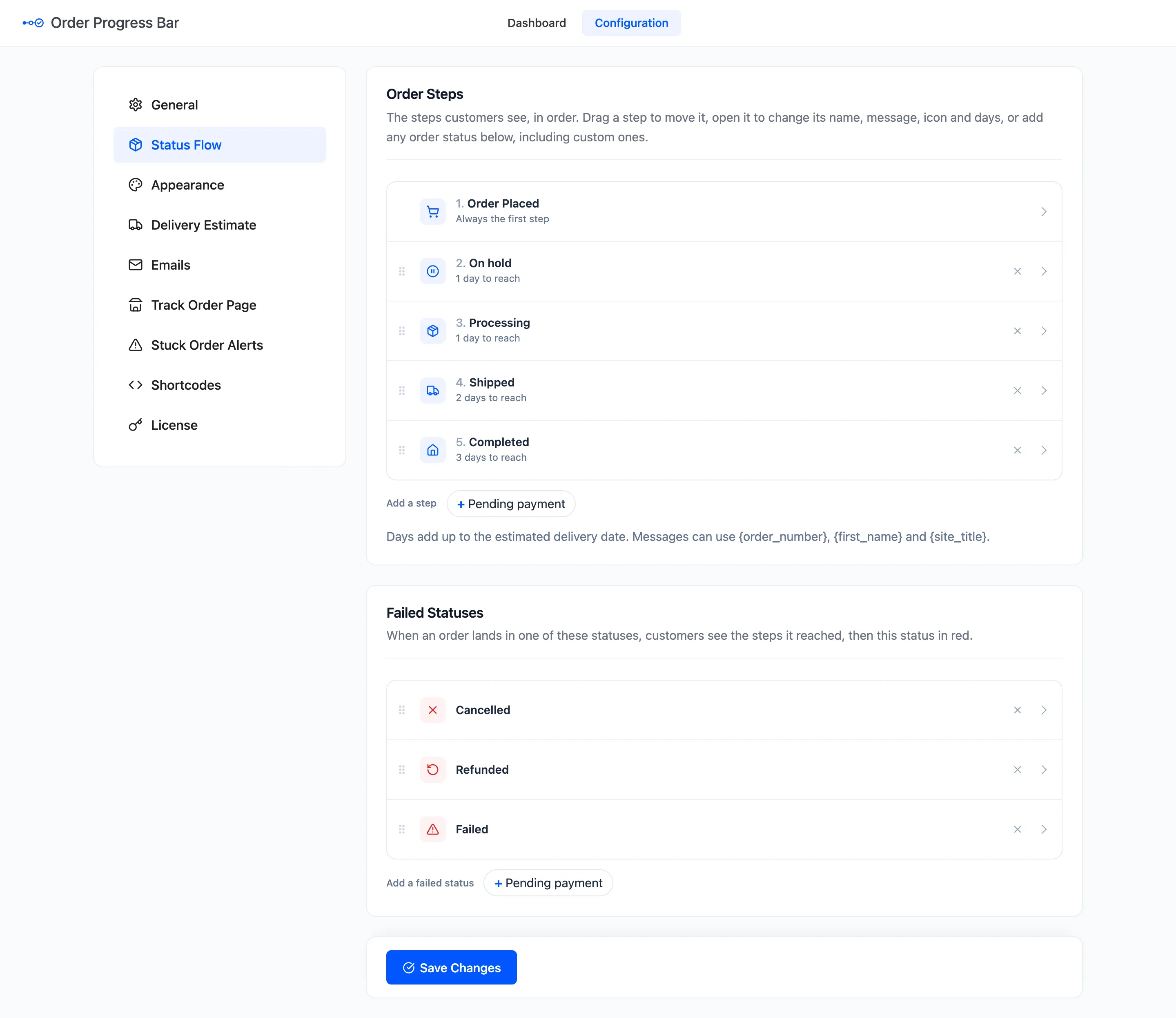
Section titled “Step 4: Put it in place”Drag Shipped by its handle so it sits between Processing and Completed. The last step must stay the end of the journey. Click Save Changes.
Step 5: Move an order to it
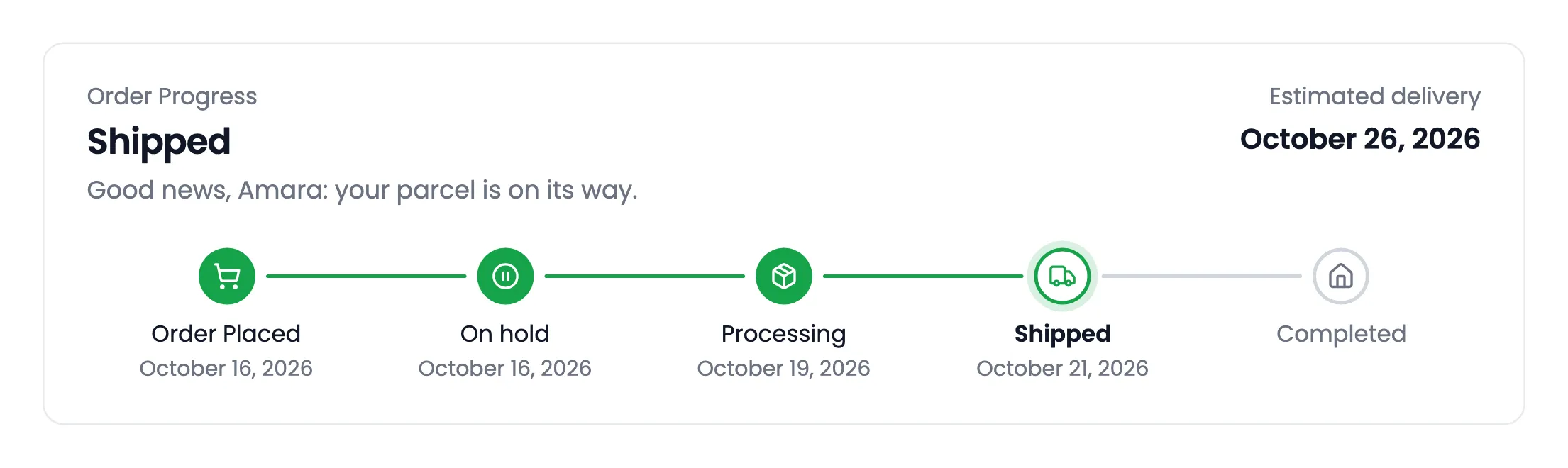
Section titled “Step 5: Move an order to it”Set an order’s status to Shipped and update it. The customer’s bar moves on, with the truck, the new message and the delivery estimate worked out again.
Email the customer at Shipped
Section titled “Email the customer at Shipped”WooCommerce sends no email for a custom status. Pick Shipped under Configuration → Emails → Send When Order Reaches, and the customer gets the Order update email. See How to Email Customers at a Custom Step.
Good to know
Section titled “Good to know”- Rename any step without touching the status. A step can read “Out for delivery” while the status stays Shipped.
- The same steps work for In production, Ready for pickup or any other status your workflow has.