

How to Email Customers at a Custom Step
WooCommerce emails customers when an order is placed, goes on hold, is processing and is completed. A custom step such as Shipped sends nothing, which is the one customers wait for. The Order update email fills that gap.
Step 1: Pick the steps
Section titled “Step 1: Pick the steps”Open Configuration → Emails and find Step Update Emails. In Send When Order Reaches, choose the statuses that should send it. The demo picked Shipped.
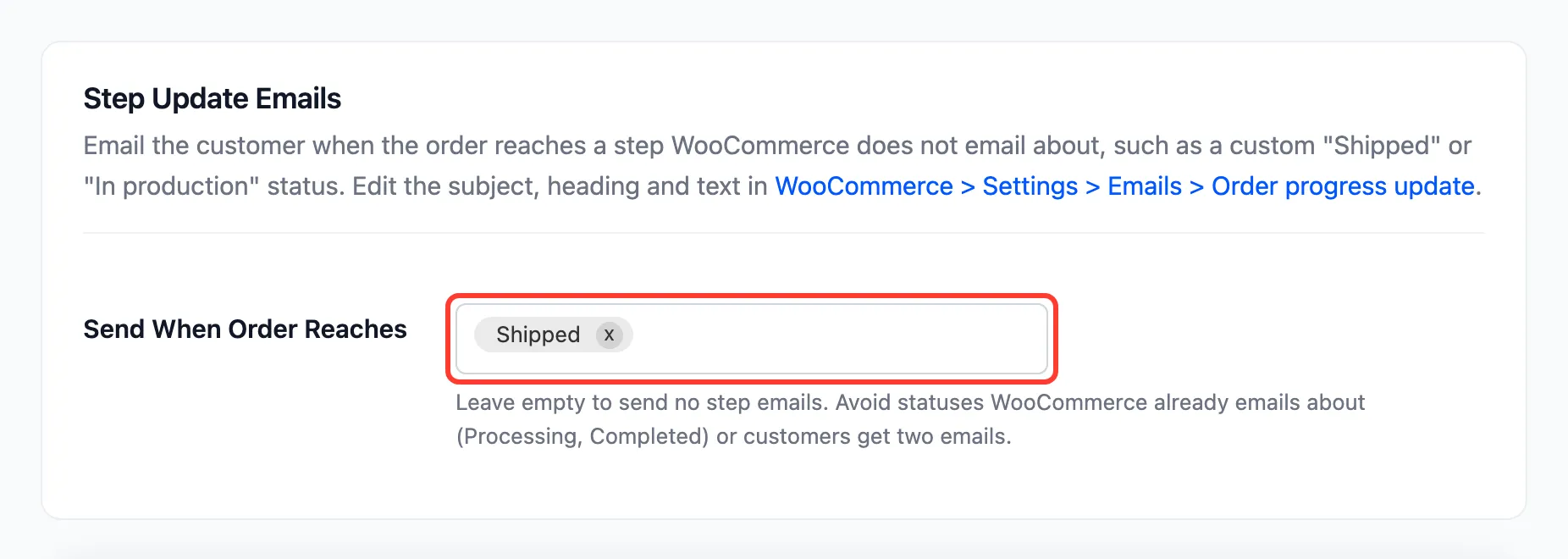
Avoid Processing and Completed: WooCommerce already emails about those, so customers would get two.
Step 2: Save
Section titled “Step 2: Save”Click Save Changes.
Step 3: Edit the wording
Section titled “Step 3: Edit the wording”The email is a WooCommerce email of its own. Its wording lives under WooCommerce → Settings → Emails → Order progress update, where the tab’s link goes.
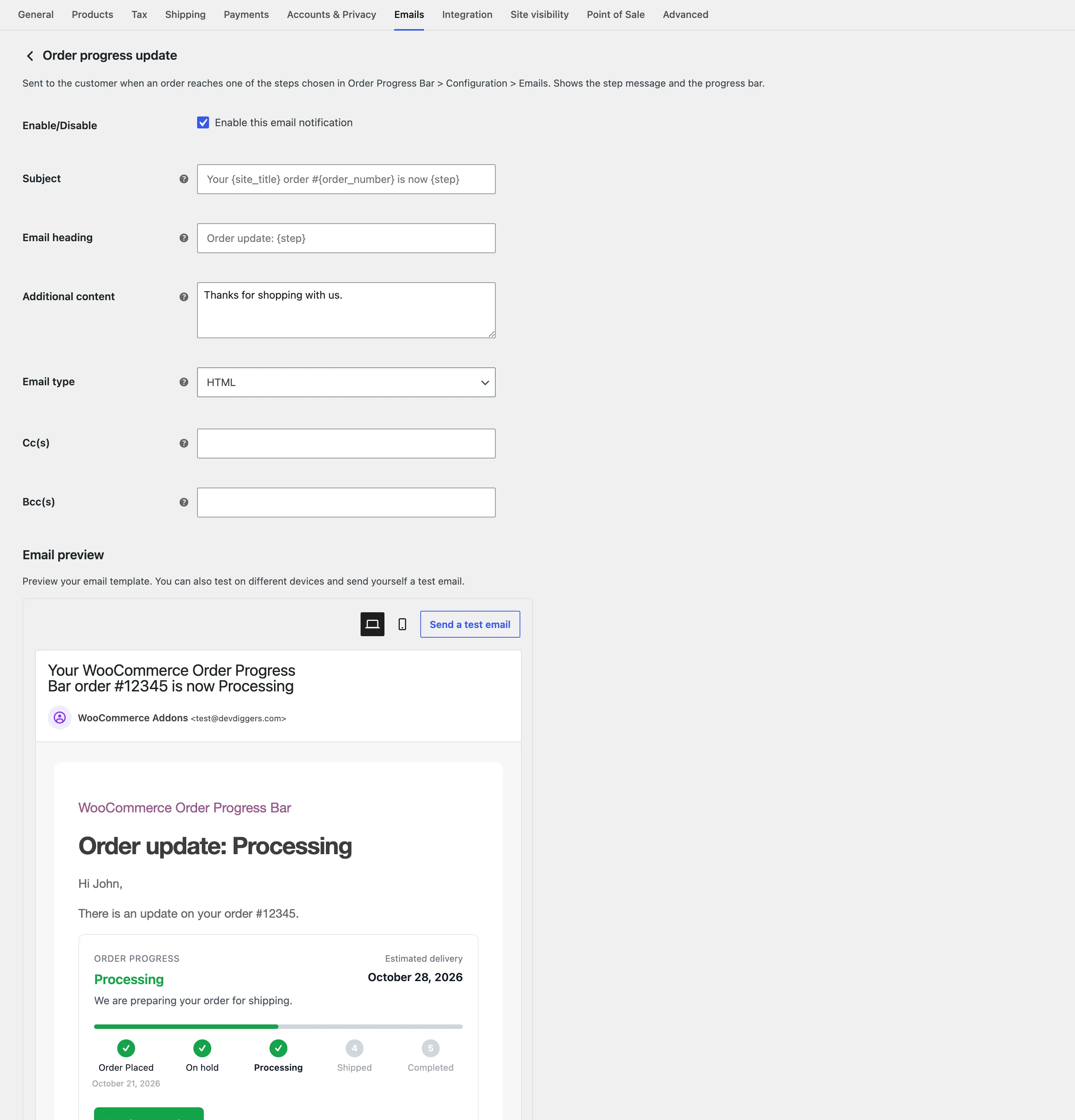
- Subject:
Your {site_title} order #{order_number} is now {step}. - Email heading:
Order update: {step}. - Additional content: “Thanks for shopping with us.”
{step} is the step’s name from Status Flow. The preview at the bottom shows WooCommerce’s sample order on
a real step.
Step 4: Move an order to the step
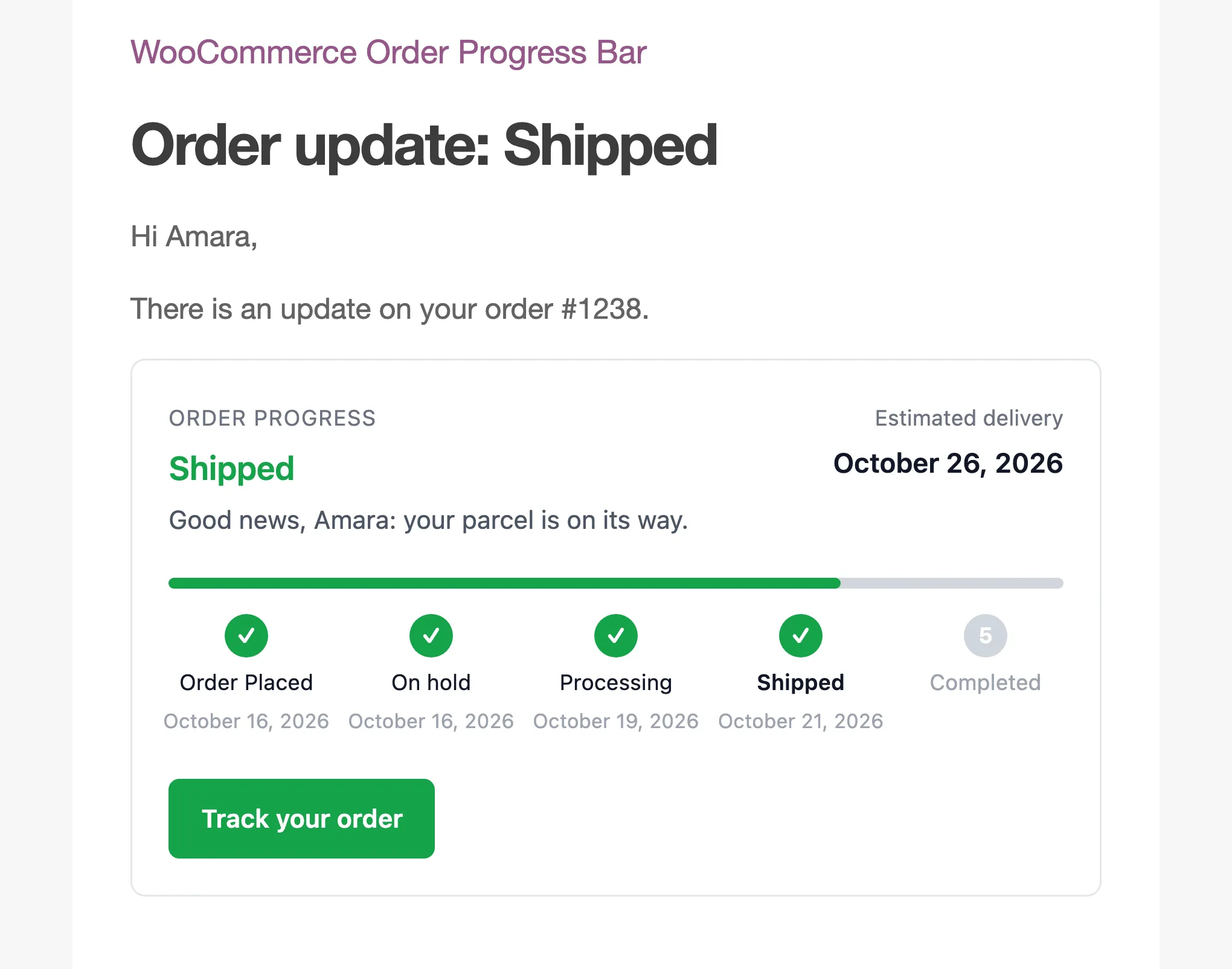
Section titled “Step 4: Move an order to the step”On the demo, Amara’s order was set to Shipped. The email arrived straight away, with the step’s message, the bar and the order.
Good to know
Section titled “Good to know”- The email goes to the order’s billing email, once each time the order reaches a chosen status.
- Enable this email notification on WooCommerce’s screen switches it off without changing the list.
- It is not sent while the plugin is switched off or the license is inactive.