

How to Use Saved Reply Templates (Pro)
Step 1: Create a template
Section titled “Step 1: Create a template”Go to Order Communication → Templates and click Add New Template.

Step 2: Write it with placeholders
Section titled “Step 2: Write it with placeholders”- Title: Short and searchable, for example “Exchange approved”.
- Category: General, Shipping, Payment, Refund or Support.
- Message: Click a placeholder button to insert it where the cursor is.
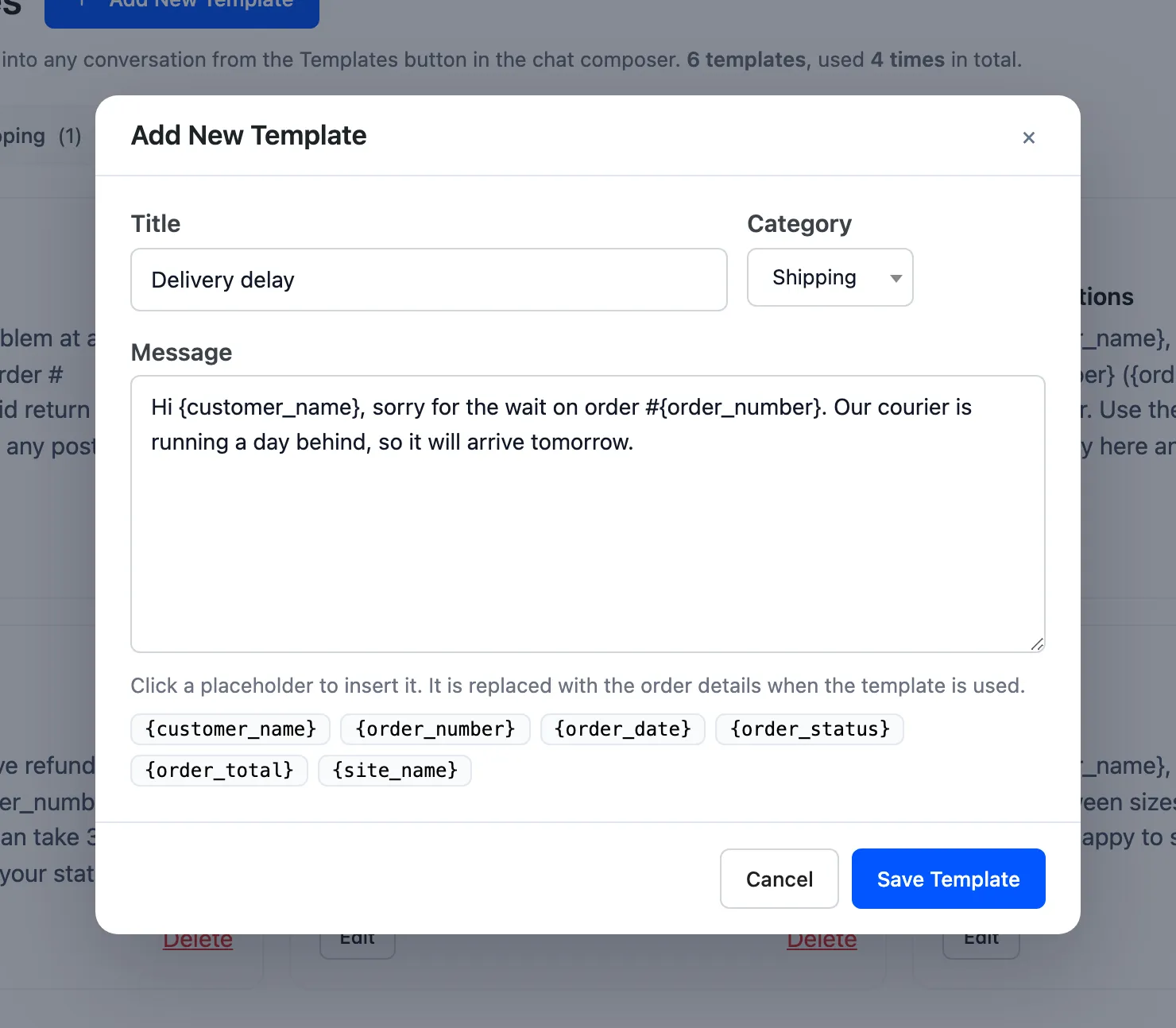
Click Save Template. It appears as a card on the Templates screen.
Step 3: Open the Templates list
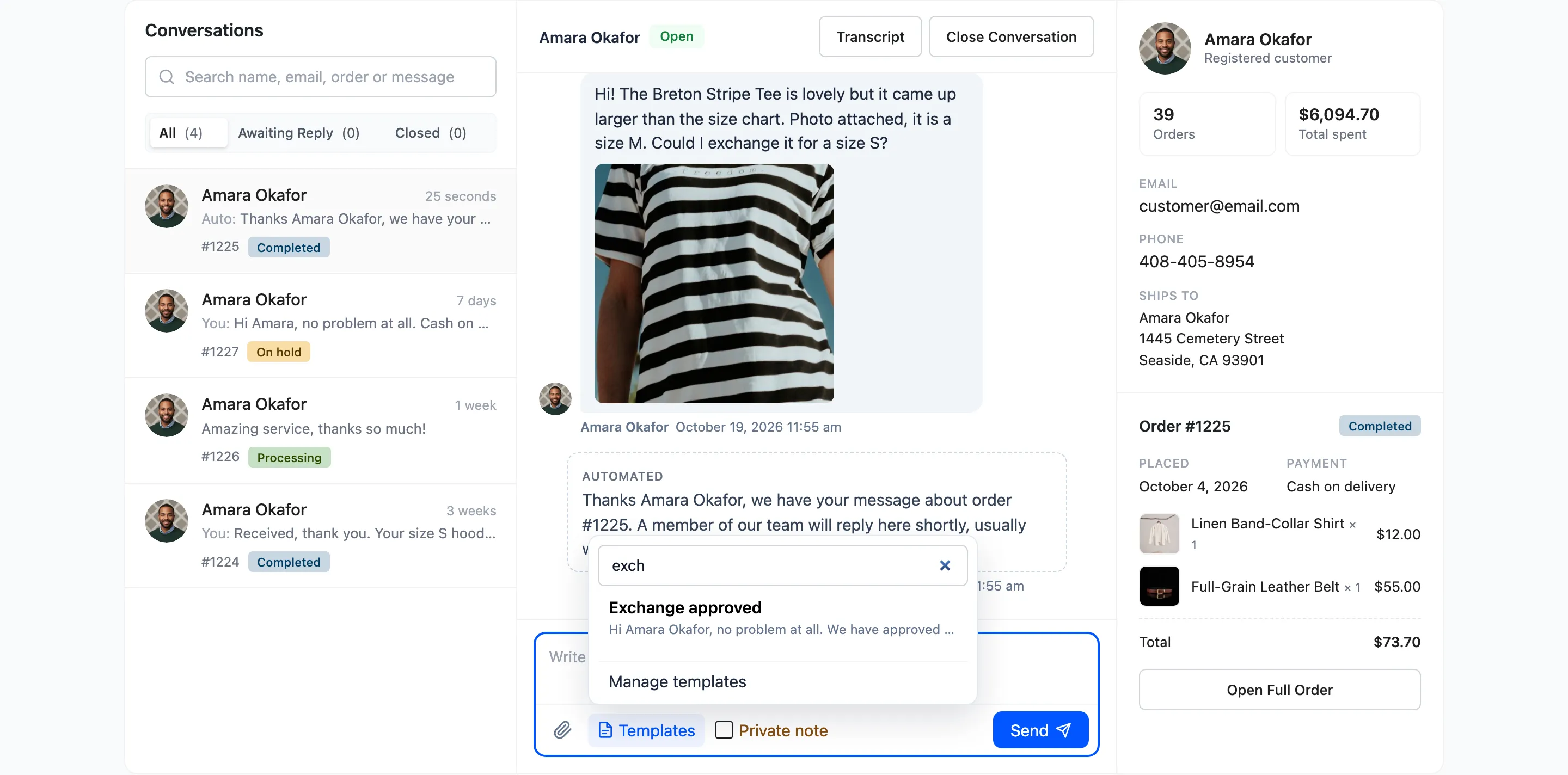
Section titled “Step 3: Open the Templates list”In the Inbox or the Order Communication box on an order, click Templates in the composer toolbar.
Step 4: Pick a template
Section titled “Step 4: Pick a template”Type part of the title or text to narrow the list. Click the template, or press Enter for the first match.
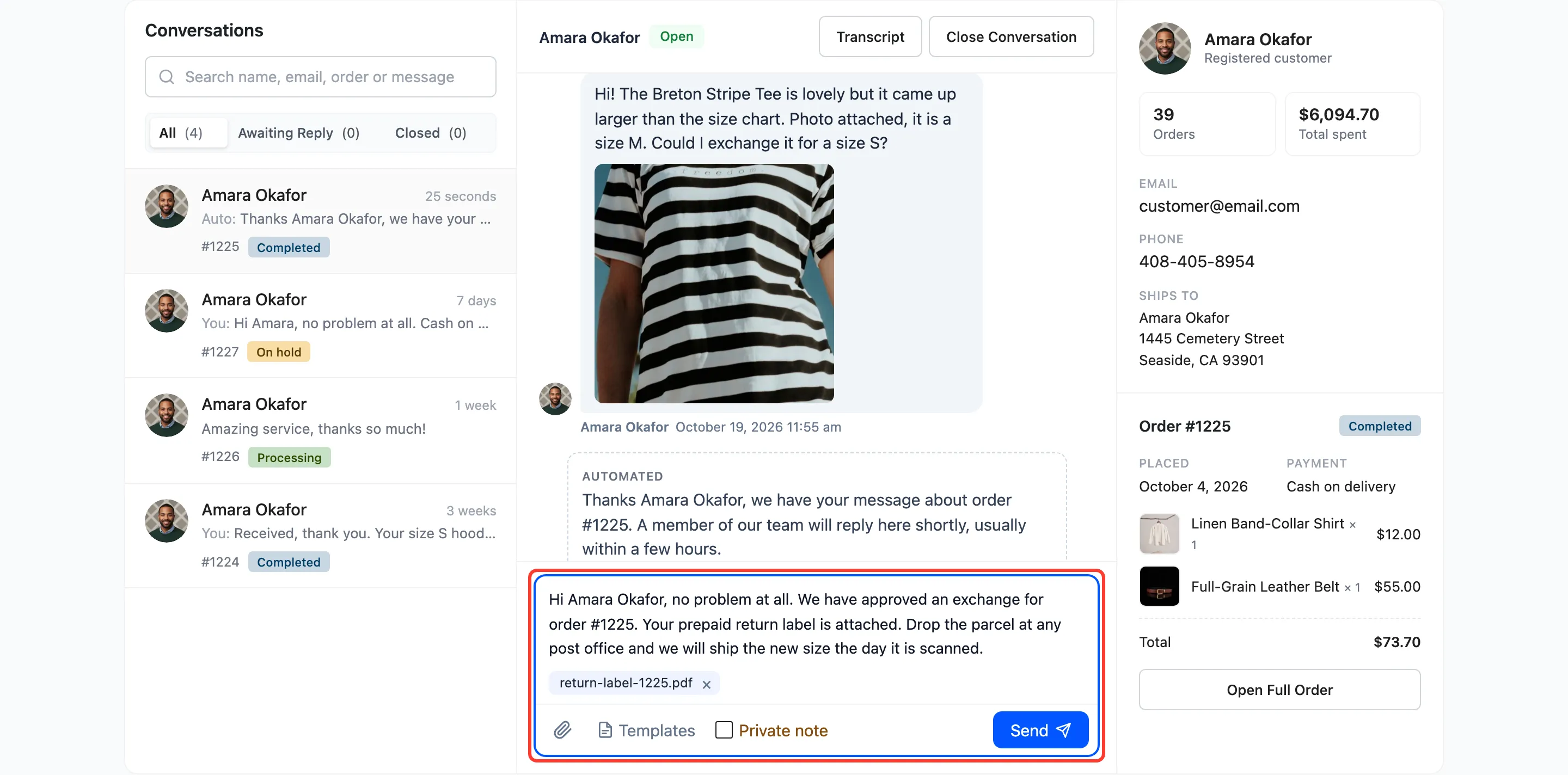
The text goes into the composer with every placeholder replaced for this order. “{customer_name}” became “Amara Okafor” and “{order_number}” became “1225”.
Step 5: Edit and send
Section titled “Step 5: Edit and send”The inserted text is ordinary text. Change anything you like, then click Send. Each time someone inserts a template, its Used count on the Templates screen goes up by one, so you can see which answers your team relies on.
Ideas for a first set
Section titled “Ideas for a first set”- Order shipped, with your usual delivery times.
- Payment options for a pending order.
- Exchange or return approved.
- Refund processed, with how long banks take.
- Size advice for your fit.