

Templates (Pro)
Templates are saved replies. Write an answer once, and anyone on your team can drop it into a conversation with the customer’s name, order number and total already filled in. Open Order Communication → Templates.
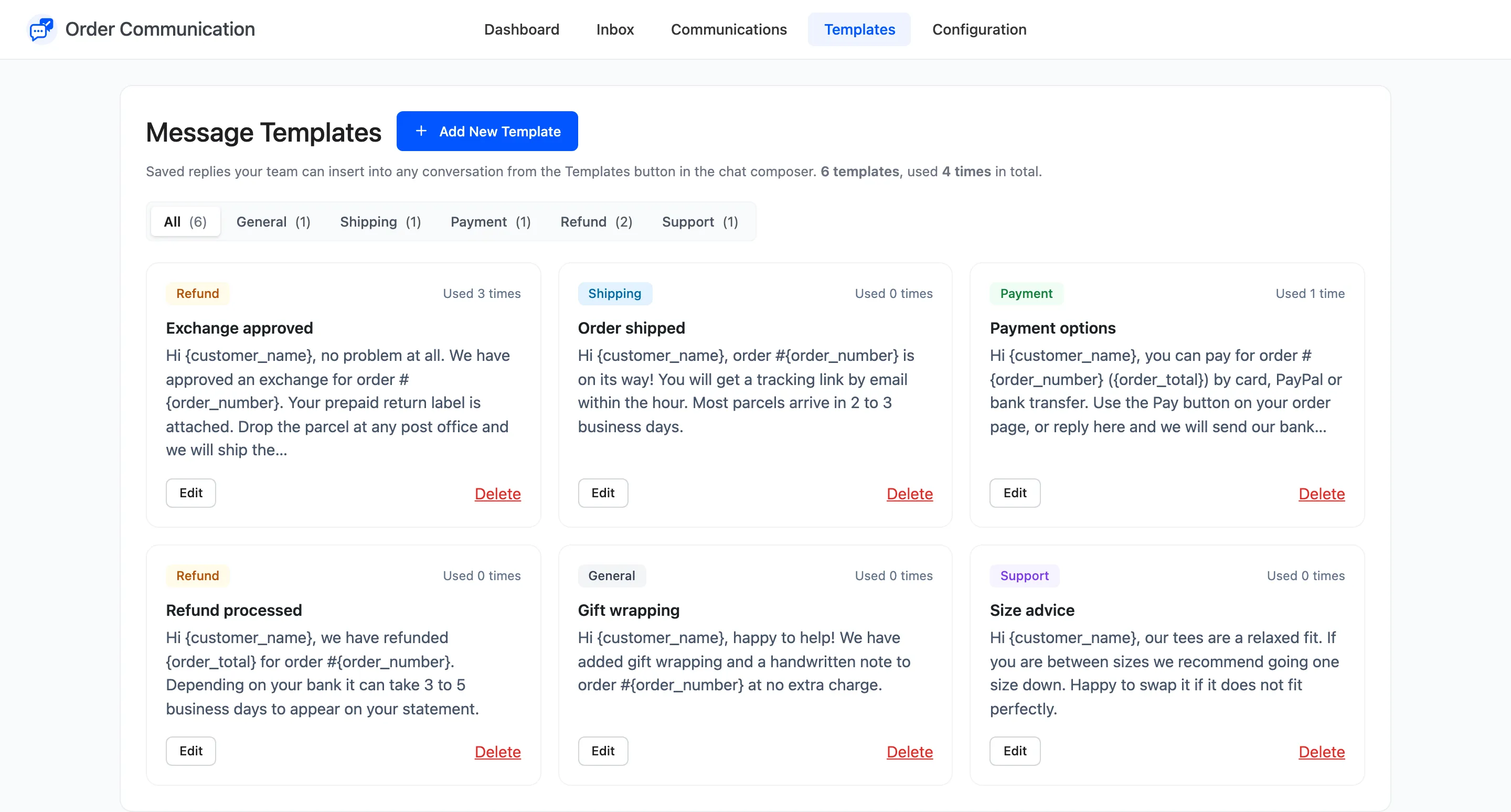
The cards
Section titled “The cards”Each template is a card with its category, how many times your team has used it, its title, the start of its text, and Edit and Delete. The line under the heading totals the templates and their uses.
Categories
Section titled “Categories”Every template belongs to one of five categories: General, Shipping, Payment, Refund or Support. The tabs above the cards filter by category and only show categories that have templates.
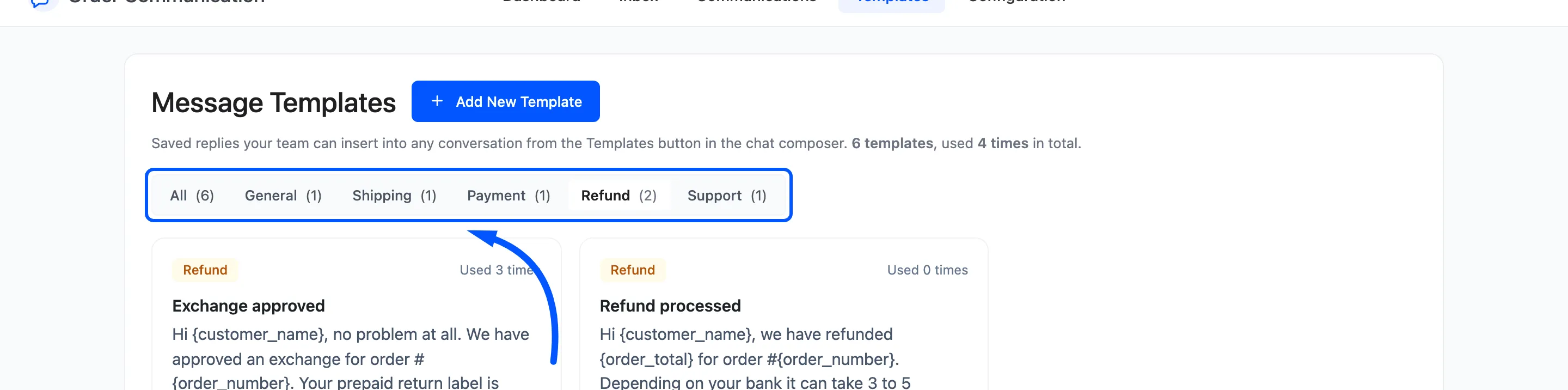
Add or edit a template
Section titled “Add or edit a template”Click Add New Template, or Edit on a card. Fill in:
- Title: What your team sees in the composer list, for example “Order shipped”.
- Category: One of the five above.
- Message: The reply. Click a placeholder button under it to insert
{customer_name},{order_number},{order_date},{order_status},{order_total}or{site_name}at the cursor.
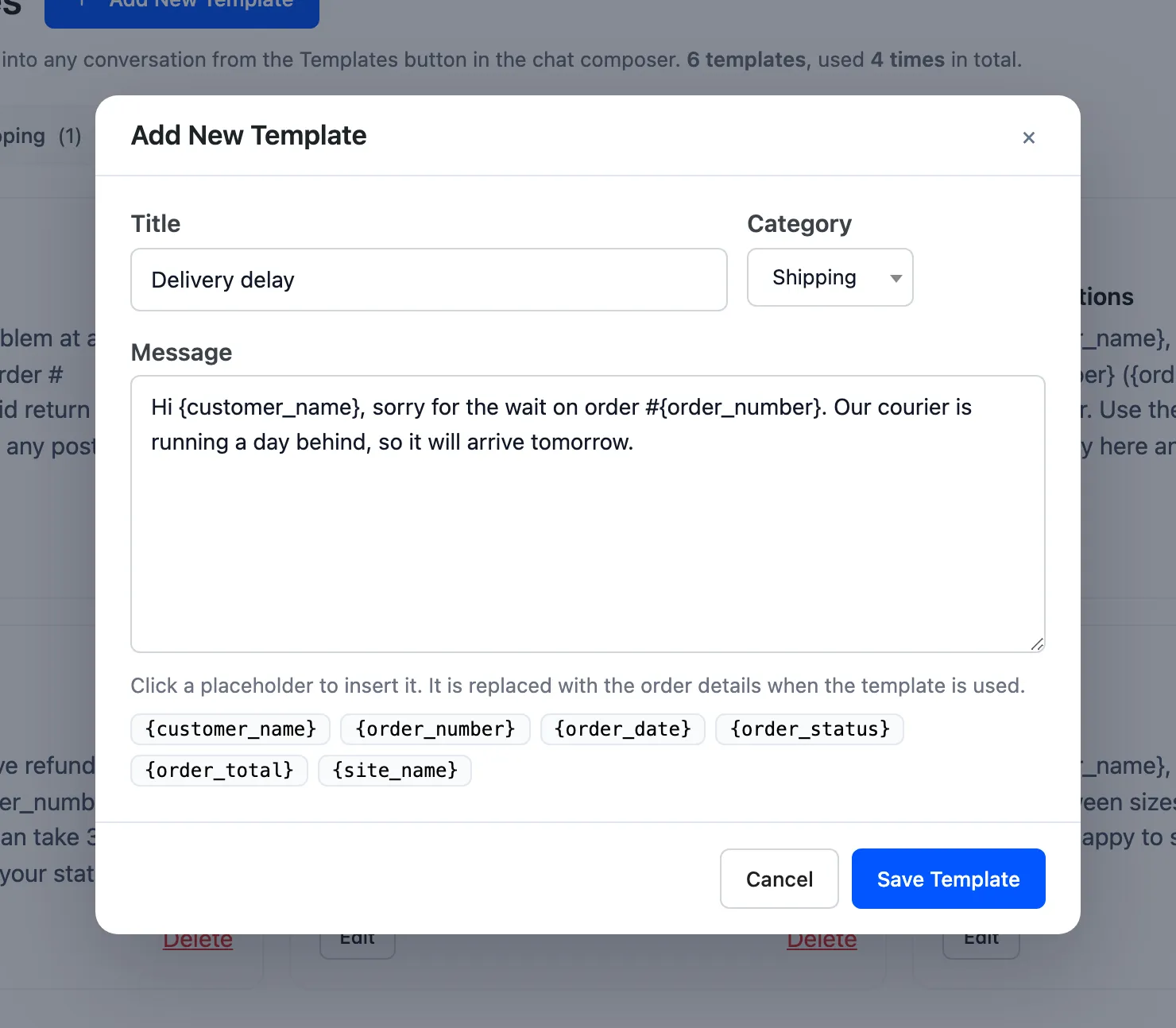
Click Save Template. Title and message are both required. Delete asks you to confirm first.
Use a template
Section titled “Use a template”In any conversation, click Templates in the composer. Type to search titles and text, then click a template, or press Enter to take the first match. It is inserted with the placeholders already replaced, so you can edit it before sending.
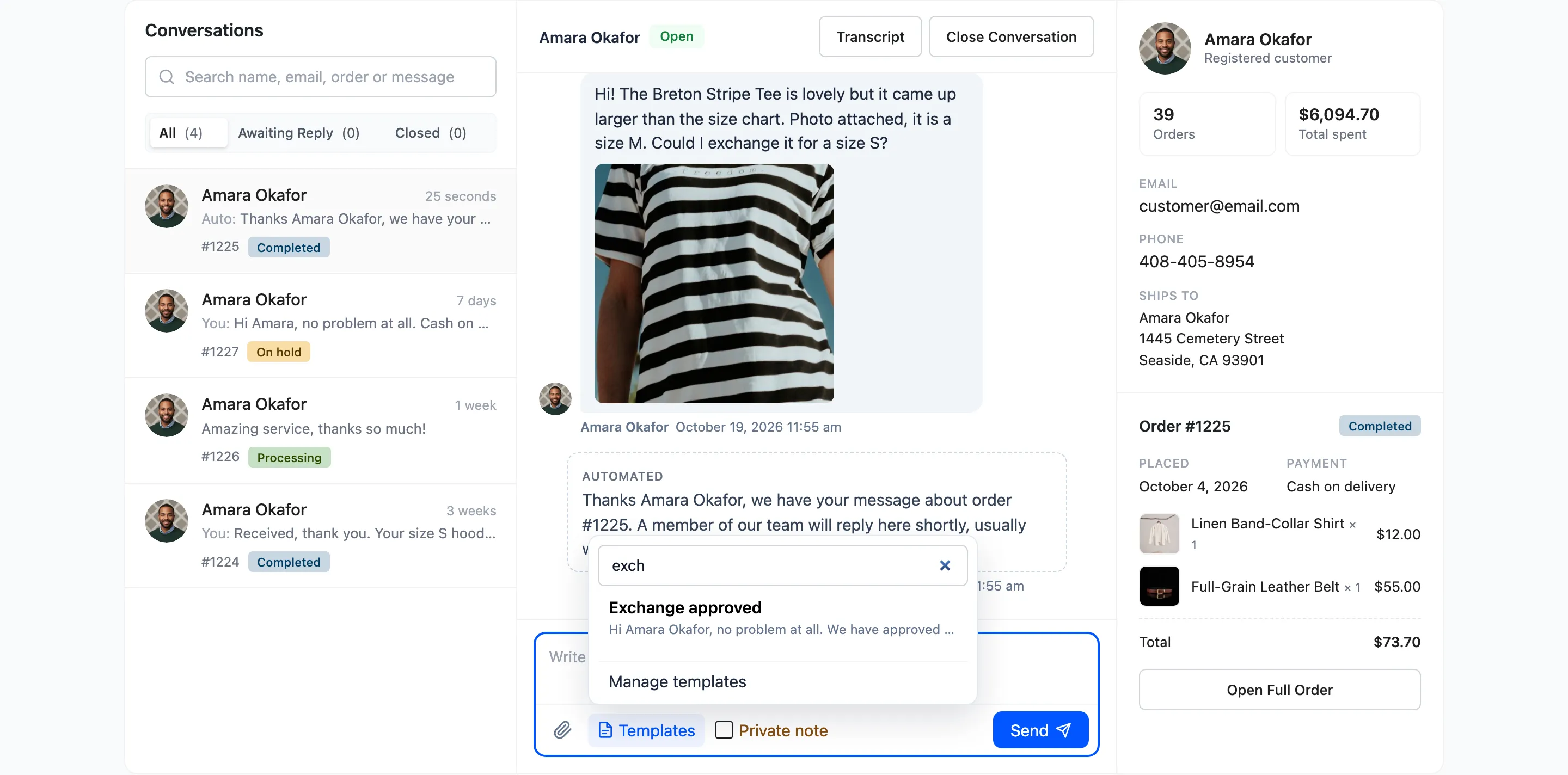
If the composer already has text, the template goes on a new line under it.