

How to Send Automatic Order Status Updates (Pro)
Most order questions are “where is it?”. A message each time the status changes answers it before it is asked, in the same place as the rest of the conversation.
Step 1 and 2: Turn status messages on
Section titled “Step 1 and 2: Turn status messages on”Go to Order Communication → Configuration → Automation and tick Post an automated message when the order status changes. Pro ticks it on install, but posts nothing until a status has a message.
Step 3: Write a message per status
Section titled “Step 3: Write a message per status”Under Messages per Status there is a box for every order status, custom ones included. The grey text in five of them is a suggestion. The demo store uses the suggestions for Processing, Completed, On hold and Cancelled, and adds the amount to Refunded:
Hi {customer_name}, your refund of {order_total} for order #{order_number} has been processed.
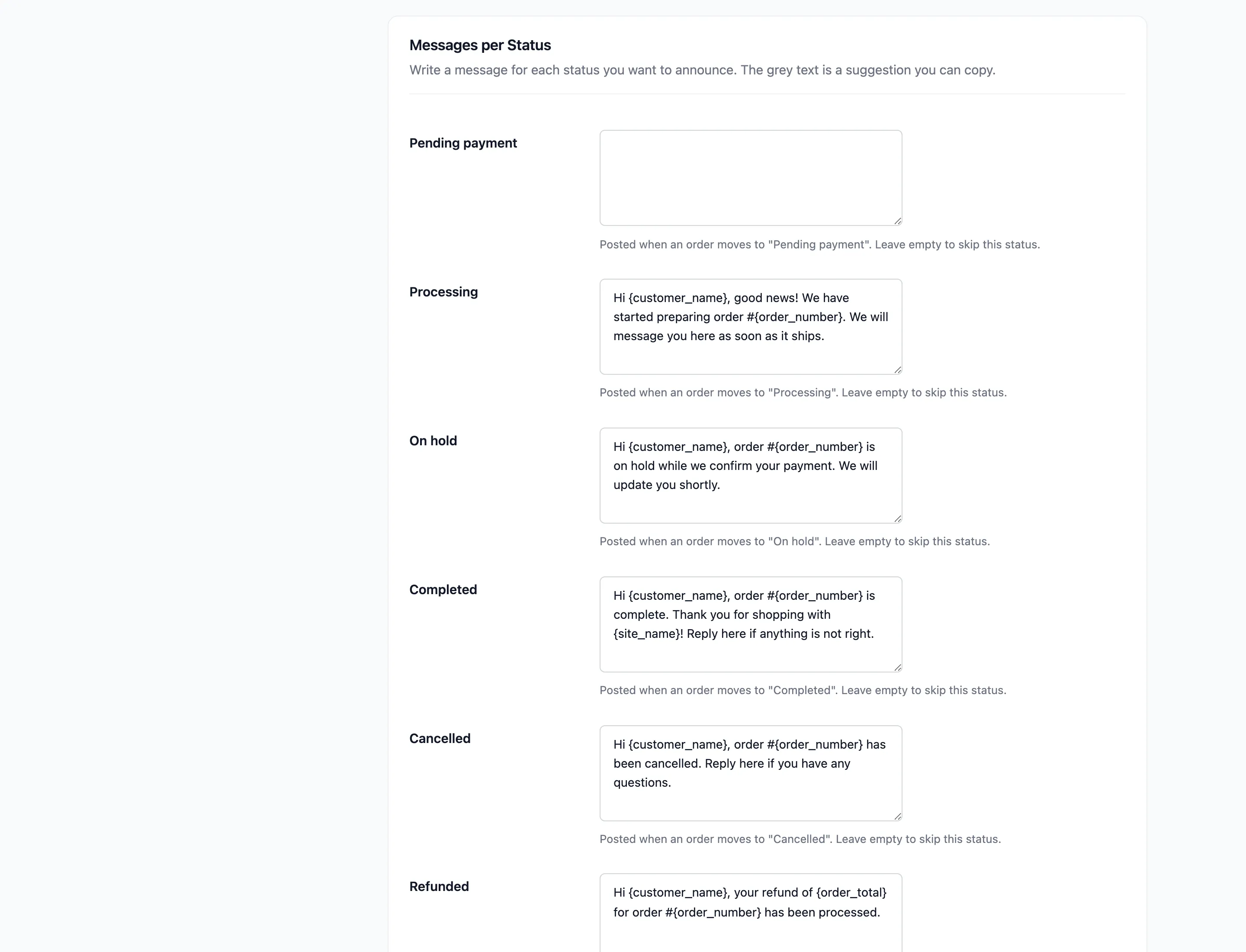
Leave a box empty to say nothing for that status. Pending payment and Failed are usually best left empty.
Step 4: Save
Section titled “Step 4: Save”Click Save Changes.
Step 5: Change an order’s status
Section titled “Step 5: Change an order’s status”Change the status the way you always do: on the order screen, by a bulk action, or automatically when a payment arrives. On the demo, Amara asked why order #1227 was on hold. Moving it to Processing posted the answer into her conversation.
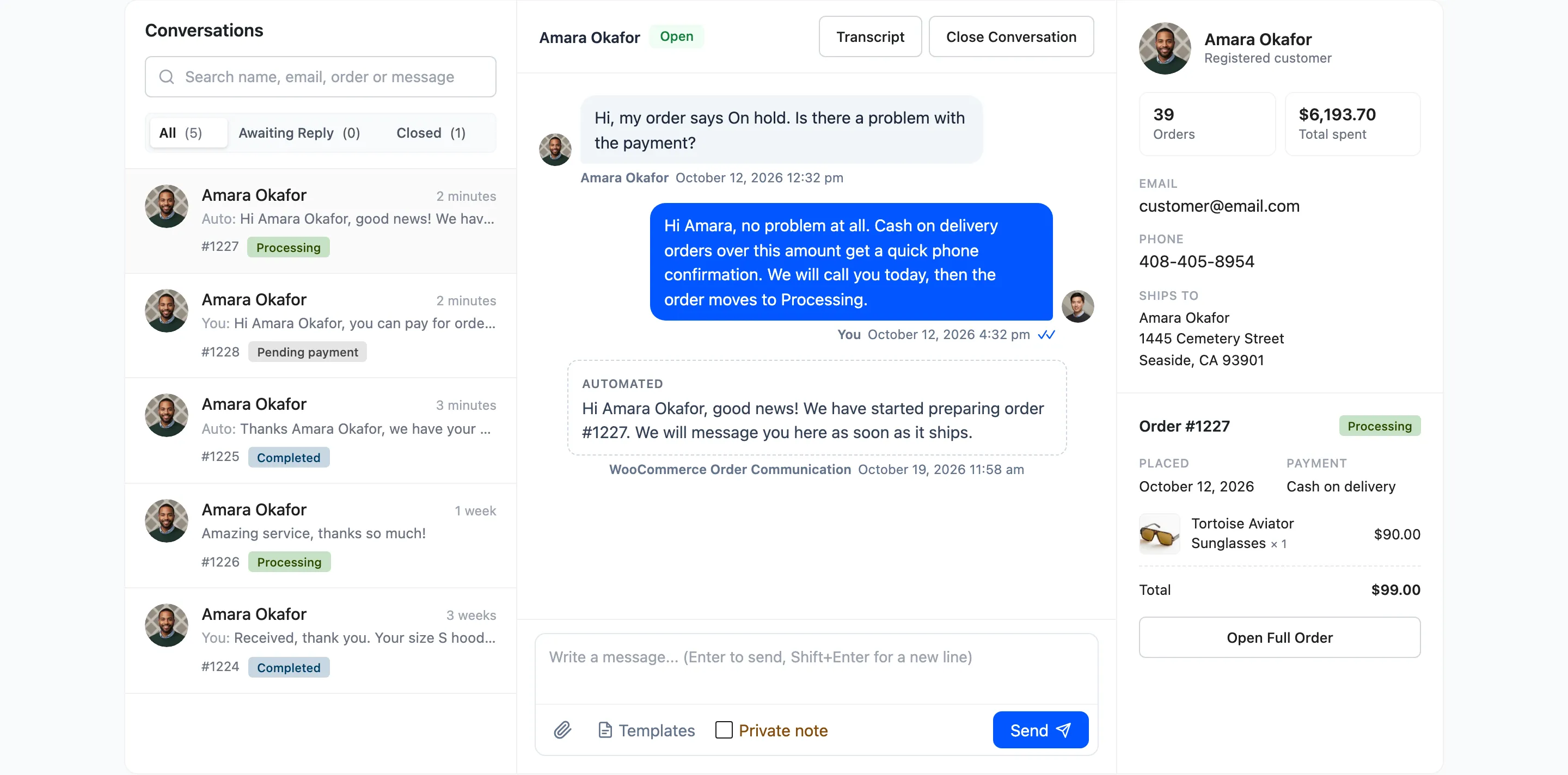
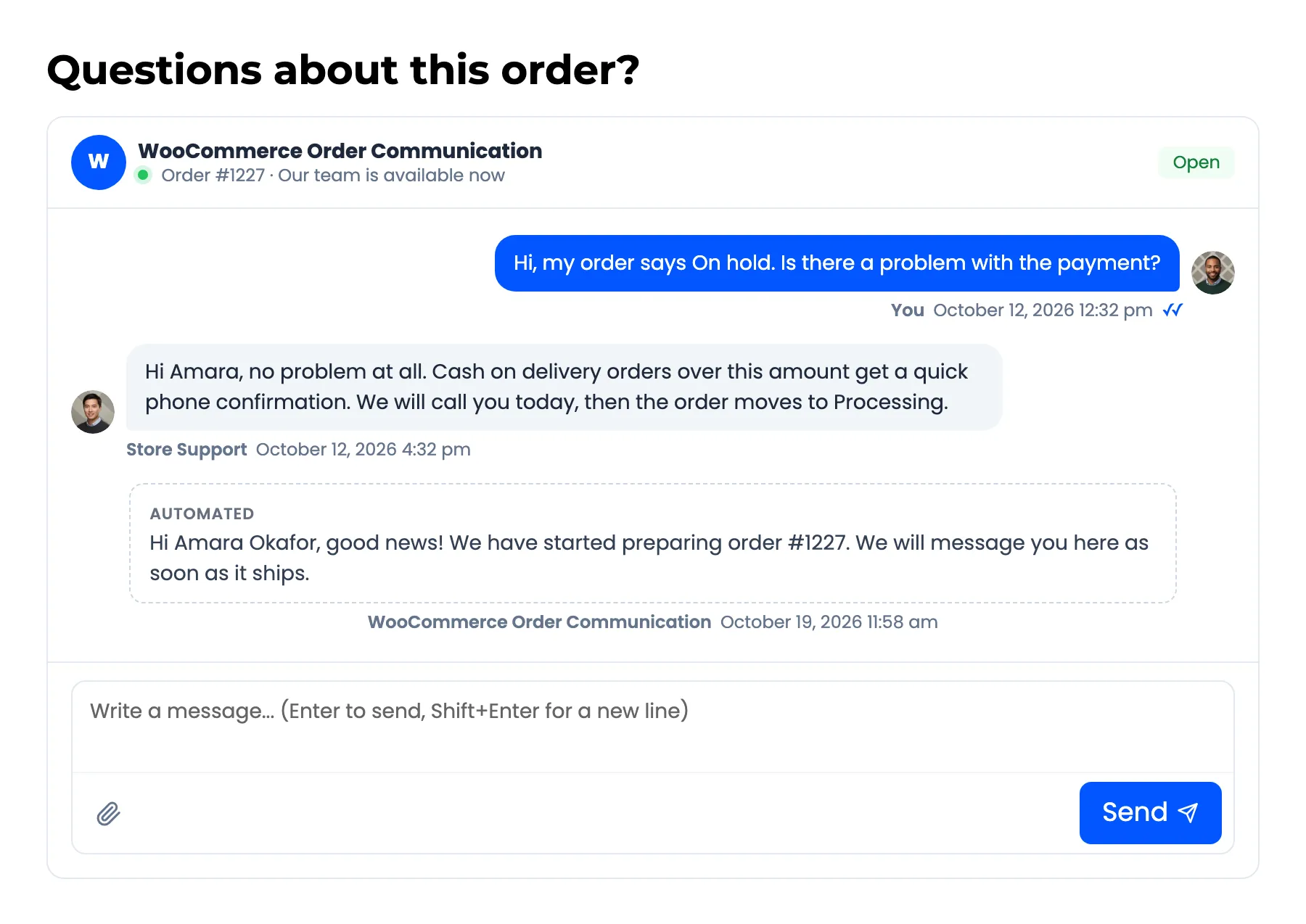
The customer sees it marked Automated and gets the customer notification email with it, if that email is on.
Things to know
Section titled “Things to know”- WooCommerce still sends its own status emails. A customer with both on gets two emails for one status change. Keep the conversation message short, or turn off the WooCommerce email for that status under WooCommerce → Settings → Emails.
- Every order gets it, including orders with no conversation. The message starts one.
- It is posted into closed conversations too. Closing stops the customer writing, not the store.