

Email Settings
Order Communication sends two emails. One tells your team a customer wrote. The other tells the customer your team replied. Open Order Communication → Configuration → Emails.
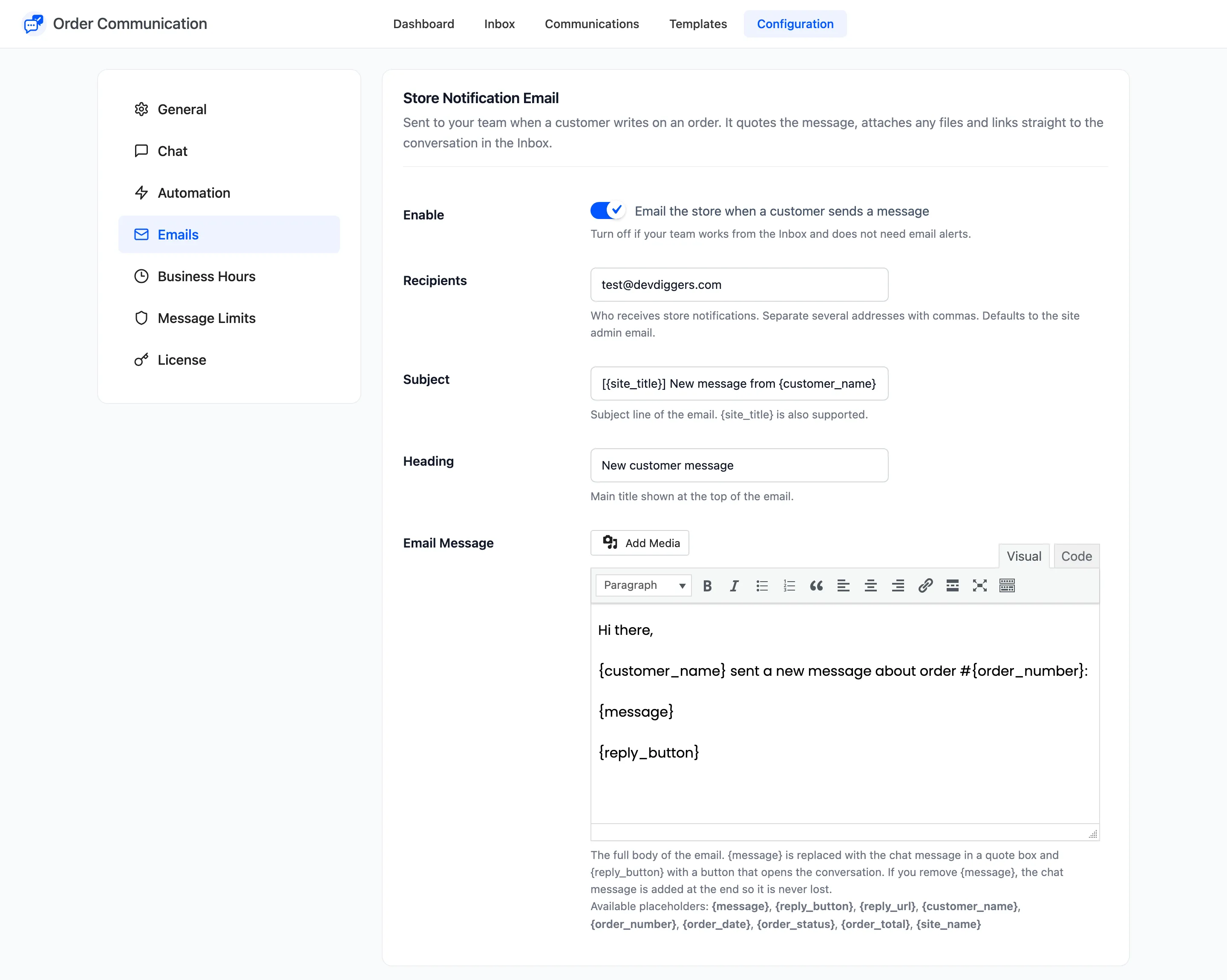
Store Notification Email
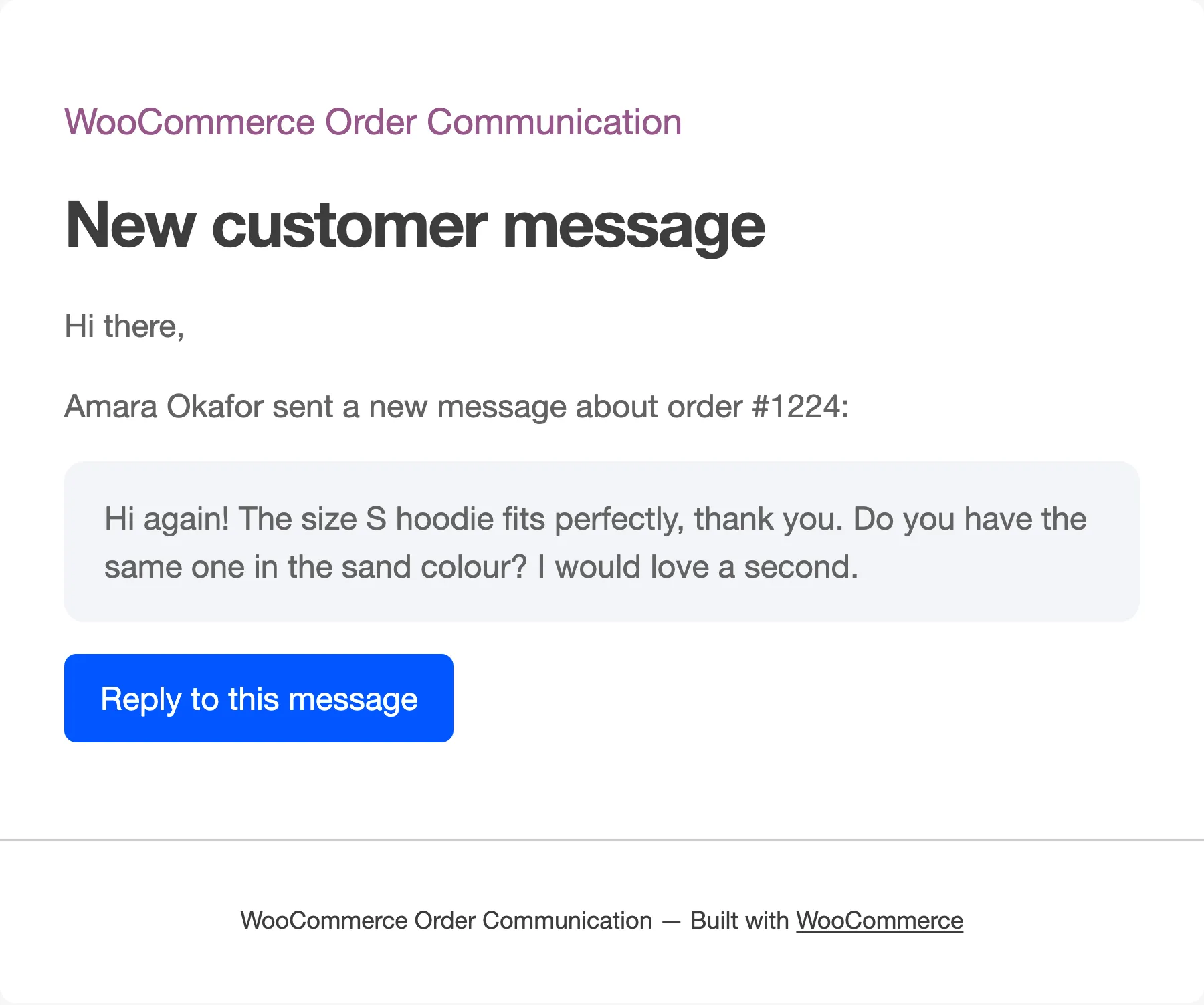
Section titled “Store Notification Email”Sent to your team each time a customer writes. It quotes the message, attaches the customer’s files (Pro), and has a Reply to this message button that opens the conversation in the Inbox.
- Enable: “Email the store when a customer sends a message”. On by default. Turn it off if your team works from the Inbox anyway.
- Recipients: Who gets it. Separate several addresses with commas. Empty means the site admin email.
- Subject (Pro): Default “[{site_title}] New message from {customer_name} on order #{order_number}”.
- Heading (Pro): Default “New customer message”.
- Email Message (Pro): The whole body, in a visual editor.
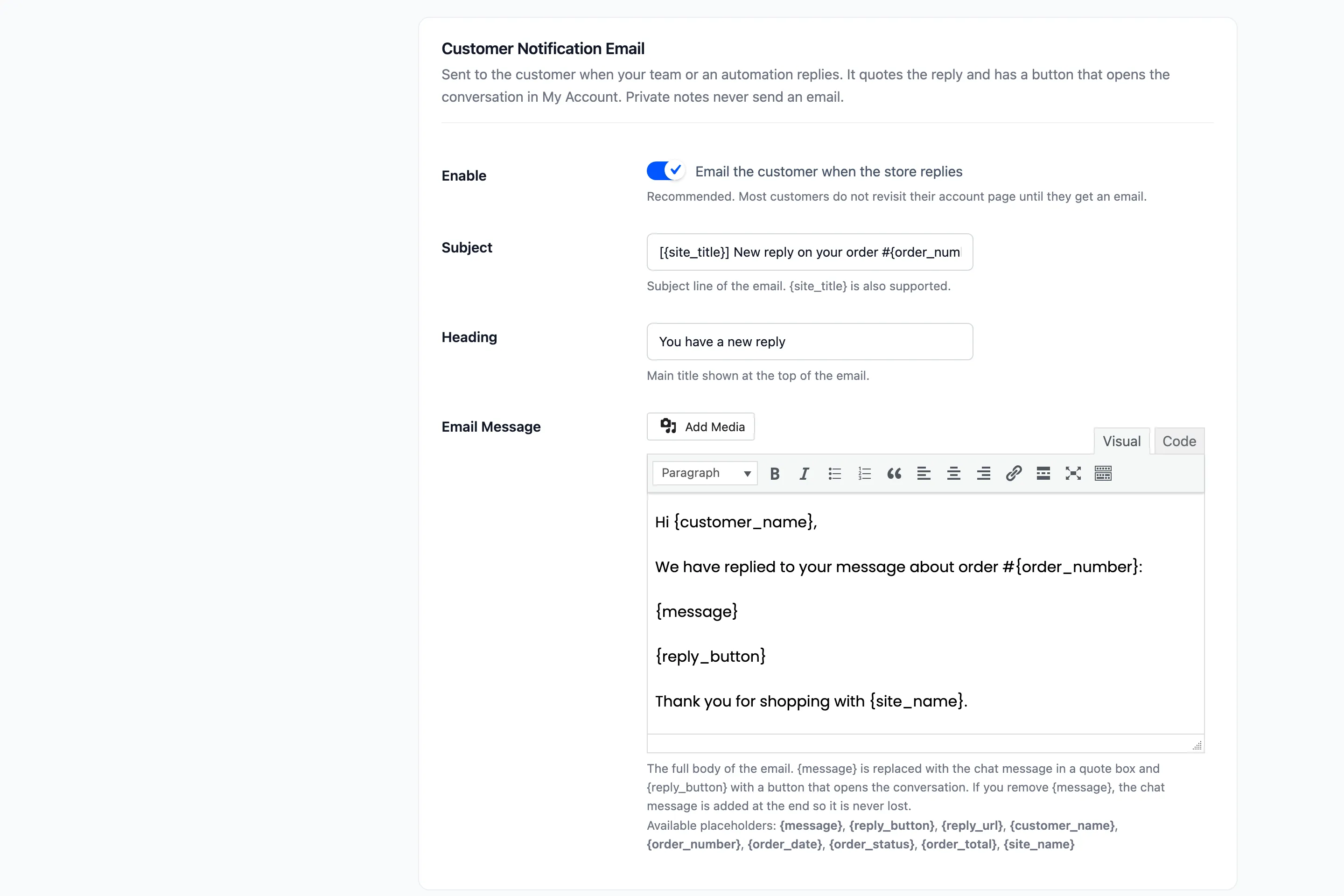
Customer Notification Email
Section titled “Customer Notification Email”Sent to the customer’s billing email when your team, or an order status message, writes. It quotes the message and has a Reply to this message button that opens the order in My Account.
- Enable: “Email the customer when the store replies”. On by default and recommended. Most customers do not open their account page again until an email tells them to.
- Subject (Pro): Default “[{site_title}] New reply on your order #{order_number}”.
- Heading (Pro): Default “You have a new reply”.
- Email Message (Pro): The whole body.
Private notes, the instant auto-reply and the business hours notice never send this email.
Placeholders in the email
Section titled “Placeholders in the email”All the conversation placeholders work, plus:
{message}: The chat message, in a quote box. If you delete it from the body, the message is added at the end anyway, so it is never lost.{reply_button}: The Reply to this message button.{reply_url}: The bare link behind the button, for your own link text.{site_title}: Your site title, in the subject.
In WooCommerce’s email list
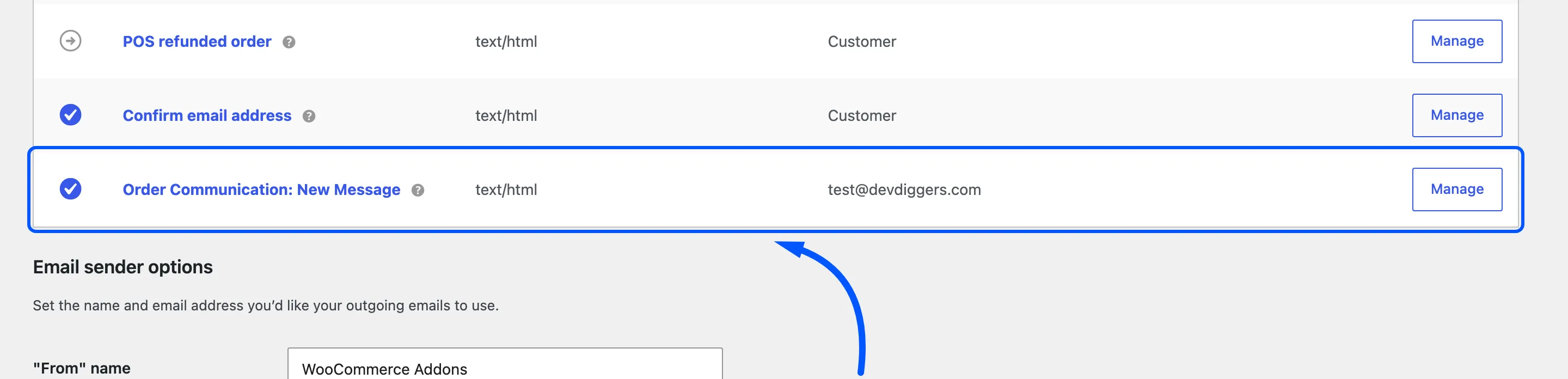
Section titled “In WooCommerce’s email list”Both emails go through WooCommerce, so they use your WooCommerce email colours, header image and footer. They appear together as Order Communication: New Message under WooCommerce → Settings → Emails. Leave that entry enabled: switching it off there stops both emails, whatever this tab says.
How to Customize the Notification Emails rewrites one end to end.