

The Order Communication Setup Wizard
The setup wizard opens the first time you visit Order Communication after activating the plugin. It sets the few switches that decide whether conversations work at all. Everything it sets can be changed later under Configuration.
You can reopen it at any time from Order Communication → Dashboard by adding
&setup-wizard=true to the page address. Skip Setup on any step leaves the wizard without saving that
step.
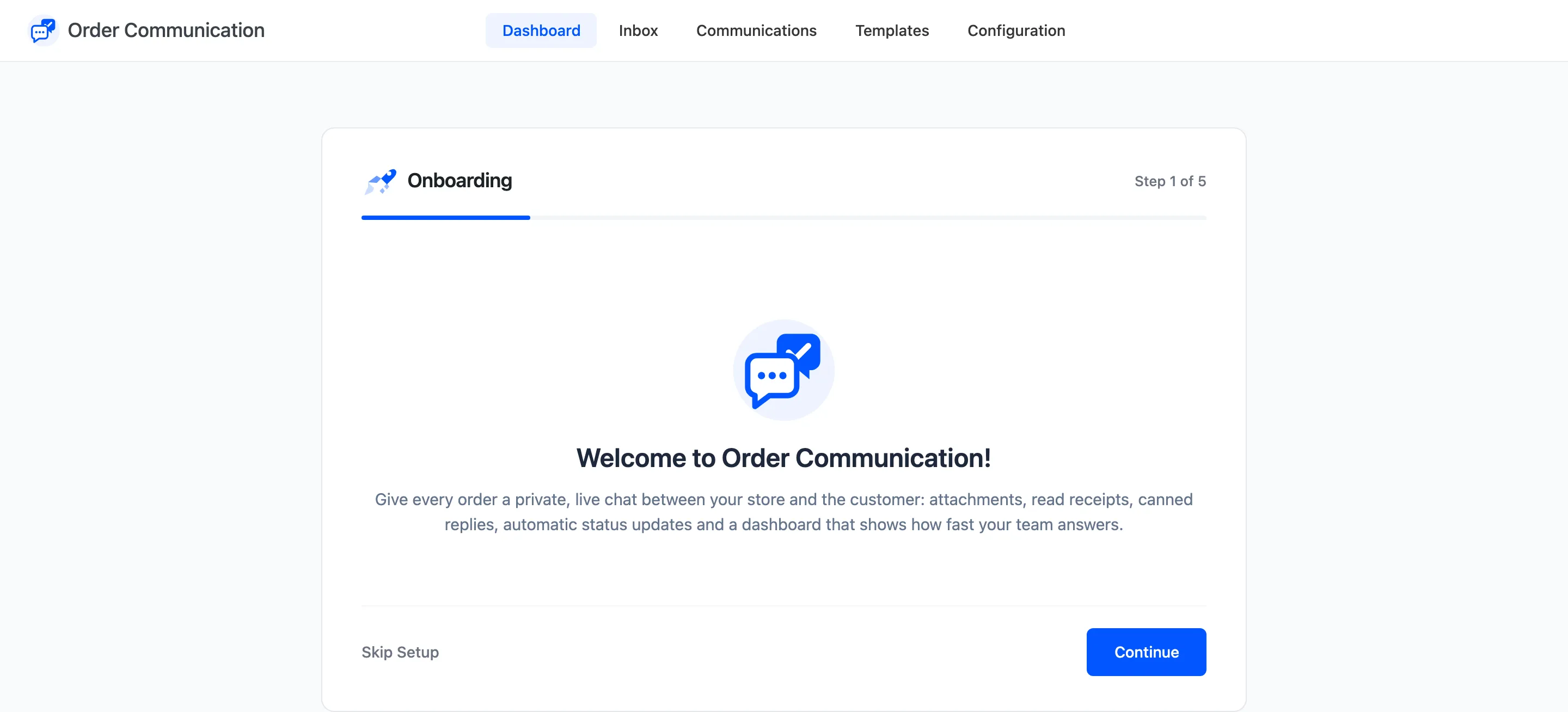
Welcome
Section titled “Welcome”The first step explains what the plugin does. Click Continue.
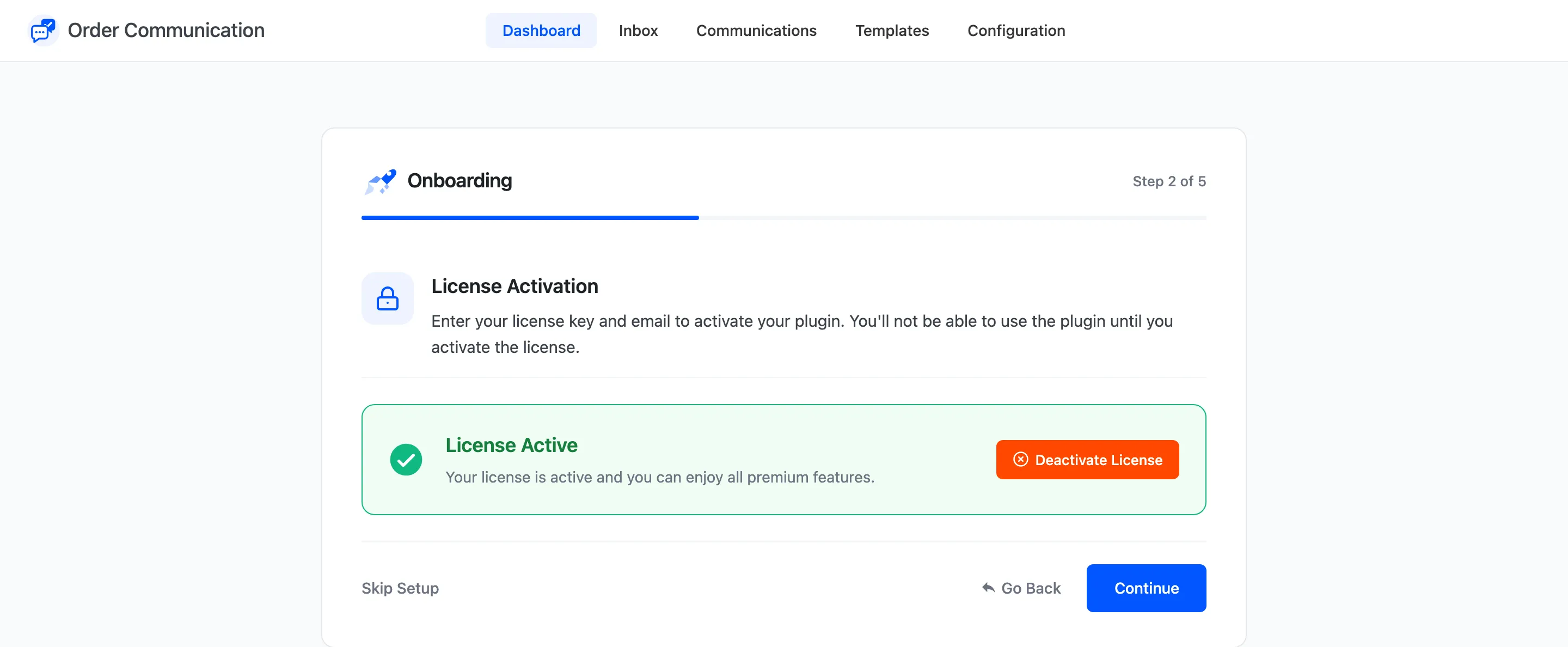
License (Pro)
Section titled “License (Pro)”Pro asks you to activate your license here. Continue stays blocked with “Please activate your license to continue” until it is active. The free version has no License step.
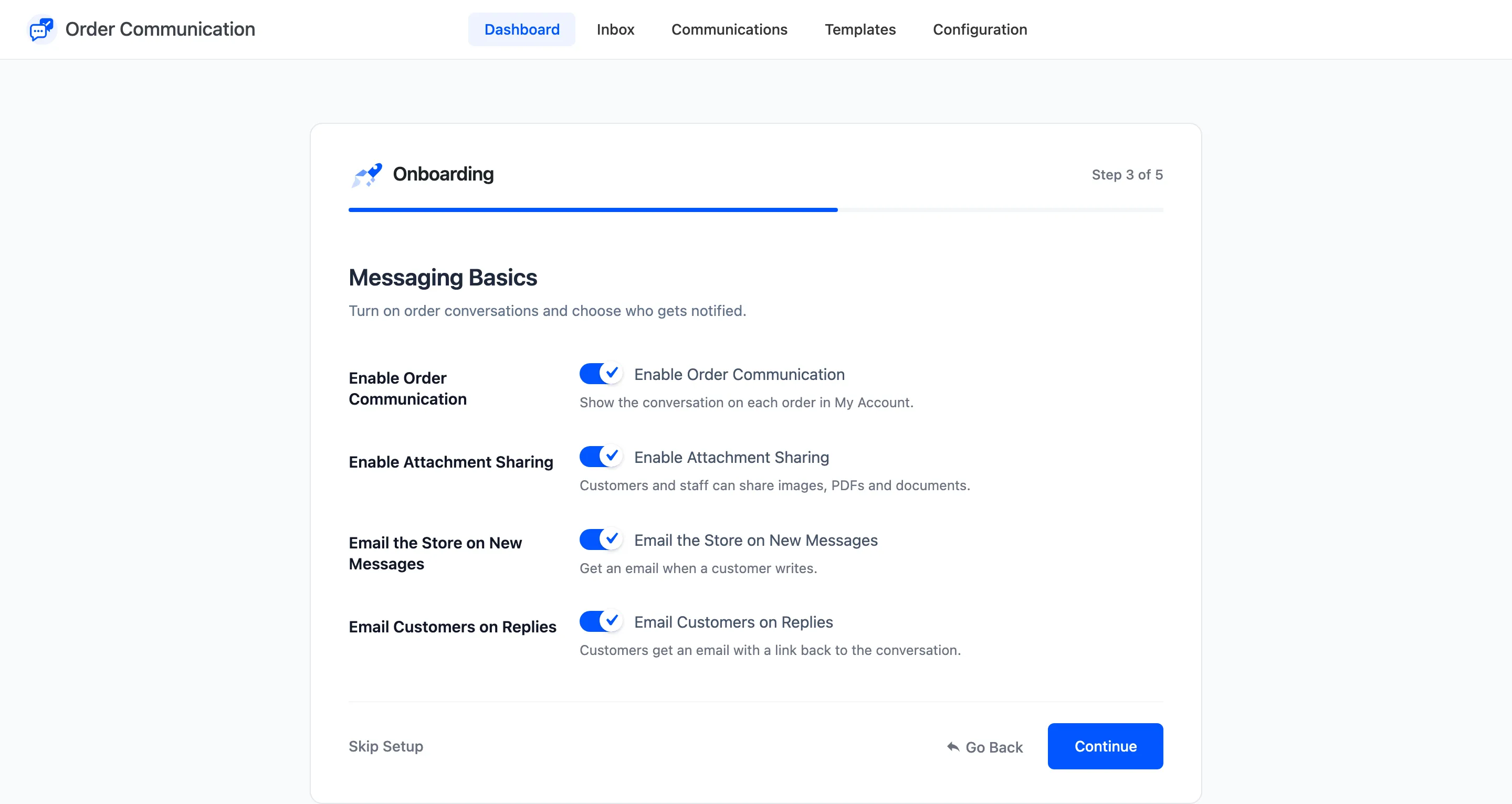
Messaging Basics
Section titled “Messaging Basics”- Enable Order Communication: Shows the conversation on each order in My Account. On by default.
- Enable Attachment Sharing: Lets customers and staff share images, PDFs and documents. On by default. Pro only.
- Email the Store on New Messages: Sends your team an email when a customer writes. On by default.
- Email Customers on Replies: Sends the customer an email with a link back to the conversation. On by default.
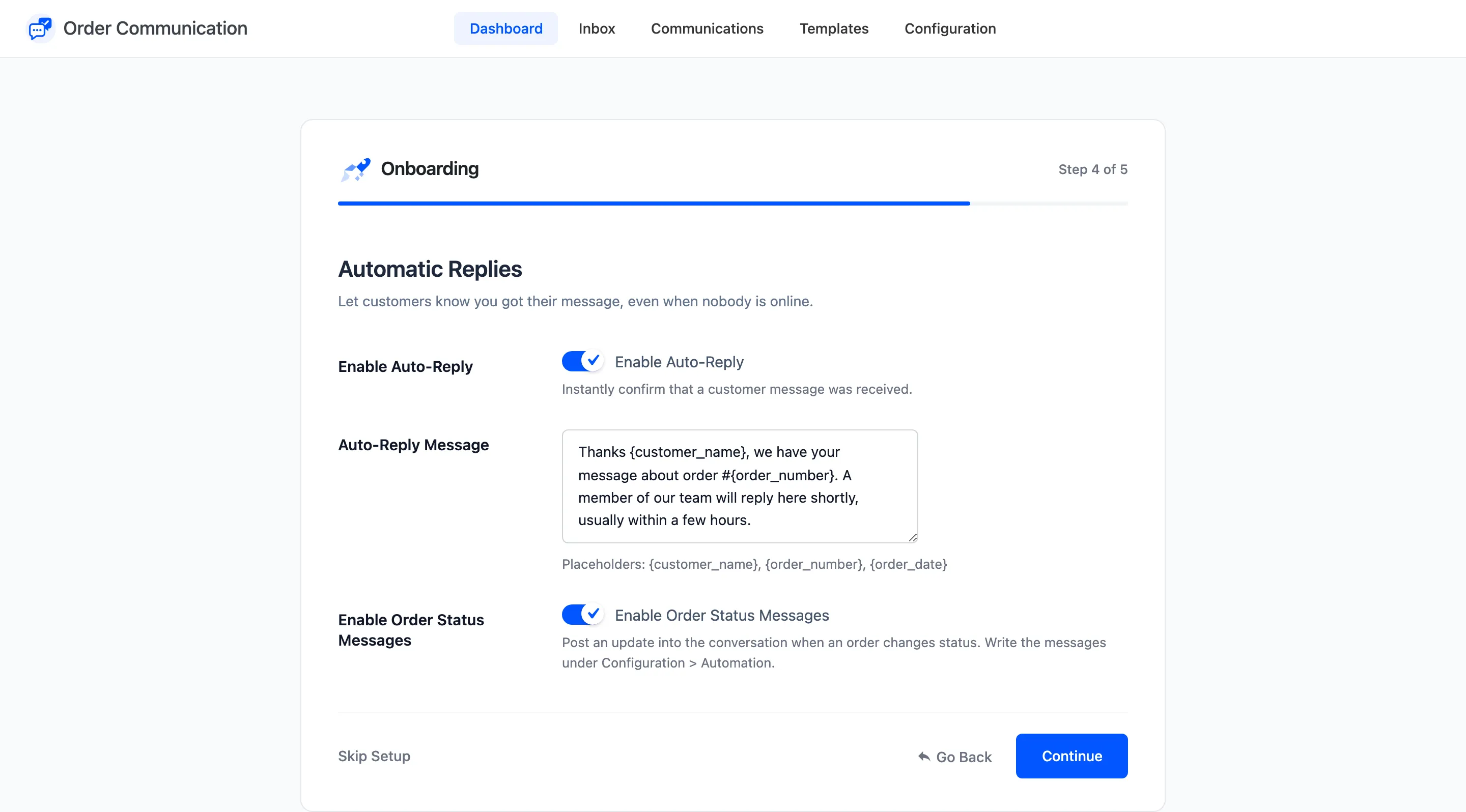
Automatic Replies (Pro)
Section titled “Automatic Replies (Pro)”- Enable Auto-Reply: Posts an automatic reply each time a customer writes. Off by default.
- Auto-Reply Message: The reply itself. It starts as “Thank you for your message. We have received your inquiry and will respond within 24 hours during business hours.”
- Enable Order Status Messages: Posts an update into the conversation when an order changes status. You write those messages afterwards under Configuration → Automation.
The free version skips this step.
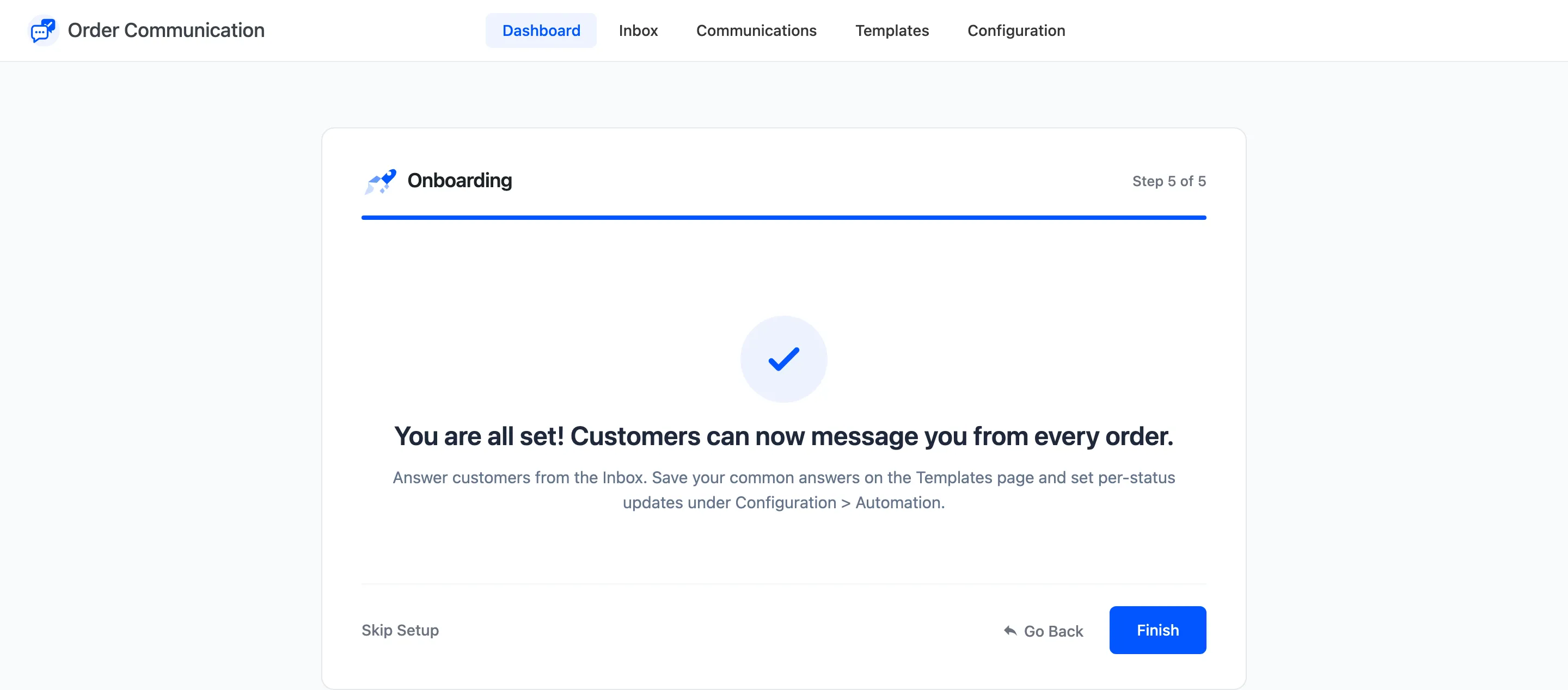
The last step sends you to the dashboard. From there, try a conversation yourself: open one of your own orders in My Account as a customer and send a message.
Next steps
Section titled “Next steps”- General Settings for which orders accept messages.
- How to Send Automatic Order Status Updates (Pro)
- How to Reply to a Customer Message