

Automation Settings (Pro)
Automations write into conversations for you. Open Order Communication → Configuration → Automation.
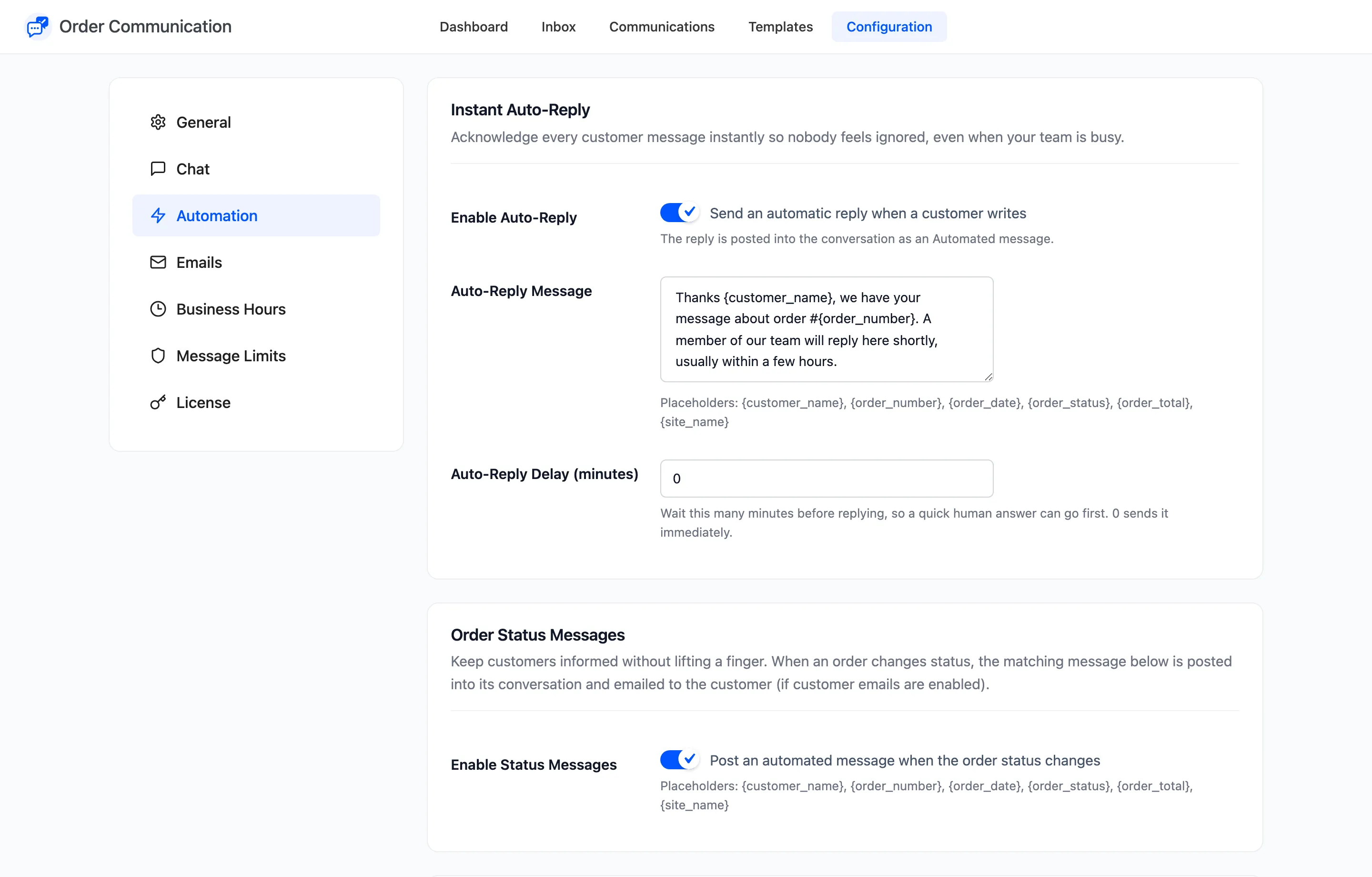
Instant Auto-Reply
Section titled “Instant Auto-Reply”- Enable Auto-Reply: “Send an automatic reply when a customer writes”. Off by default.
- Auto-Reply Message: The reply. Placeholders work here.
- Auto-Reply Delay (minutes): Wait this long before posting it. 0 posts it at once. Up to 1440.
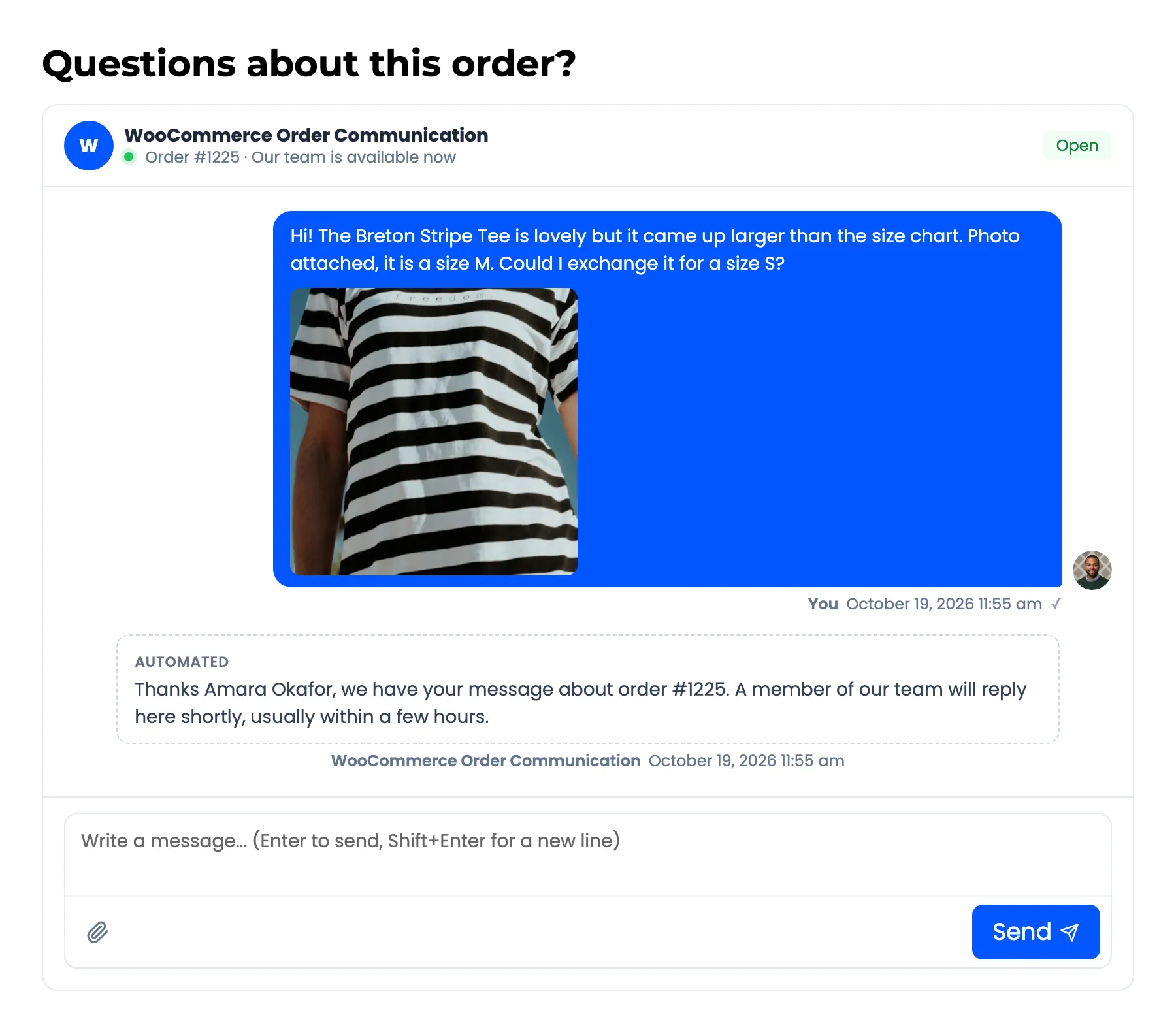
The reply is posted as an Automated message signed with your store name. It does not email the customer, and it does not count as an answer on the dashboard.
Two behaviours to plan around, both seen on a live store:
- It answers every customer message, not only the first. A customer who writes “thank you” after your reply gets the auto-reply again. Word it so it still reads well then.
- A delayed auto-reply is still posted if your team answered first. The delay gives a person time to go first, but it does not cancel the reply.
Order Status Messages
Section titled “Order Status Messages”Enable Status Messages: “Post an automated message when the order status changes”. When an order moves to a status you wrote a message for, that message is posted into the order’s conversation and emailed to the customer, if customer emails are on.
It works on every order, including ones with no conversation yet. The status message then starts it.
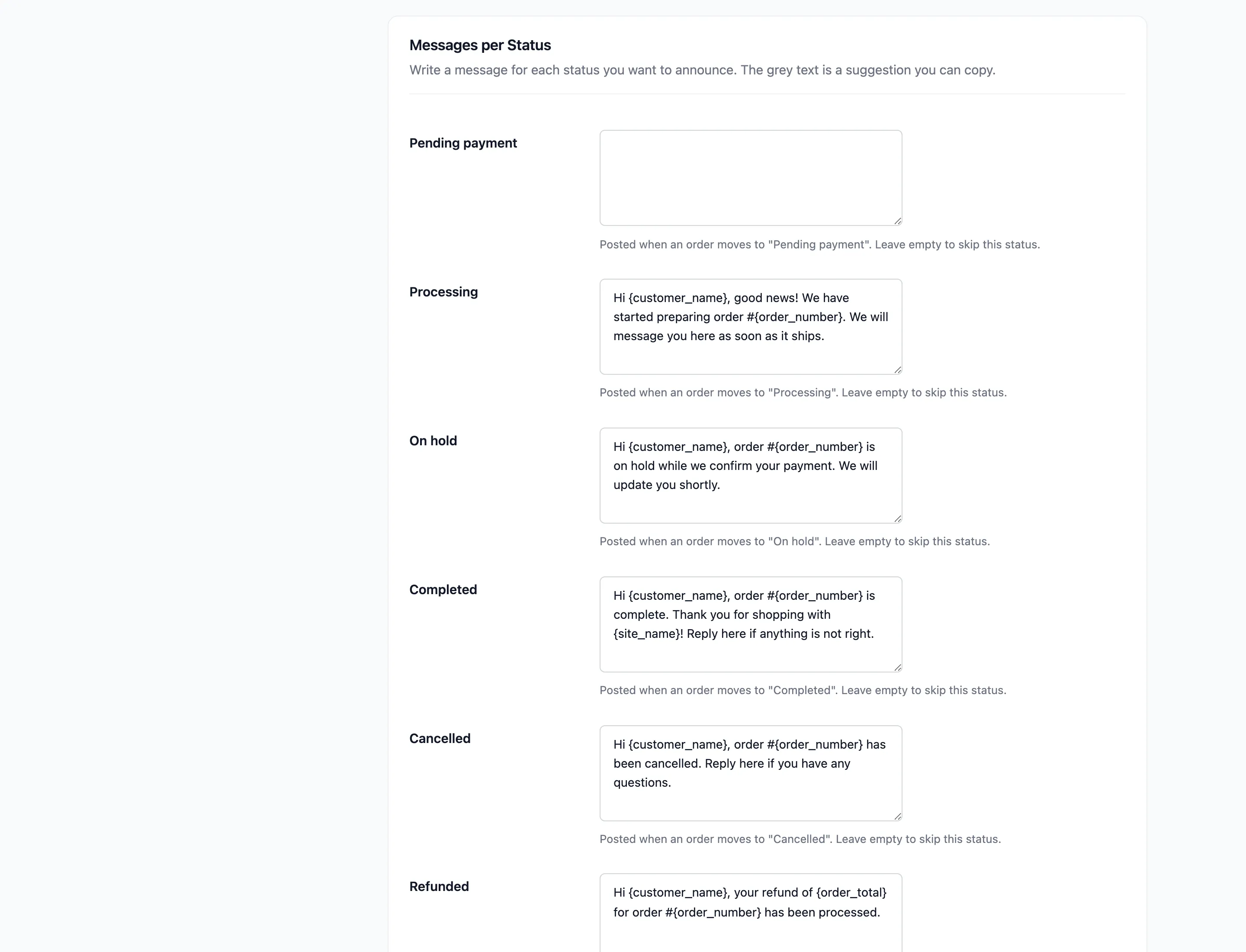
Messages per Status
Section titled “Messages per Status”One box per order status your store has, custom statuses included. Leave a box empty to skip that status. The grey text in Processing, Completed, On hold, Cancelled and Refunded is a suggestion you can copy.
Placeholders
Section titled “Placeholders”| Placeholder | Becomes |
|---|---|
{customer_name} |
Billing first and last name, for example “Amara Okafor” |
{order_number} |
The order number |
{order_date} |
The date the order was placed |
{order_status} |
The current status, for example “Processing” |
{order_total} |
The order total with its currency |
{site_name} |
Your site title |
{customer_name} is the full name. “Hi {customer_name}” reads “Hi Amara Okafor”.