

How to Start a Conversation with a Customer
Your team can write first. Use it when something about an order needs the customer: an item is late, an address looks wrong, or a cancelled product is back in stock.
Step 1: Open the order
Section titled “Step 1: Open the order”Go to WooCommerce → Orders and open the order. Here it is order #1229, which Amara cancelled.
Step 2: Find the Order Communication box
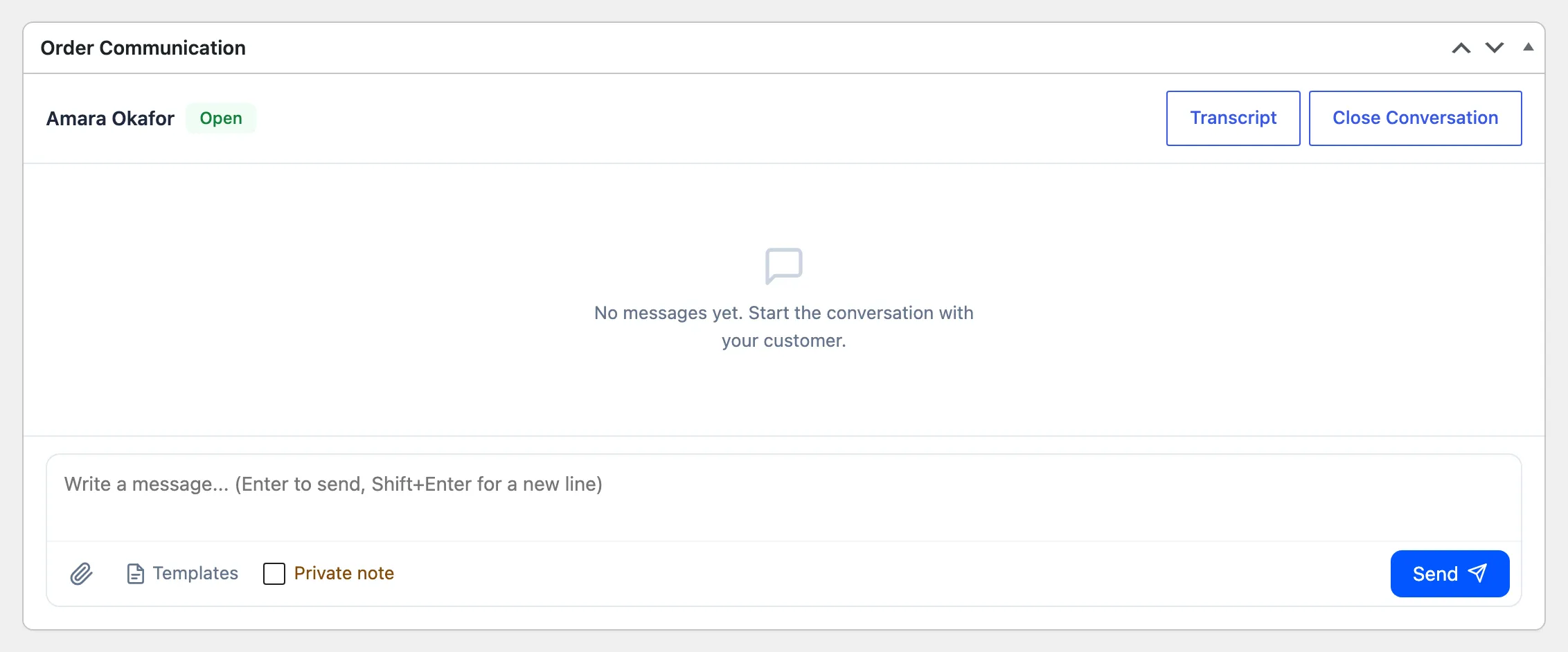
Section titled “Step 2: Find the Order Communication box”Scroll to Order Communication under the order items. With no conversation yet it reads “No messages yet. Start the conversation with your customer.”
Step 3: Write and send
Section titled “Step 3: Write and send”Type the message and click Send. It appears in the box at once. There is no need to click Update on the order for the message.
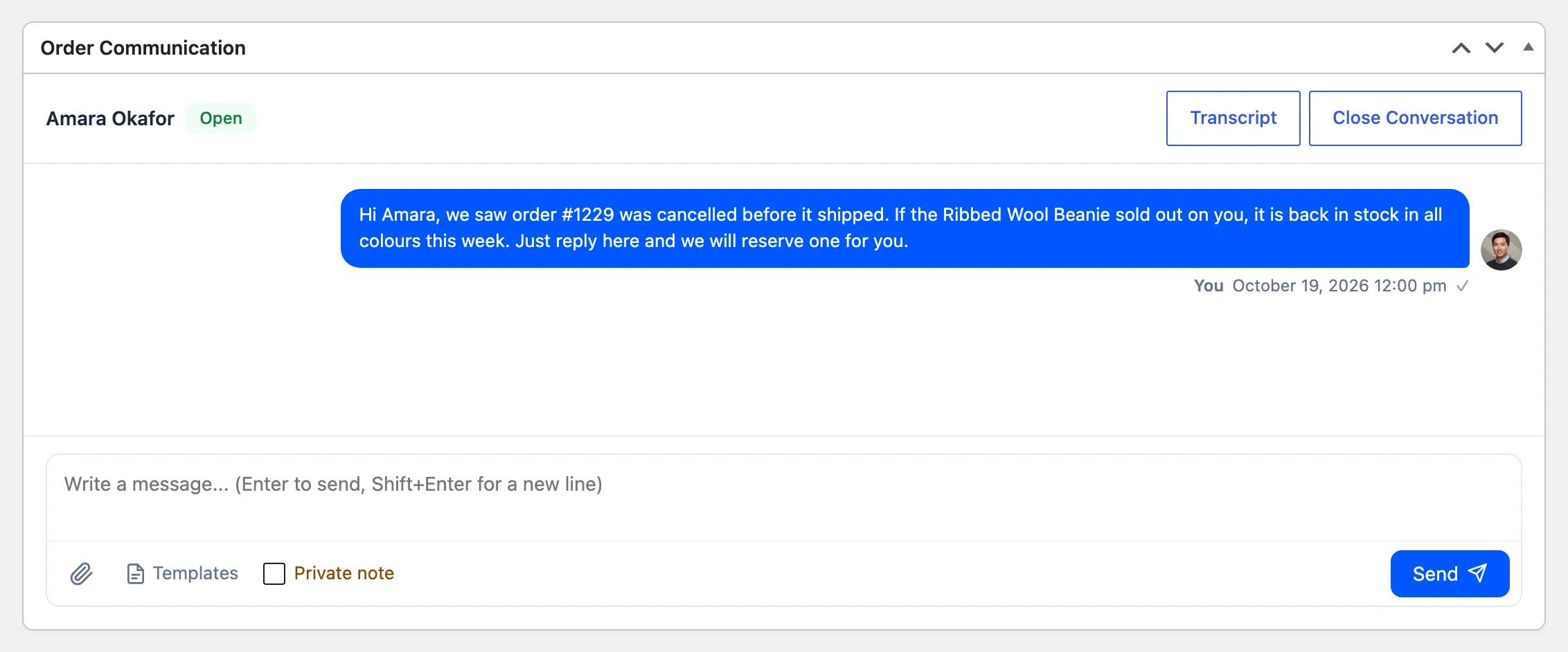
The customer gets the customer notification email, and the order shows 1 new reply in their My Account orders list. The conversation now appears in the Inbox as well.
Things to know
Section titled “Things to know”- The order must belong to a customer account. Your message is saved on a guest order too, but a guest has no My Account page to read it on. Only the email reaches them.
- The customer can answer if the order’s status is in Allowed Order Statuses and the conversation is open. Your team can always write.