

Communications (Pro)
The Inbox is for answering. Communications is for managing many conversations at once. Open Order Communication → Communications.
The columns
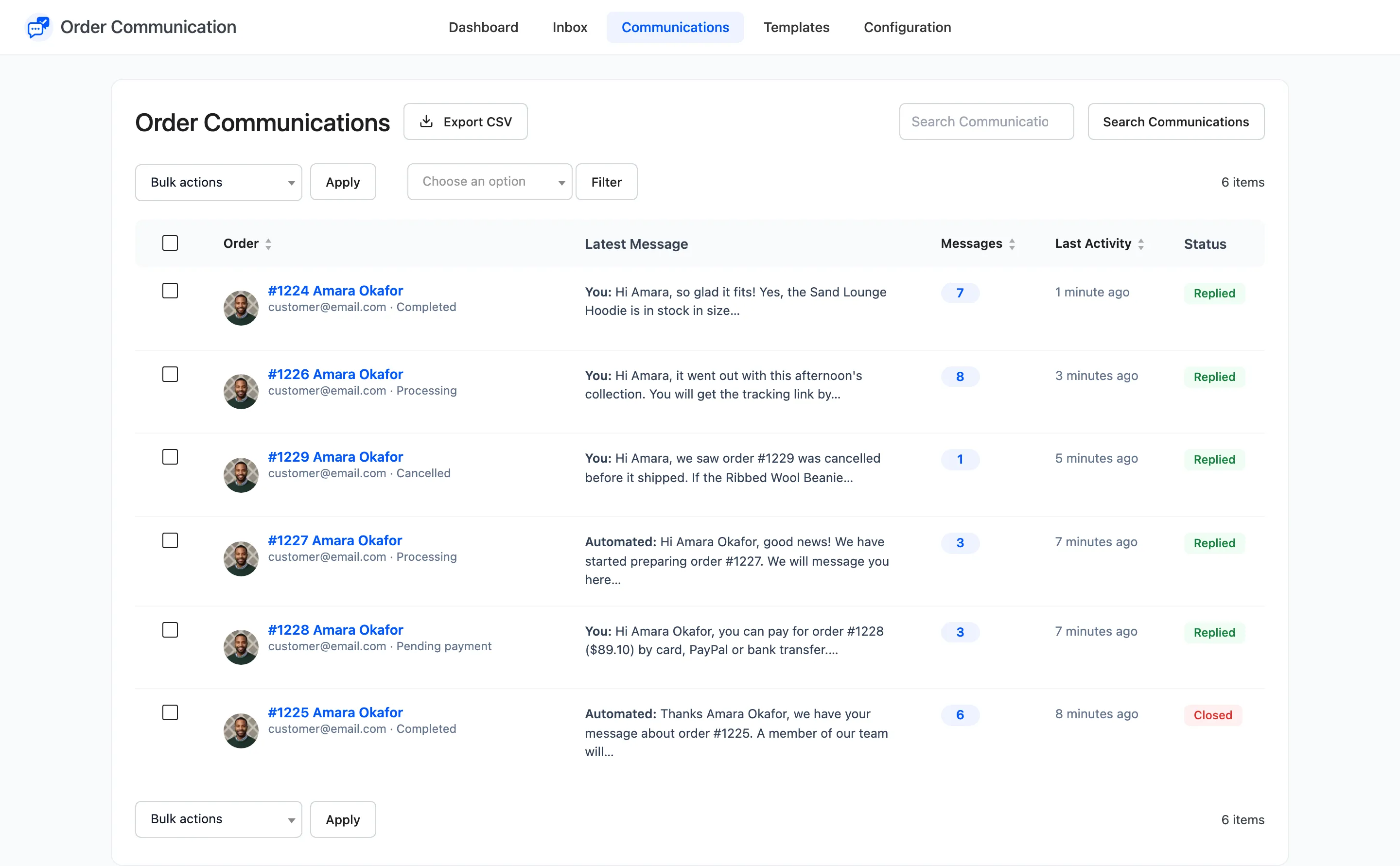
Section titled “The columns”- Order: The order number and customer, their email and the order status. Under it are Open in Inbox, Edit Order, Transcript and Close (or Reopen).
- Latest Message: Who wrote last, Customer, You or Automated, and the start of it.
- Messages: How many messages the conversation has, private notes included.
- Last Activity: How long ago the last message arrived. Hover for the exact date.
- Status: Awaiting Reply, Read, Replied or Closed. See the four states.
Order, Messages and Last Activity sort when you click their heading. Screen Options sets how many rows a page shows. The default is 20.
Filter and search
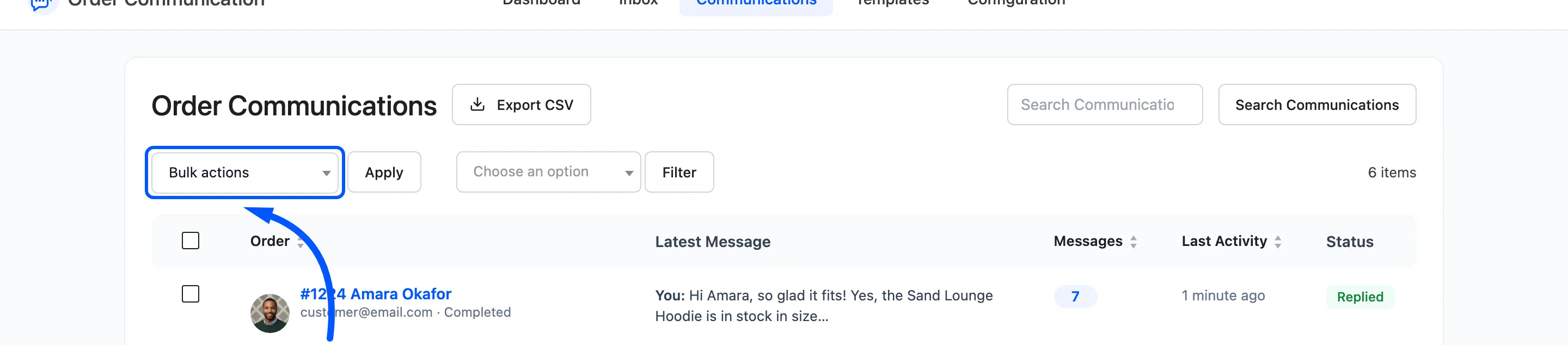
Section titled “Filter and search”Pick a state in All Statuses and click Filter. Reset clears the filter and the search. The search box matches message text, the author’s name or email, and the order ID.
Bulk actions
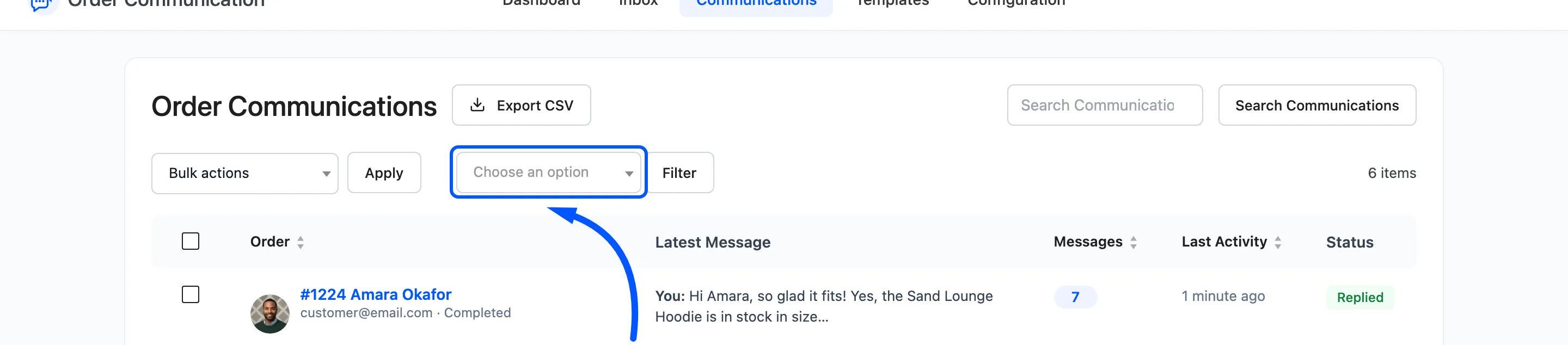
Section titled “Bulk actions”Tick conversations, choose an action and click Apply:
- Mark as Read, Mark as Unread, Mark as Replied: Change the state of the customer’s messages. Mark as Unread puts a conversation back into Awaiting Reply, a handy reminder to come back to it.
- Close Conversation, Reopen Conversation: The same as the button in the chat header.
- Export to CSV: Download only the ticked conversations.
- Delete Messages: Permanently deletes every message in the ticked conversations. The orders stay, and so do attached files in the Media Library. There is no undo.
Export and transcripts
Section titled “Export and transcripts”Export CSV next to the heading downloads every conversation that matches the current filter and search. The file has one row per message: Order, Date, Sender, Author, Private, Message and Attachments (as links). Private notes are included and marked “yes”.

Transcript under an order opens a clean, printable page of that one conversation in a new tab.