

How to Add a Private Note to a Conversation (Pro)
A private note keeps the context next to the conversation. “Exchange approved, restock the M” is useful to whoever picks up the order next, and nothing the customer needs to read.
Step 1: Open the conversation
Section titled “Step 1: Open the conversation”Open it in Order Communication → Inbox or in the Order Communication box on the order.
Step 2 and 3: Write the note and tick Private note
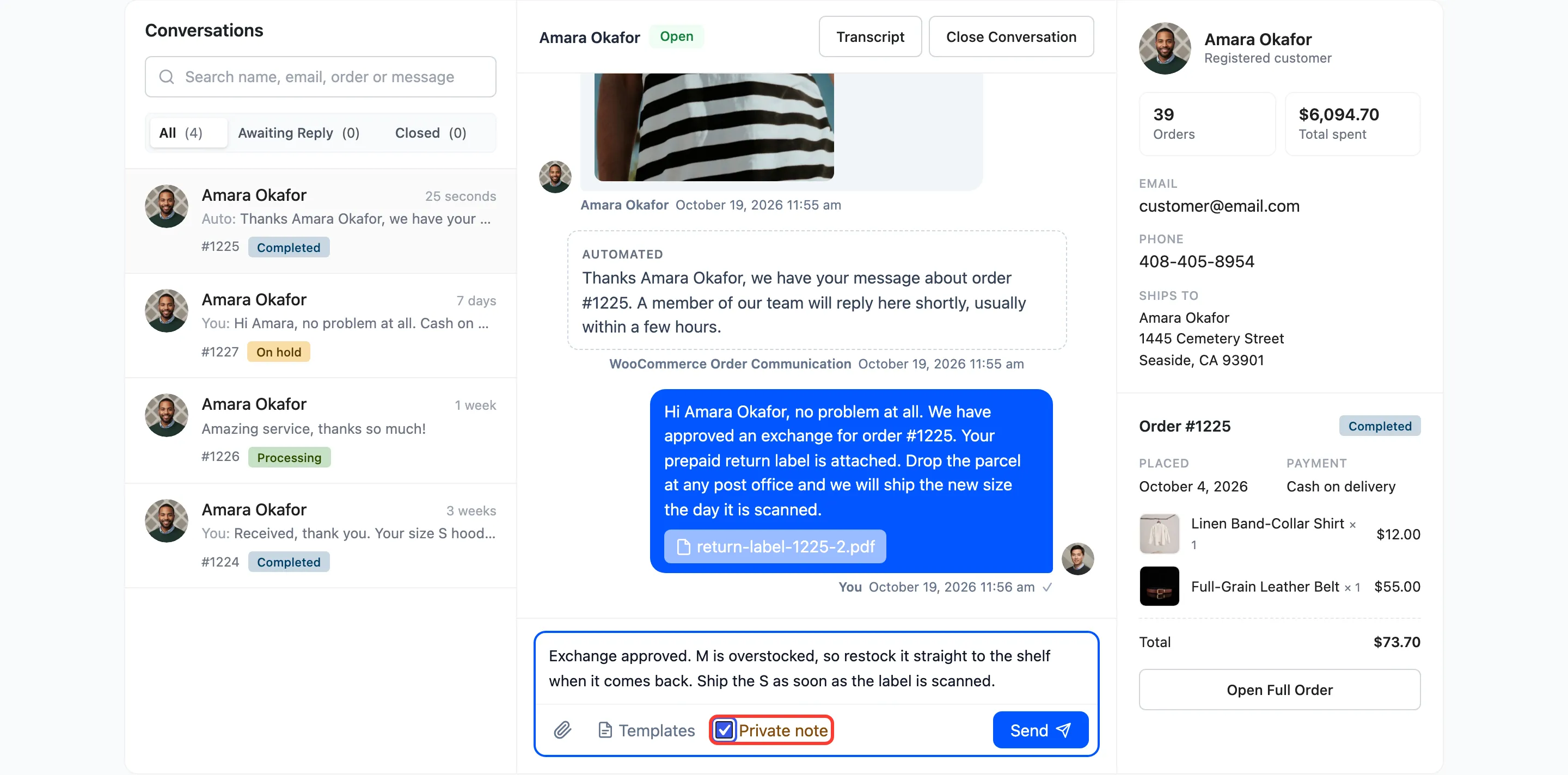
Section titled “Step 2 and 3: Write the note and tick Private note”Type the note, then tick Private note in the composer toolbar. Hover the checkbox for a reminder: “Only your team sees private notes. The customer is not notified.”
Step 4: Send it
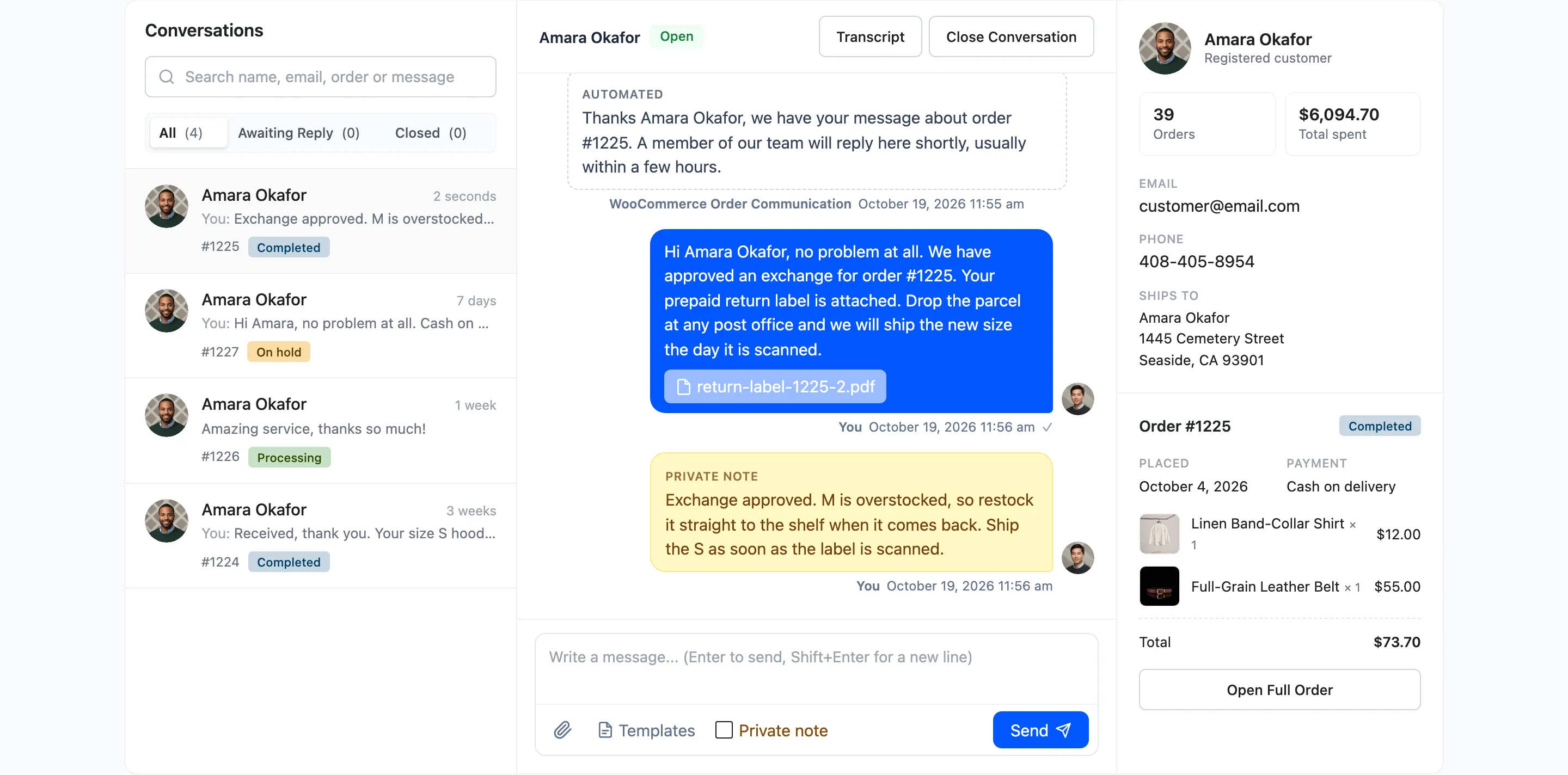
Section titled “Step 4: Send it”Click Send. The note appears in pale yellow, marked Private note. The checkbox clears itself after sending, so your next message is a normal reply again.
Who sees a private note
Section titled “Who sees a private note”| Sees it | |
|---|---|
| Your team, in the Inbox and on the order screen | Yes |
| The customer, in My Account | No |
| The customer notification email | Never sent |
| The CSV export | Yes, with Private set to “yes” |
| The transcript | Yes, marked as a private note |
A private note does not count as a reply. A conversation with only a note after the customer’s message is still Read, not Replied, and the dashboard does not count it.