

How to Close and Reopen a Conversation
Closing tells the customer the matter is settled and keeps the Inbox tidy. Both versions can do it.
Step 1: Open the conversation
Section titled “Step 1: Open the conversation”Open it in the Inbox or in the Order Communication box on the order.
Step 2: Click Close Conversation
Section titled “Step 2: Click Close Conversation”Click Close Conversation in the header of the thread.
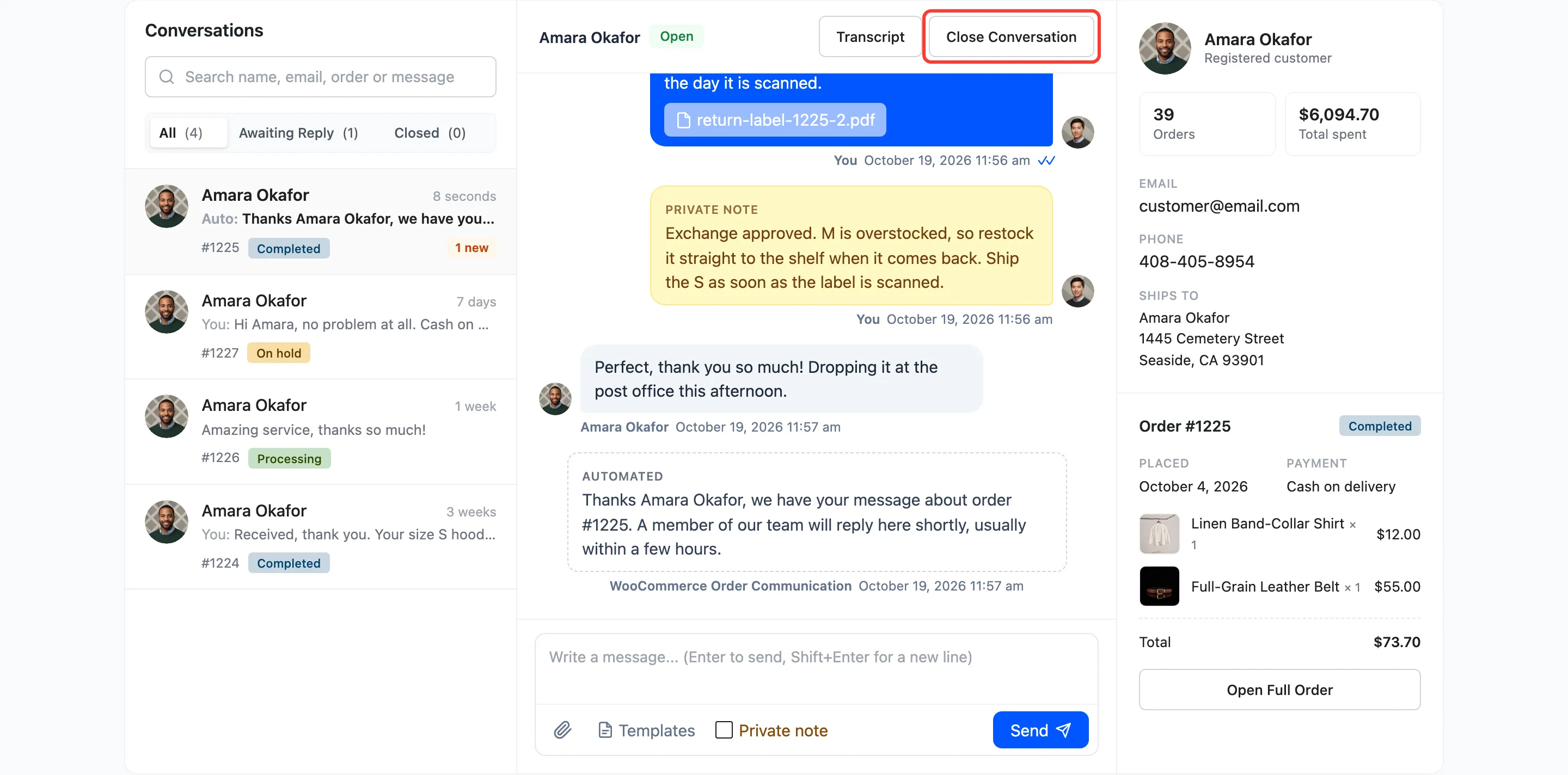
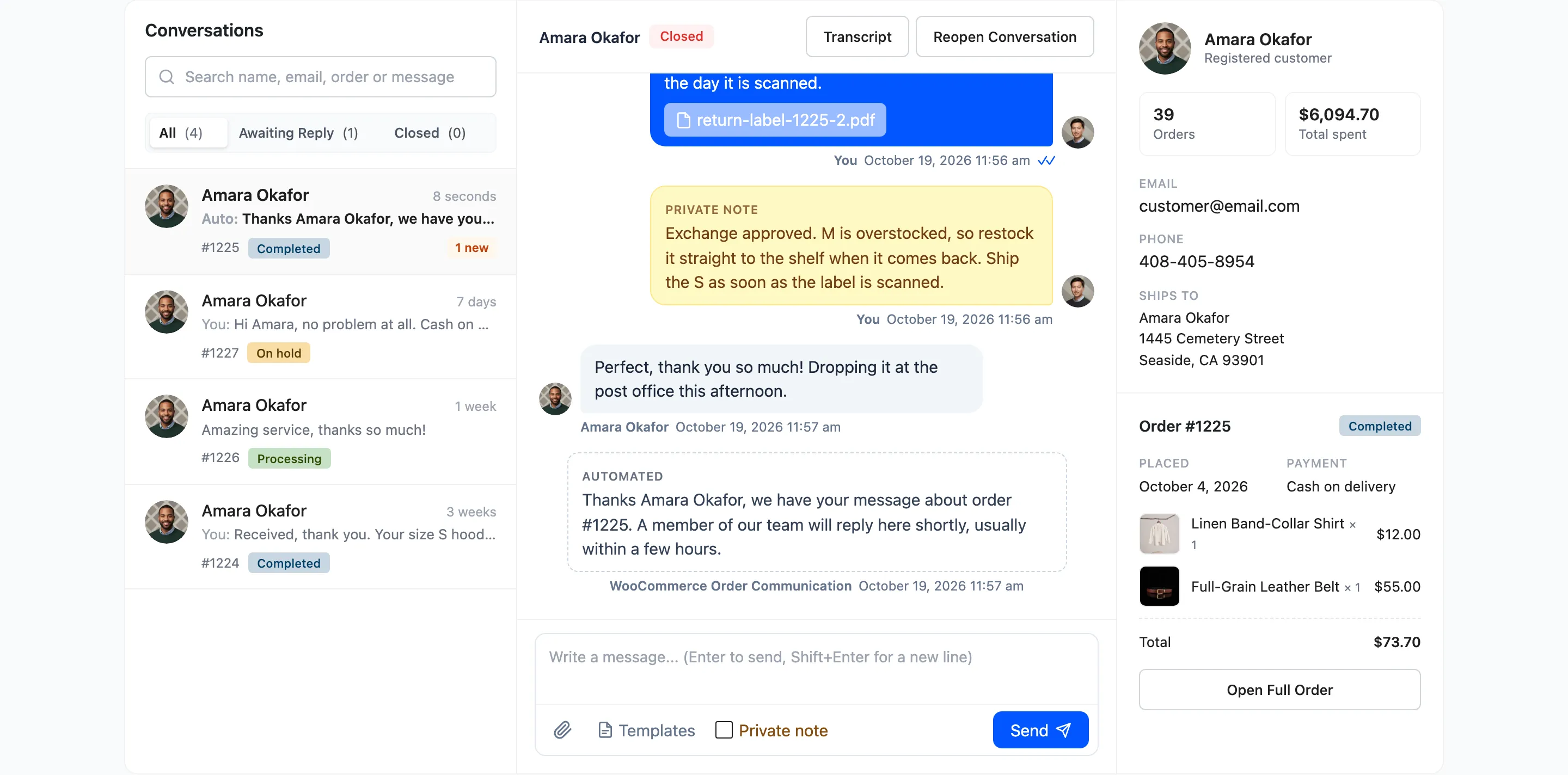
Your browser asks “Close this conversation? The customer will not be able to reply until you reopen it.” Click OK. The badge changes to Closed and the conversation moves to the Closed filter.
Step 3: Check the customer’s view
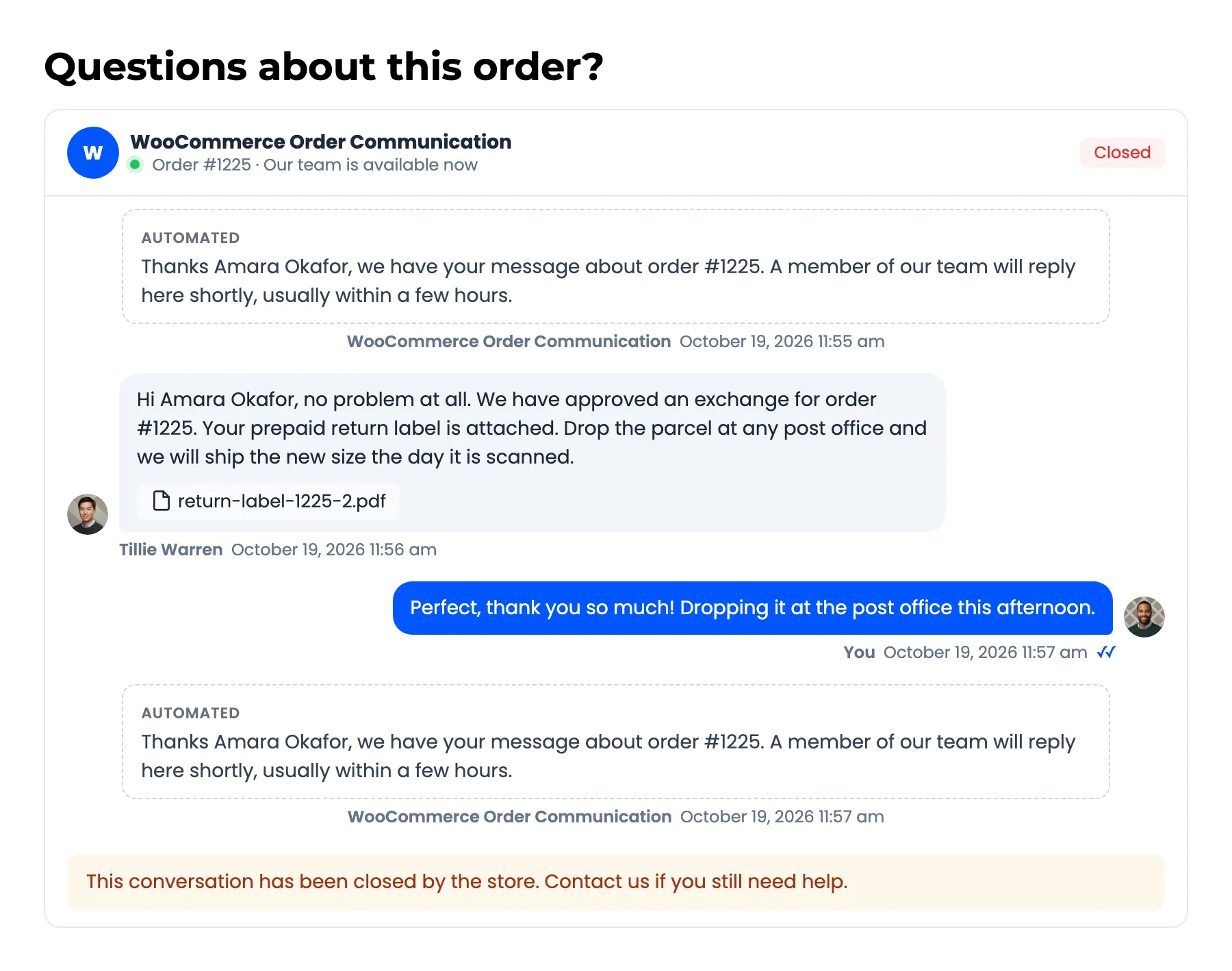
Section titled “Step 3: Check the customer’s view”The customer still sees every message. The composer is replaced by “This conversation has been closed by the store. Contact us if you still need help.” Closing sends no email.
Step 4: Reopen it when needed
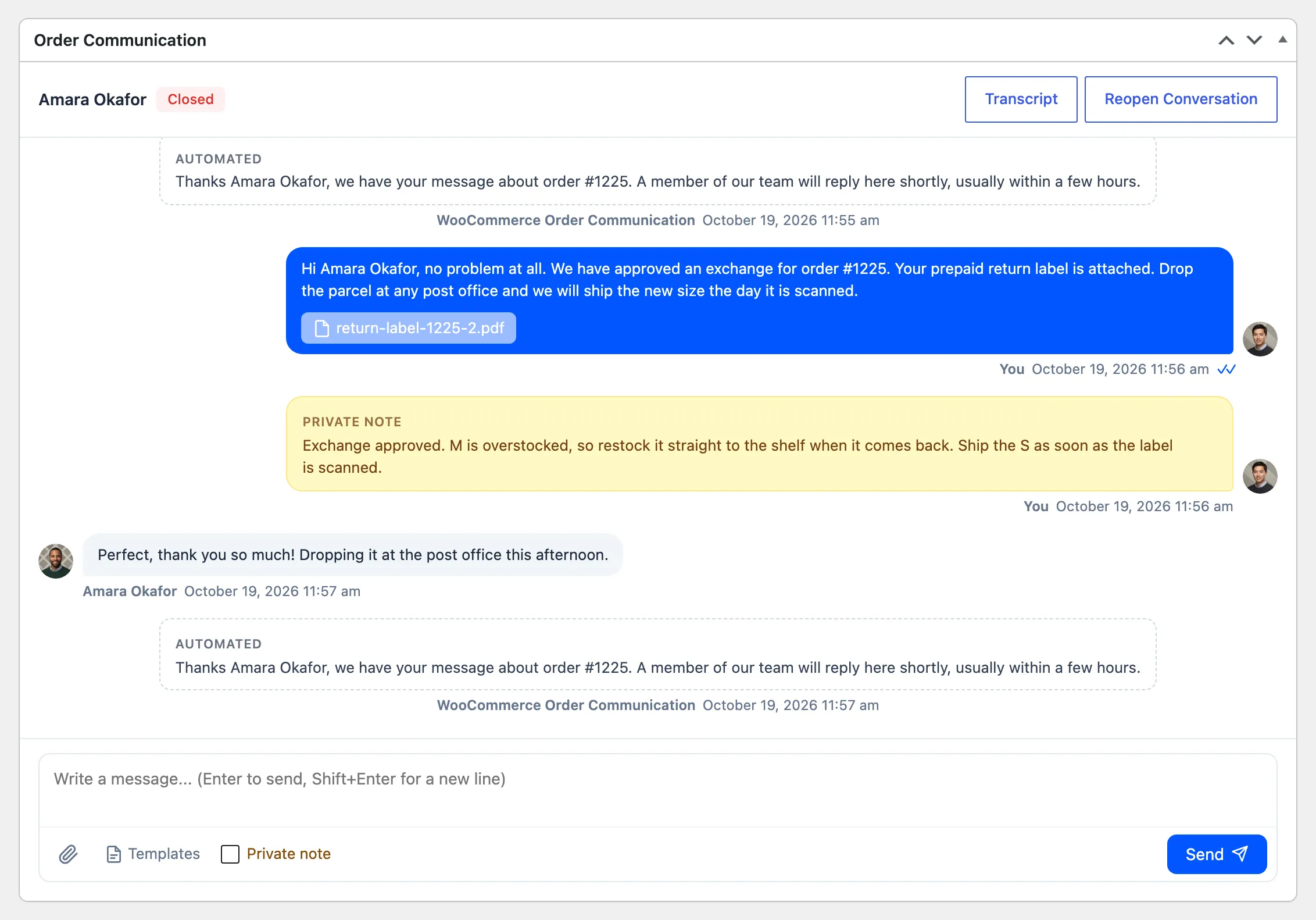
Section titled “Step 4: Reopen it when needed”Click Reopen Conversation in the same place. On the order screen it sits in the Order Communication box. The customer can write again straight away.
Things to know
Section titled “Things to know”- Your team can still write in a closed conversation. The customer just cannot answer.
- Automations still post. A status message on a closed order’s conversation is still posted and emailed.
- Close many at once with the Close Conversation bulk action on Communications (Pro).