

How to Set Up an Auto-Reply (Pro)
An auto-reply tells the customer their message arrived and when to expect a person. It is the cheapest way to stop “did you get my message?” follow-ups.
Step 1: Open the Automation tab
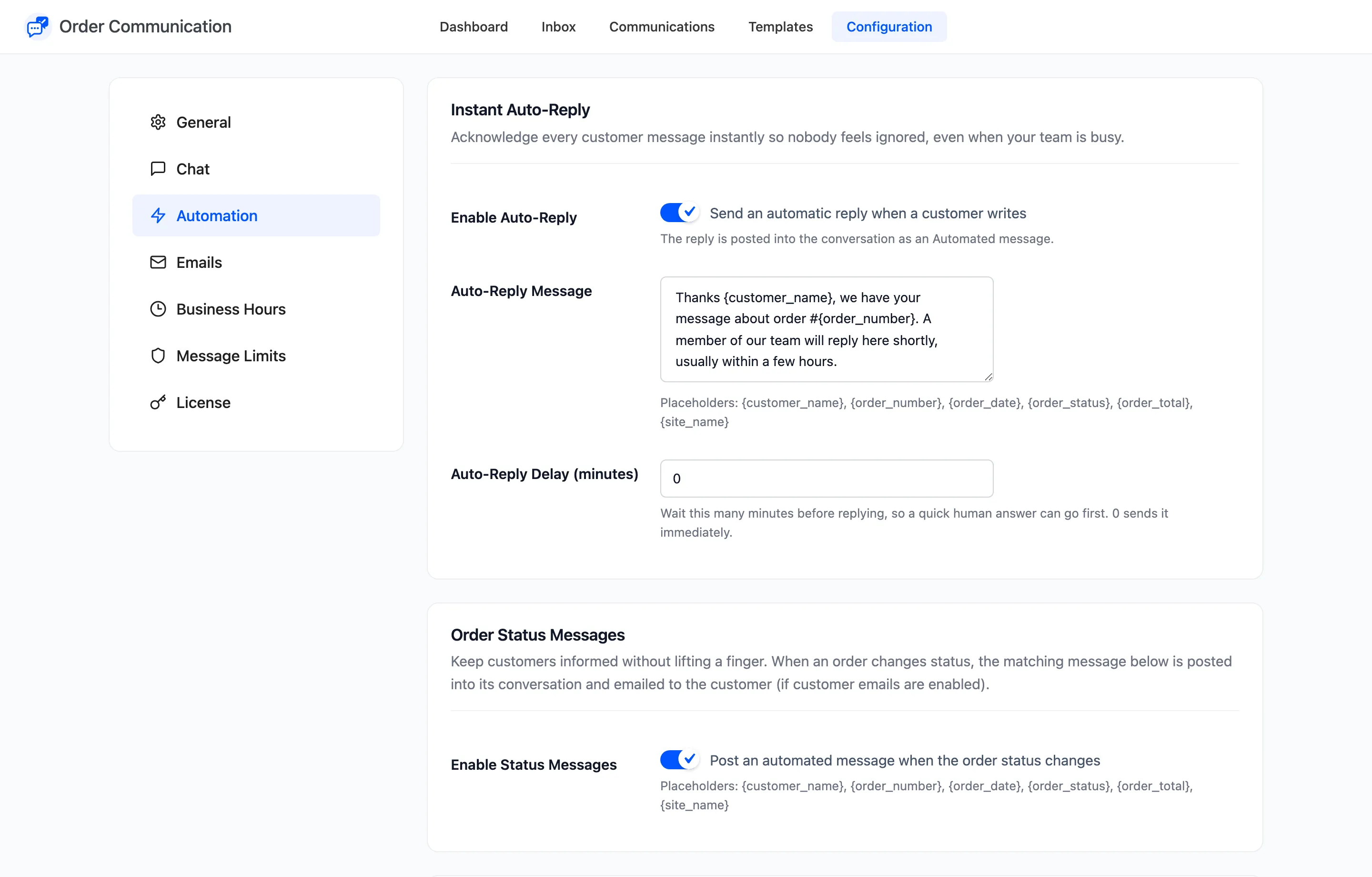
Section titled “Step 1: Open the Automation tab”Go to Order Communication → Configuration → Automation.
Step 2: Turn it on
Section titled “Step 2: Turn it on”Tick Send an automatic reply when a customer writes.
Step 3: Write the reply
Section titled “Step 3: Write the reply”The demo store uses:
Thanks {customer_name}, we have your message about order #{order_number}. A member of our team will reply here shortly, usually within a few hours.
The placeholders are listed under Automation Settings.
Write it so it still reads well late in a conversation. It is posted after every customer message, not only the first one, so a customer who says “thank you” after your answer gets it again.
Step 4: Choose a delay
Section titled “Step 4: Choose a delay”Auto-Reply Delay (minutes) waits before posting. 0 posts at once. A short delay, say 5 minutes, avoids an auto-reply right before a person’s answer when your team is quick.
The delay does not cancel the reply. If your team answers within those minutes, the auto-reply is still posted afterwards. Delayed replies are sent by WordPress’s scheduler, so on a quiet site they can arrive a little later than the delay.
Click Save Changes.
Step 5: Test it
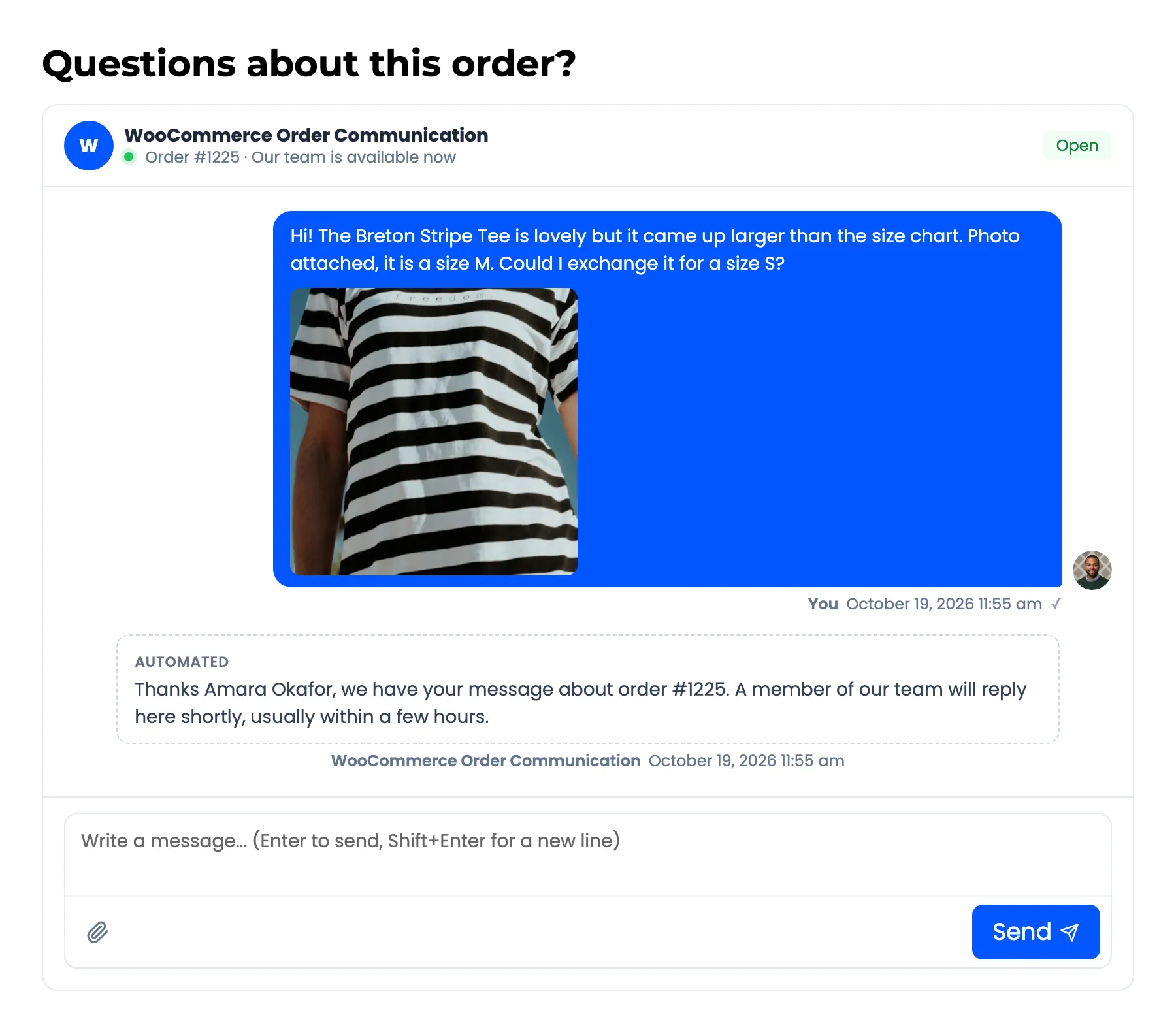
Section titled “Step 5: Test it”Open one of your own orders in My Account and send a message. With no delay, the reply appears under it at once, in a dashed box marked Automated and signed with your store name.
What the auto-reply does not do
Section titled “What the auto-reply does not do”- It does not email the customer. They are on the page already.
- It does not mark the conversation answered. It stays in Awaiting Reply until a person replies, and the dashboard’s response time keeps running.
- It does not post outside business hours. Your closed notice is posted instead, if you accept messages then. See How to Set Business Hours (Pro).