

Conversations on the Order Screen
You do not have to leave WooCommerce’s own screens to answer a customer. Both versions add the conversation to the order screen and a column to the orders list.
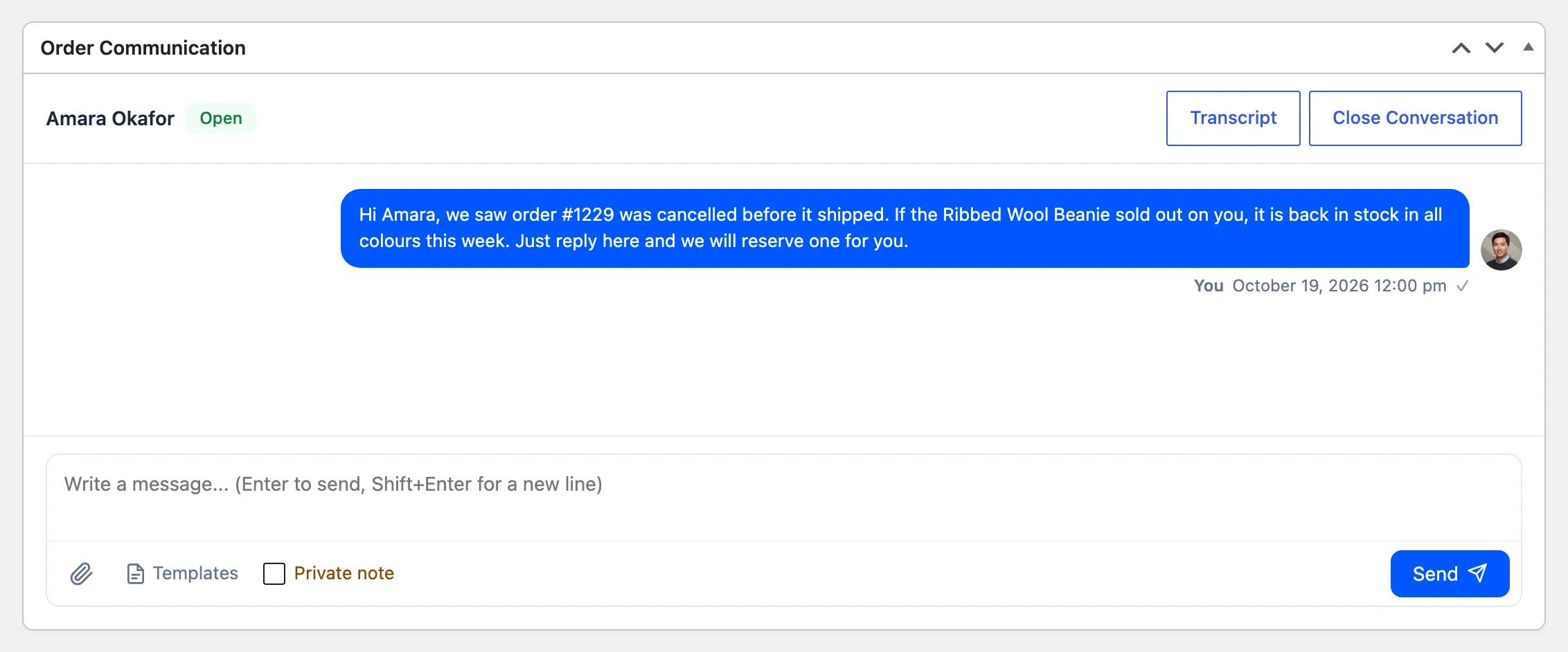
The Order Communication box
Section titled “The Order Communication box”Open any order under WooCommerce → Orders. The Order Communication box sits under the order items. It is the same conversation as in the Inbox, with the same composer, Transcript (Pro) and Close Conversation.
On an order nobody has written about yet it is empty, with “No messages yet. Start the conversation with your customer.” Your first message starts it.
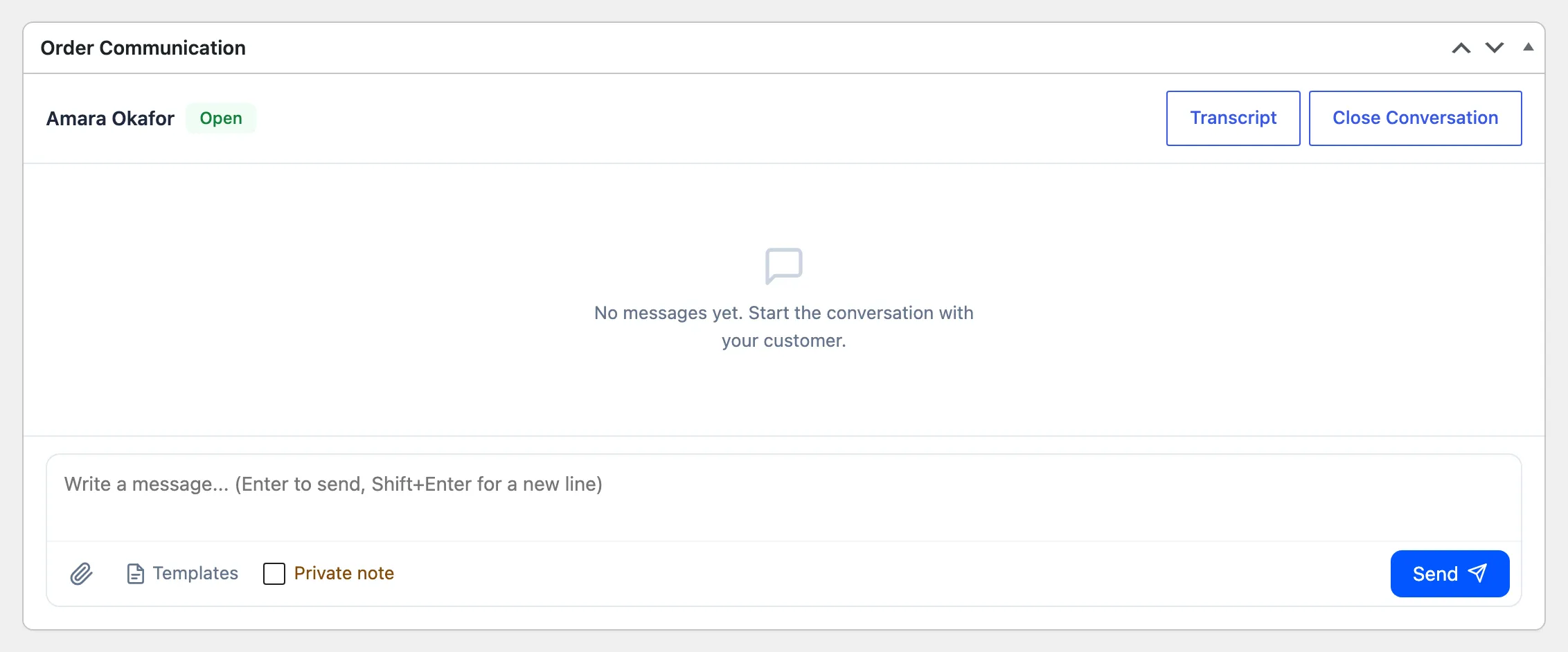
Sending from here does not save the rest of the order screen. Anything else you changed on the order still needs Update.
The Messages column
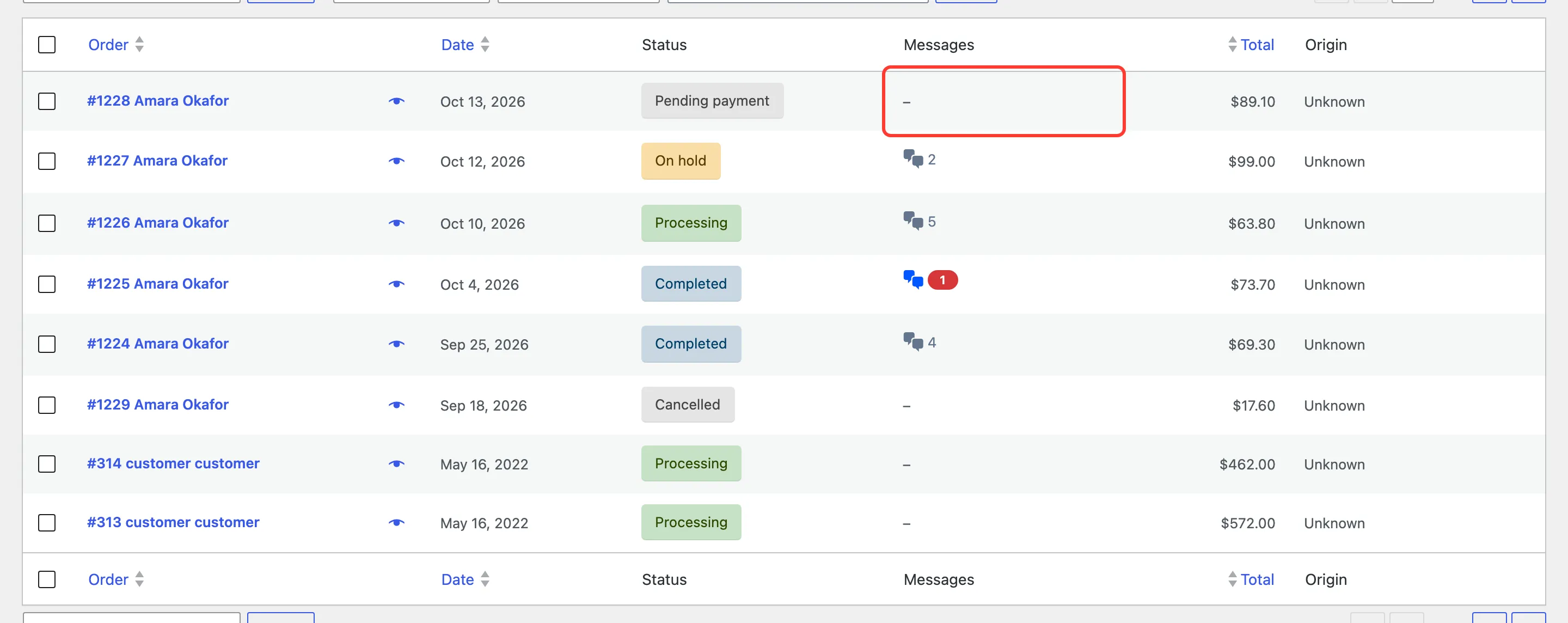
Section titled “The Messages column”WooCommerce → Orders gains a Messages column after the status.
- A dash means no conversation.
- A speech bubble with a number counts the messages.
- A highlighted number counts unread customer messages.
Hover it for “5 messages, 1 unread”. Click it to open that conversation in the Inbox.
The admin menu count
Section titled “The admin menu count”The red number next to Order Communication in the admin menu counts every unread customer message across all orders. It goes down as your team opens conversations.