

How to Reply to a Customer Message
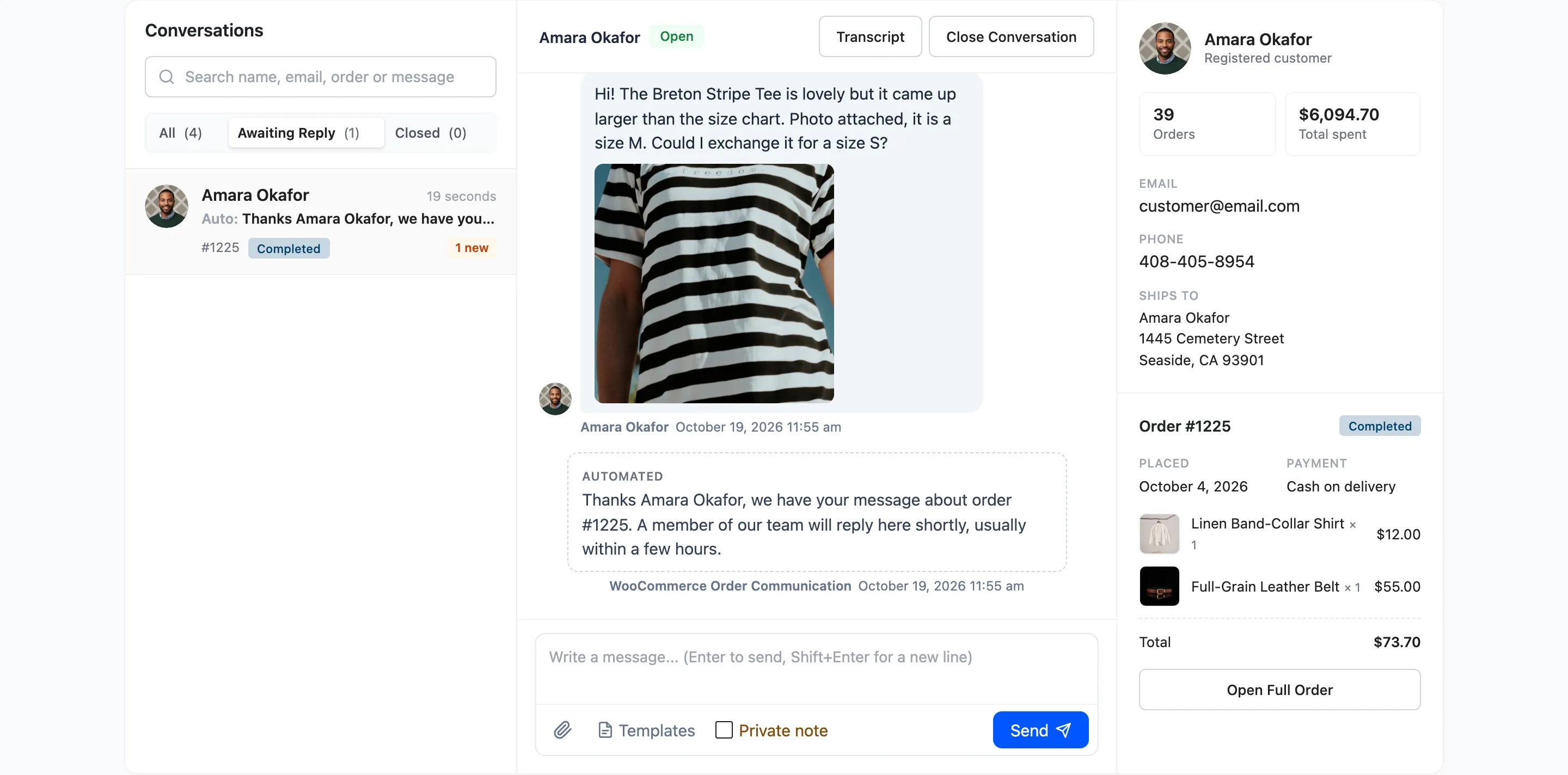
This walks through one real reply. Amara wrote on order #1225 that her tee came up too large and asked to exchange it.
Step 1: Open the waiting conversations
Section titled “Step 1: Open the waiting conversations”You know someone is waiting from the red number next to Order Communication in the admin menu, the store notification email, or the dashboard’s Awaiting Reply Now card.
Go to Order Communication → Inbox and click Awaiting Reply. Every conversation with an unread customer message is listed, newest first, with a blue badge counting the new messages.
Step 2: Read it with the order beside it
Section titled “Step 2: Read it with the order beside it”Click the conversation. The message opens in the middle, and the right column shows the order: what was bought, the total, the address and how many orders this customer has placed.
Opening it marks Amara’s message as read. In her conversation it now shows two blue ticks.
Step 3: Write the reply
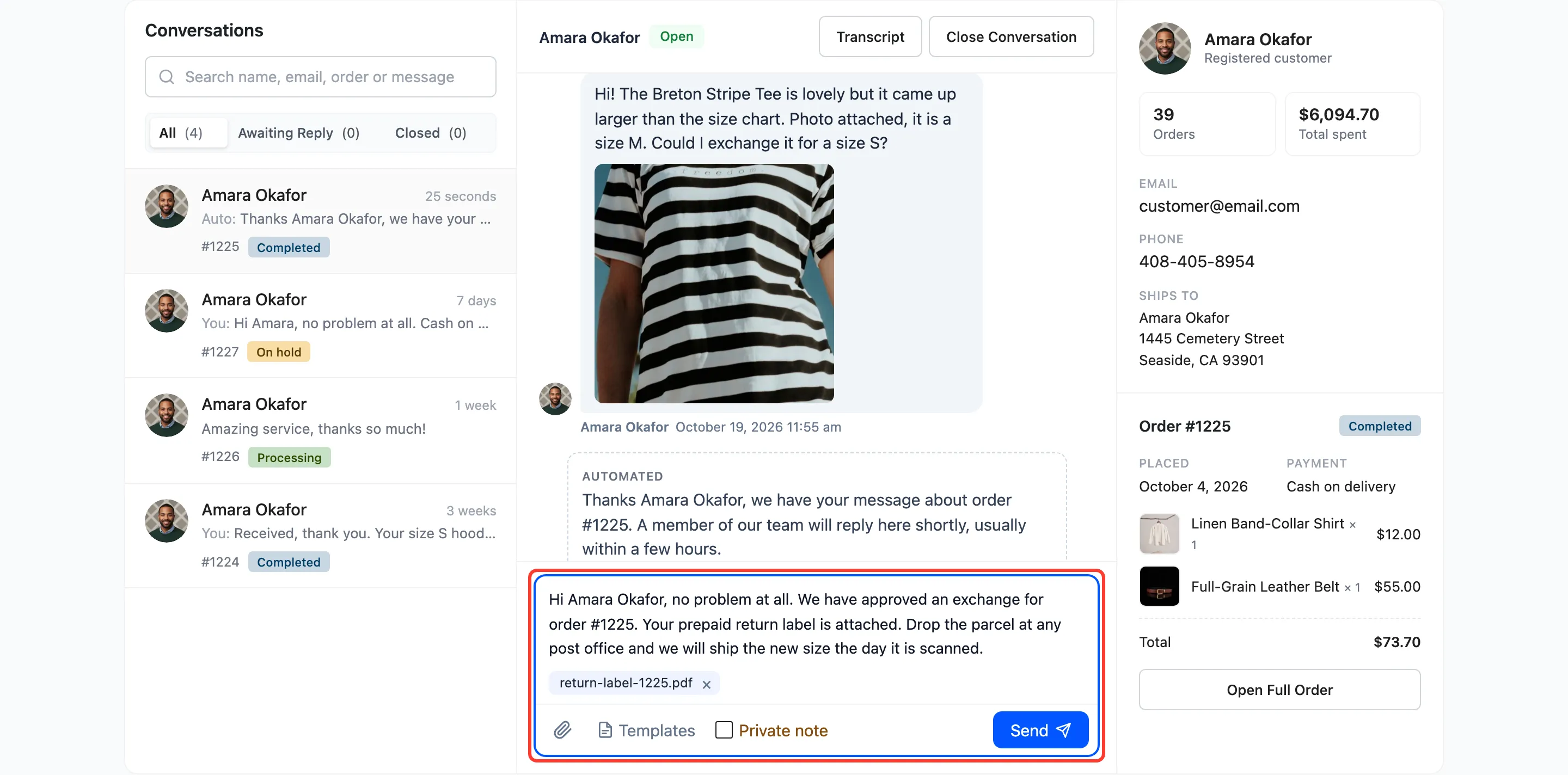
Section titled “Step 3: Write the reply”Type in the composer at the bottom of the thread. Shift+Enter starts a new line. In Pro you can also insert a saved reply and attach a file, as here, where the return label goes along as a PDF.
Step 4: Send it
Section titled “Step 4: Send it”Press Enter or click Send. The reply appears in the thread at once, and:
- The conversation leaves Awaiting Reply.
- Amara gets the customer notification email, if it is on.
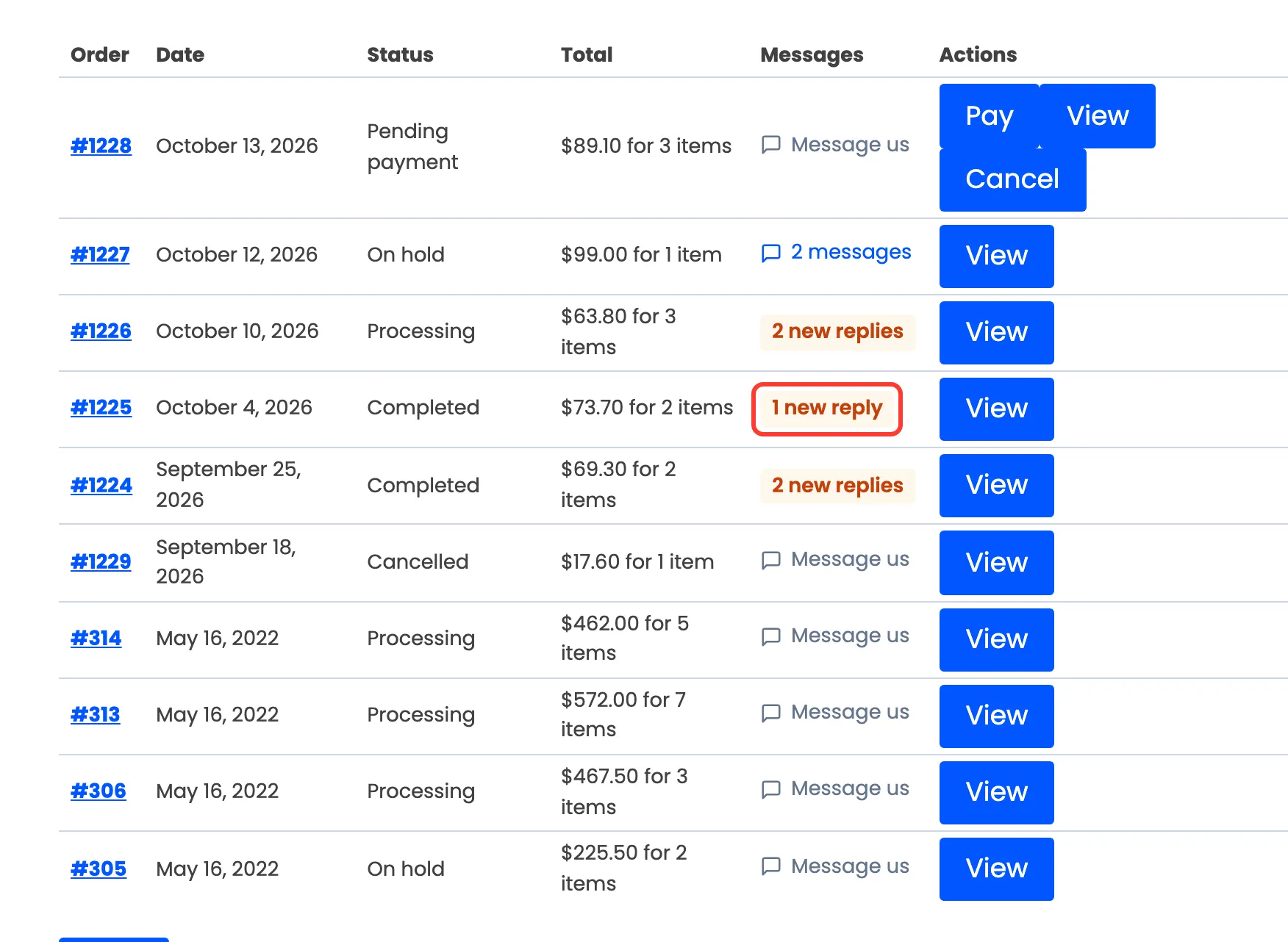
- Her orders list says 1 new reply on order #1225.
Step 5: Check it was seen
Section titled “Step 5: Check it was seen”When Amara opens the order, your message changes from one grey tick to two blue ticks. You do not need to reload. The Inbox checks for changes every 15 seconds.
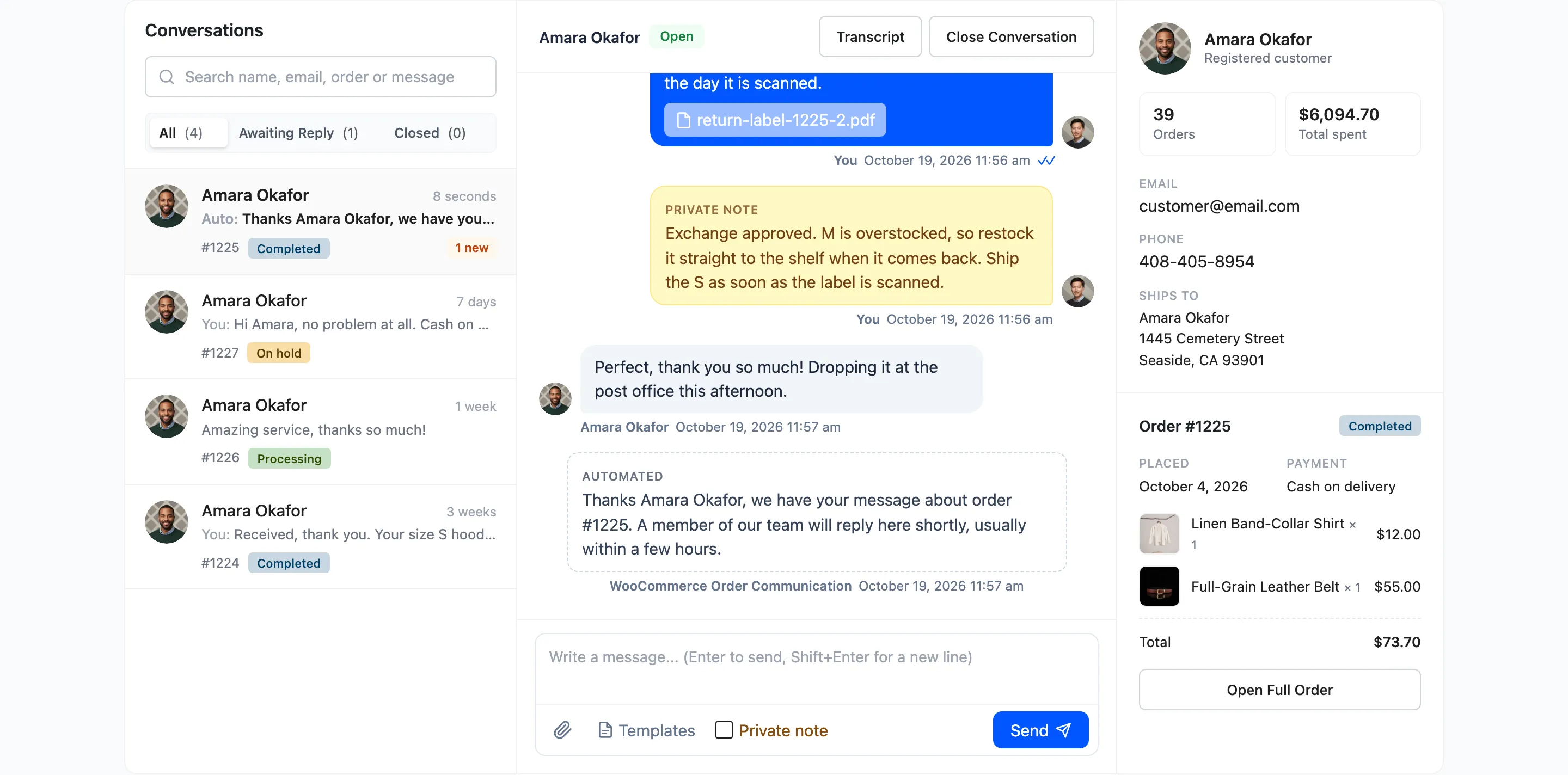
Her answer arrives in the same thread, live, while it is open.
You can also reply from the order
Section titled “You can also reply from the order”The same conversation is on the order screen in WooCommerce → Orders. See Conversations on the Order Screen.