

How to Customize the Notification Emails
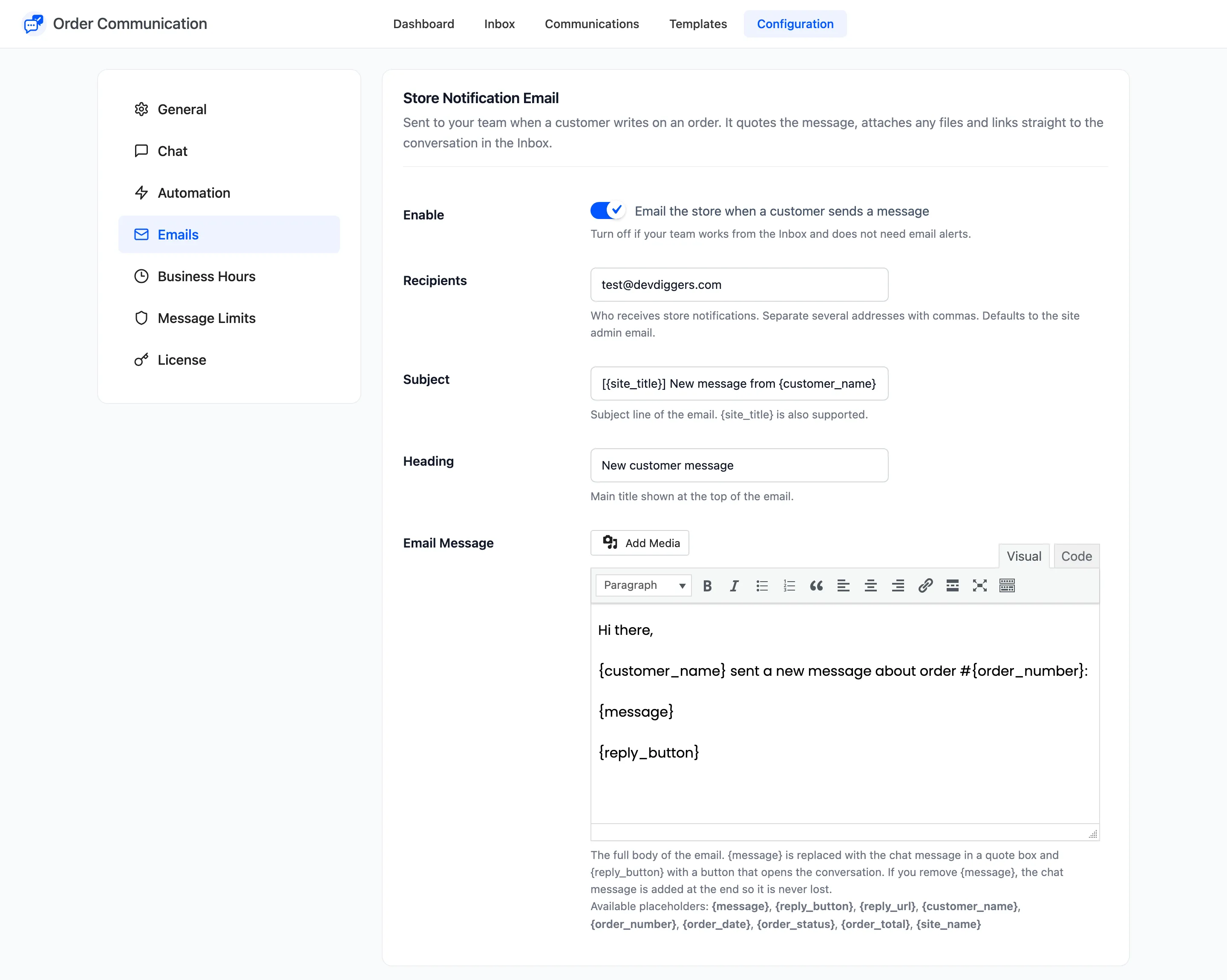
Both versions let you switch each email on or off and choose who gets the store email. Rewriting the wording is Pro.
Step 1: Open the Emails tab
Section titled “Step 1: Open the Emails tab”Go to Order Communication → Configuration → Emails.
Step 2: Set the recipients
Section titled “Step 2: Set the recipients”Recipients under Store Notification Email takes one or more addresses, separated by commas, for
example support@yourstore.com, sam@yourstore.com. Empty sends to the site admin email.
Step 3: Rewrite the wording (Pro)
Section titled “Step 3: Rewrite the wording (Pro)”Each email has Subject, Heading and Email Message. Write the message in the visual editor and use placeholders:
{message}puts the chat message in a quote box. Keep it. If you remove it the message is added at the end anyway.{reply_button}adds the Reply to this message button. Or use{reply_url}for your own link.{customer_name},{order_number},{order_date},{order_status},{order_total}and{site_name}fill in the order details.{site_title}works in the subject.
Step 4: Save and test
Section titled “Step 4: Save and test”Click Save Changes. Send yourself a test by writing on one of your own orders as a customer, and replying from the Inbox.
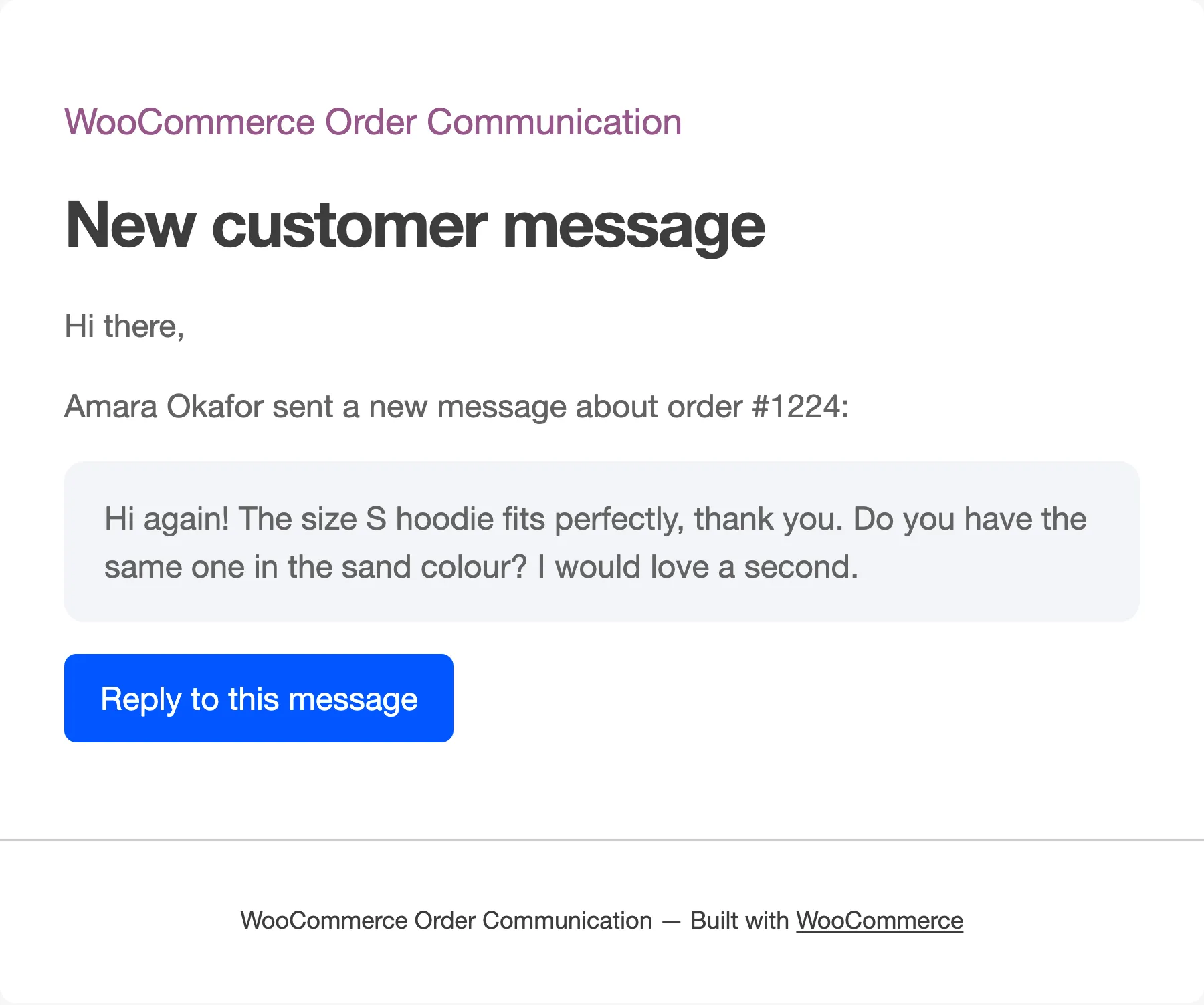
The default store email looks like this:
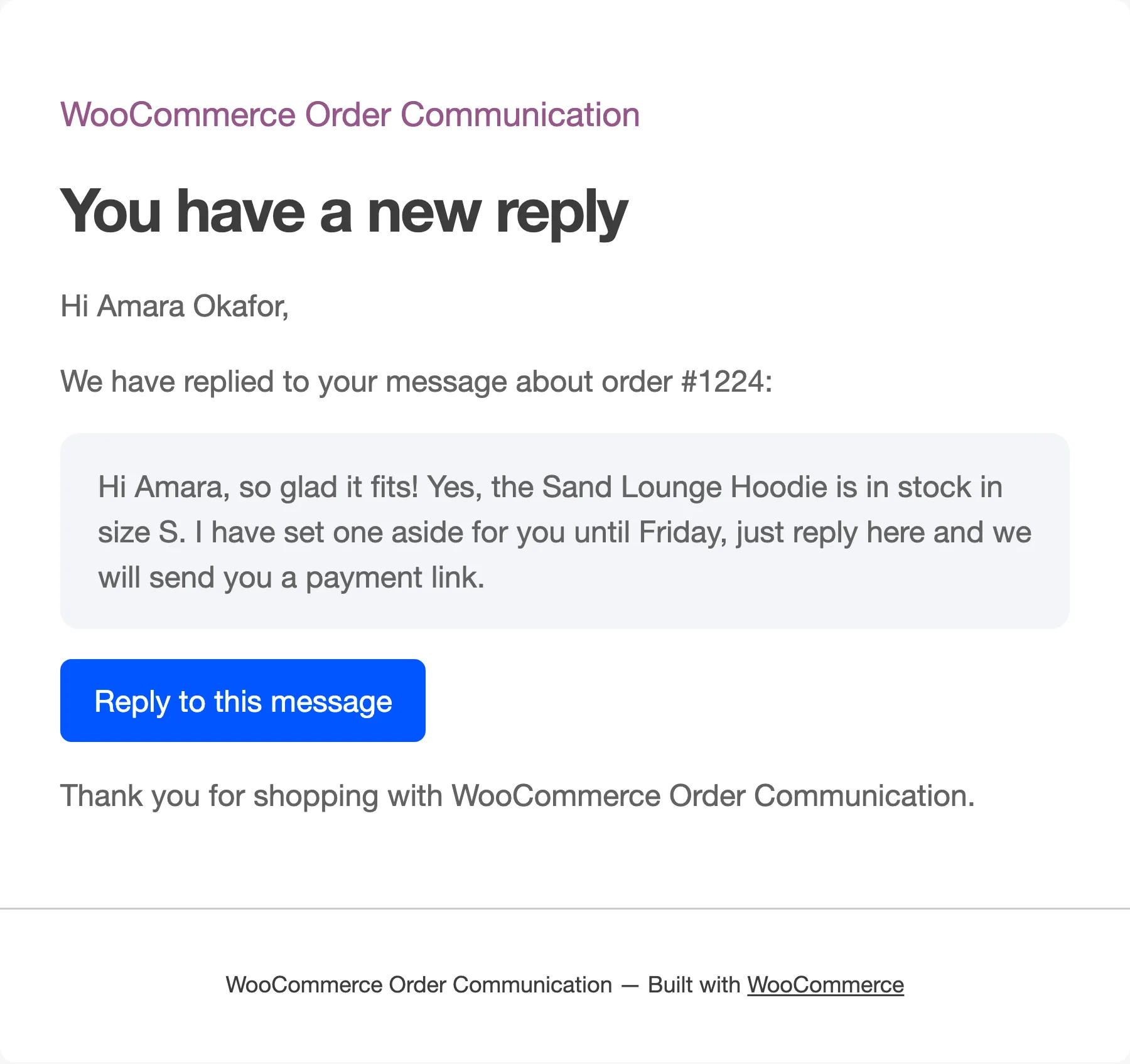
And the default customer email:
Things to know
Section titled “Things to know”- Both emails use your WooCommerce email design: base colour, header image and footer text from WooCommerce → Settings → Emails.
- The customer’s files are attached to the store email (Pro).
- No email goes out for private notes, the auto-reply or the business hours notice.
- No email arriving at all? Check that Order Communication: New Message is enabled in WooCommerce’s email list, and that your site can send email.