

How Order Conversations Work
This page follows one real conversation from start to finish. Amara bought a Breton Stripe Tee, order #1225, and it came up larger than the size chart. Every screenshot below is that conversation.
1. The customer writes
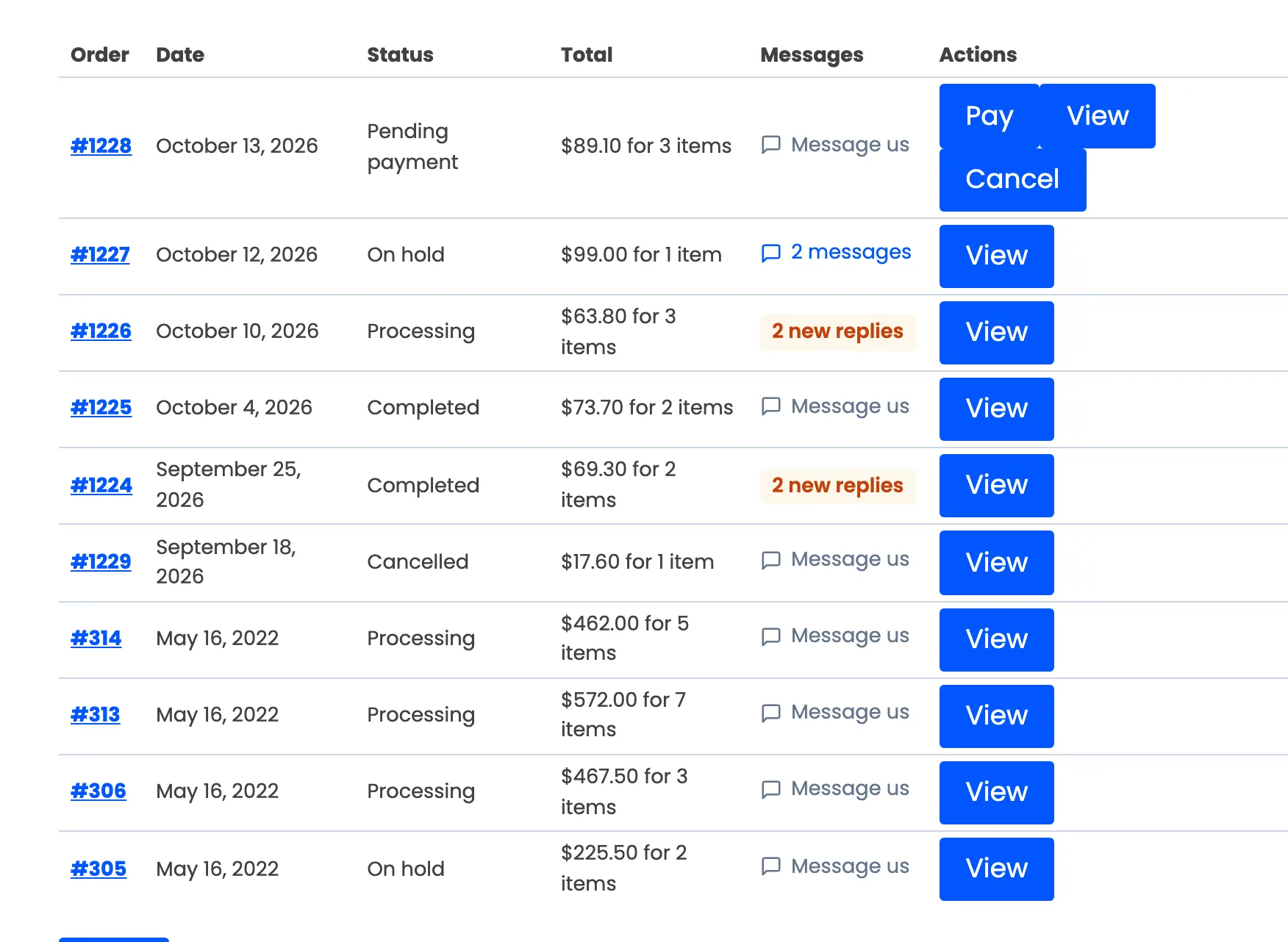
Section titled “1. The customer writes”In My Account → Orders, every order has a Messages column. On an order with no conversation it reads Message us.
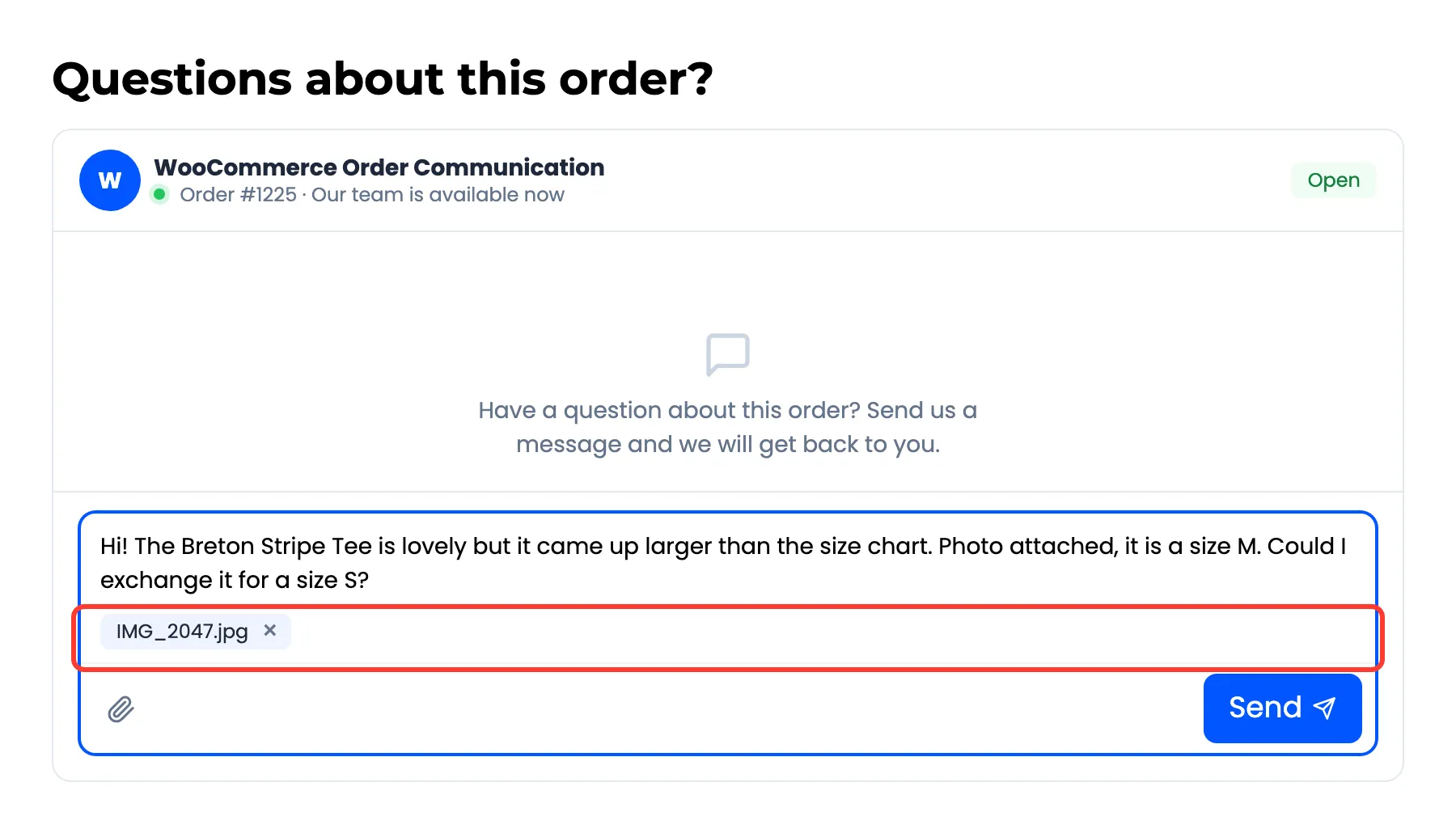
The order page shows the conversation under the order details, headed Questions about this order? Amara types her question, attaches a photo (Pro) and presses Send, or Enter on her keyboard.
Only the customer who placed the order can see or write in its conversation, and only while logged in. Orders placed as a guest have no conversation on the storefront. See Can guests use order conversations?.
2. The store is told
Section titled “2. The store is told”Three things happen at once:
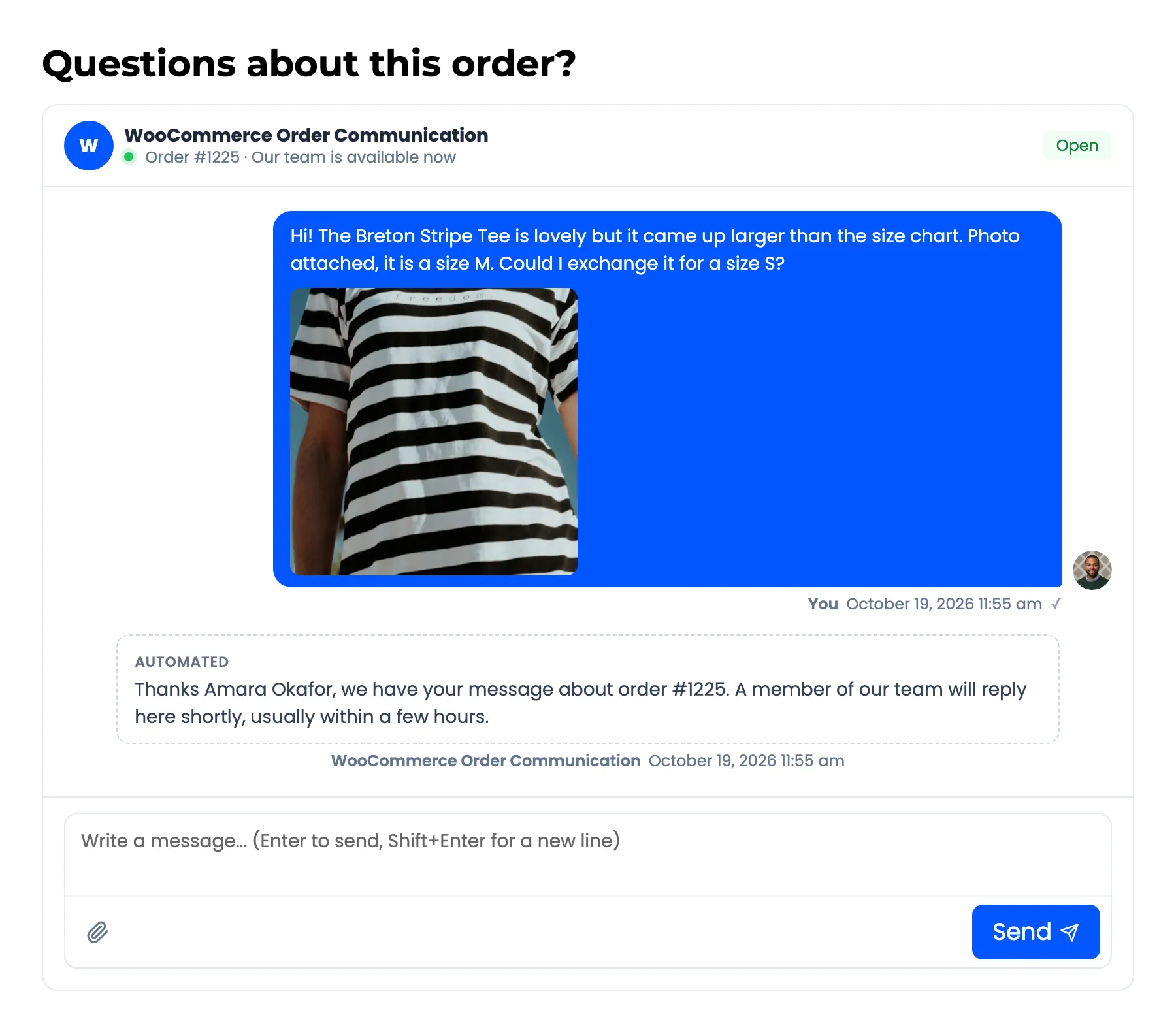
- The message is saved on the order as Awaiting Reply.
- Your team gets the store notification email, if it is on.
- In Pro with auto-reply on, an Automated reply is posted straight away.
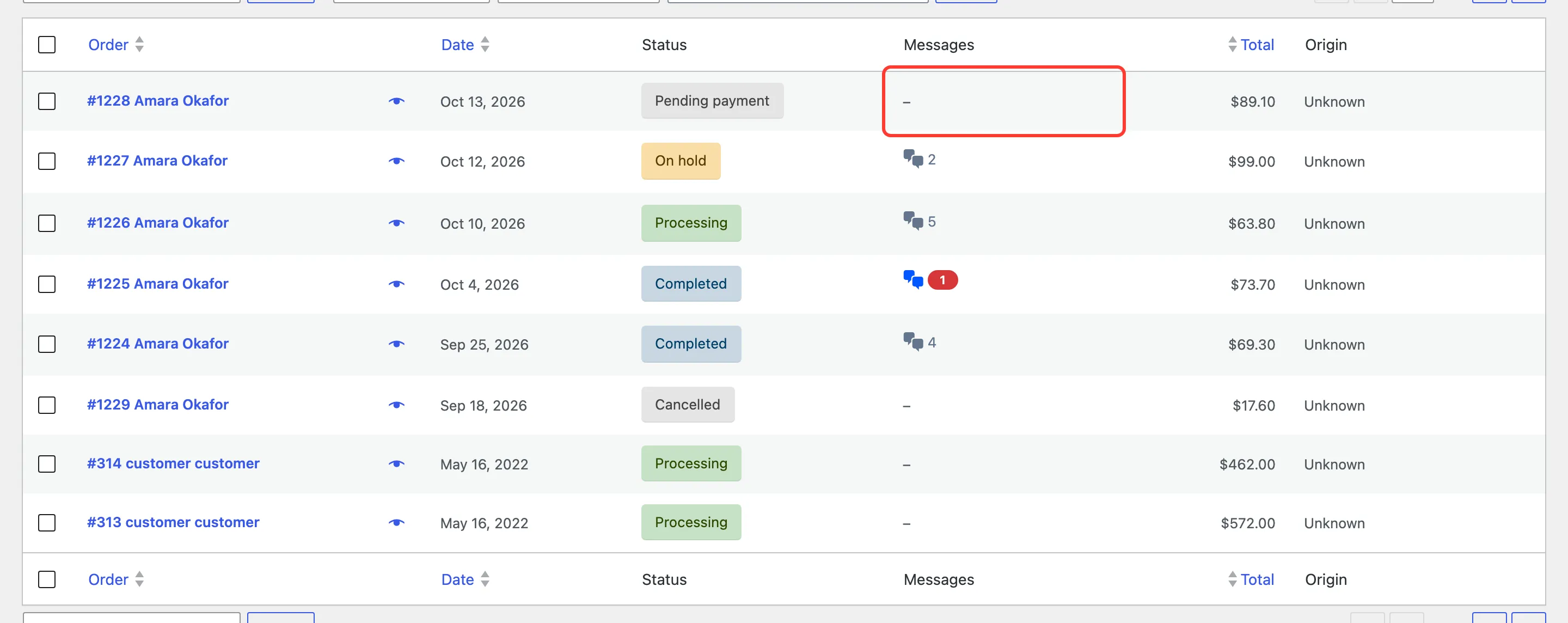
The order now shows an unread count in four places: the red number next to Order Communication in the admin menu, the Messages column of WooCommerce → Orders, the Inbox list, and the dashboard’s Awaiting Reply Now card.
3. Someone on your team opens it
Section titled “3. Someone on your team opens it”The Inbox’s Awaiting Reply filter lists every conversation with an unread customer message. Opening the conversation marks the customer’s messages Read.
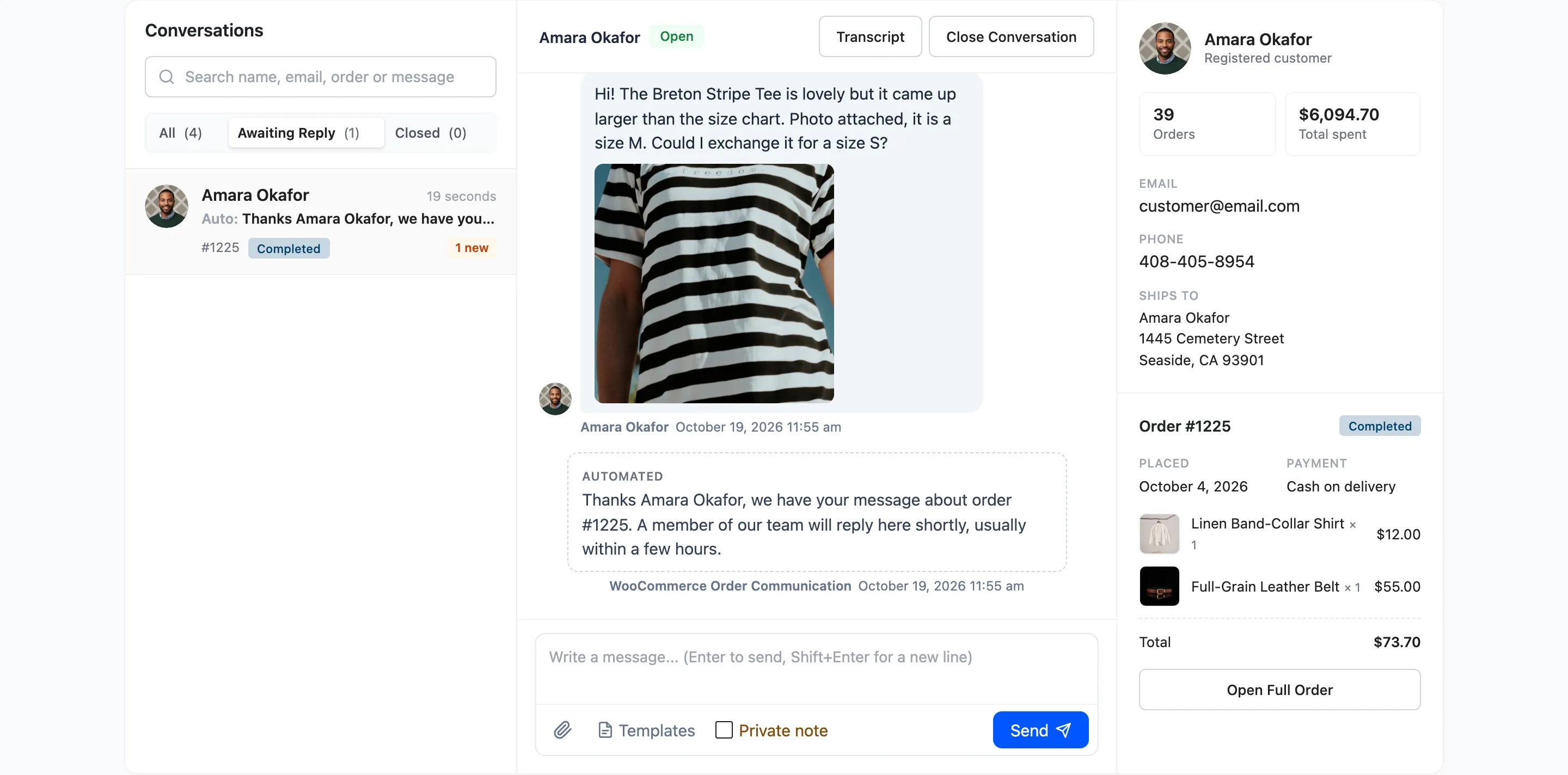
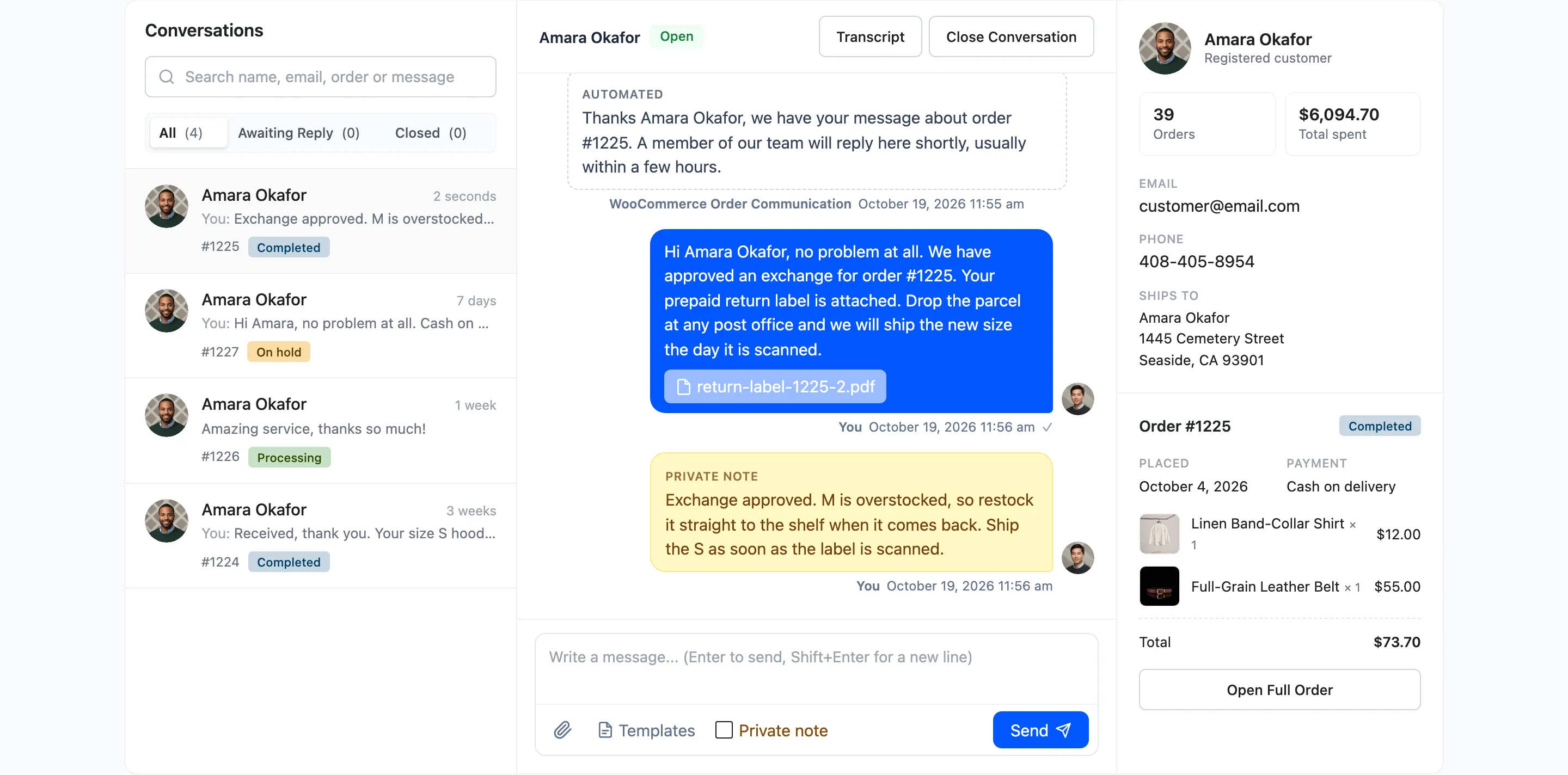
4. Your team replies
Section titled “4. Your team replies”Type in the composer and press Send. In Pro you can insert a saved reply, attach a file, or tick Private note to leave a note only your team sees. A reply marks the customer’s messages Replied, and the customer gets an email with a Reply to this message button.
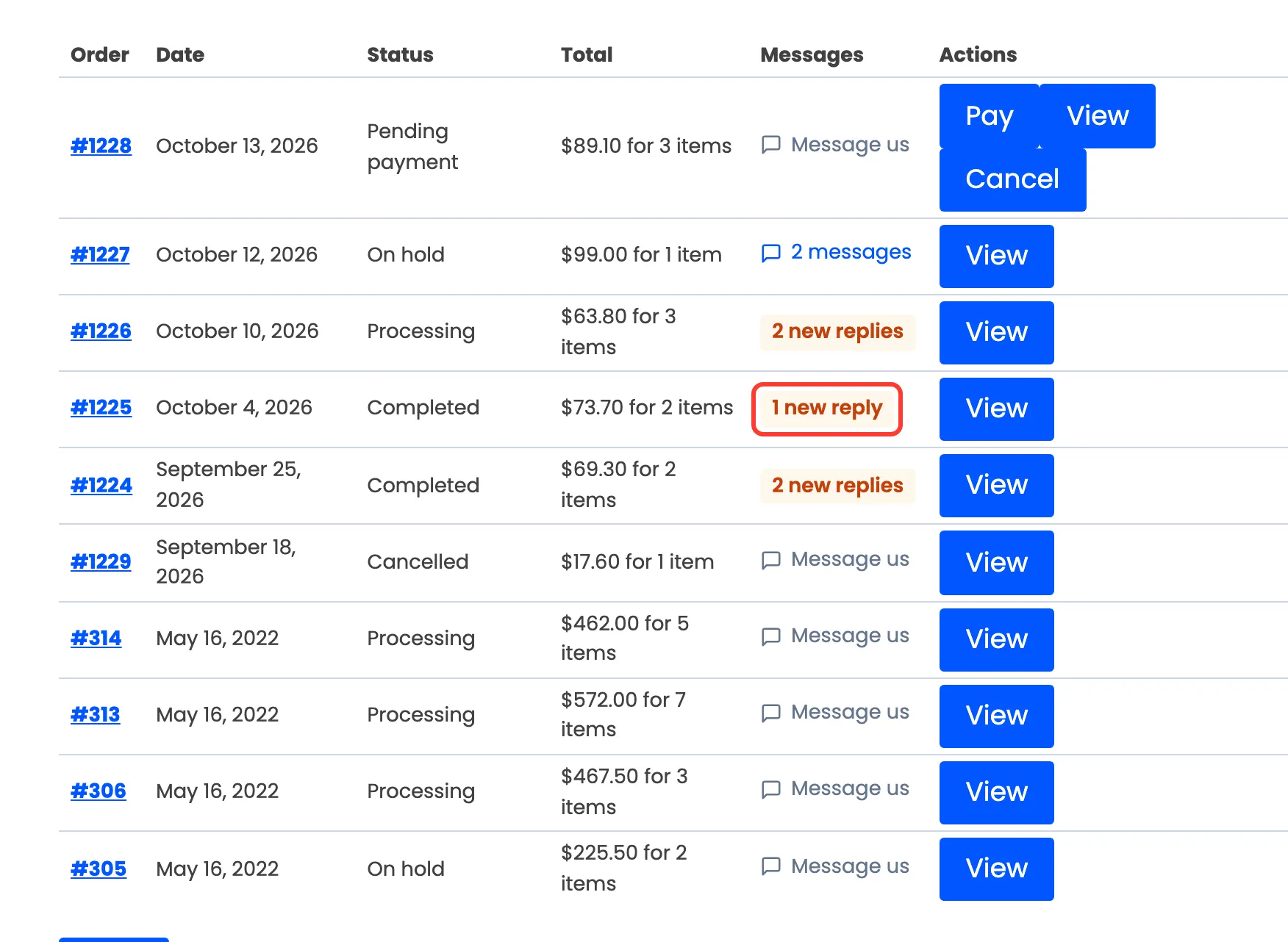
5. The customer reads it
Section titled “5. The customer reads it”The customer’s orders list now says 1 new reply on that order. Opening the order shows the reply.
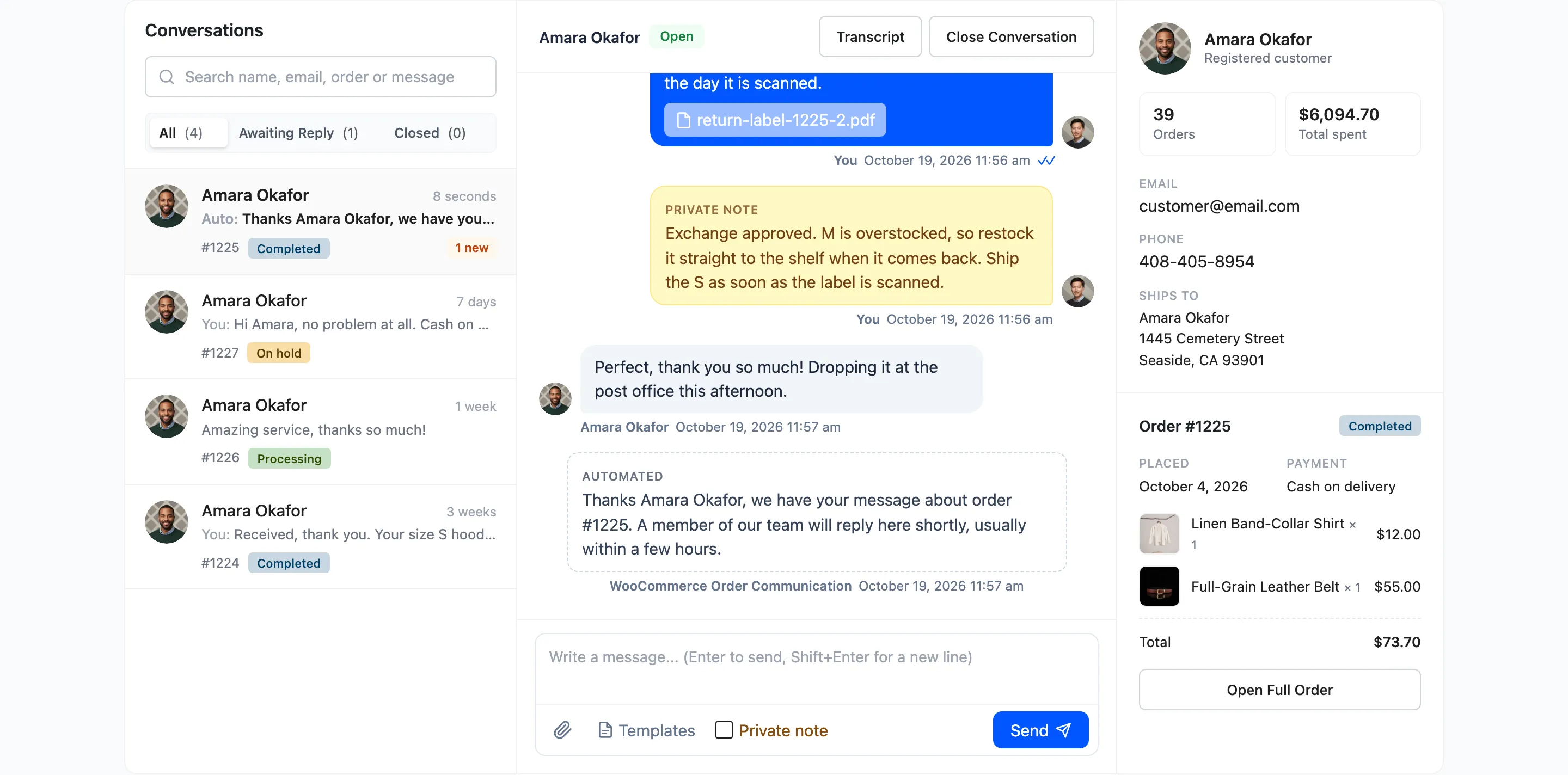
The moment the customer opens it, your message gets a second tick in the Inbox. One grey tick means sent, two blue ticks mean seen. The same ticks work in the other direction for the customer’s messages.
6. Close the conversation
Section titled “6. Close the conversation”When the question is settled, click Close Conversation. The customer can still read everything but can no longer write. They see “This conversation has been closed by the store. Contact us if you still need help.”
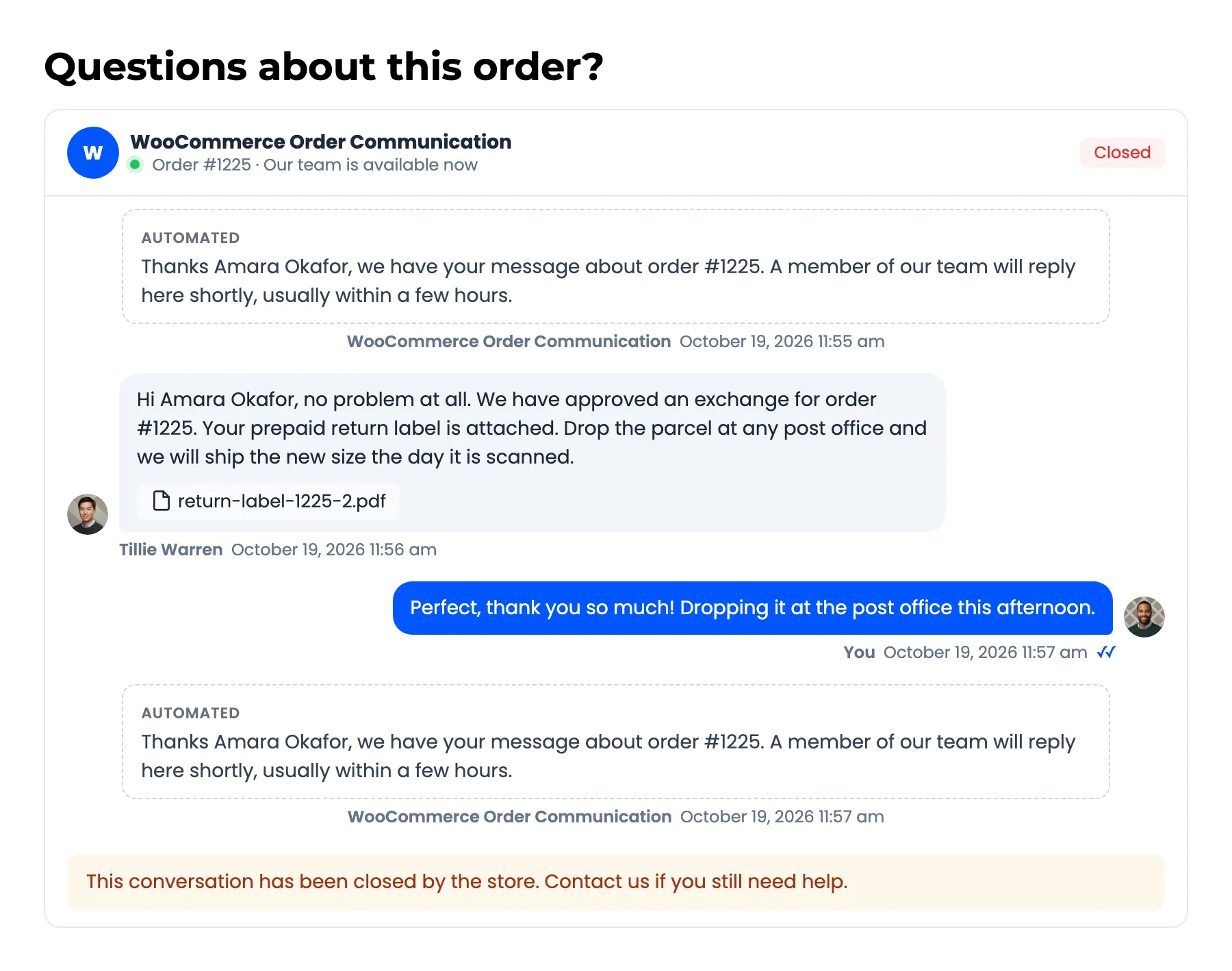
Your team can still write in a closed conversation, and Reopen Conversation lets the customer write again.
The four states
Section titled “The four states”The Communications screen (Pro) labels each conversation by its newest customer message:
| State | Meaning |
|---|---|
| Awaiting Reply | A customer message nobody on your team has opened yet |
| Read | Your team opened it but has not replied |
| Replied | Your team replied after the customer’s last message |
| Closed | Closed from the chat header or a bulk action, whatever else is true |
Live updates
Section titled “Live updates”An open conversation checks for new messages every 15 seconds, on both sides, without reloading the page. It stops checking while the browser tab is hidden. Change the interval under Chat Settings.
Where the messages are stored
Section titled “Where the messages are stored”Messages are saved as WordPress comments of their own type, attached to the order. They never appear on Comments, in comment widgets or in feeds. Attachments go to the Media Library, attached to the order.