

How to Limit How Many Messages a Customer Sends (Pro)
Step 1 and 2: Turn the limit on
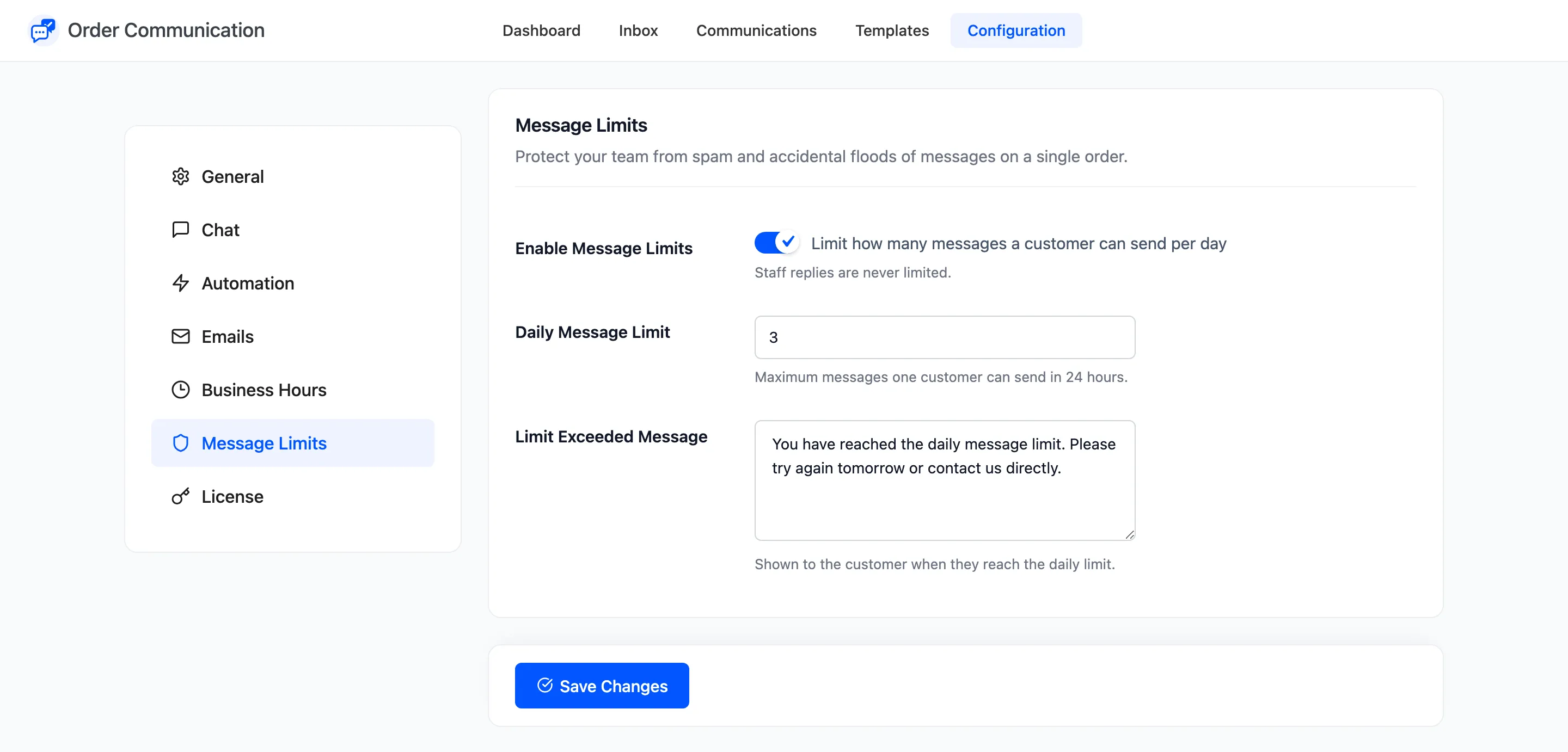
Section titled “Step 1 and 2: Turn the limit on”Go to Order Communication → Configuration → Message Limits and tick Limit how many messages a customer can send per day.
Step 3: Set the number and the notice
Section titled “Step 3: Set the number and the notice”Daily Message Limit is 5 by default, from 1 to 50. Set it high enough for a real back-and-forth: a size exchange alone can take four messages. Write the Limit Exceeded Message, then click Save Changes.
Step 4: See what the customer gets
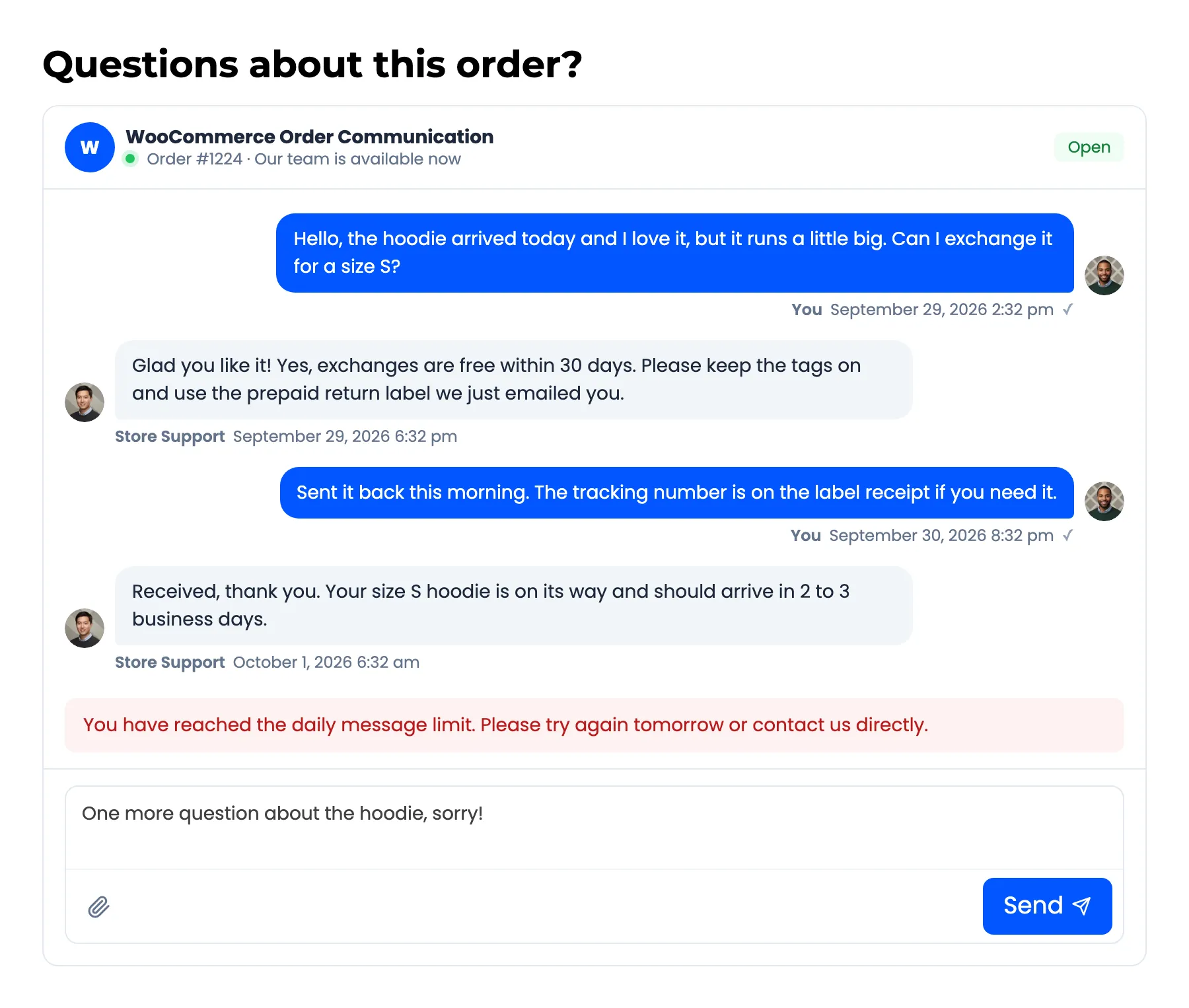
Section titled “Step 4: See what the customer gets”On the demo the limit was set to 3. Amara had already written more than that today, on other orders, so her next message was refused and the notice appeared in its place.
How the count works
Section titled “How the count works”- It is per customer, across all their orders. Writing on another order does not get around it.
- It resets at midnight in your store timezone, not 24 hours after the first message.
- Your team is never limited, and automated messages do not count.