

How to Share Photos and Files in a Conversation (Pro)
A photo settles most order questions faster than a paragraph: a damaged box, a wrong colour, a size that does not fit. This example is a real exchange on order #1225.
Step 1: Turn attachments on
Section titled “Step 1: Turn attachments on”Go to Order Communication → Configuration → General. Under Attachments:
- Tick Allow images and documents in messages. Pro switches it on when it is installed.
- Allowed File Types: Images, PDF, text and Word files. Leave it empty to allow all four.
- Max File Size (MB): Default 5, never above what your server allows.
- Max Files per Message: Default 5.
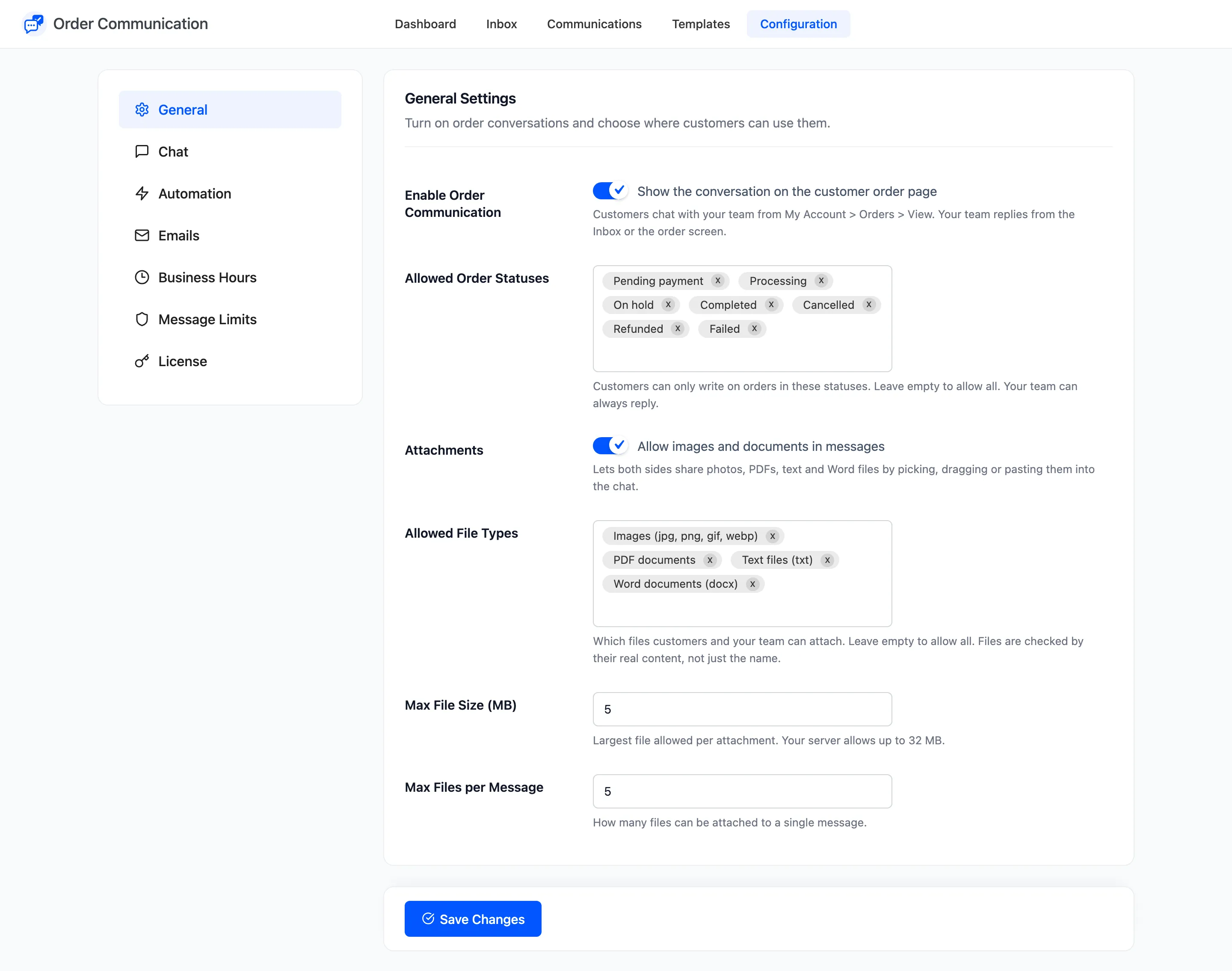
Click Save Changes.
Step 2: The customer attaches a file
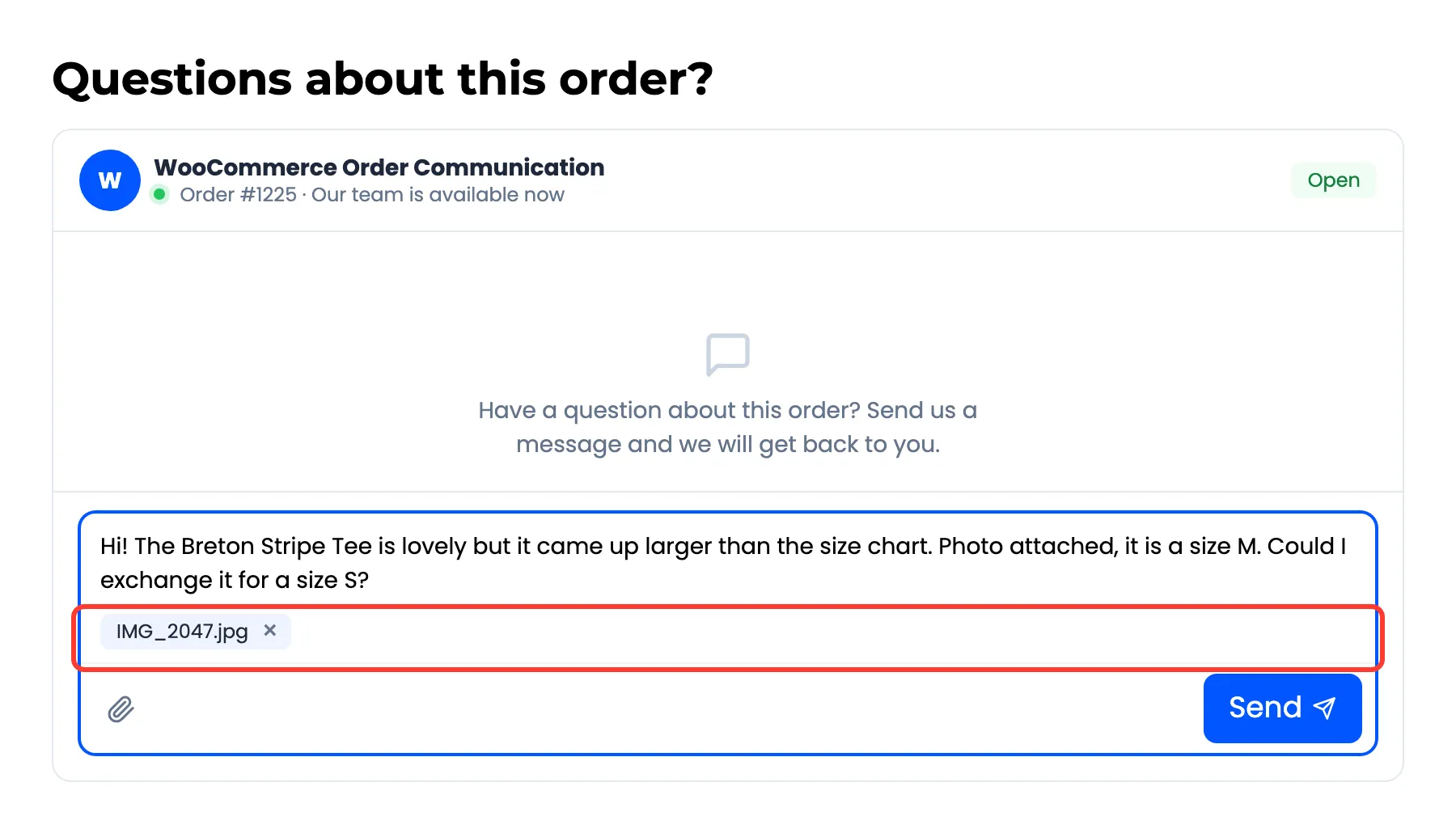
Section titled “Step 2: The customer attaches a file”On their order page the customer has three ways to add a file:
- Click the paperclip and pick it.
- Drag it onto the conversation.
- Paste a screenshot or photo straight into the message box.
Each file shows as a chip with a cross to remove it before sending.
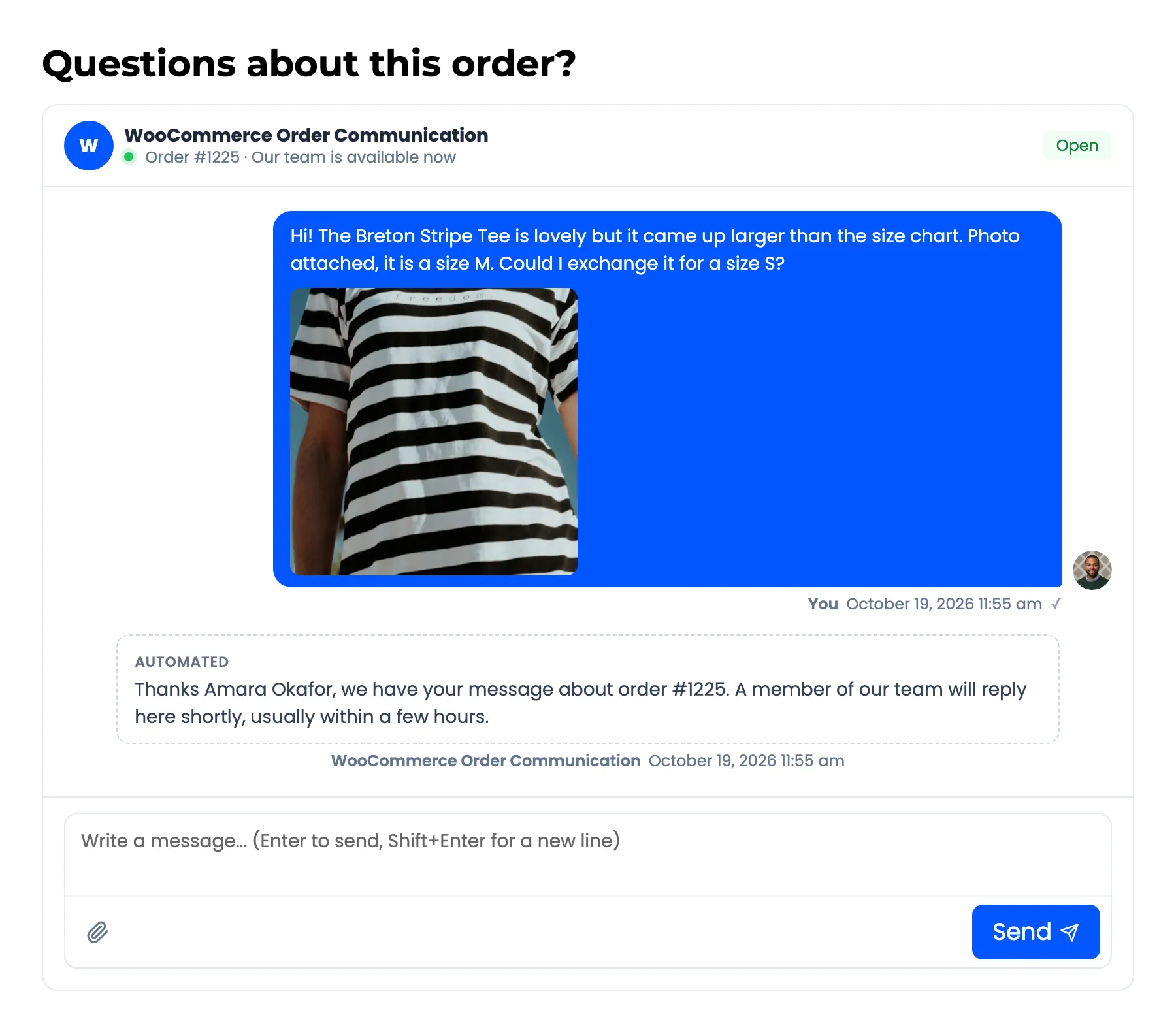
After Send, an image shows in the message itself. Any other file is a link with its name.
Step 3: Open it in the Inbox
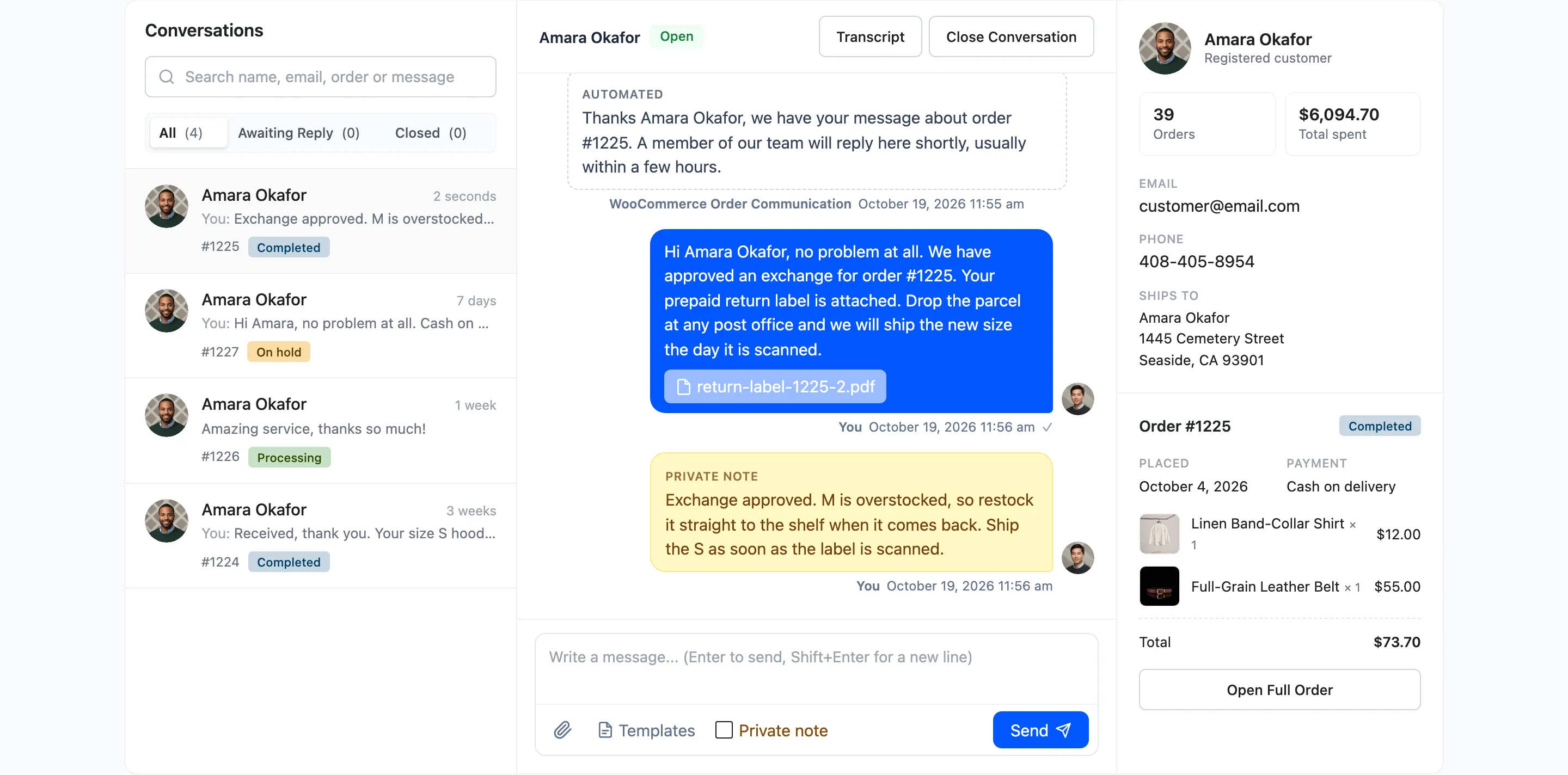
Section titled “Step 3: Open it in the Inbox”The photo is in the thread. Click it to open it full size in a new tab. The store notification email carries the customer’s files as email attachments too.
Step 4: Attach a file to your reply
Section titled “Step 4: Attach a file to your reply”Your composer has the same paperclip. Here the return label goes back to Amara as a PDF.
When a file is refused
Section titled “When a file is refused”The customer sees the reason above the composer and nothing is sent:
- “Sorry, only these file types are allowed: …” for a type you did not allow. Files are checked by their content, so renaming a file does not get it through.
- “Attachment size too large, the limit is 5 MB.”
- “You can attach up to 5 files per message.”
Attached files are saved in your Media Library, attached to the order.