

How to Track Your Team's Response Time (Pro)
Step 1 and 2: Open the dashboard and pick a period
Section titled “Step 1 and 2: Open the dashboard and pick a period”Go to Order Communication → Dashboard and choose a period in the date picker.
Step 3: Read the response cards
Section titled “Step 3: Read the response cards”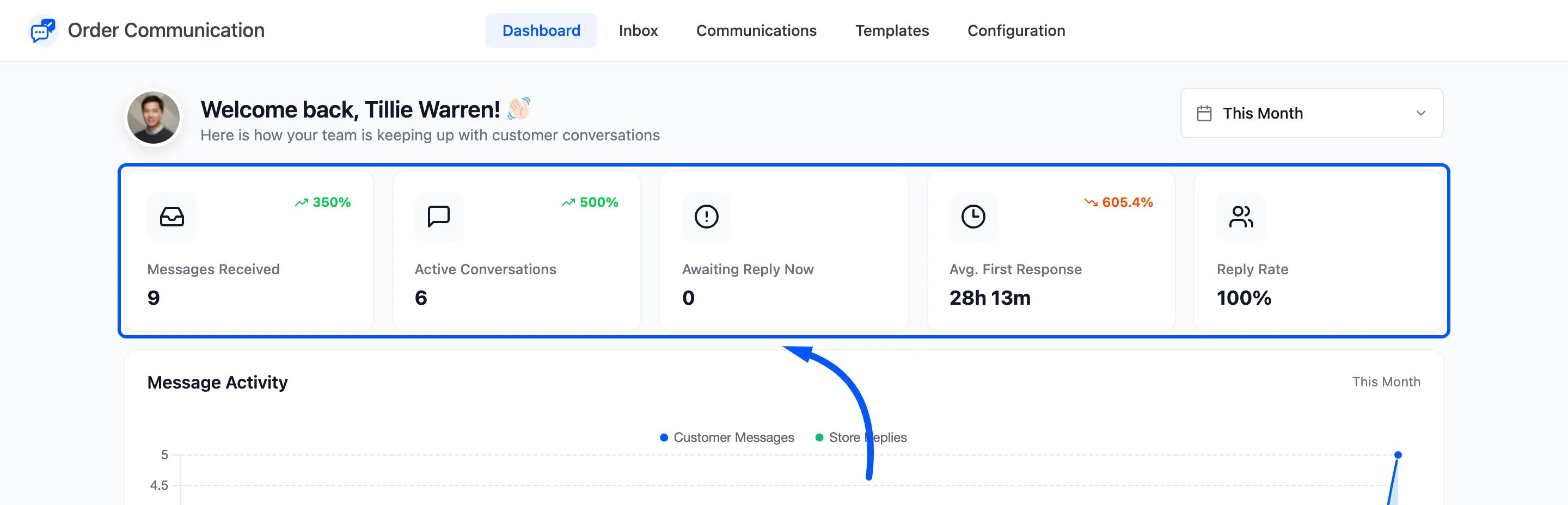
- Avg. First Response: From a customer’s first unanswered message to your team’s next reply, averaged. A customer who sends three messages before you answer counts once, from the first.
- Reply Rate: Of the conversations active in the period, the share your team wrote in.
The percentage on each card compares with the previous period of the same length. A drop in response time shows in green.
Automated messages and private notes never count as a reply. Only a real answer stops the clock.
Step 4: Look at the daily chart
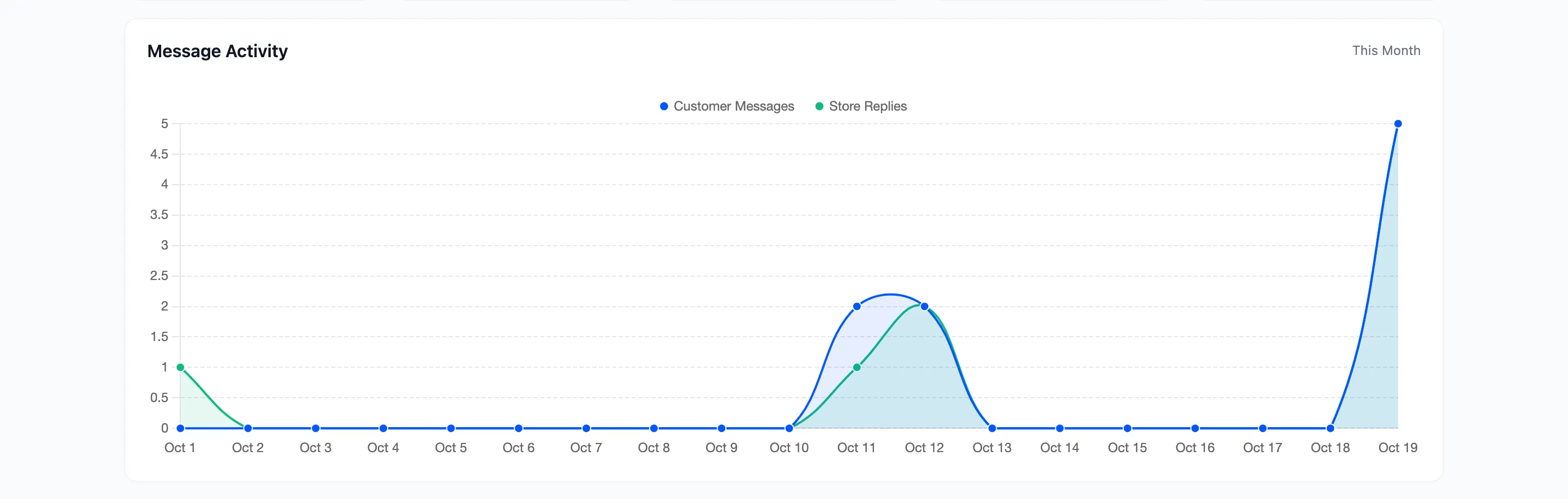
Section titled “Step 4: Look at the daily chart”First Response Time (hours) plots the average for each day. A spike usually points at a weekend or a busy sale day. Conversation Status splits the period’s conversations into awaiting, answered and closed.
Step 5: Clear the waiting list
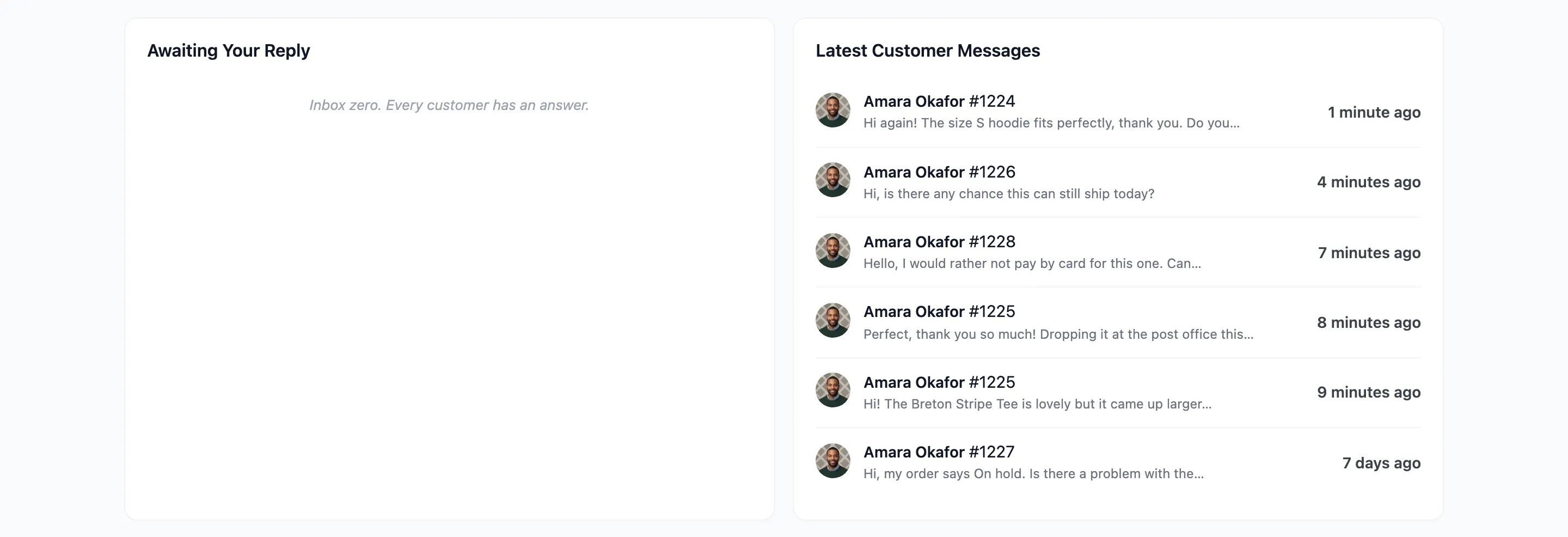
Section titled “Step 5: Clear the waiting list”Awaiting Your Reply lists up to six orders with unread customer messages, longest wait first. Click one to answer it in the Inbox.
Ways to bring it down
Section titled “Ways to bring it down”- Saved reply templates for the answers you give every day.
- An auto-reply so customers know you have the message, even if the clock keeps running.
- Business hours, so customers know when to expect an answer.