

How to Set Business Hours (Pro)
Step 1: Open the Business Hours tab
Section titled “Step 1: Open the Business Hours tab”Go to Order Communication → Configuration → Business Hours.
Step 2: Set your hours and days
Section titled “Step 2: Set your hours and days”Tick Apply business hours to customer messages. Set Business Hours Start and Business Hours End in your store’s timezone, and pick the Business Days.
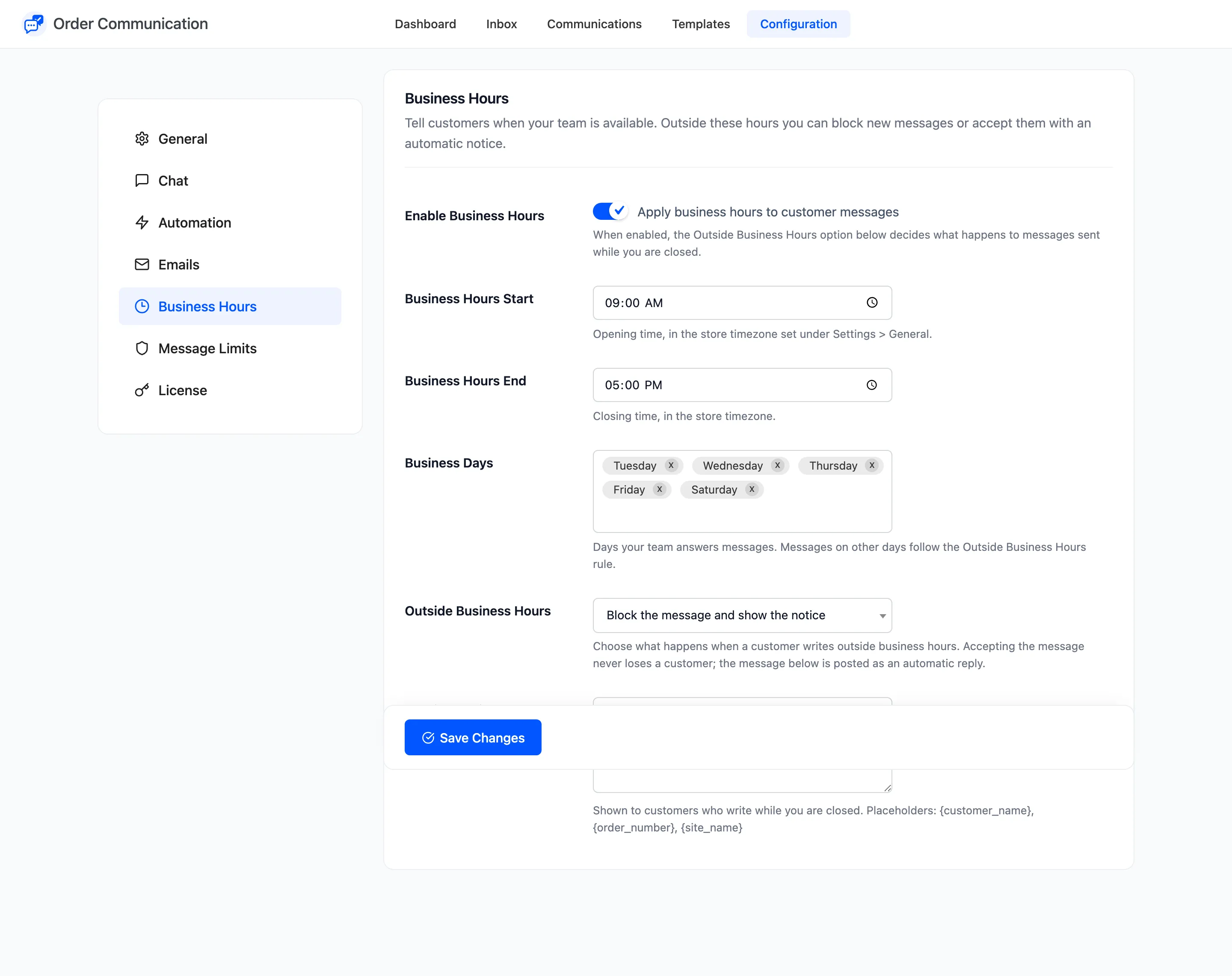
Opening must come before closing on the same day. A range across midnight, such as 22:00 to 06:00, never counts as open.
Step 3: Choose what happens after hours
Section titled “Step 3: Choose what happens after hours”- Block the message and show the notice: The customer cannot send. Good when you would rather they come back later than wait silently.
- Accept the message and auto-reply with the notice: The message goes through and your notice is posted under it. Usually the better choice: no customer is turned away.
Step 4: Rewrite the notice
Section titled “Step 4: Rewrite the notice”The default reads “We are currently closed. Our business hours are Monday to Friday, 9:00 AM to 5:00 PM.” It does not follow your settings, so rewrite it to match them. Then click Save Changes.
Step 5: Check the storefront
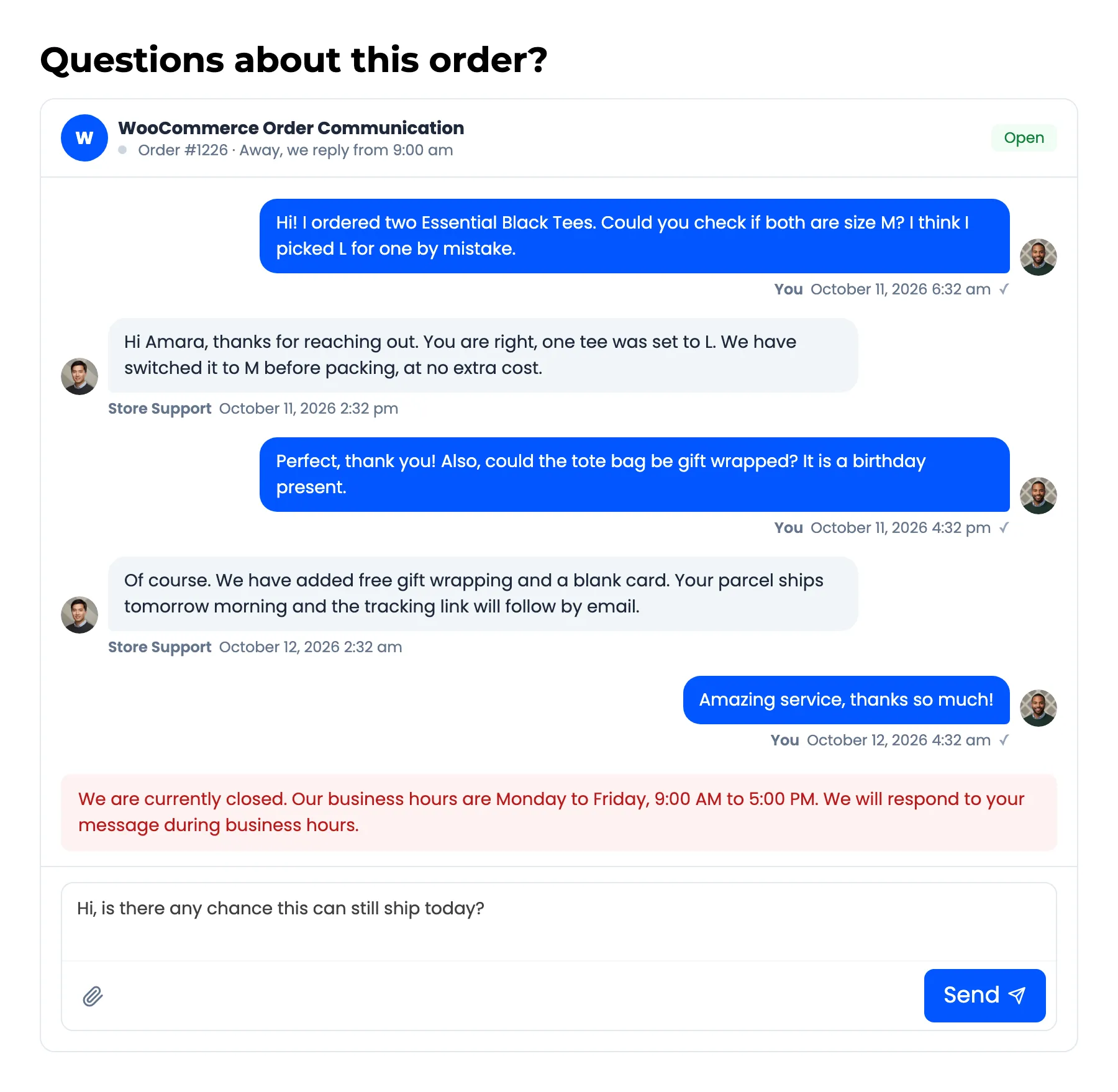
Section titled “Step 5: Check the storefront”While you are closed, the chat header says “Away, we reply from” your opening time. With Block chosen, a customer who presses Send sees your notice and the message stays in the box, unsent.
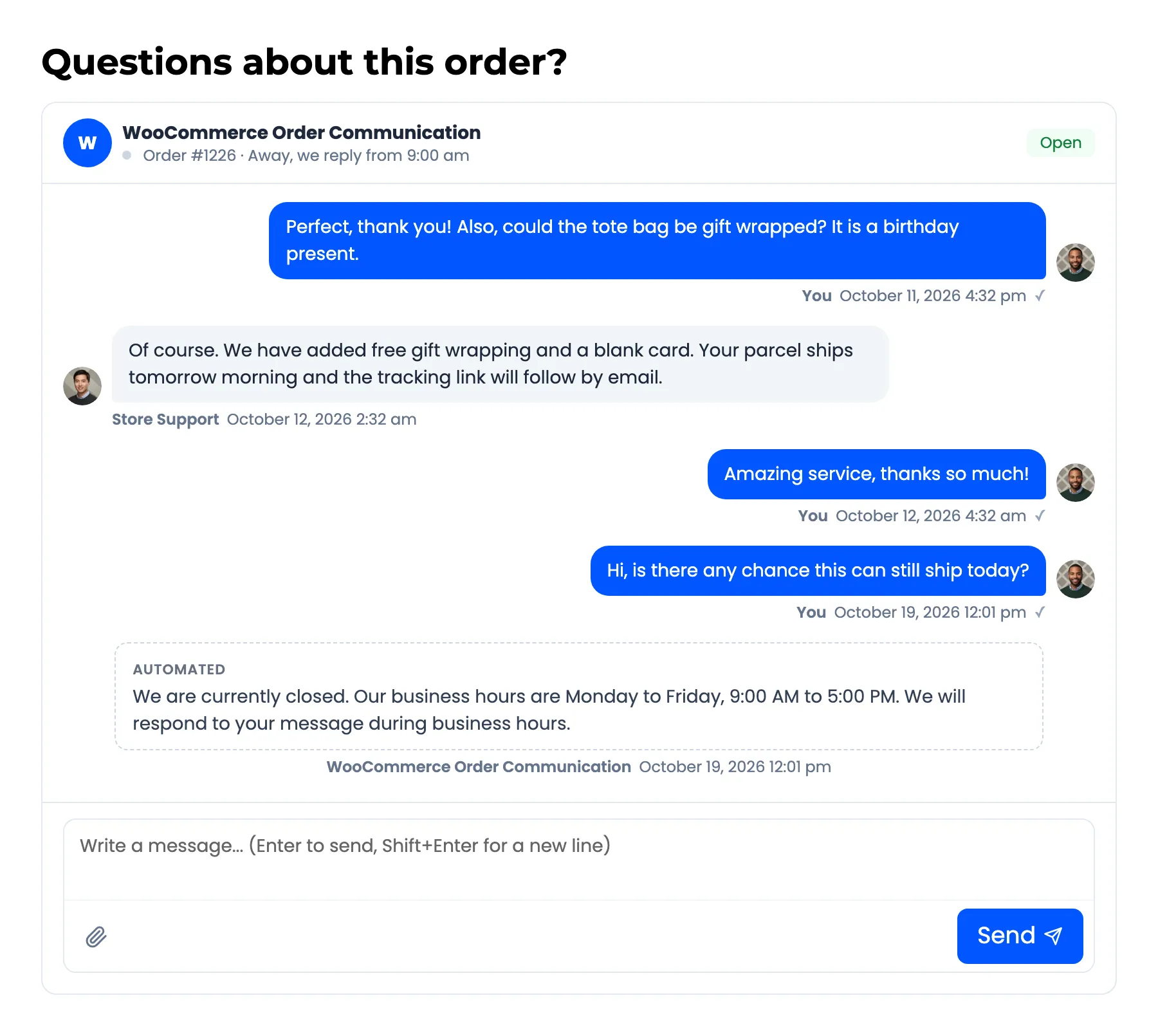
With Accept chosen, the message is sent and your notice follows it, marked Automated.
During your hours the header says “Our team is available now”.
Things to know
Section titled “Things to know”- Your team is never blocked. Staff can answer at any time.
- The notice replaces the auto-reply after hours. The customer does not get both.
- The notice is not emailed. It only appears in the conversation.