

How to Match the Chat Colors to Your Brand
Step 1: Open the Chat tab
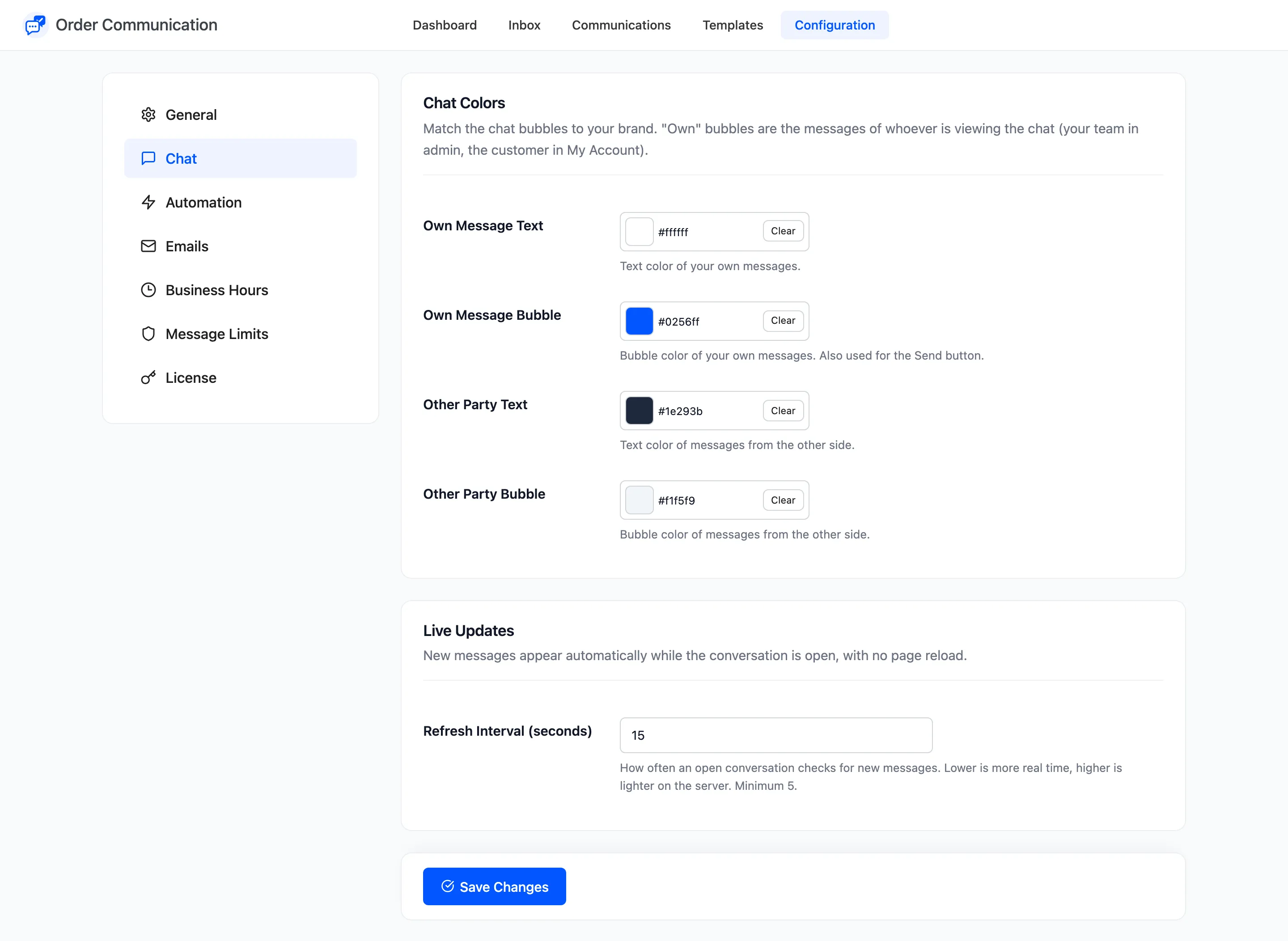
Section titled “Step 1: Open the Chat tab”Go to Order Communication → Configuration → Chat.
Step 2: Set your own bubble
Section titled “Step 2: Set your own bubble”“Own” is whoever is looking. Your team sees its replies in the own colour, and the customer sees their own messages in it too. So this is the colour of the person typing.
Set Own Message Bubble to your brand colour. It also colours the Send button. Set Own Message Text to white or near white if the brand colour is strong.
Step 3: Set the other party’s bubble
Section titled “Step 3: Set the other party’s bubble”Use a pale neutral for Other Party Bubble and a dark grey for Other Party Text. A light bubble for the other side keeps the two easy to tell apart.
Step 4: Save and check both sides
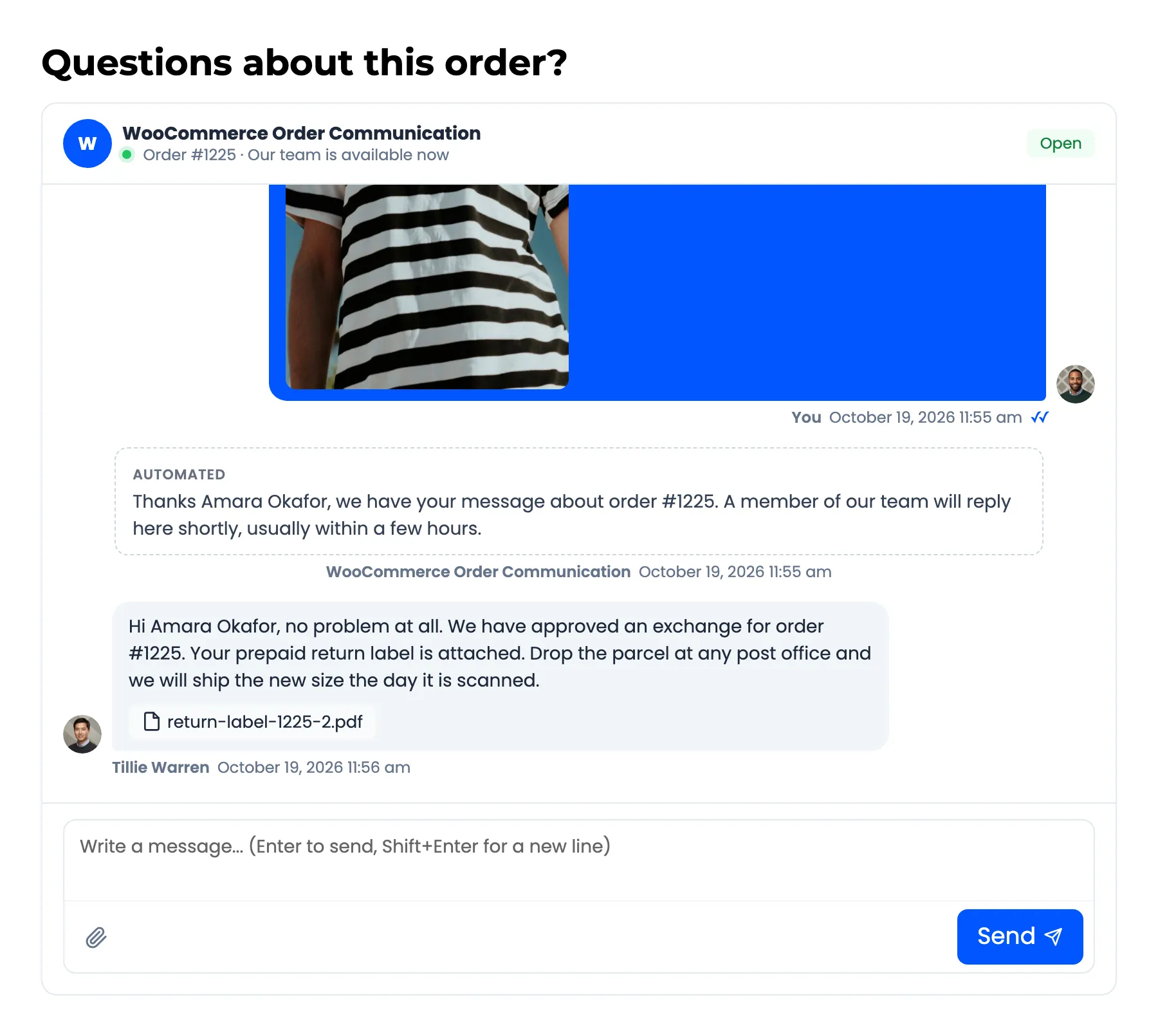
Section titled “Step 4: Save and check both sides”Click Save Changes. Open a conversation in the Inbox, then the same order in My Account. The defaults,
#0256ff with white text and #f1f5f9 with #1e293b text, look like this:
Keep it readable
Section titled “Keep it readable”Text needs a contrast of at least 4.5 to 1 against its bubble. Pale text on a mid colour, such as white on light green or yellow, usually fails. Check a pair with any online contrast checker before you save.