

General Settings
The General tab decides whether customers can write at all, on which orders, and what they may attach. Open Order Communication → Configuration → General.
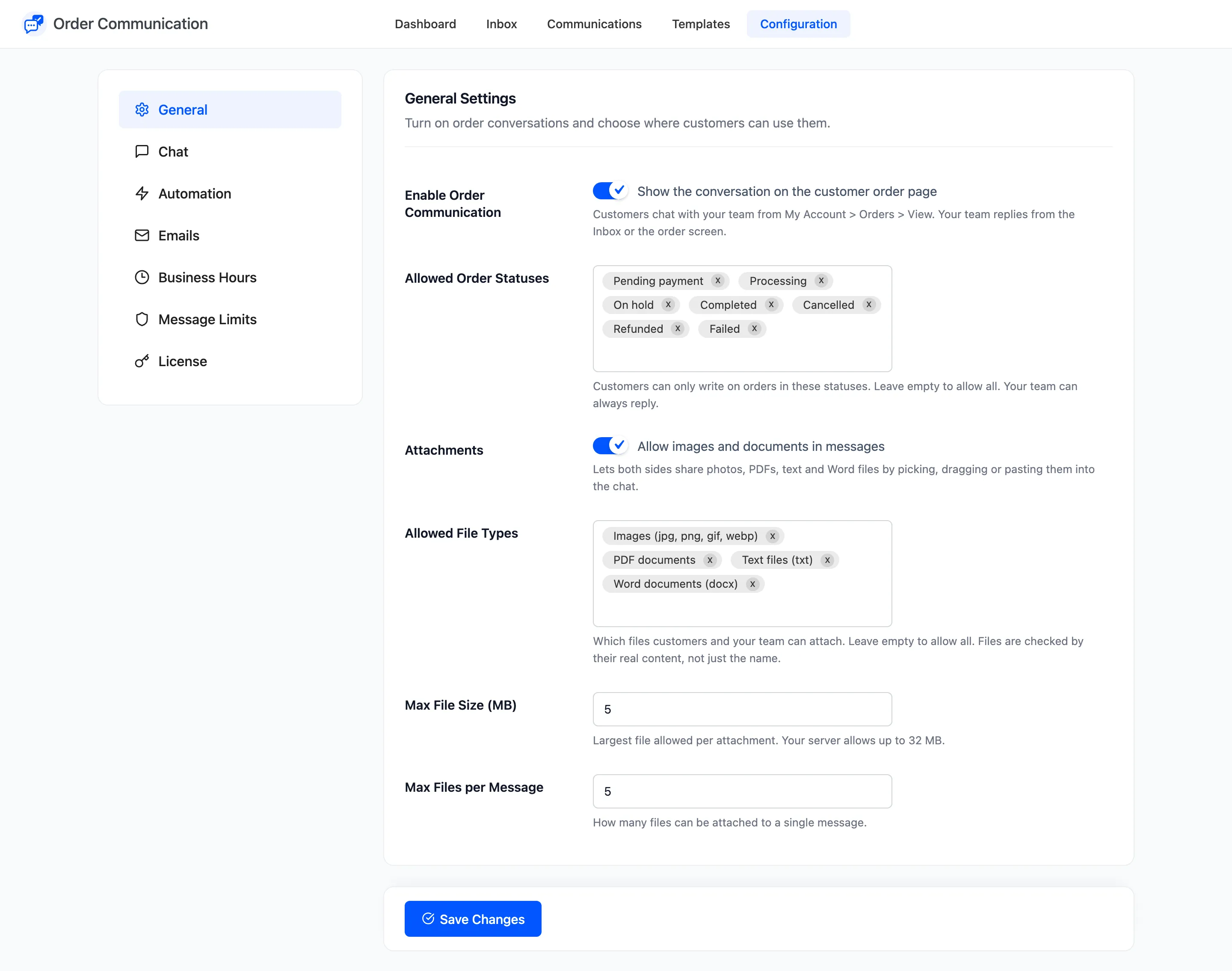
Enable Order Communication
Section titled “Enable Order Communication”“Show the conversation on the customer order page”. On after the setup wizard. Off, the conversation and the Messages column disappear from My Account. Your team can still read and write every conversation in the admin, and nothing is deleted.
Allowed Order Statuses
Section titled “Allowed Order Statuses”Customers can only write on orders in the statuses you pick here. Leave it empty to allow every status. Your team can always write, whatever the status.
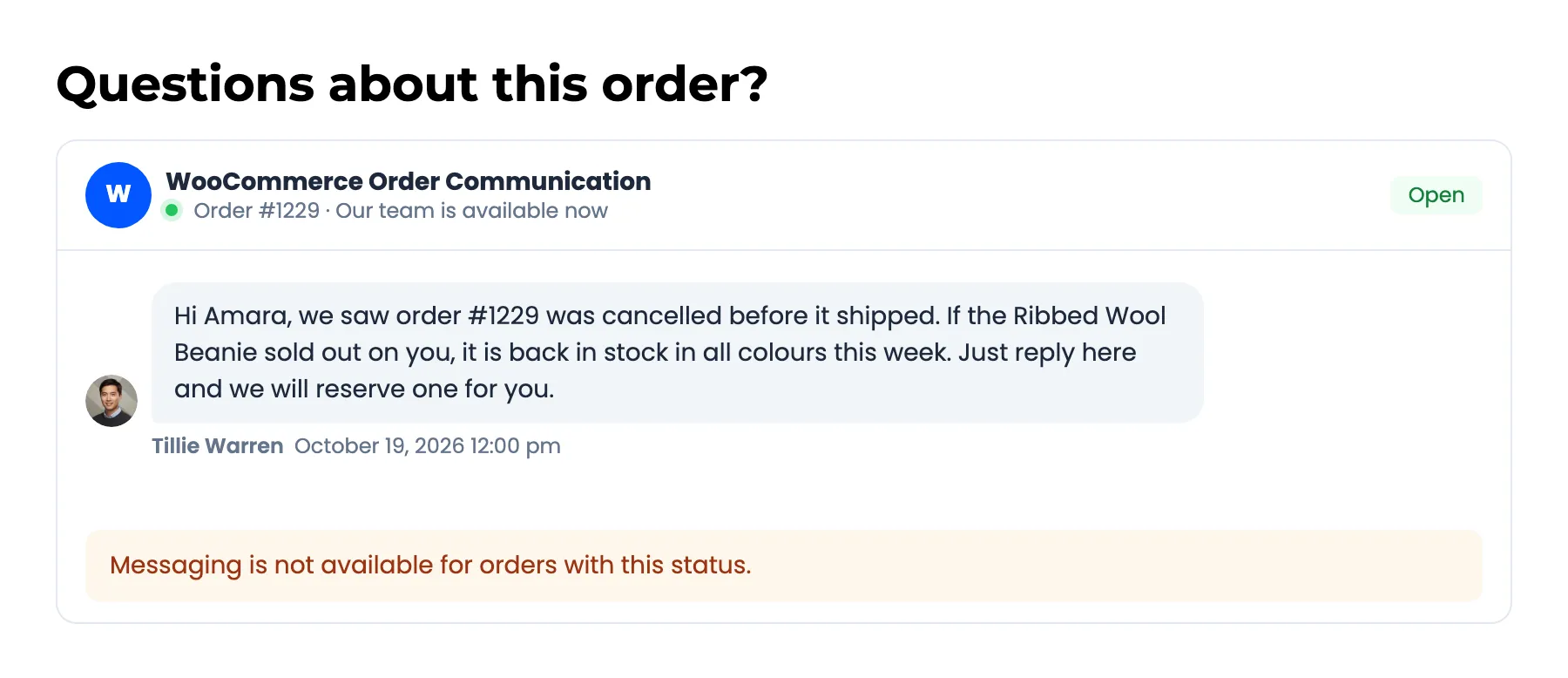
On an order in another status the customer still sees the whole conversation, with “Messaging is not available for orders with this status.” where the composer was.
How to Restrict Messaging by Order Status walks through it.
Attachments (Pro)
Section titled “Attachments (Pro)”- Attachments: “Allow images and documents in messages”. Lets both sides pick, drag or paste files into the conversation. On by default in Pro.
- Allowed File Types: Any of Images (jpg, png, gif, webp), PDF documents, Text files (txt) and Word documents (docx). Leave it empty to allow all four. Each file is checked by its real content, so a renamed file of another type is refused.
- Max File Size (MB): The largest file allowed per attachment. Default 5. The description shows the ceiling your server allows, and the plugin never goes above it.
- Max Files per Message: Default 5, up to 20.
A refused file shows the reason in the conversation, for example “Sorry, only these file types are allowed: jpg, png, gif, webp, pdf.” Nothing is sent until the customer fixes it.
How to Share Photos and Files in a Conversation (Pro) shows both sides of it.
Click Save Changes at the bottom of the tab.