

How to Turn Out-of-Stock Products into Pre-Orders (Pro)
An out-of-stock page is a dead end. This rule turns every one of them into a reservation instead, and it works on products you never set up by hand.
Step 1 and 2: Turn the rule on
Section titled “Step 1 and 2: Turn the rule on”Go to Configuration → General and find Release Automation.
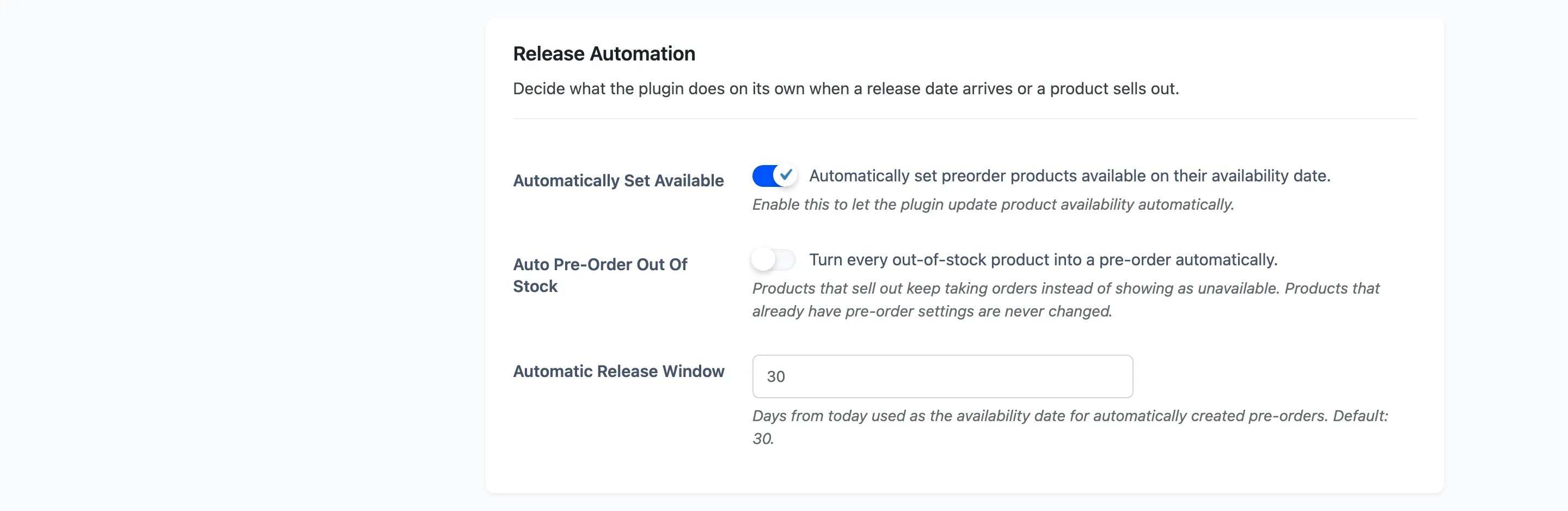
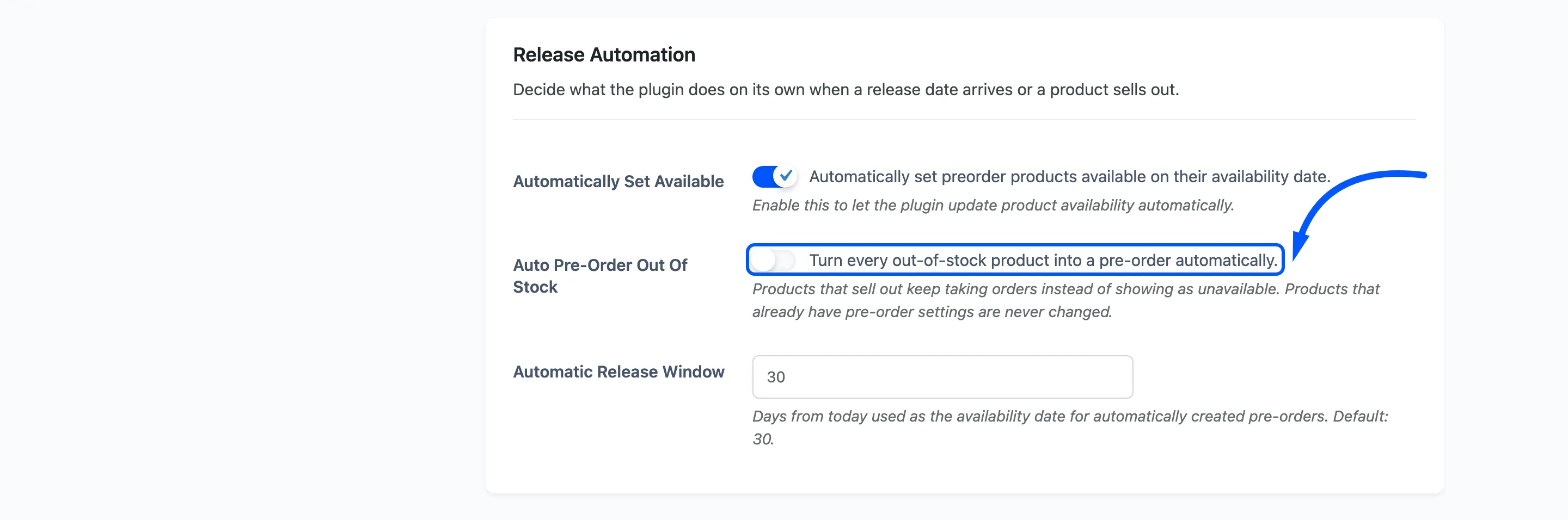
Auto Pre-Order Out Of Stock, off by default.
Step 3: Set the release window
Section titled “Step 3: Set the release window”Automatic Release Window, default 30 days, range 1 to 365. Every automatically created pre-order gets a release date this many days from the day it was converted.
Pick your realistic restock time. It is a placeholder date, and customers will read it as a promise, so 30 days on a product you restock in 90 buys you a month of complaints.
The window has no effect on products you set up yourself.
Step 4: Save
Section titled “Step 4: Save”Press Save Changes.
What the rule does
Section titled “What the rule does”It runs on the hourly job, and it also reacts the moment a product’s stock status changes, so a product that sells out mid-afternoon is usually converted straight away.
Each converted product gets:
- Full payment, priced at the product’s own price.
- A release date of today plus your window.
- A countdown, shown.
- Its stock swapped so the product is buyable again, with the original state stored for release day.
Here is one, made by marking a $16.00 Cap out of stock with the rule on and a 30-day window.

Read the row across and every part of the rule is visible: the price and the original price match, because there is no deposit; Payment: Complete; a release date 30 days out; and In Stock, even though the product is the one that just sold out. That last column is the stock swap, and it is what puts the product back on sale as a reservation.
What it will not touch
Section titled “What it will not touch”Three limits, and the first is the important one.
- A product that already has pre-order settings is never changed. Anything you configured by hand is safe, including one you deliberately set to Inactive.
- Only simple products and variations, and only ones that are purchasable.
- Only published products.
Step 5: Watch the products list
Section titled “Step 5: Watch the products list”Converted products appear alongside your own.
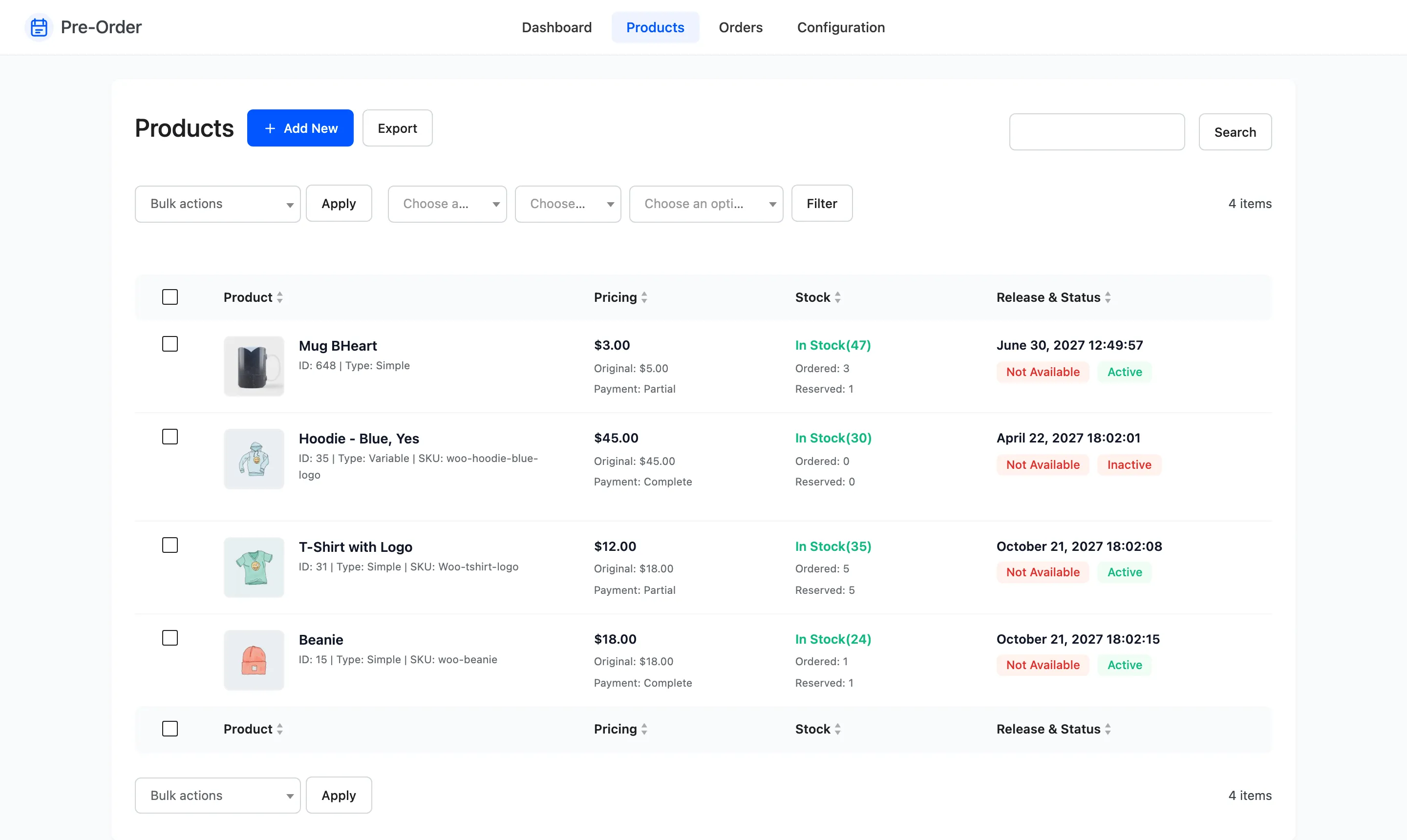
Filter to Not Available and Active to see everything currently taking reservations, then sort by release date.
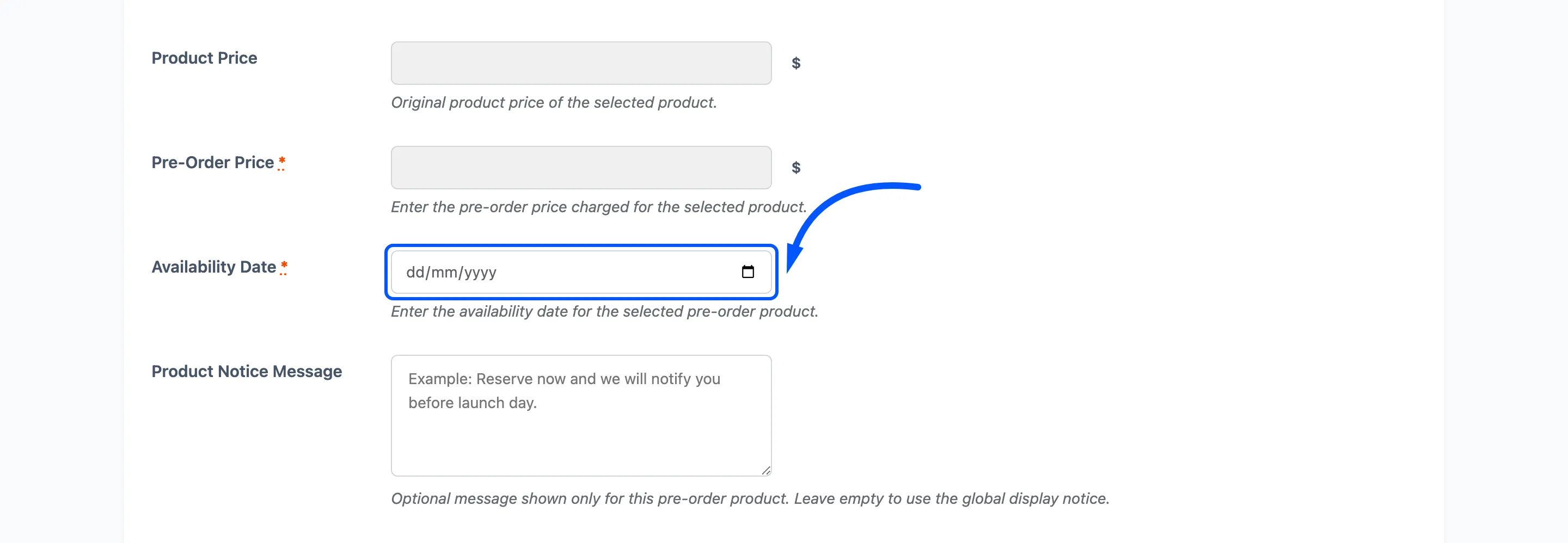
Treat the automatic date as a first draft. The rule cannot know your supplier’s lead time, so the job is to go through the converted products and give the ones that matter a real date. Changing a date emails the customers who already reserved, which is exactly what you want here.
Turning it off
Section titled “Turning it off”Unticking the rule stops new conversions. It does not undo the ones already made, because those are now ordinary pre-order products with customers attached.
To undo one, delete its pre-order settings from the products list. The product’s stock stays where the pre-order left it, so set that back yourself.
When not to use it
Section titled “When not to use it”- A discontinued catalogue: You will be taking reservations for things that are never coming back.
- Made-to-order products that are always technically out of stock.
- A store with no restock plan. A date you cannot meet is worse than an out-of-stock page.