

How to Customise the Pre-Order Emails
Five emails, each with its own heading, subject line and message editor. The defaults work; the wording is where you stop customers asking questions.
Go to Configuration → Emails.
Step 1: The confirmation
Section titled “Step 1: The confirmation”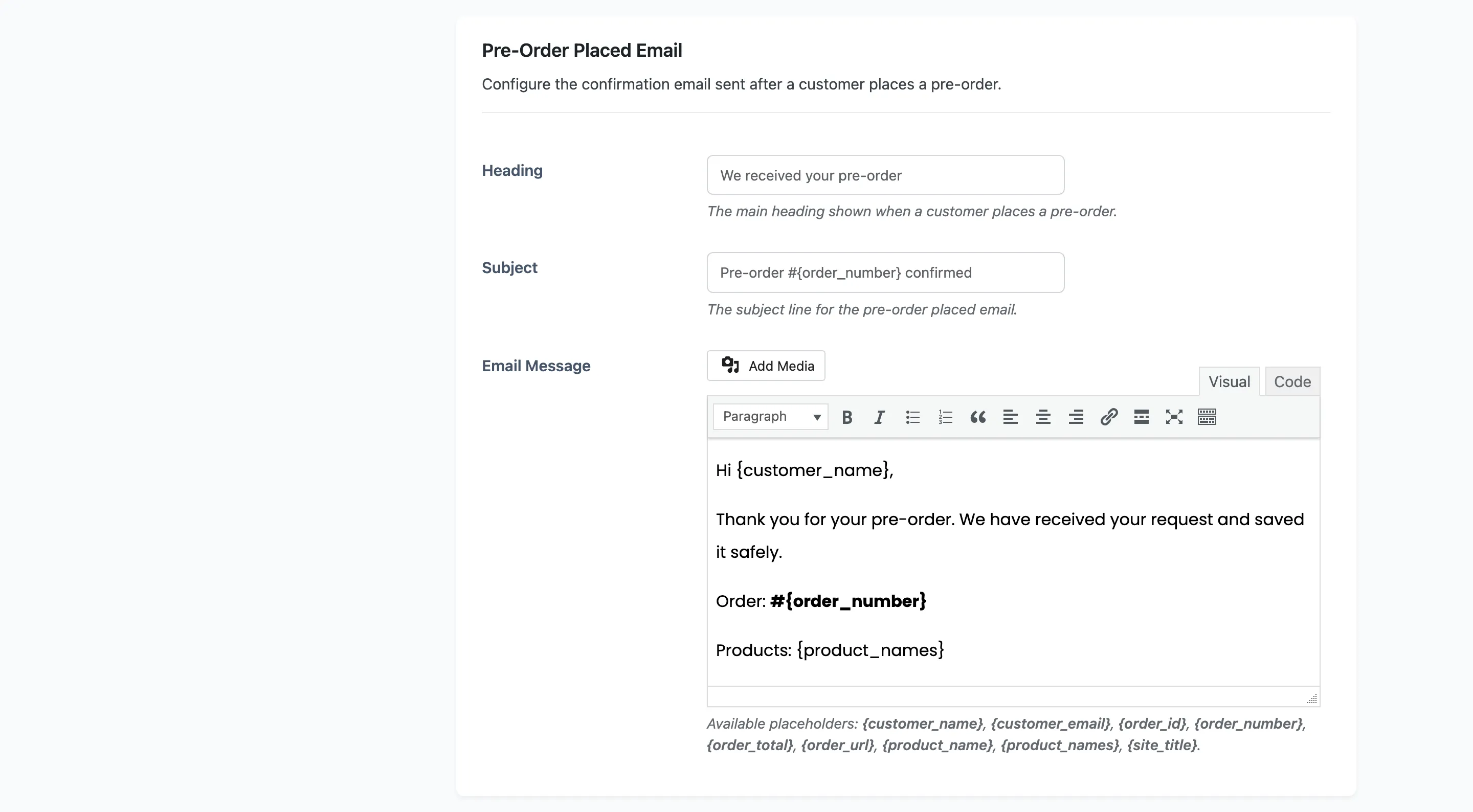
Pre-Order Placed goes to the customer straight away, and it has no on switch: a confirmation always sends.
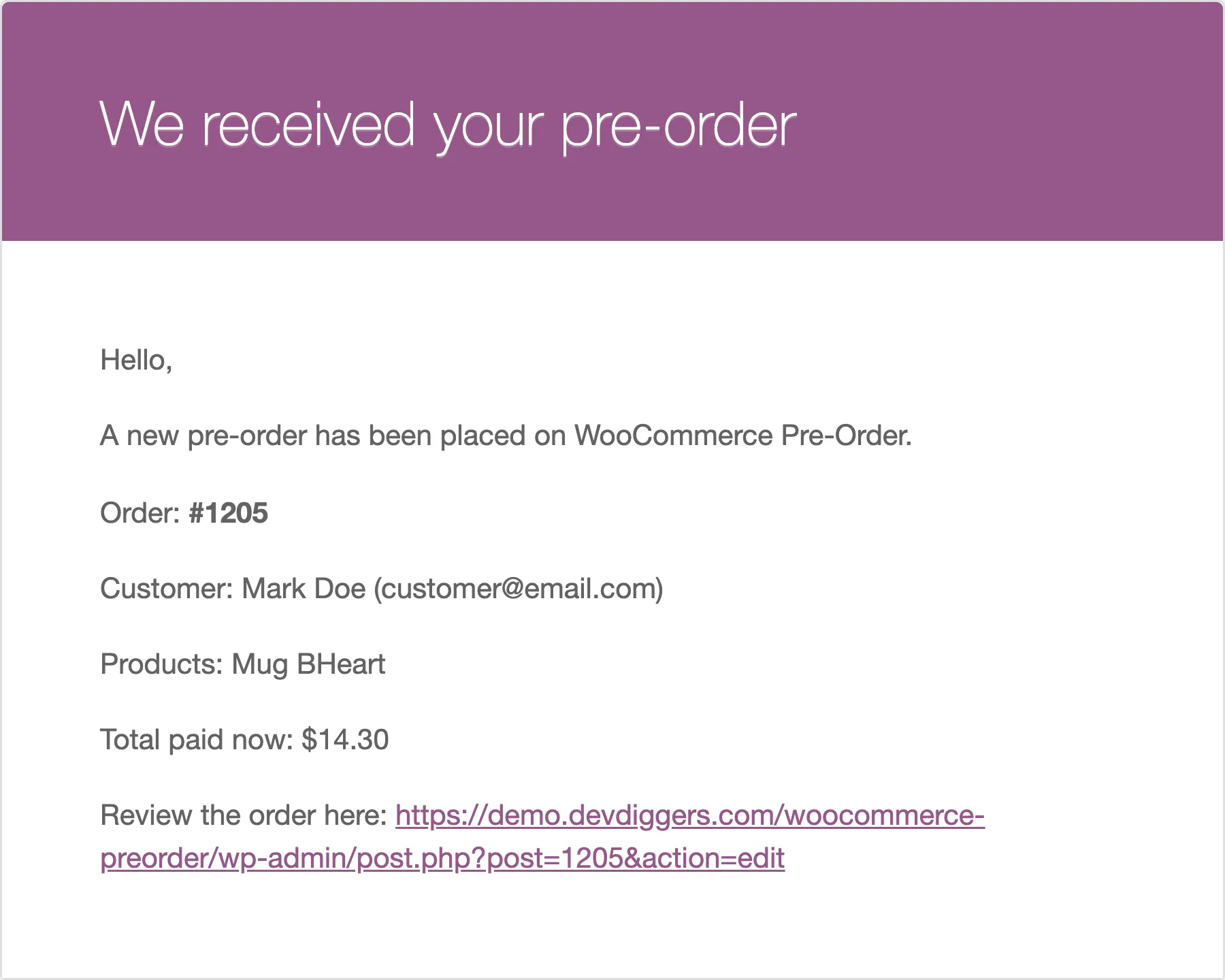
Placeholders: {customer_name}, {customer_email}, {order_id}, {order_number}, {order_total},
{order_url}, {product_name}, {product_names}, {site_title}.
Say when the product arrives, and say what they paid. {order_total} is what the order actually
took, so on a deposit it is the deposit plus fee and tax rather than the product price. Left
unexplained, that number reads as the whole cost and generates a support ticket on release day.
Two lines worth adding to the default:
This is a pre-order. {product_names} is expected on its release date, and we will email you the dayit arrives.
Paid today: {order_total}
Step 2: The availability email
Section titled “Step 2: The availability email”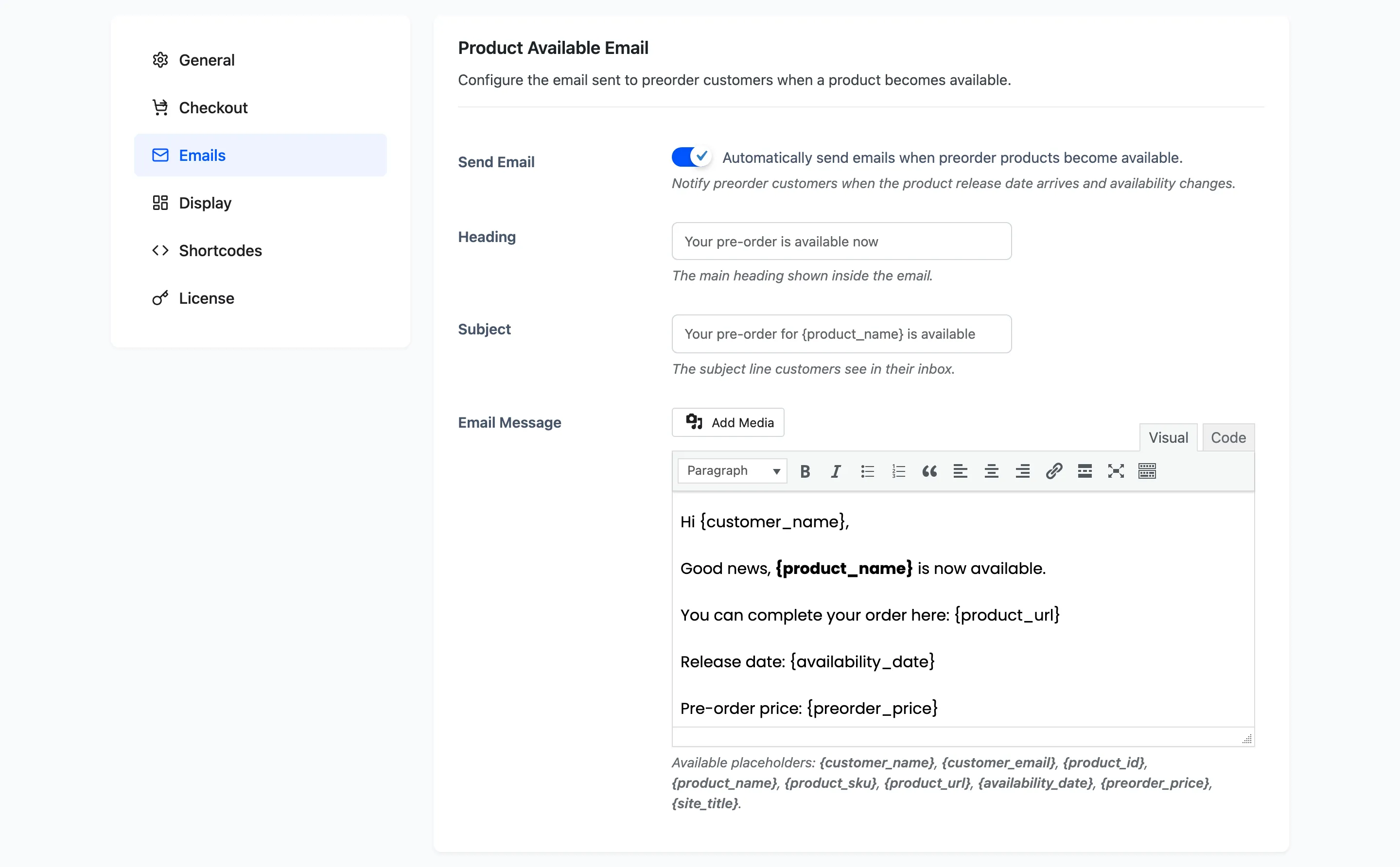
Product Available is the one that earns the reservation. It goes out on release, once per customer.
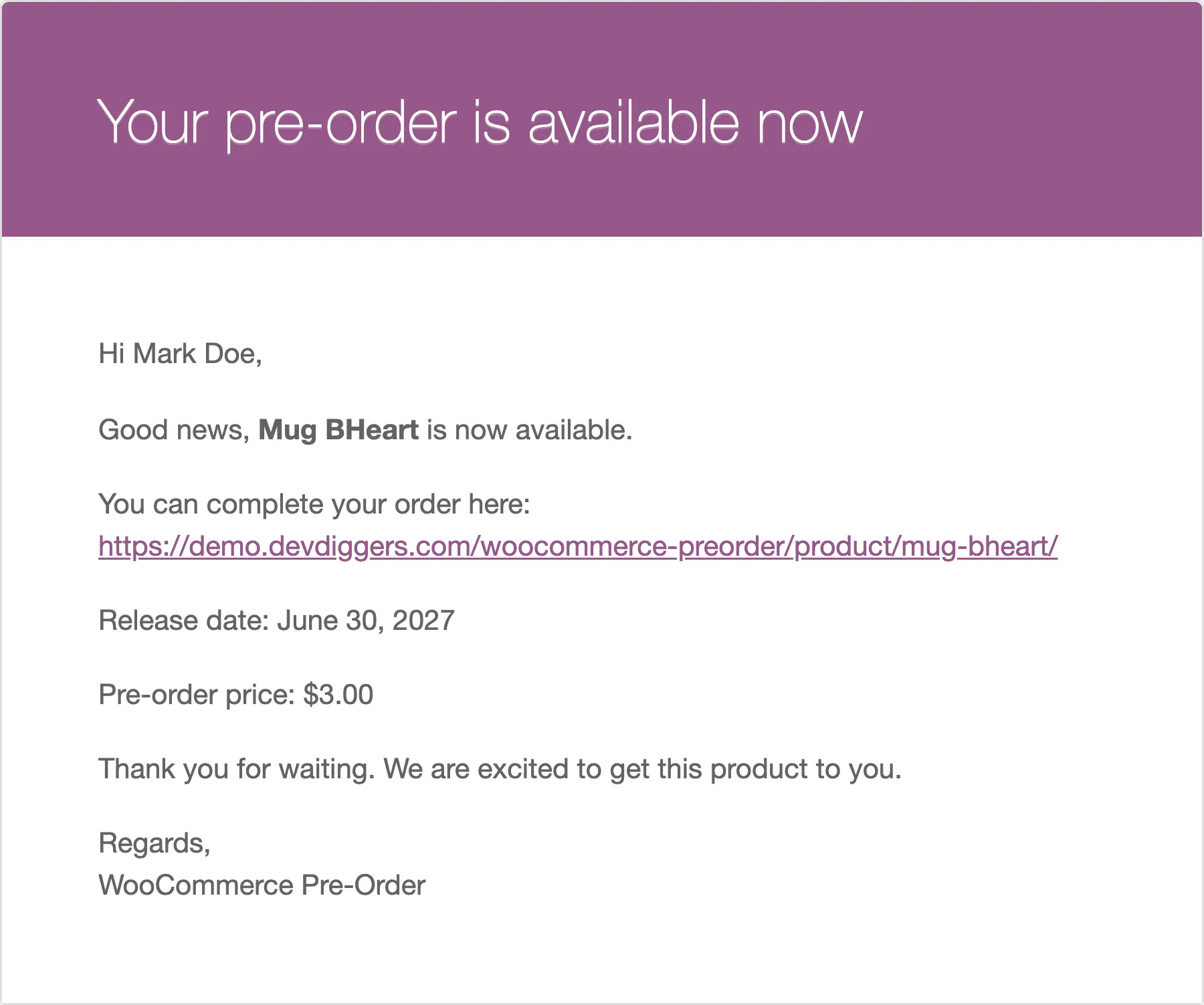
Placeholders add the product set: {product_id}, {product_name}, {product_sku}, {product_url},
{availability_date}, {preorder_price}.
The wording depends on what the customer still owes.
- Full payment: They have paid. Tell them it is shipping, not that they need to do something.
- Deposit, charged automatically. Tell them the balance has been taken and point at the new order.
- Deposit, paid by hand. This is the important one. Say there is a balance, say how much of the process is left, and point at My Pre-Orders.
{product_url} is a link to the product, which is not where a deposit customer needs to go. Link to
your account page in the text as well.
Step 3: The admin emails
Section titled “Step 3: The admin emails”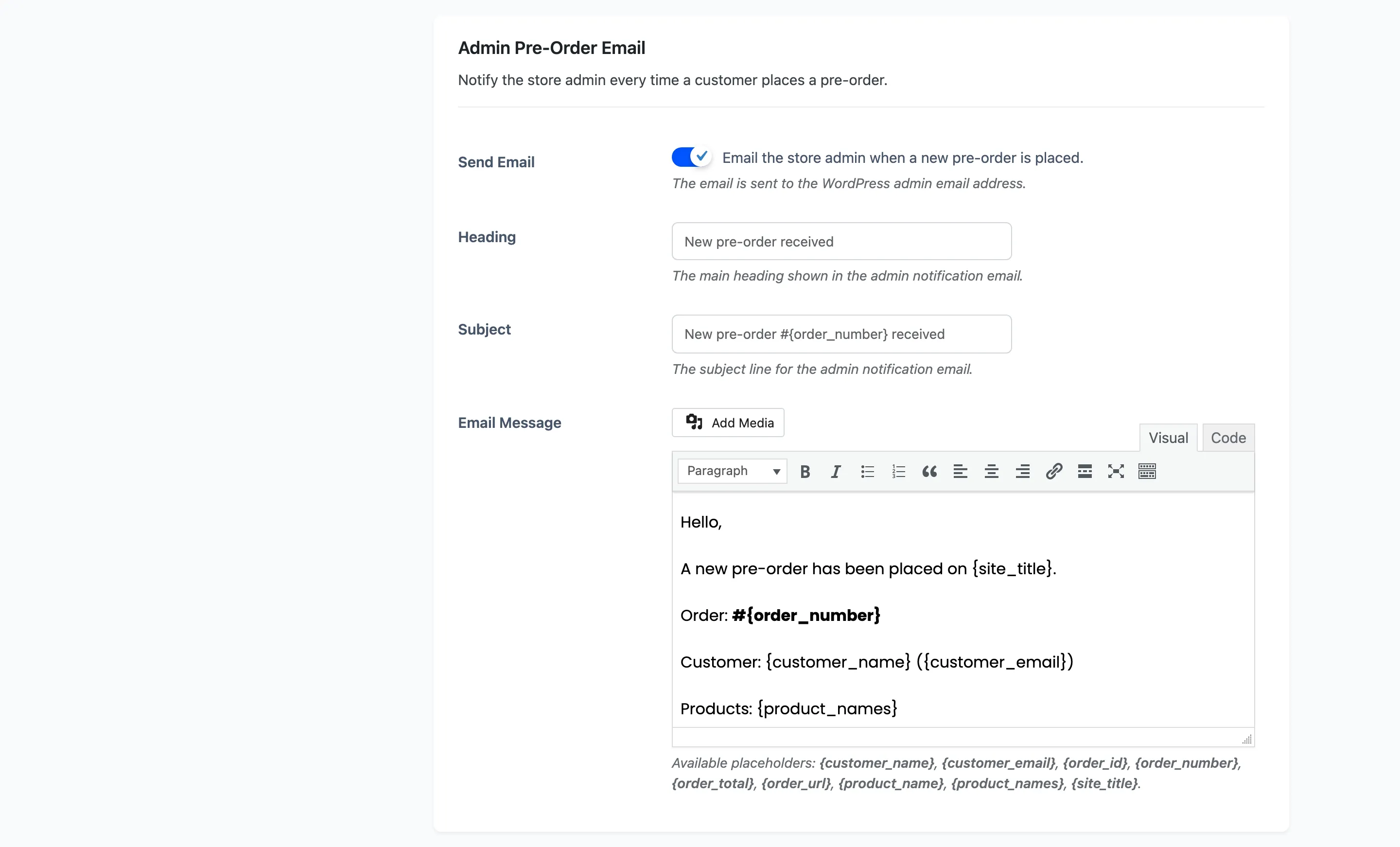
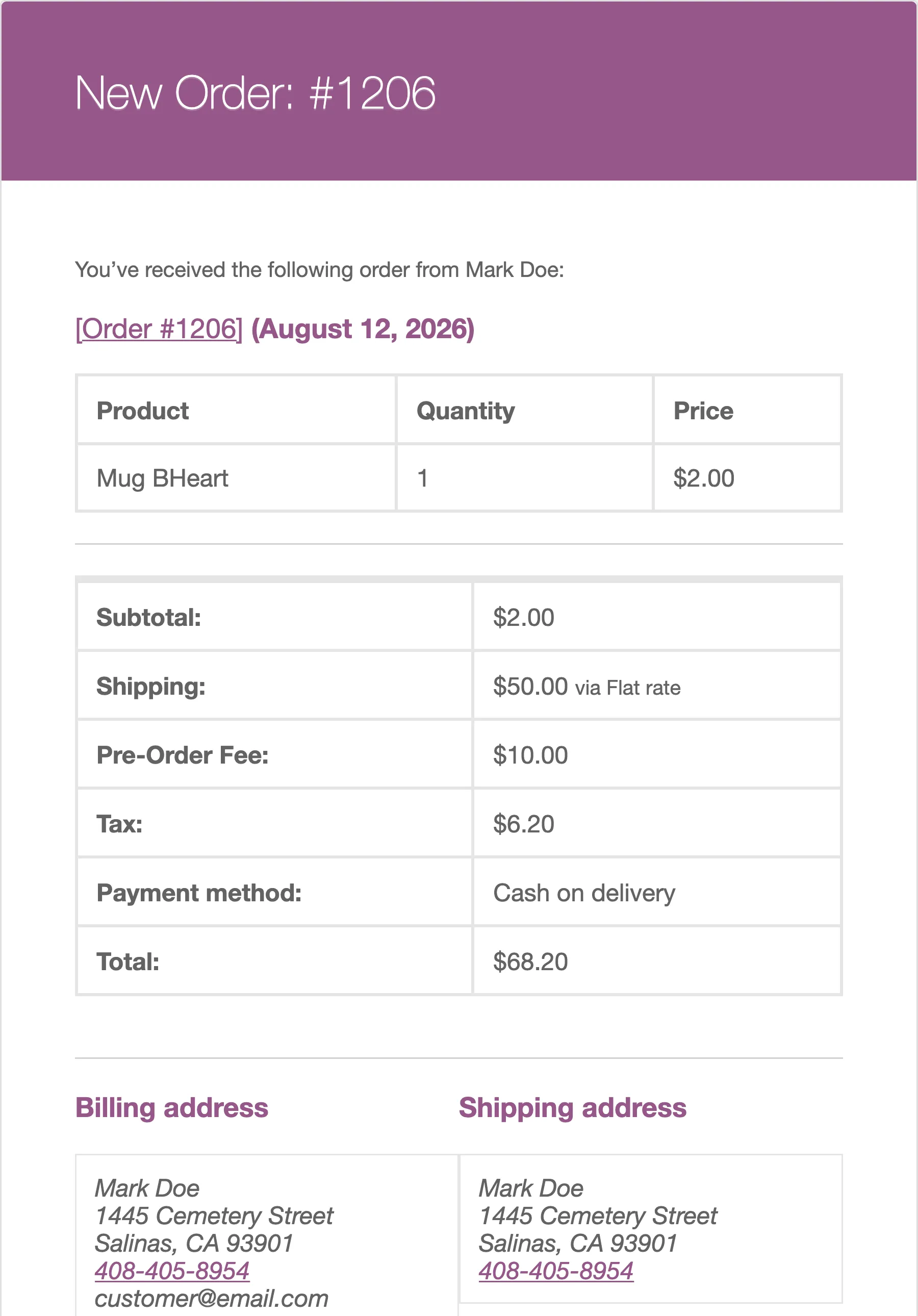
Admin Pre-Order tells you each time a reservation is placed. On by default and useful at low volume; turn it off once a launch is producing hundreds.
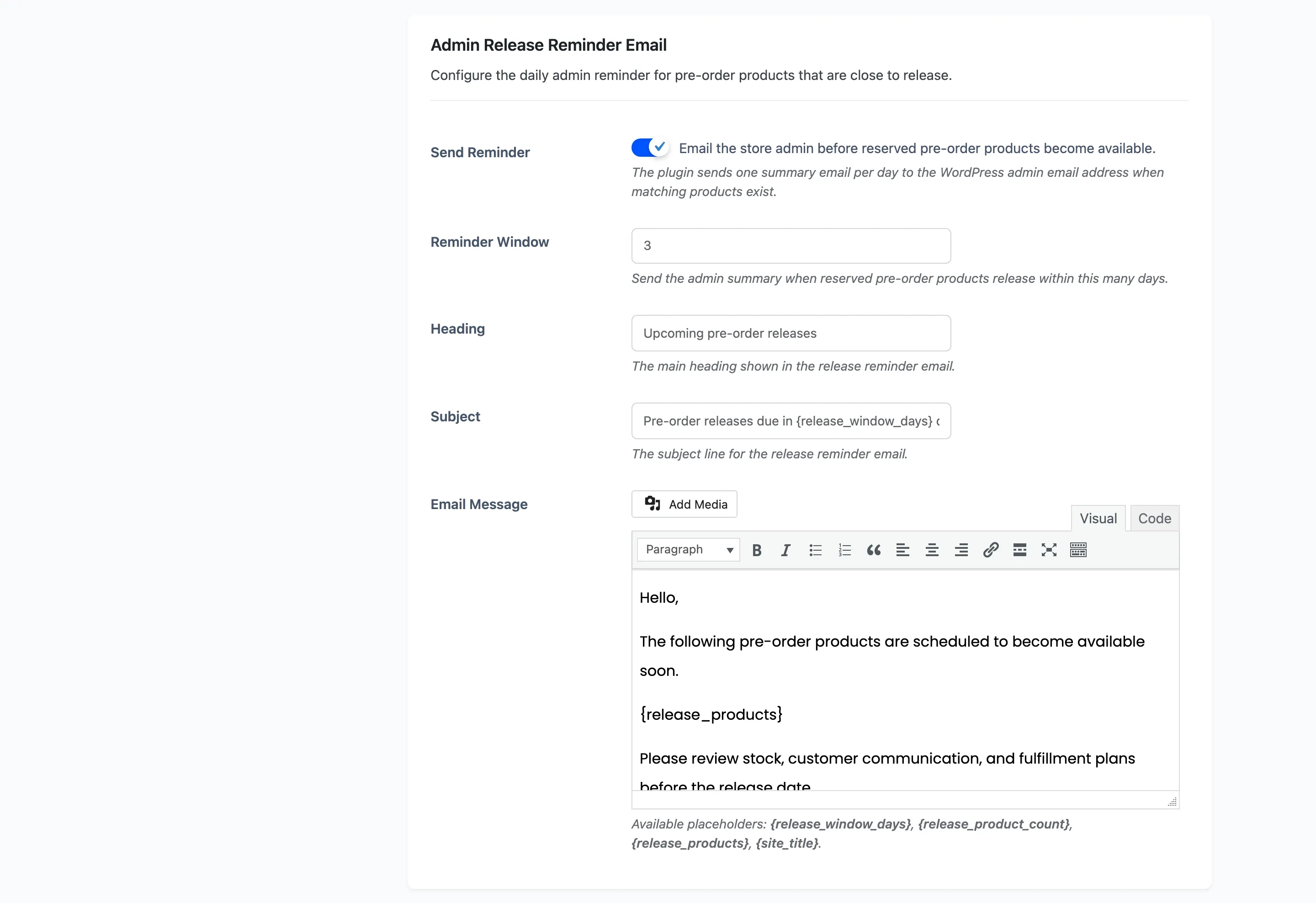
Admin Release Reminder is the one to keep. It is a daily summary of products about to release, with how many are ordered and reserved.
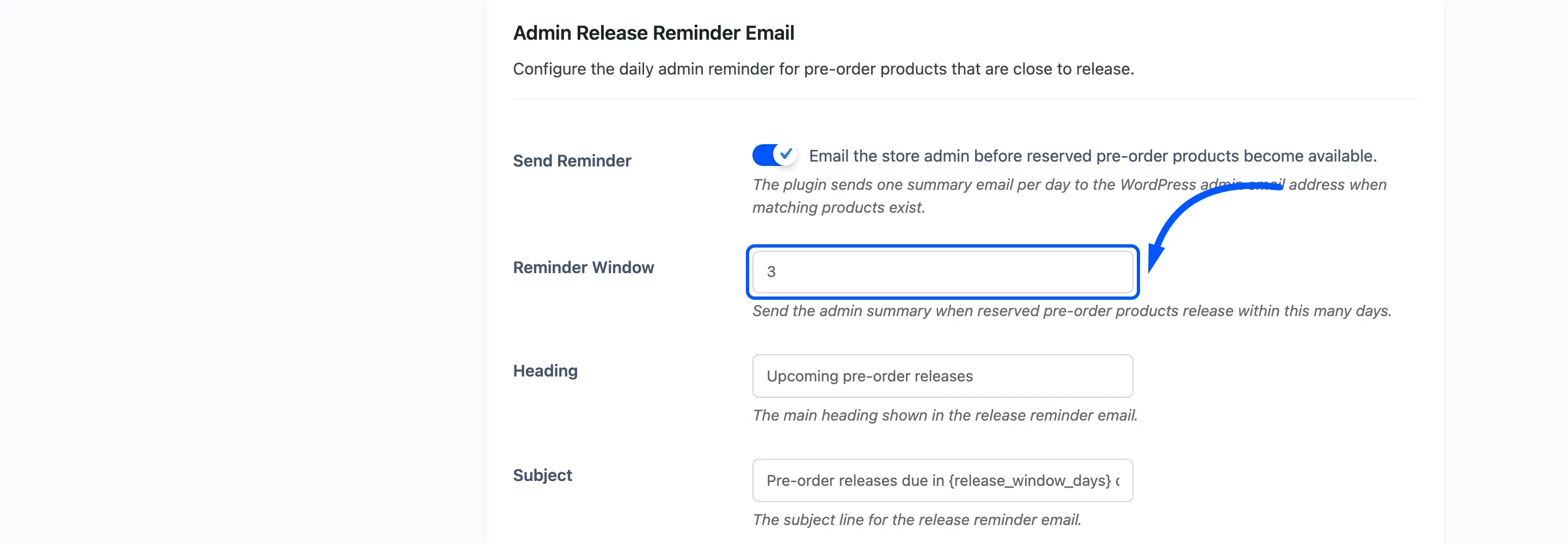
Reminder Window decides how far ahead it looks, 1 to 30 days, default 3. Set it to however long you need to get stock ready.
It only lists products somebody has reserved, and it sends nothing when there is nothing due, so silence means silence rather than a broken cron.
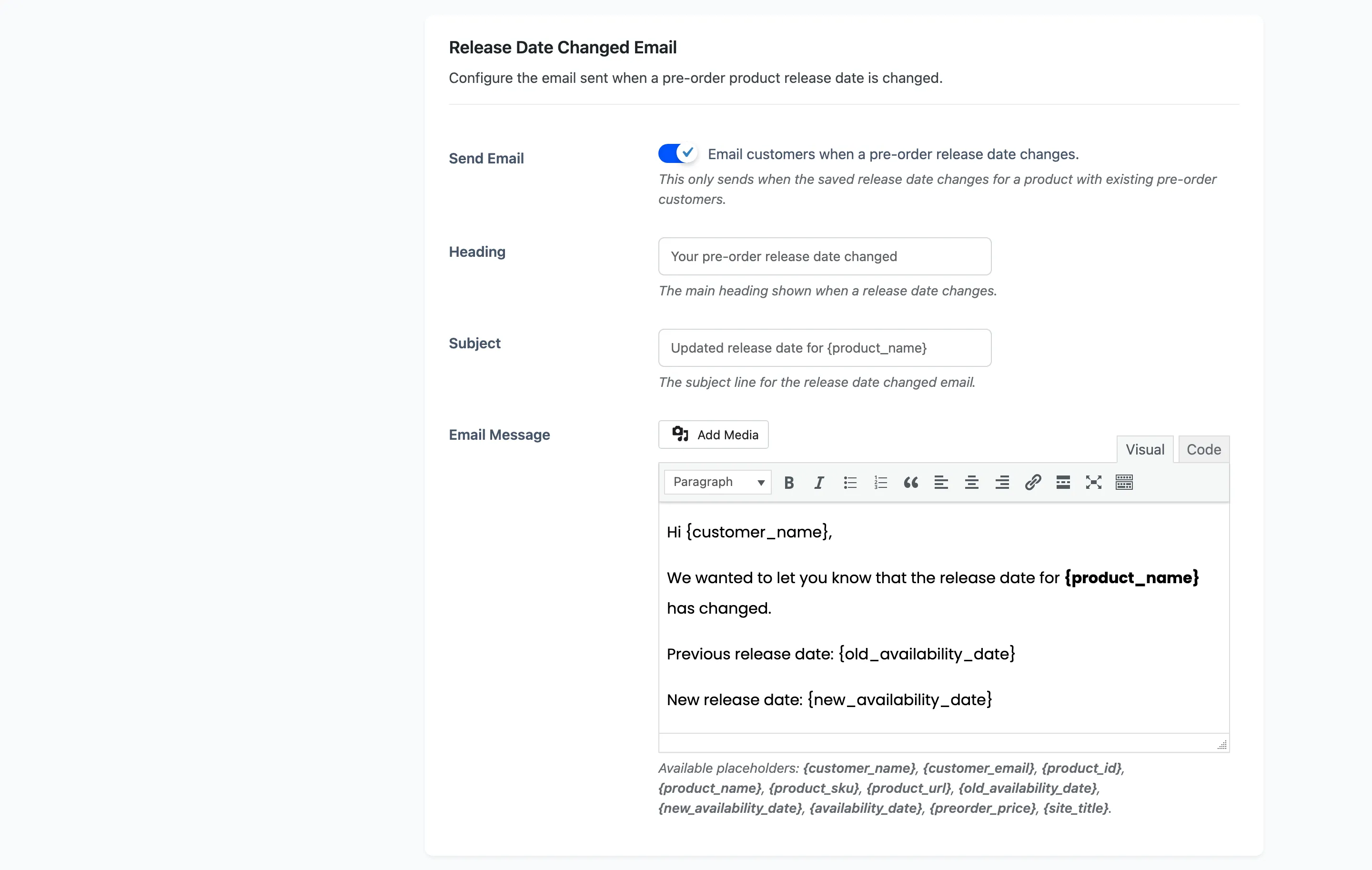
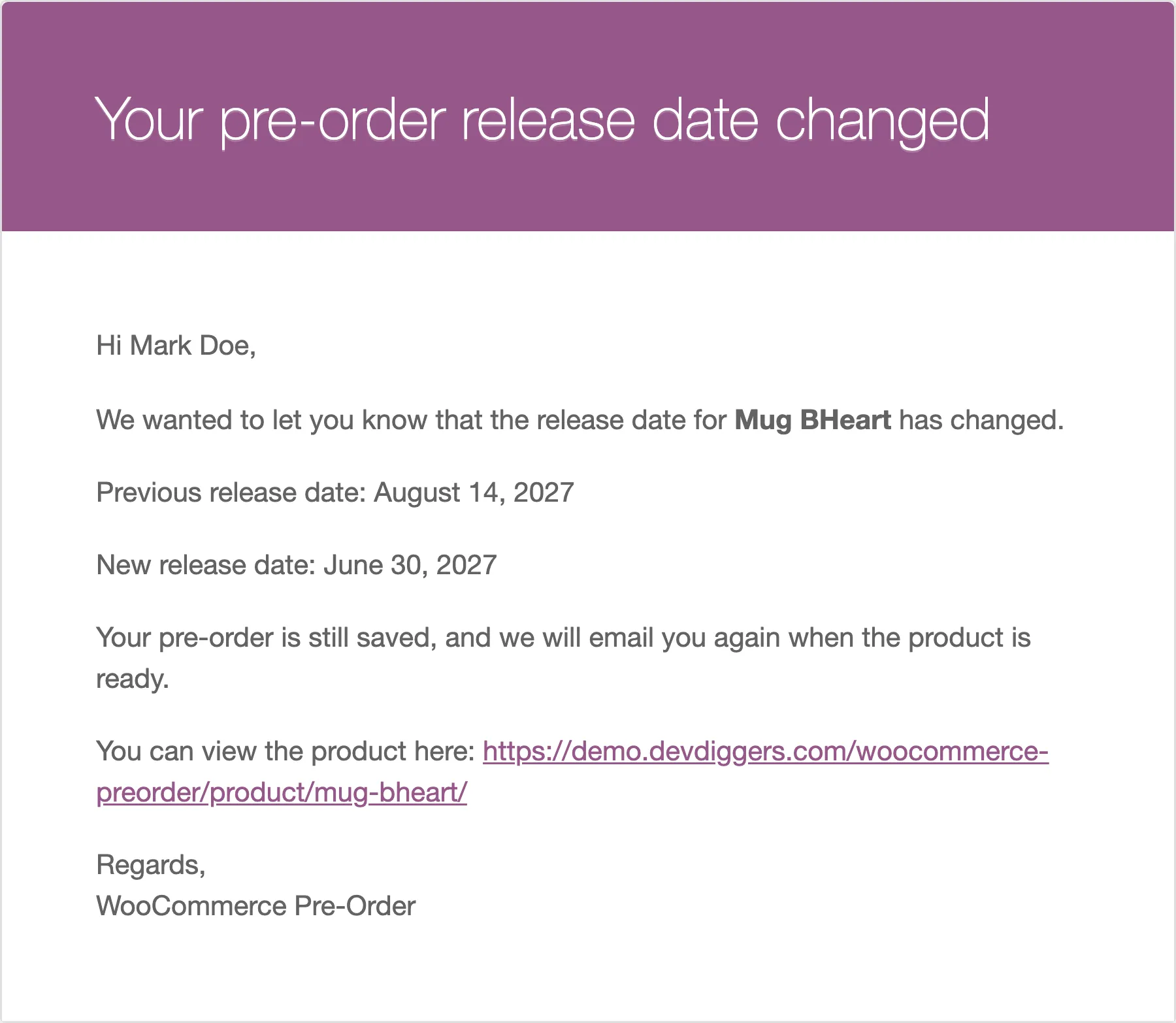
Release Date Changed goes to customers when you move a date. See How to Change a Release Date.
Step 4: Save
Section titled “Step 4: Save”Press Save Changes.
Step 5: Send yourself one
Section titled “Step 5: Send yourself one”Place a test pre-order and read what arrives.
Check three things a preview cannot tell you: that the placeholders resolved, that the subject line is not truncated in an inbox list, and that the email looks right on a phone.
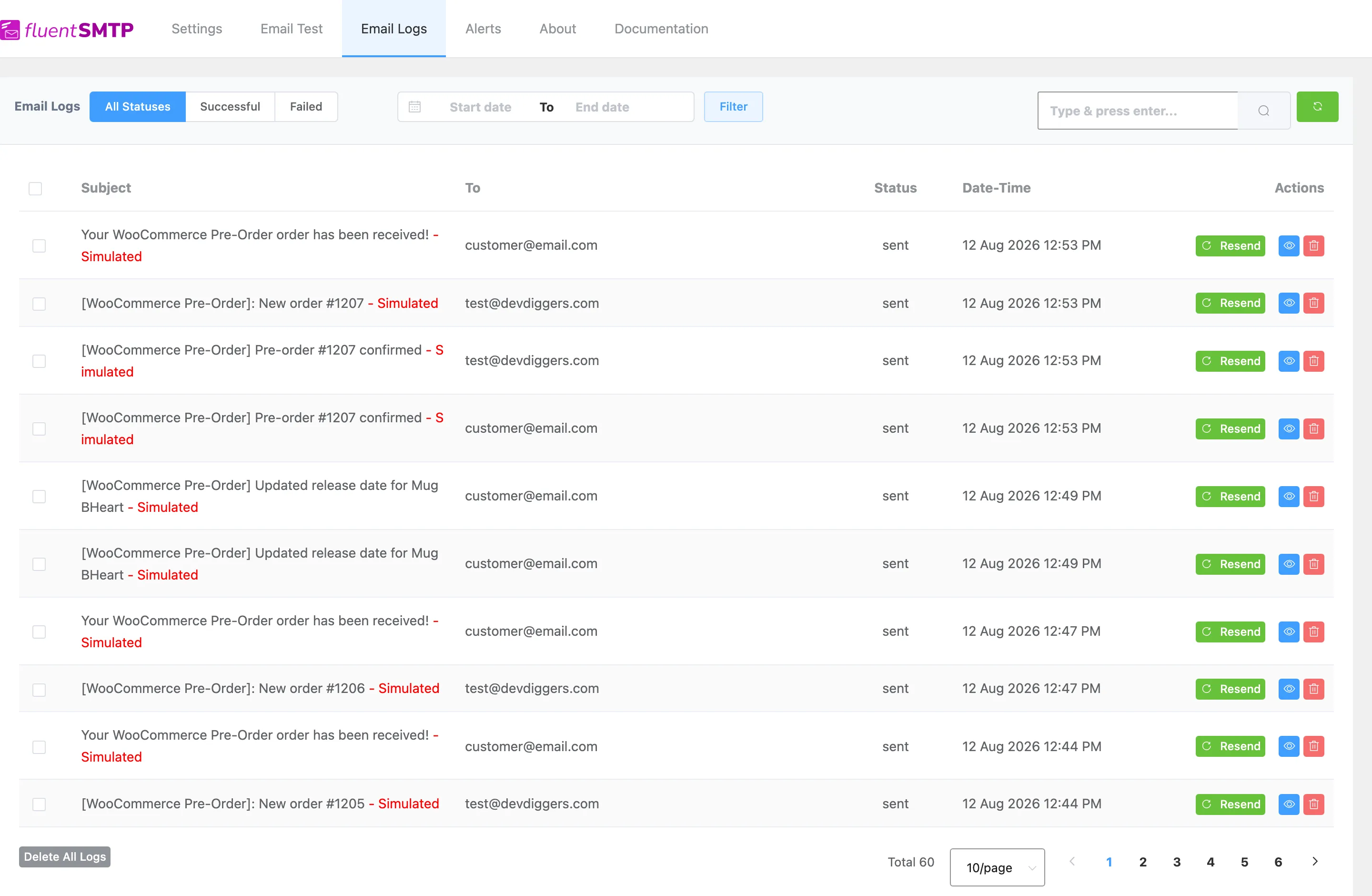
If your store logs outgoing mail you can read the exact message that was sent.
Formatting and template
Section titled “Formatting and template”Each message is a full editor, so formatting, links and images all work.
The emails go out through WooCommerce’s own mailer, so they inherit your store’s email template, header, footer and colours. Style the frame in WooCommerce → Settings → Emails; style the words here.