

How to Take a Deposit and Collect the Balance (Pro)
A deposit takes a smaller amount up front and leaves the rest until the product is real. It is the main reason stores move from the free version to Pro.
Step 1: Set the product to partial payment
Section titled “Step 1: Set the product to partial payment”Edit the pre-order product and change Payment Method to Partial.
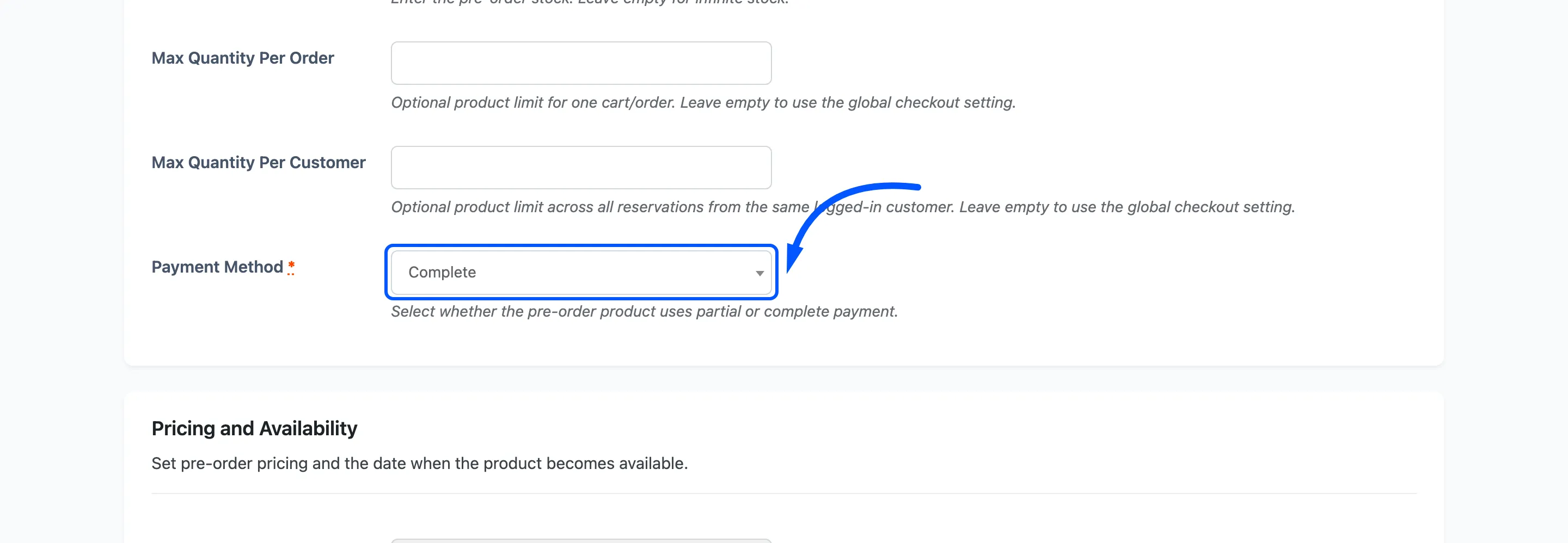
Complete ignores whatever you put in the price field below and charges the product’s price. Partial is what makes that field mean anything.
Step 2: Enter the deposit
Section titled “Step 2: Enter the deposit”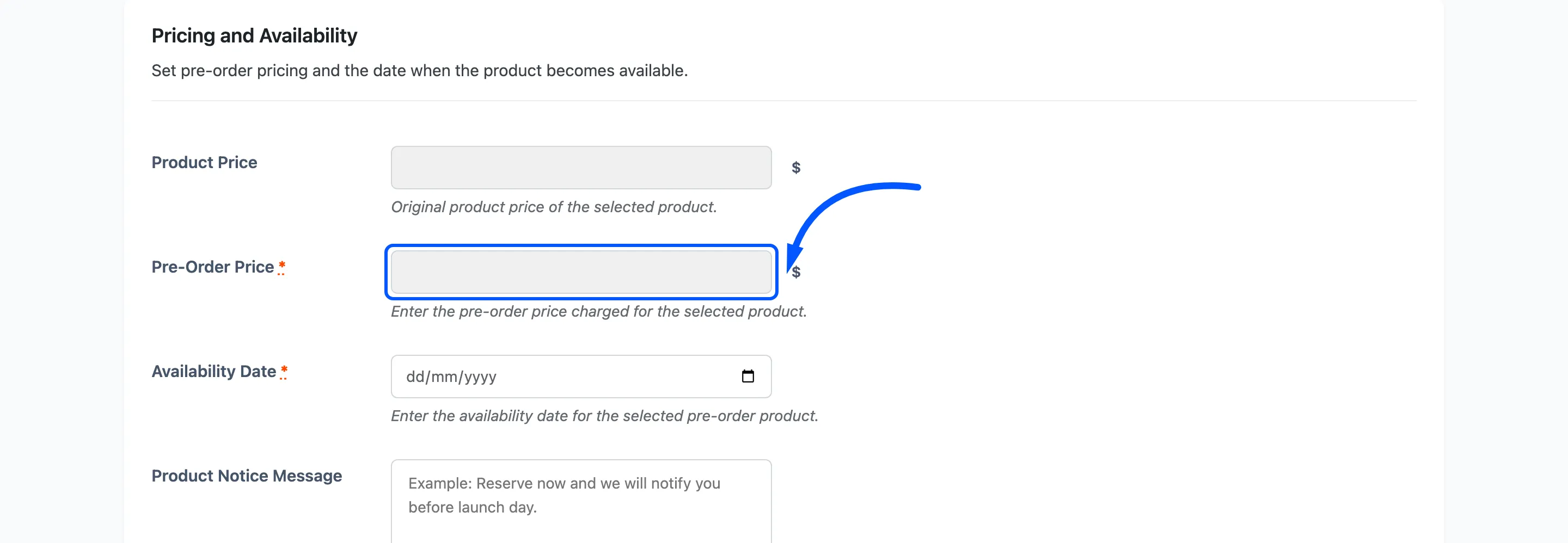
Pre-Order Price is the amount taken today, not the discount. Enter 3 on a product priced 5 and the customer pays 3 now and owes 2.
Two rules to keep in mind.
- It is an amount, not a percentage. There is no percentage option, so a fixed deposit across a catalogue of different prices means editing each product.
- A deposit equal to or above the product price leaves no balance, and the plugin treats the pre-order as settled on release.
Press Save.
Step 3: Turn on the automatic balance charge
Section titled “Step 3: Turn on the automatic balance charge”Go to Configuration → Checkout and tick Auto-Charge on Release.
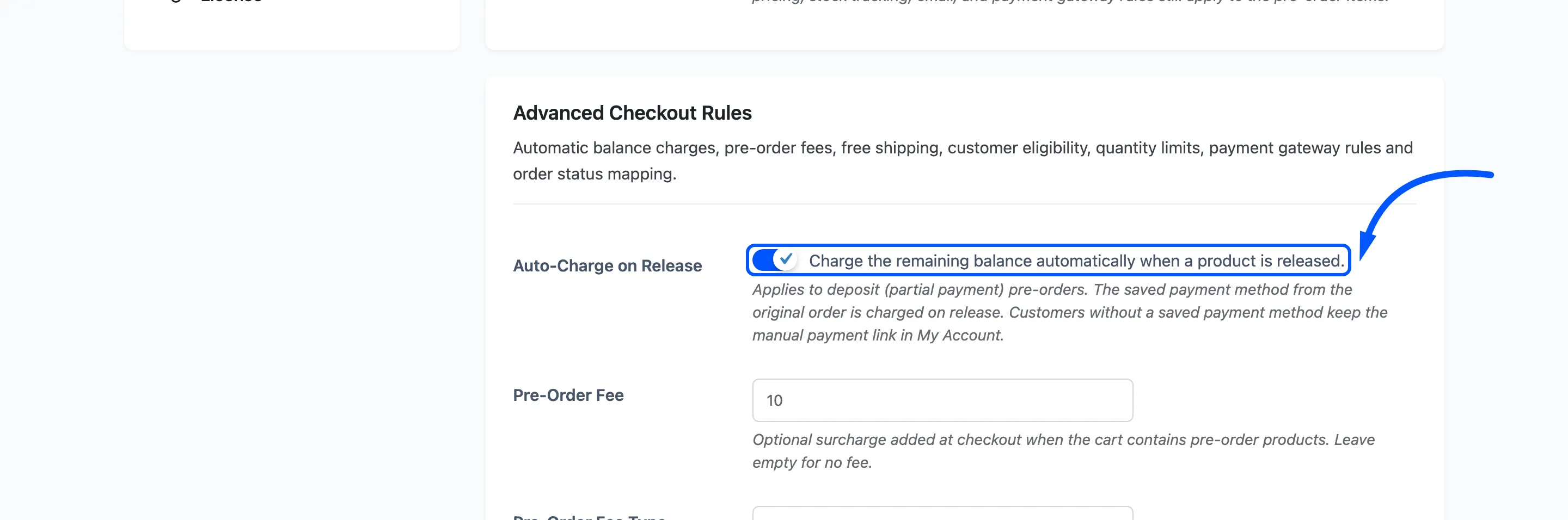
On release day the plugin builds a second order for the outstanding amount and charges the card saved with the original order.
What it needs, and what it does without it:
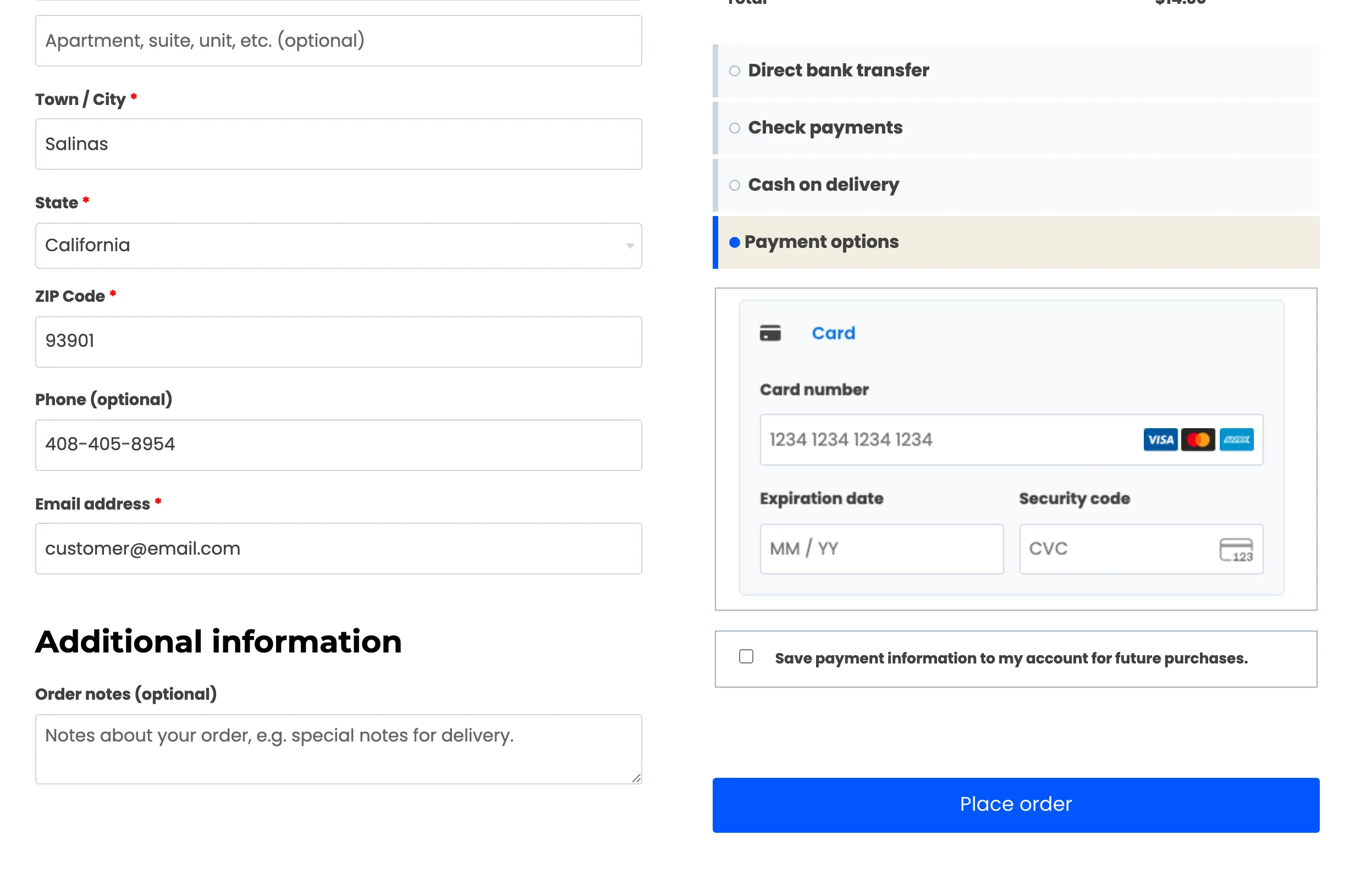
- It needs a reusable payment method saved against that order, from a gateway that supports charging one later.
- Customers without one are not charged. They keep the manual path instead, so nobody is stranded.
- Either way a note is added to the original order saying what happened.
The charge is made without the customer present, so gateways that expose a dedicated release path are used through it. That matters for cards needing extra authentication, which cannot be answered by somebody who is not at the checkout.
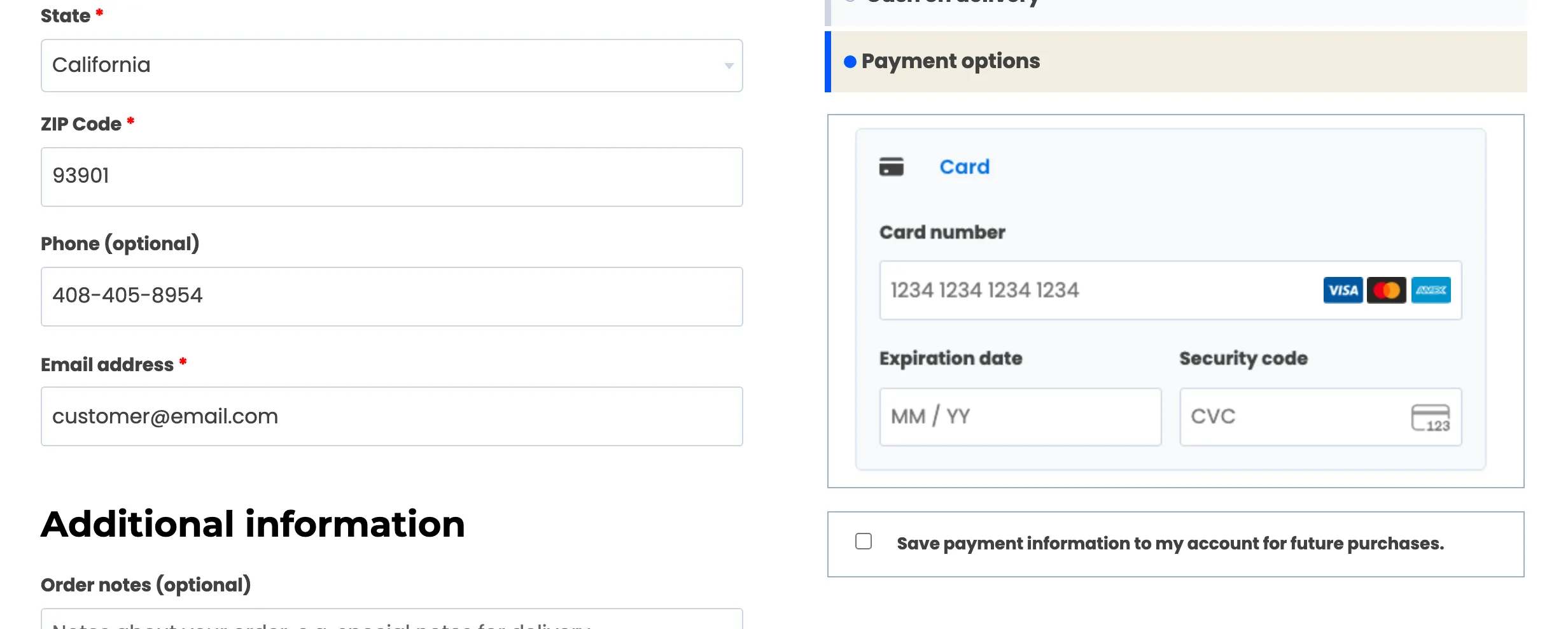
The customer decides whether this can work. A card gateway only stores a reusable method when the shopper ticks the save box under its card form, so that one checkbox is what separates an automatic balance from one you chase.
Step 4: Limit the gateways
Section titled “Step 4: Limit the gateways”Still on the Checkout tab, use Enabled Payment Gateways.
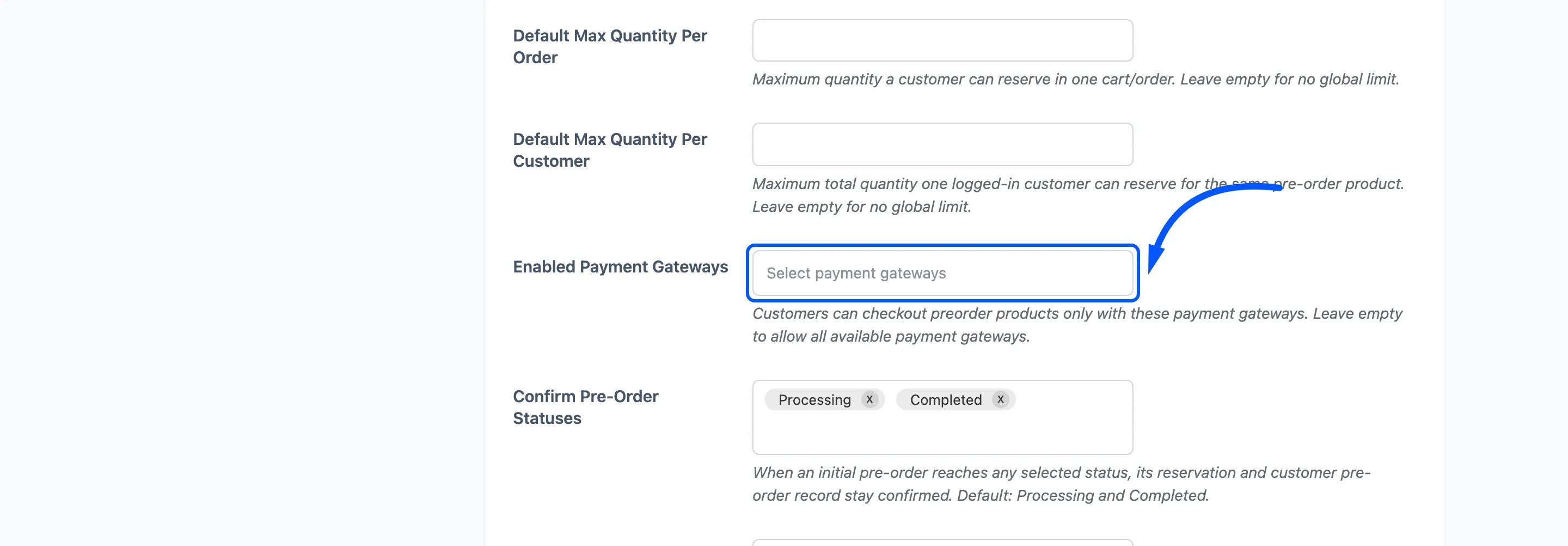
Leave it empty and every gateway is offered, including offline ones like bank transfer, which cannot store a card. Every customer who picks one of those becomes a manual balance to chase.
Choosing card gateways only is what makes automatic collection actually automatic.
Step 5: Check what the customer sees
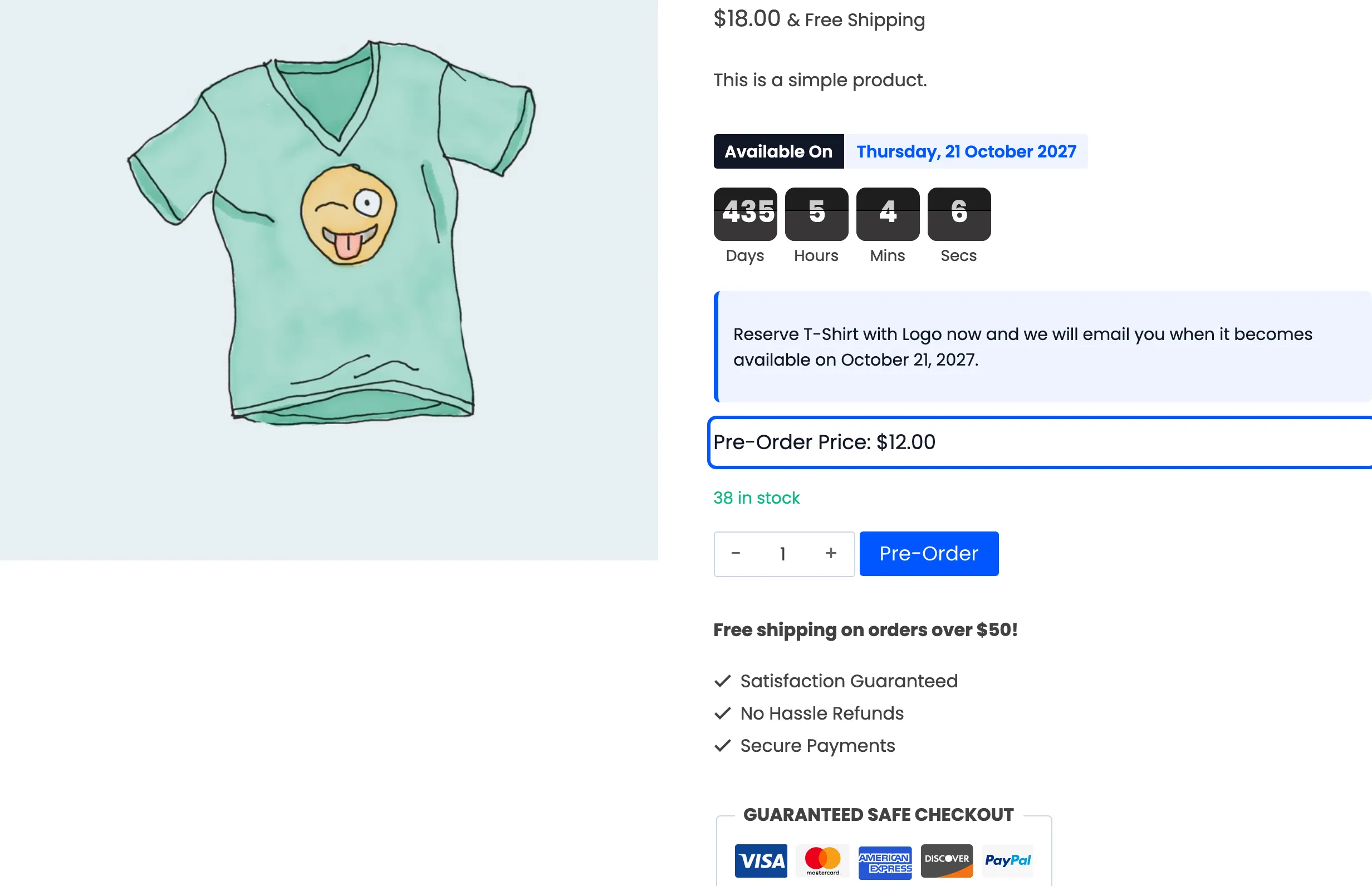
Section titled “Step 5: Check what the customer sees”On the product page the price at the top is the product’s price, and Pre-Order Price below the countdown is the deposit.
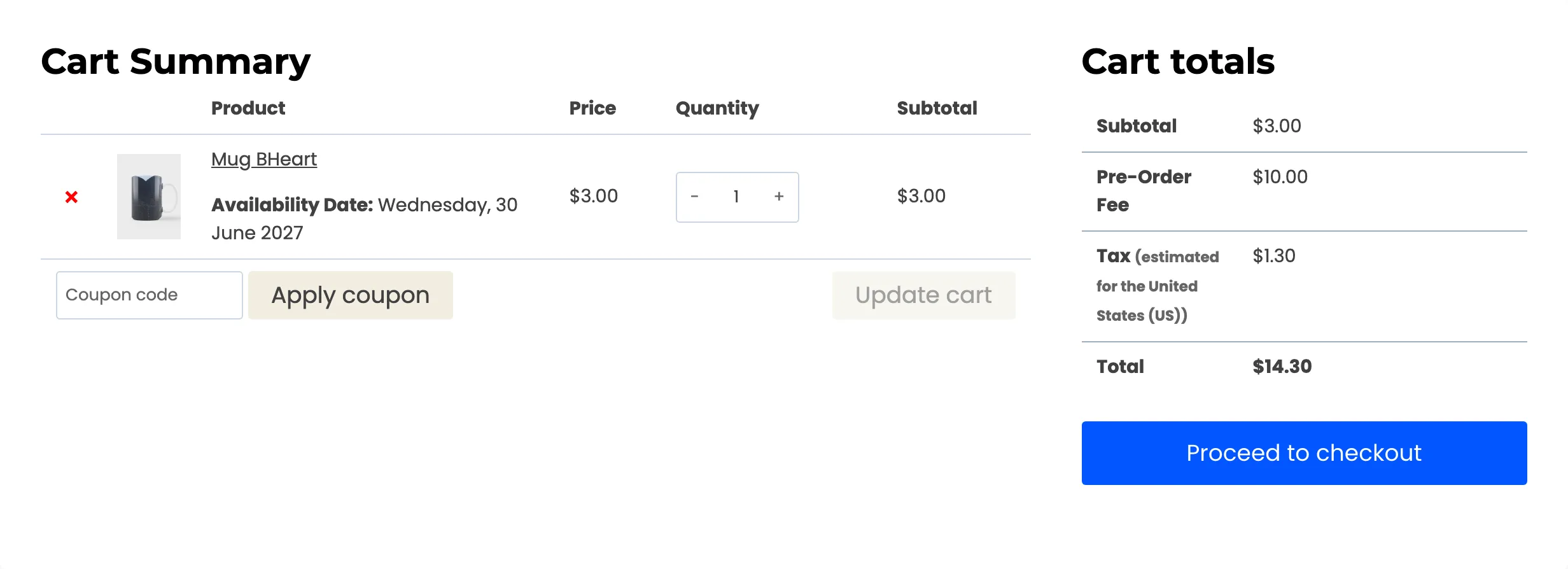
The cart charges the deposit, plus any pre-order fee and tax.
Say what the deposit is in your notice. Nothing on the page labels the smaller number as a deposit, so a shopper can read it as the whole price. The product notice is where to spell it out.
After ordering, the balance appears on their My Pre-Orders page.
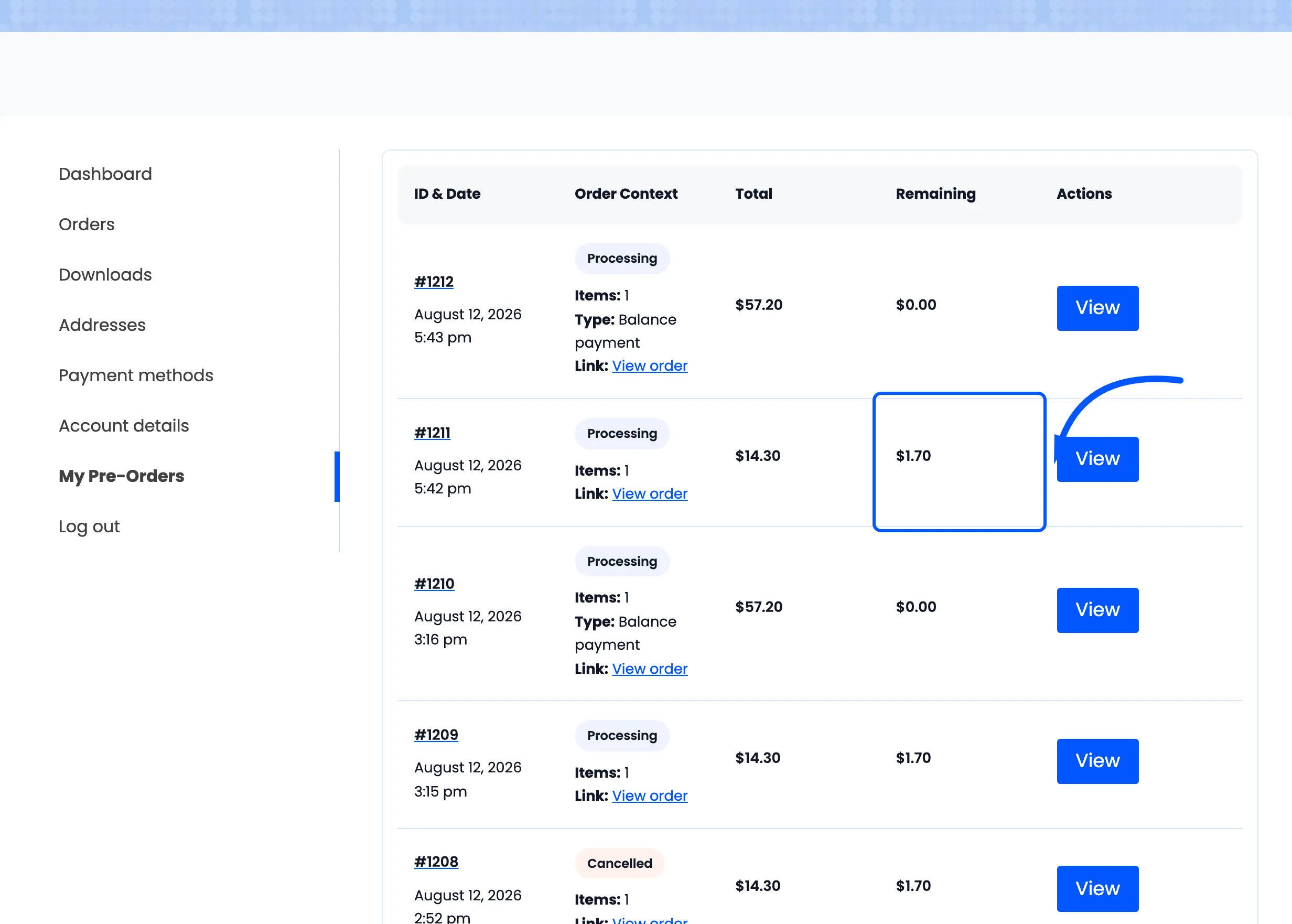
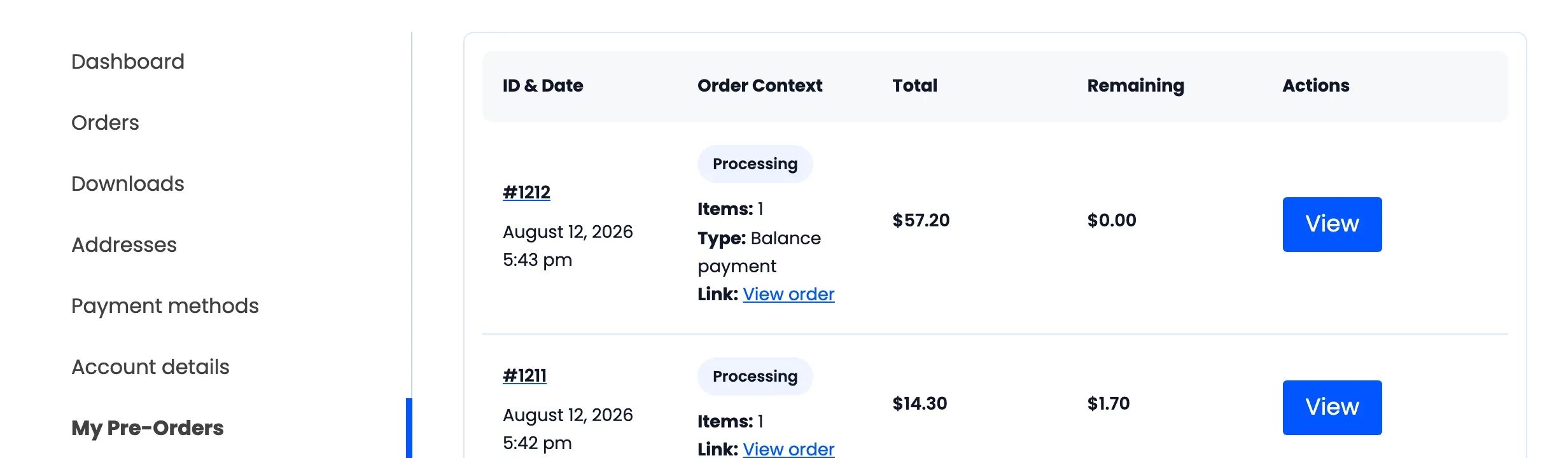
Remaining is the product’s full price minus what the order actually took for that line, tax included. On a $5 product with a $3 deposit and $0.30 of tax collected, remaining reads $1.70 rather than $2.
Step 6: Release, and watch the balance
Section titled “Step 6: Release, and watch the balance”Release the product as usual.

Customers with a saved card get a second order and a charge. Everyone else gets a Complete Pre-Order action in their account, next to the balance still owed.
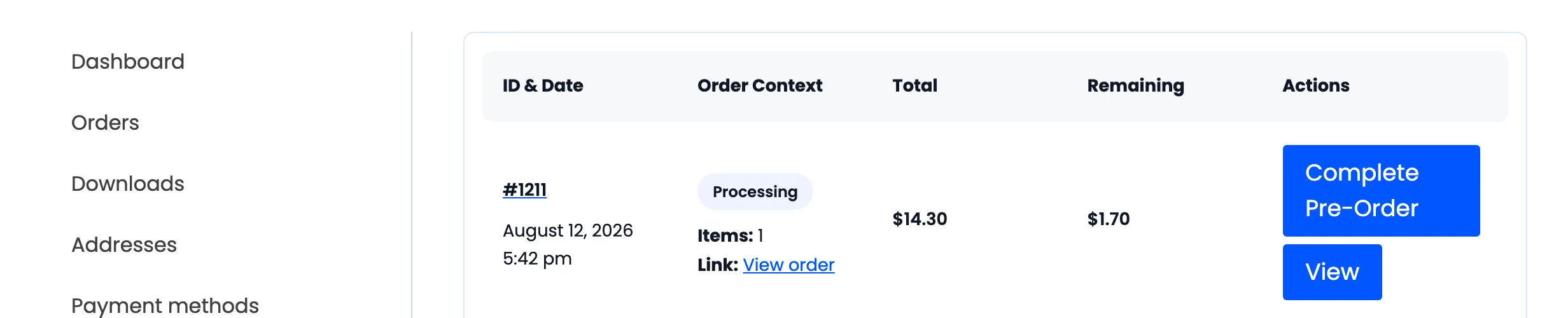
Pressing it puts the outstanding amount in the cart as a normal line, priced at the balance rather than at the product’s price.
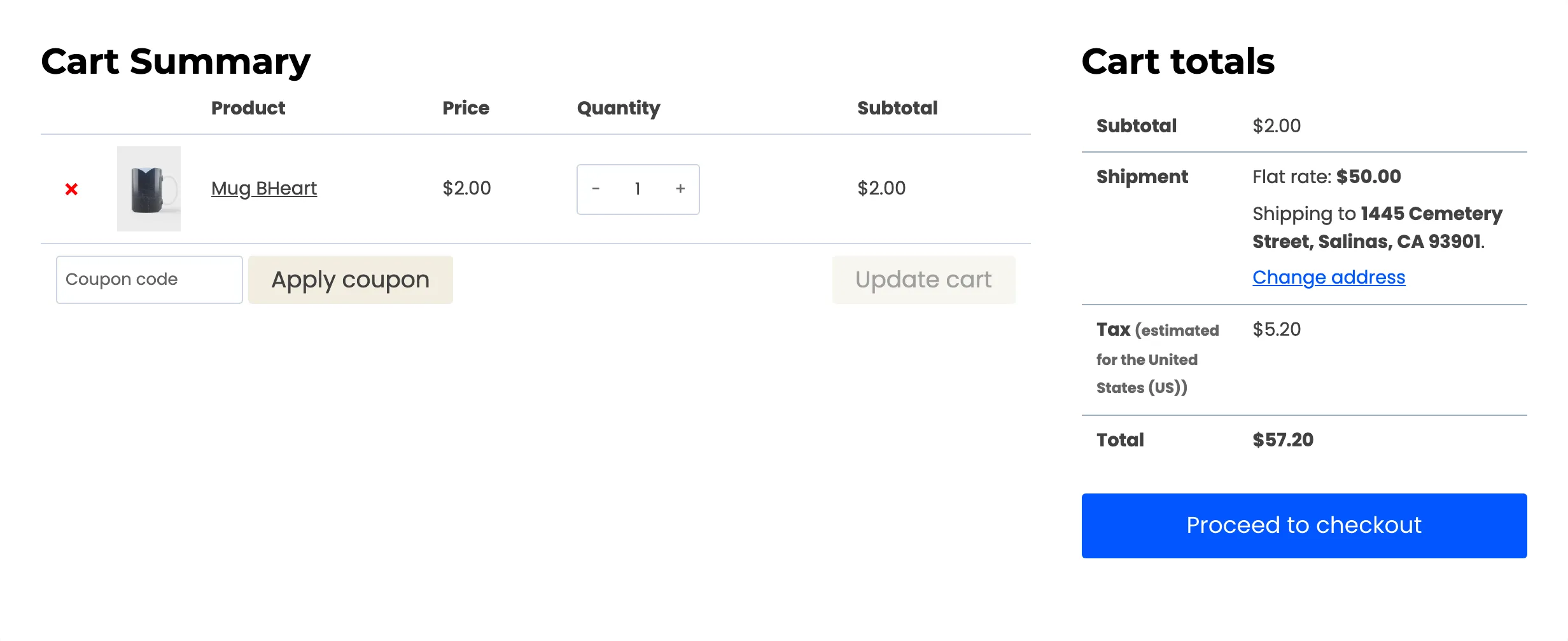
From there it is an ordinary checkout, paid with whatever method the customer prefers.
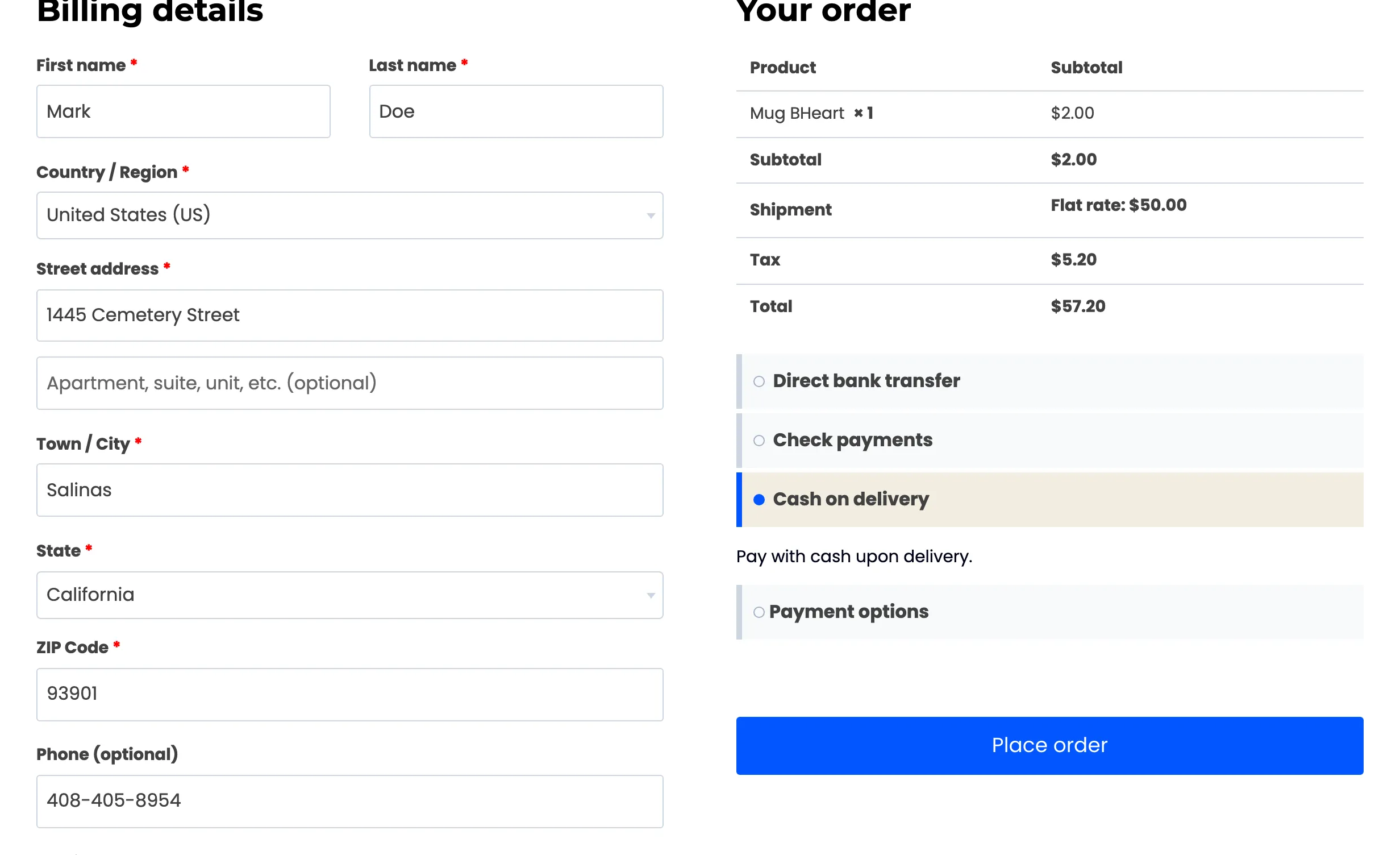
One thing on that screen surprises people. Shipping appears here and not on the deposit, and that is deliberate: a reservation ships nothing, so the plugin takes it out of the shipping calculation, and the balance order is the one that actually delivers the goods. See How to Control Shipping on Pre-Orders.
The pre-order fee is not charged again. It belongs to the reservation, so it is taken once, on the deposit. The screenshot above is a balance checkout with a $10.00 fee configured, and there is no fee line on it.
Once that order is placed the reservation closes.
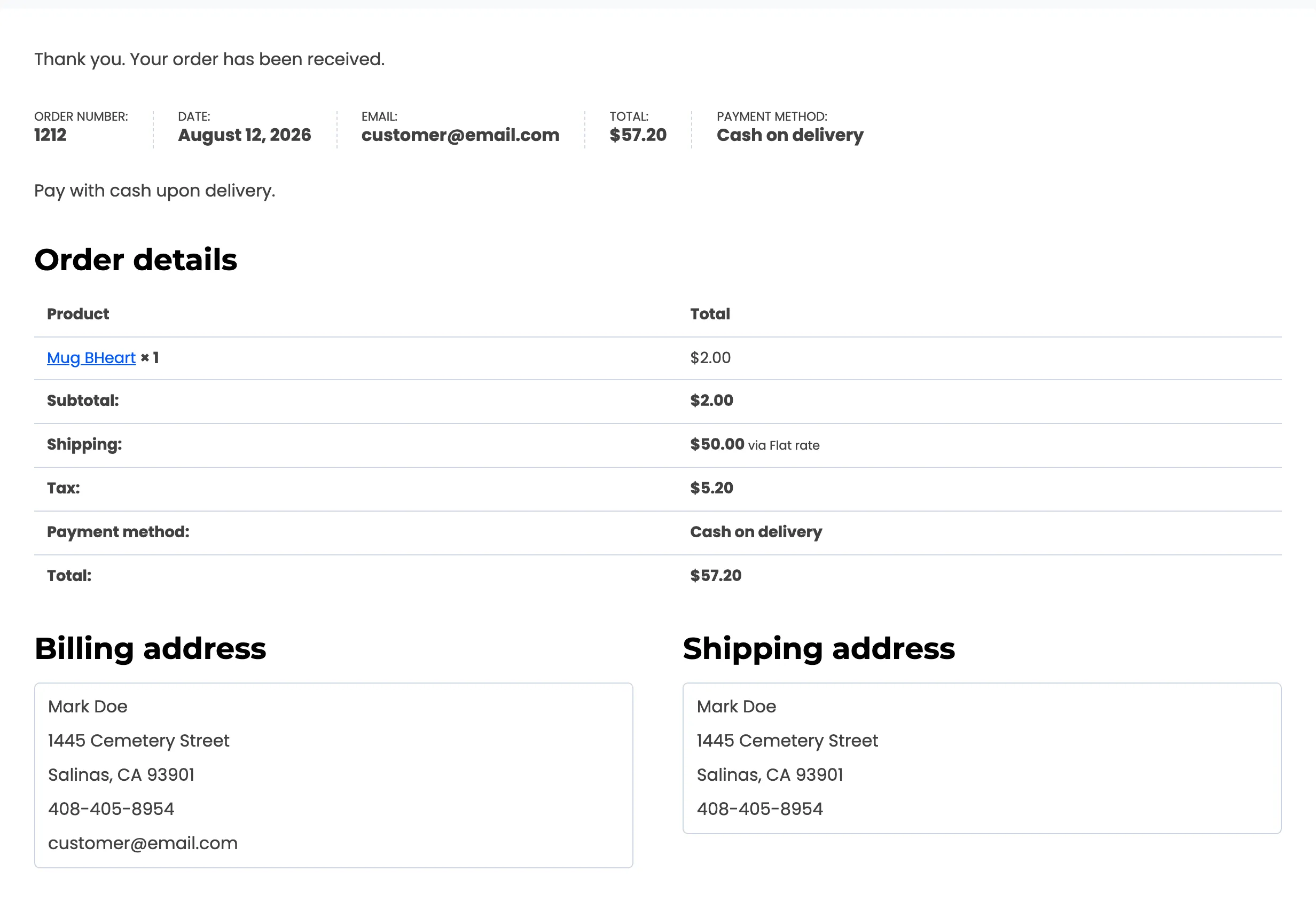
Both rows then show View and nothing else, because there is no balance left to collect. The balance order is labelled Type: Balance payment and reads $0.00 remaining, so it is not mistaken for a second reservation.
On the admin side the product’s Reserved figure drops by the quantity, which is the number to watch across a whole release.
Reserved stock is the number to watch
Section titled “Reserved stock is the number to watch”A deposit pre-order holds a unit back for its customer. That is what the Reserved figure on the products list counts, and it stays up until the balance is paid.
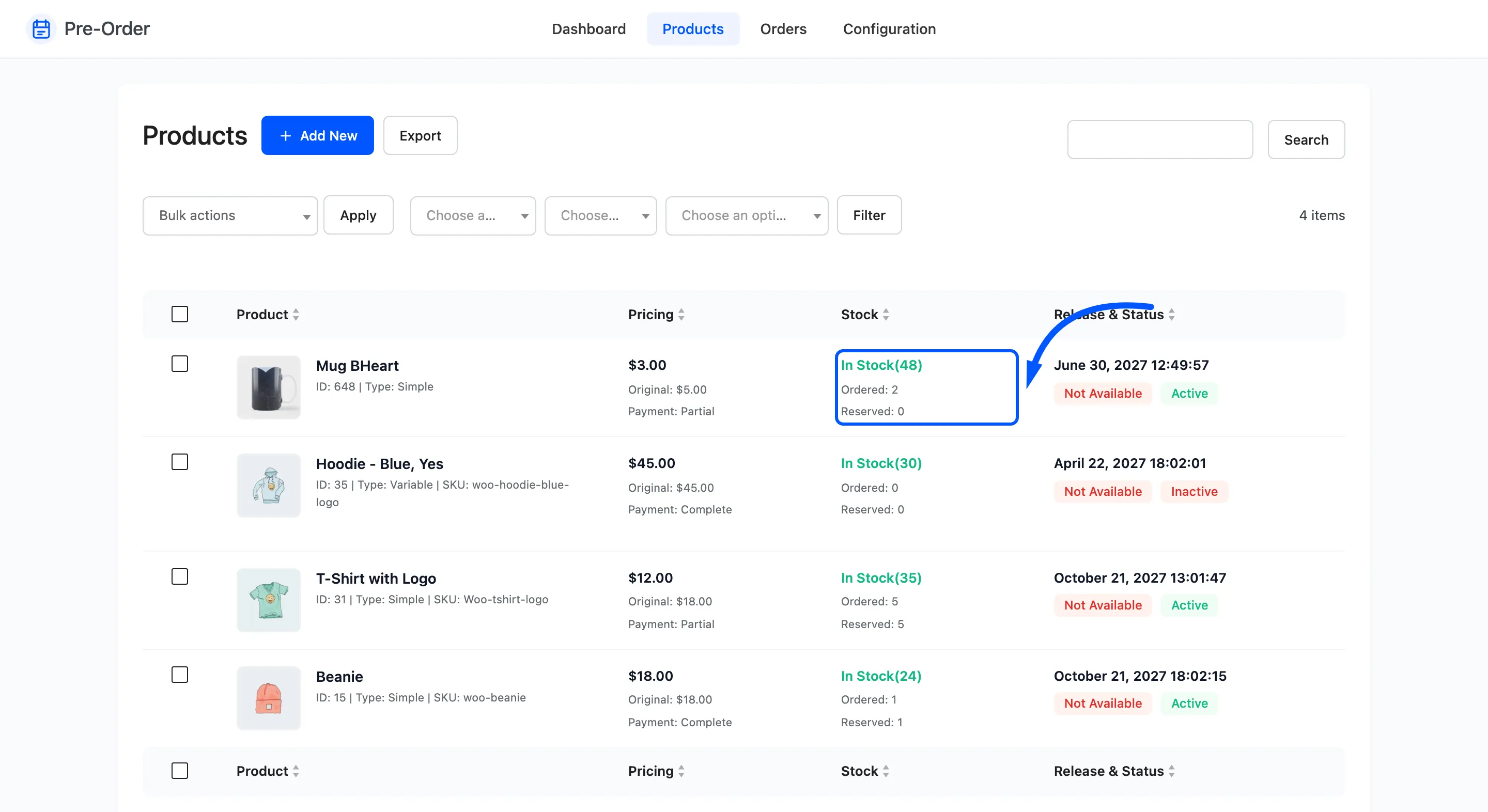
Reserved stock that never falls after a release means balances are not being collected. Check the gateway restriction first: it is nearly always customers who paid the deposit by a method that stores no card.
How reserved stock is shared out after release
Section titled “How reserved stock is shared out after release”The balance is bought through the product itself, so once the product is released two groups are buying the same stock and the plugin splits it between them.
- A customer holding a reservation can always take their own units. Their share was set aside for them, so completing a balance is never blocked by the shop running low.
- Everyone else can buy only what is left over, which is the product’s stock minus the units still reserved. When that reaches zero the product stops selling to new customers, and the product page says so.
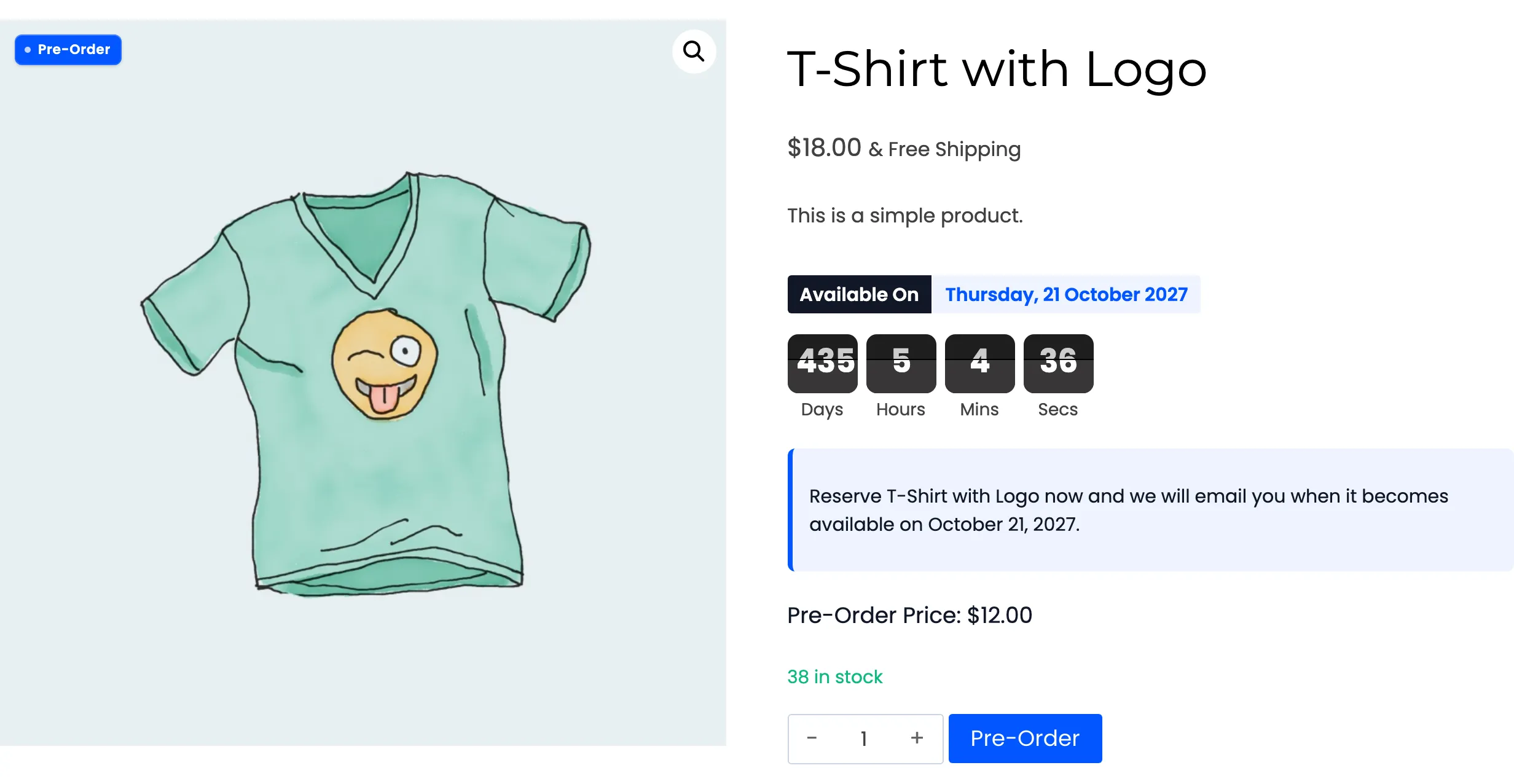
A product that does not manage stock has no number to share out, so neither limit applies and both groups buy freely.
Run one through end to end before you launch a deposit product: reserve it, release it, and confirm the balance really reaches the cart.