

How to Release a Pre-Order Product
Releasing is what turns a pile of reservations into a shipping queue. It can happen on its own or on your say-so.
What releasing actually does
Section titled “What releasing actually does”Four things, in one step:
- Availability flips from Not Available to Available.
- The pre-order is switched off, so the product stops taking new reservations.
- The product’s original stock state comes back, exactly as it was before the pre-order started.
- Everyone who reserved is emailed once and marked as told.
Point 2 catches people out. After a release the product’s status reads Inactive, which is correct: the reservation period is over.
Step 1: Let the date do it
Section titled “Step 1: Let the date do it”Go to Configuration → General and tick Automatically Set Available.
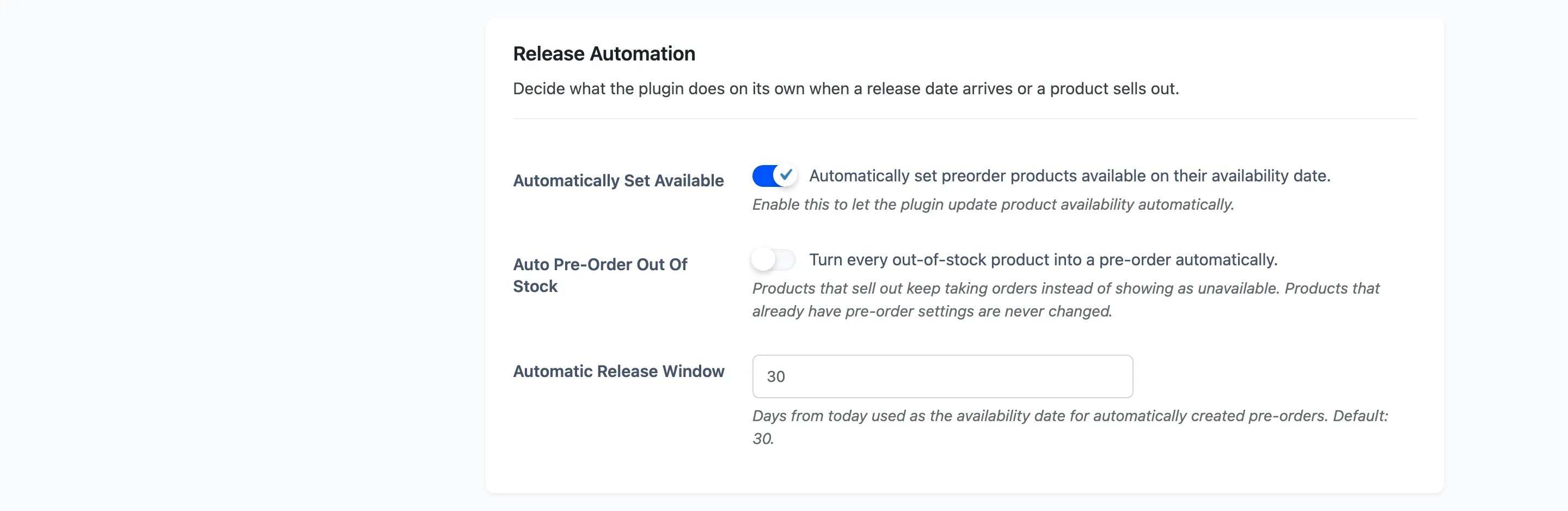
Save. From now on the plugin releases any pre-order whose date has passed.
The check runs hourly, not on the stroke of midnight. It is a WordPress cron event, so it fires when your site gets traffic. A quiet store releases a little late.
There is a second trigger: opening the product page also releases that one product if its date has passed. On a busy store that usually happens first.
Step 2: Watch what is coming
Section titled “Step 2: Watch what is coming”The dashboard’s Release Pipeline lists what is due.
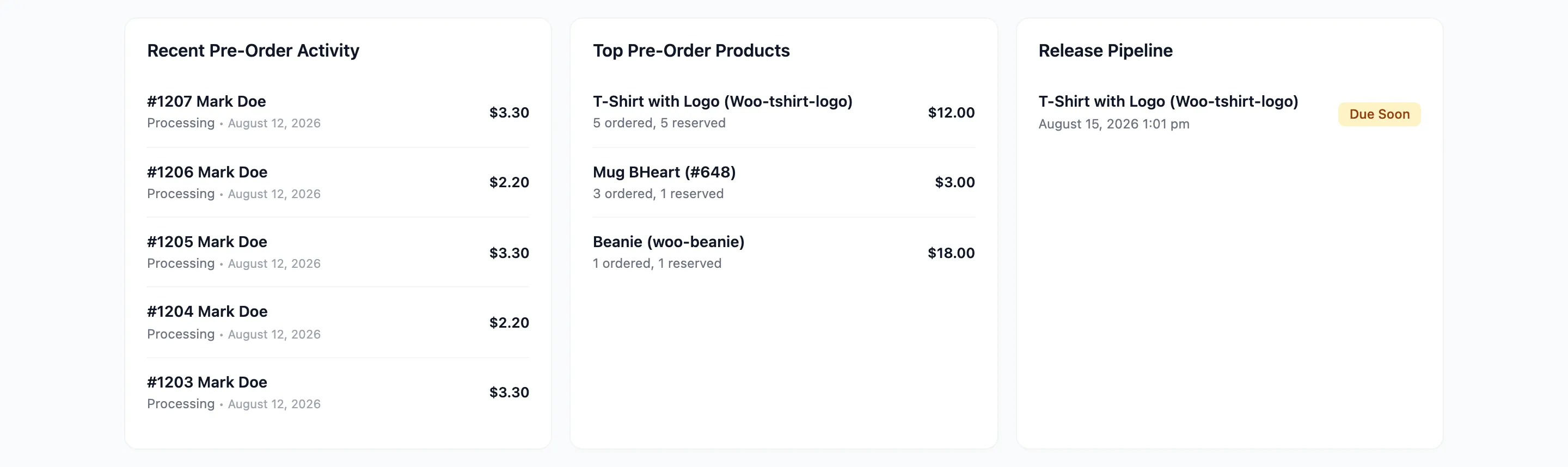
Due Soon is ahead of you. Overdue means the date has gone and the product is still on pre-order, which is either automation switched off or a store too quiet to have run the job.
With the Pro reminder email on, you also get a daily summary a few days ahead. See Email Settings.
Step 3: Release by hand
Section titled “Step 3: Release by hand”Go to Pre-Order → Products, tick the products, choose Set Available and press Apply.
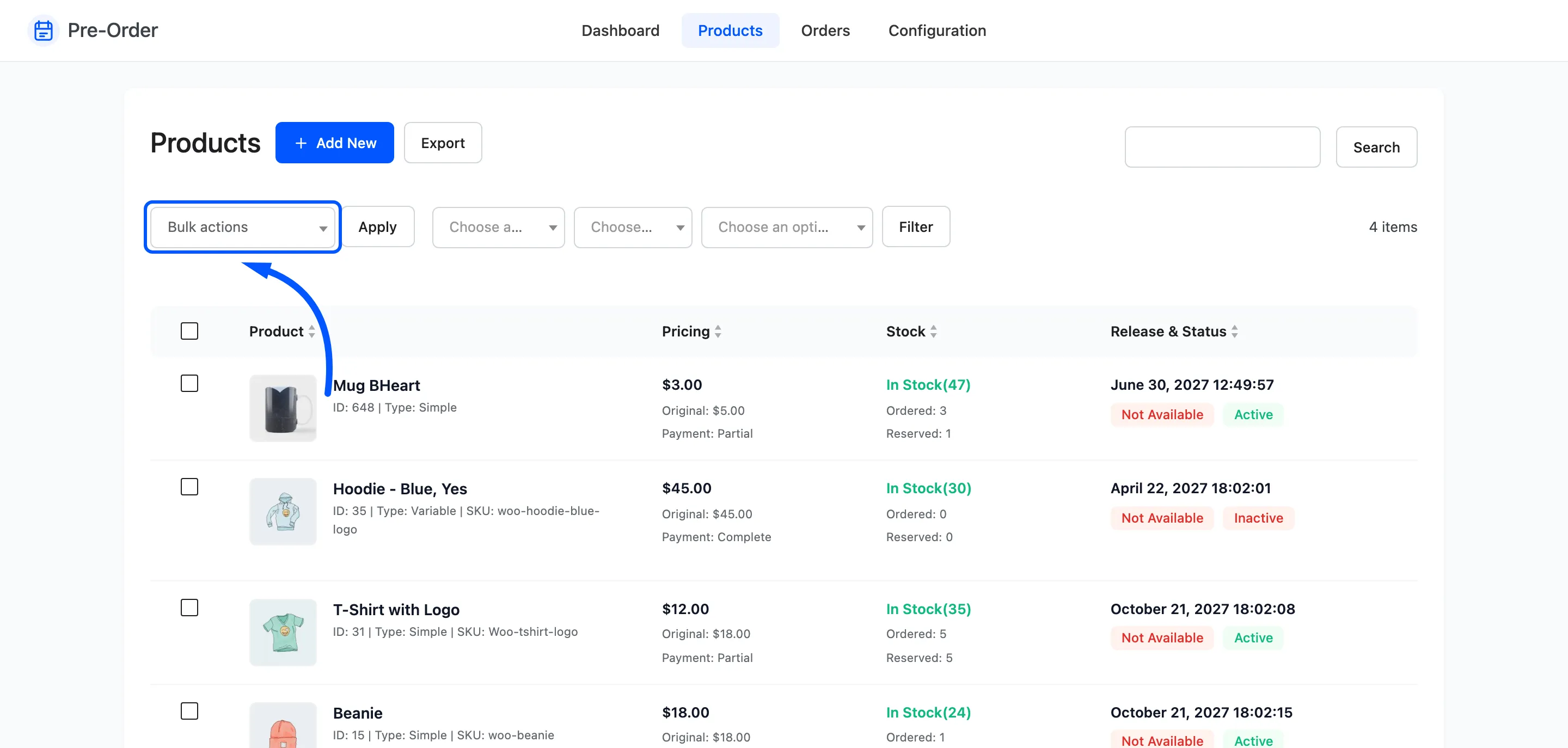
Do this when stock lands early, when the date was a placeholder, or when automation is off by choice.
The date is not consulted. Set Available releases the product whether the date has passed or not.
Step 4: Confirm it
Section titled “Step 4: Confirm it”Filter the list to Available.

The row now reads Available and Inactive, and the stock column shows the product’s own stock rather than the pre-order figure.
Then open the product on the shop. The badge, countdown and pre-order button are gone, and the normal Add to cart button is back.
Step 5: Check the email
Section titled “Step 5: Check the email”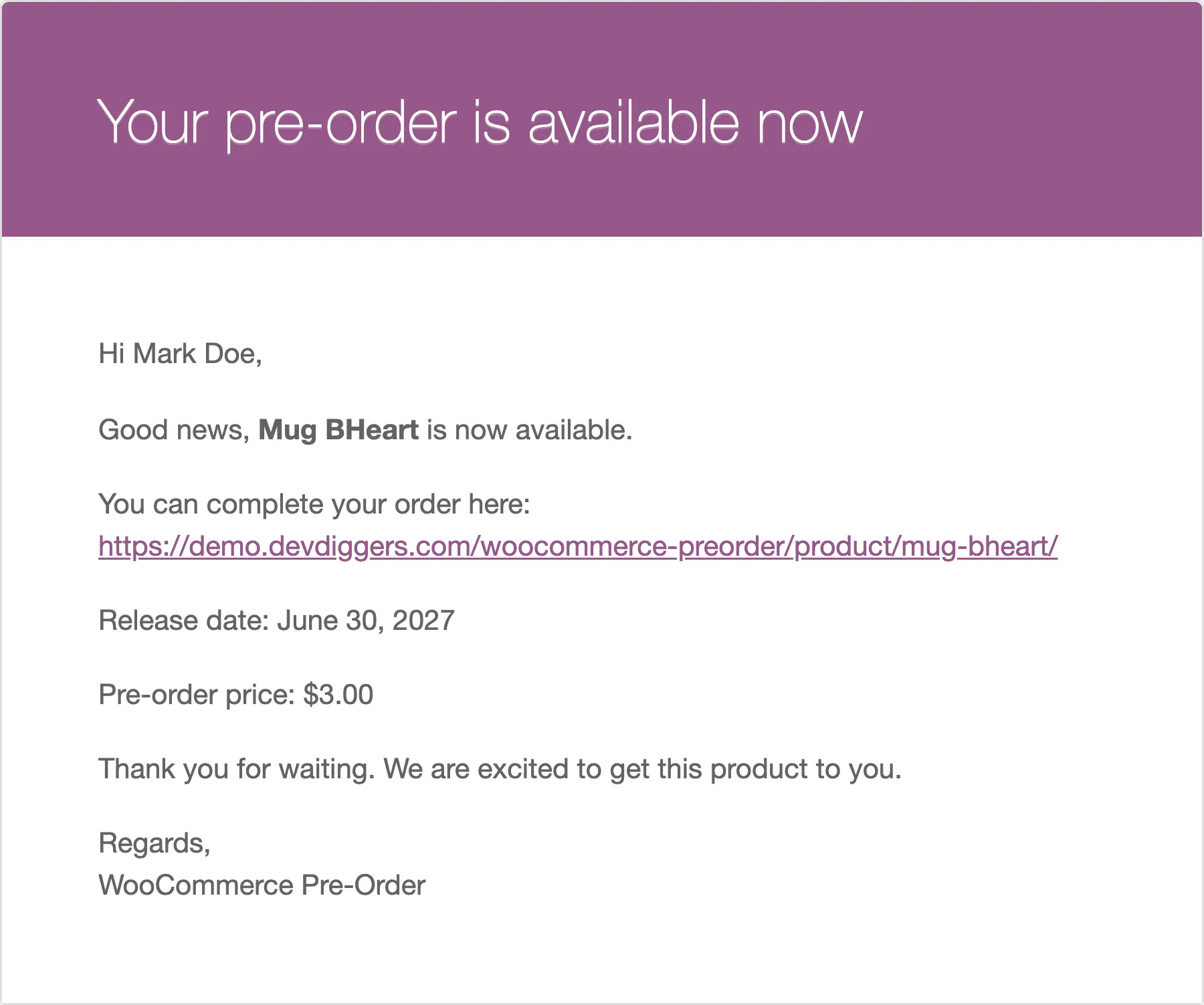
One email per customer, once. The plugin marks each as told, so releasing the same product twice does not email anyone a second time.
If nothing went out, Send Email on the Emails tab is off, or the customers had already been told.
To email without releasing, use the Send Availability Mail bulk action instead.
Putting a product back on pre-order
Section titled “Putting a product back on pre-order”Two steps, and the second is the one people miss.
- Tick the product, choose Set Not Available, press Apply. That restores the pre-order stock and the reservation state.
- Edit the product and set Status back to Active.
Releasing set the status to Inactive, and Set Not Available does not undo that. Without step 2 the product looks like a pre-order on this screen and behaves like an ordinary product on the shop.
What happens to deposits
Section titled “What happens to deposits”Releasing is when a balance falls due. Customers who paid in full are finished; customers who paid a deposit either get charged automatically or are given a Complete Pre-Order action.
See How to Take a Deposit and Collect the Balance (Pro).