

Pre-Order Products
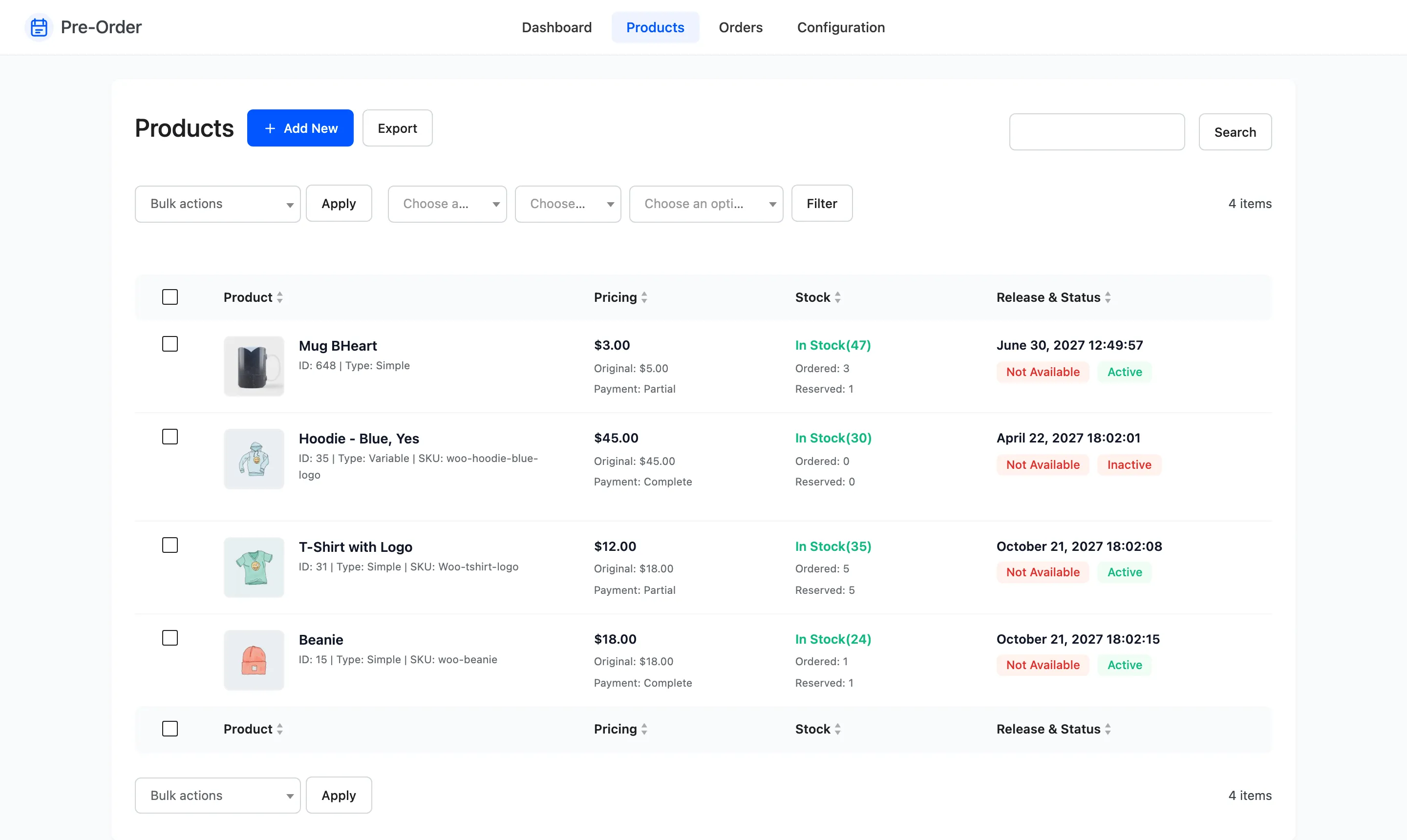
This is the working screen of the plugin. Every product that carries pre-order settings is listed here, and this is where you release them.
Go to DevDiggers Plugins → Pre-Order → Products.
The columns
Section titled “The columns”Product shows the thumbnail, the name, and a line of identity underneath: the ID, the type, and the SKU where there is one. The ID is what the shortcode needs.
Pricing leads with the pre-order price, then the original price, then the payment mode. On a full-payment pre-order the two prices match, because the plugin sets the pre-order price from the product.
Stock shows the pre-order stock with the ordered quantity already subtracted, then the ordered and reserved counts.
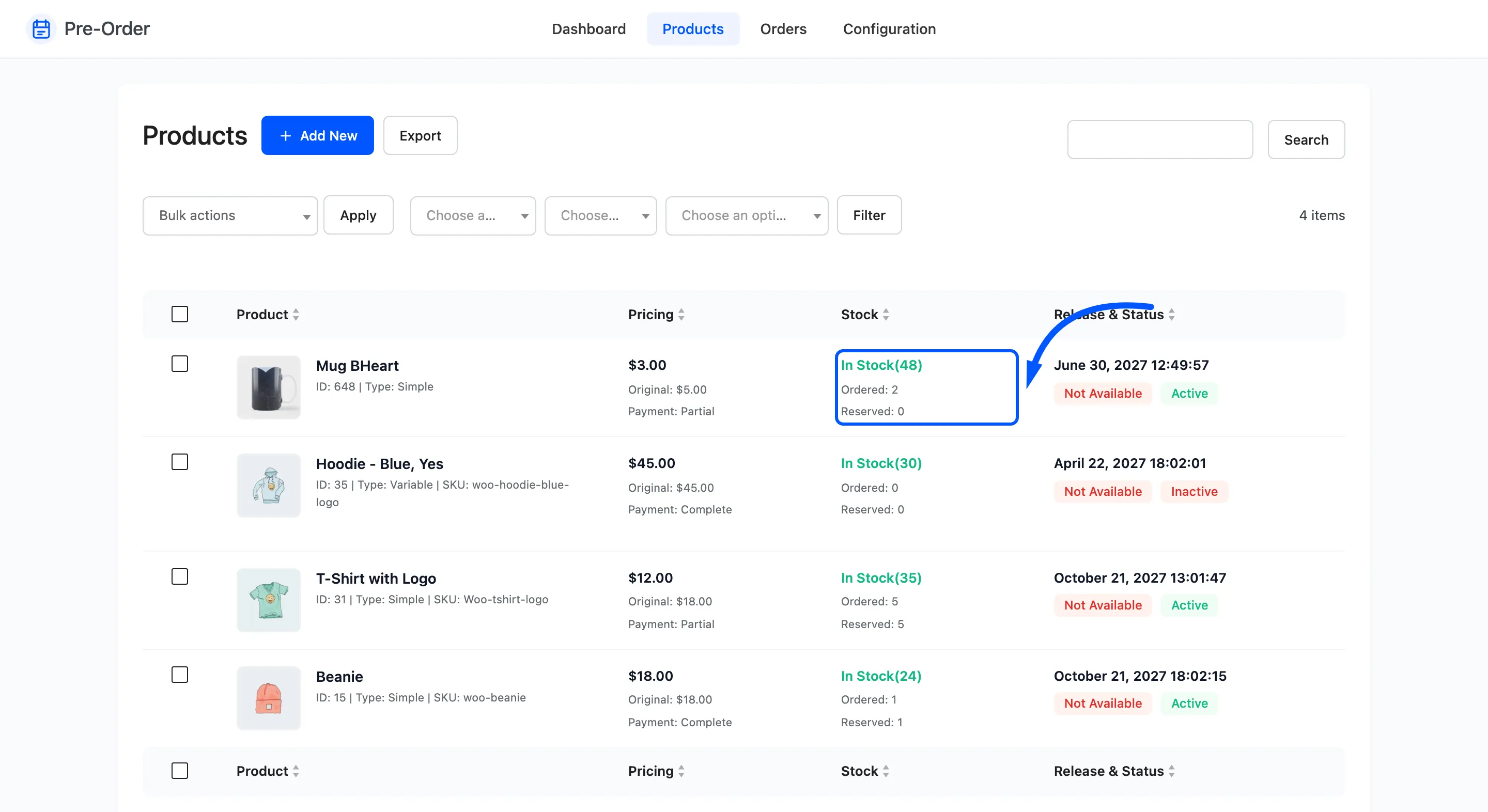
Ordered is everything ever reserved. Reserved is what is still being held for someone who owes a balance, so it only moves on deposit pre-orders and it falls back to zero as they pay.
Release & Status shows the release date, then two badges: availability (Available or Not Available) and status (Active or Inactive).
Those two badges are not the same thing. Status is whether you have switched this pre-order on. Availability is whether the product has been released yet. A pre-order that is taking reservations right now is Active and Not Available, which reads oddly the first time.
Sorting and filtering
Section titled “Sorting and filtering”Every column heading sorts. Three filters sit above the table.
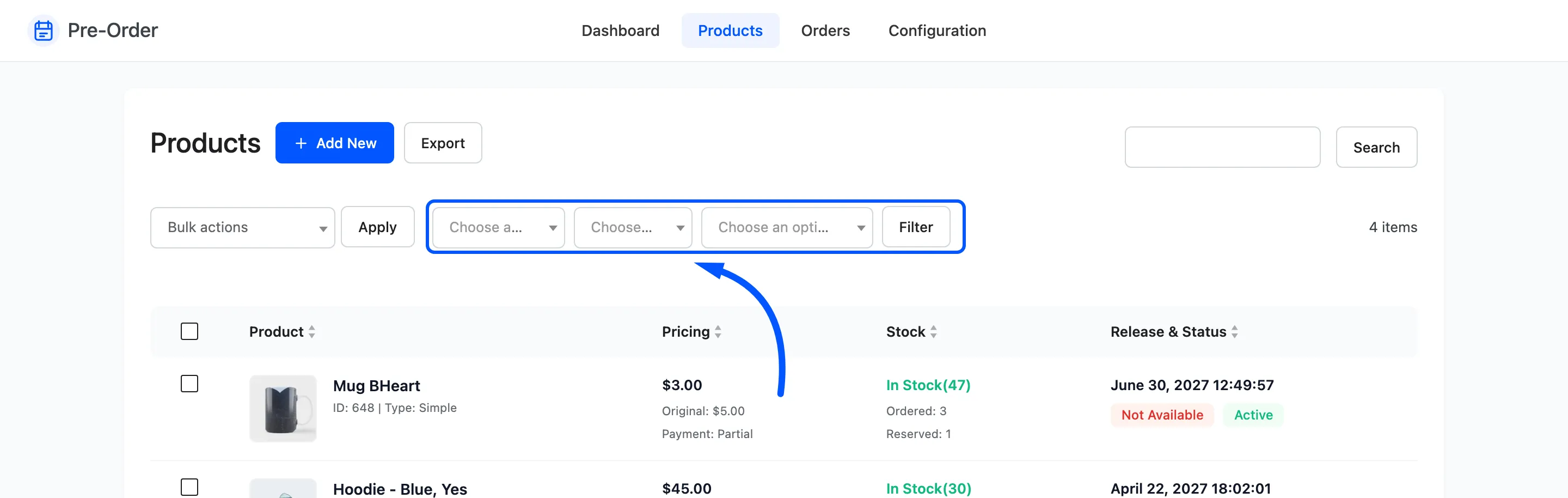
- All availability, Available or Not Available.
- All statuses, Active or Inactive.
- All payment modes, Complete or Partial.
Press Filter to apply, Reset to clear. The search box matches the product title.
The pairing worth remembering is Not Available plus Active: that is your live pre-orders, the ones customers can reserve today.
Row actions
Section titled “Row actions”Hover a product name for three actions.
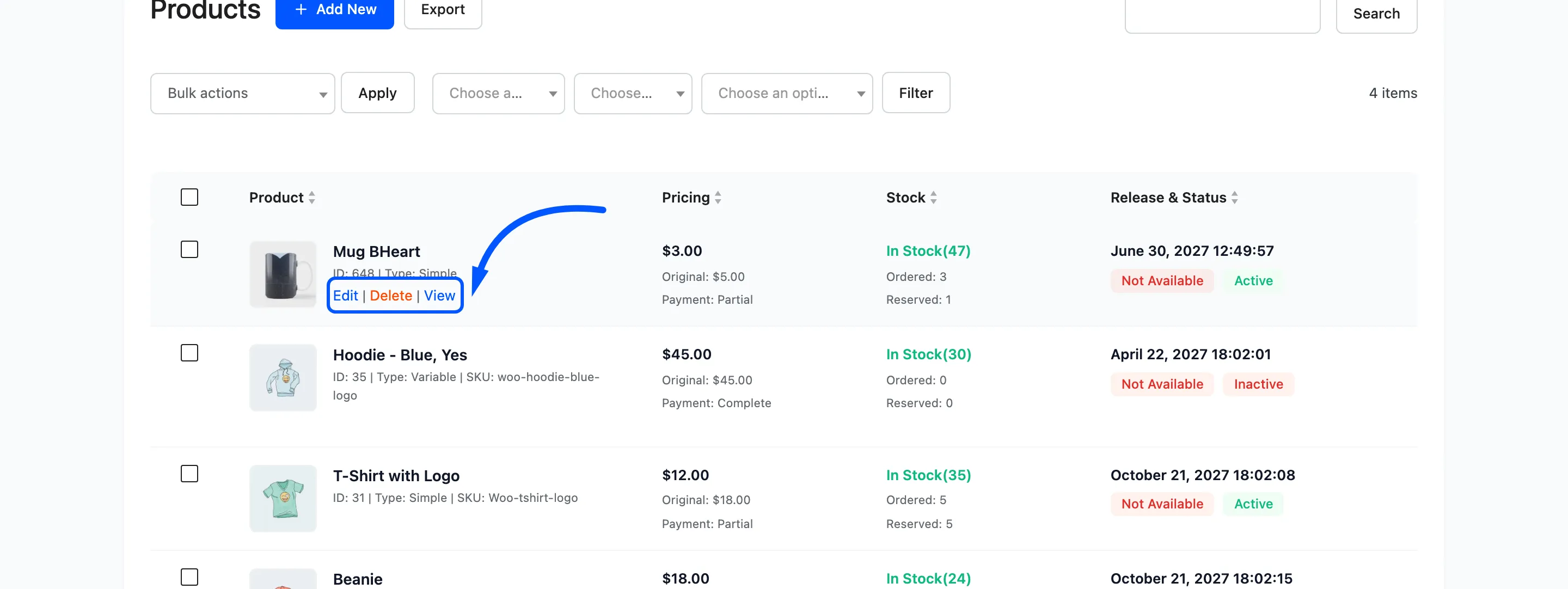
- Edit opens the pre-order form for that product.
- Delete removes the pre-order settings. The product itself is untouched, and its stock stays where the pre-order left it.
- View opens the product on the storefront.
Bulk actions
Section titled “Bulk actions”Tick products, choose an action, press Apply.
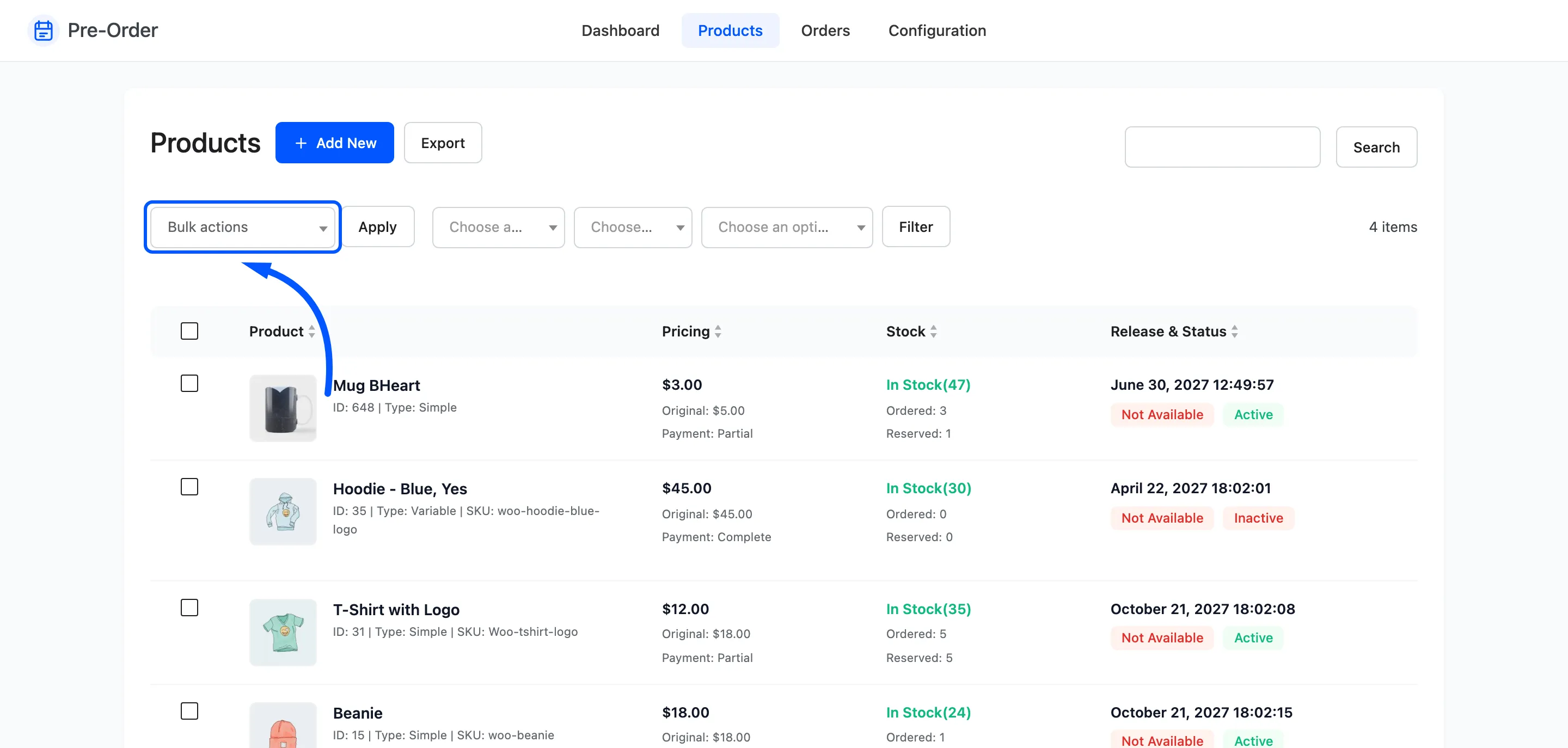
- Delete removes the pre-order settings from each one.
- Send Availability Mail emails everyone who reserved, without releasing anything. Customers already told are skipped, so it is safe to run twice.
- Set Available releases the products: availability flips, the pre-order switches off, the original stock returns, and the availability email goes out.
- Set Not Available puts them back on pre-order.
Set Not Available does not switch the pre-order back on. Releasing sets the status to Inactive, and this action only changes availability. To take reservations again, edit the product and set Status to Active as well.

Adding a product
Section titled “Adding a product”Add New opens the pre-order form.
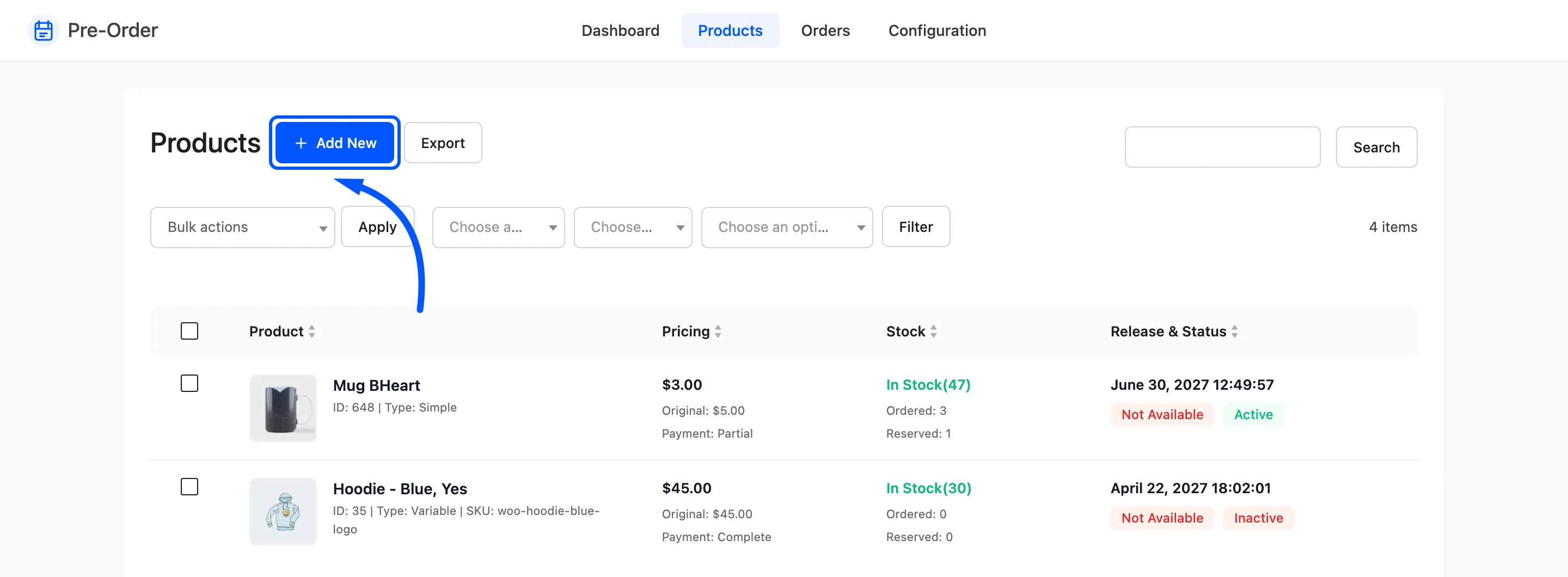
How to Create a Pre-Order Product covers the form field by field.
Exporting
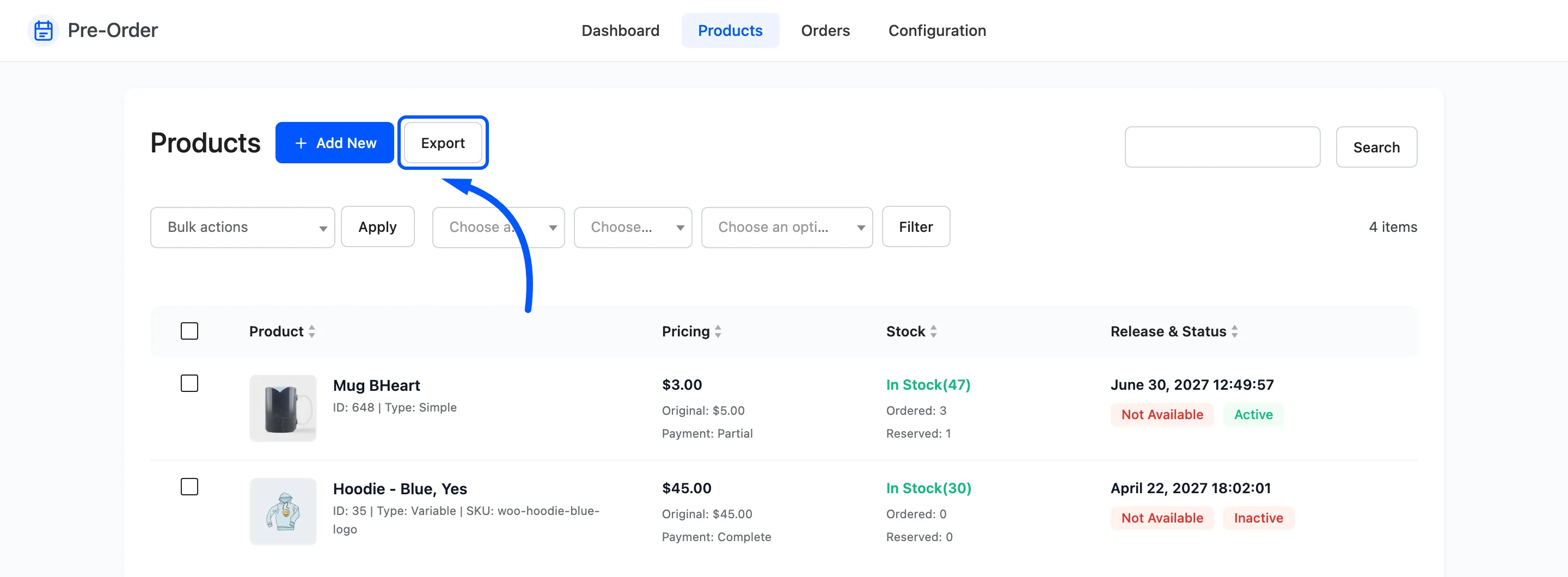
Section titled “Exporting”Export opens the CSV wizard for pre-order products.
What the list does not show
Section titled “What the list does not show”Only published products appear. A pre-order on a draft or a private product is stored and works, but it is not listed here, so a product that vanishes from this screen has usually changed post status rather than lost its settings.