

The Dashboard
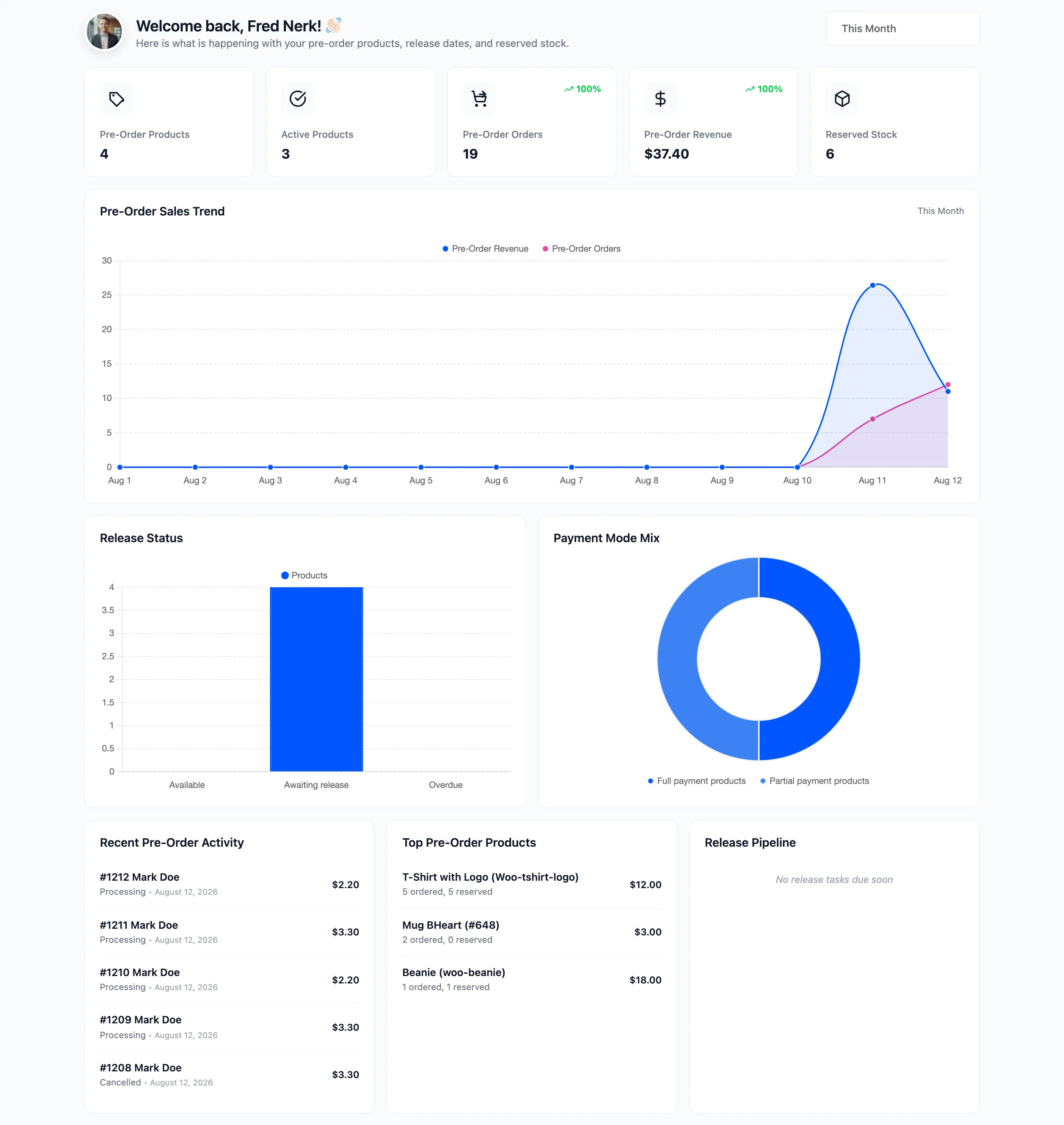
The dashboard answers two questions: how much money is tied up in reservations, and what releases next.
Go to DevDiggers Plugins → Pre-Order → Dashboard.
The five counters
Section titled “The five counters”
- Pre-Order Products: How many products carry pre-order settings, active or not.
- Active Products: How many of those are switched on and taking reservations.
- Pre-Order Orders: Orders that contain at least one pre-order item.
- Pre-Order Revenue: What those orders collected.
- Reserved Stock: Units promised to customers who have paid a deposit and still owe a balance.
Each card carries a percentage against the previous period, so the figure moves with the date range rather than being a lifetime total.
Reserved Stock is the one to watch. It only counts deposit pre-orders, because only those hold a unit back for a customer who has not finished paying. A full-payment pre-order is a completed sale, so it never appears here.
Search Activity: the sales trend
Section titled “Search Activity: the sales trend”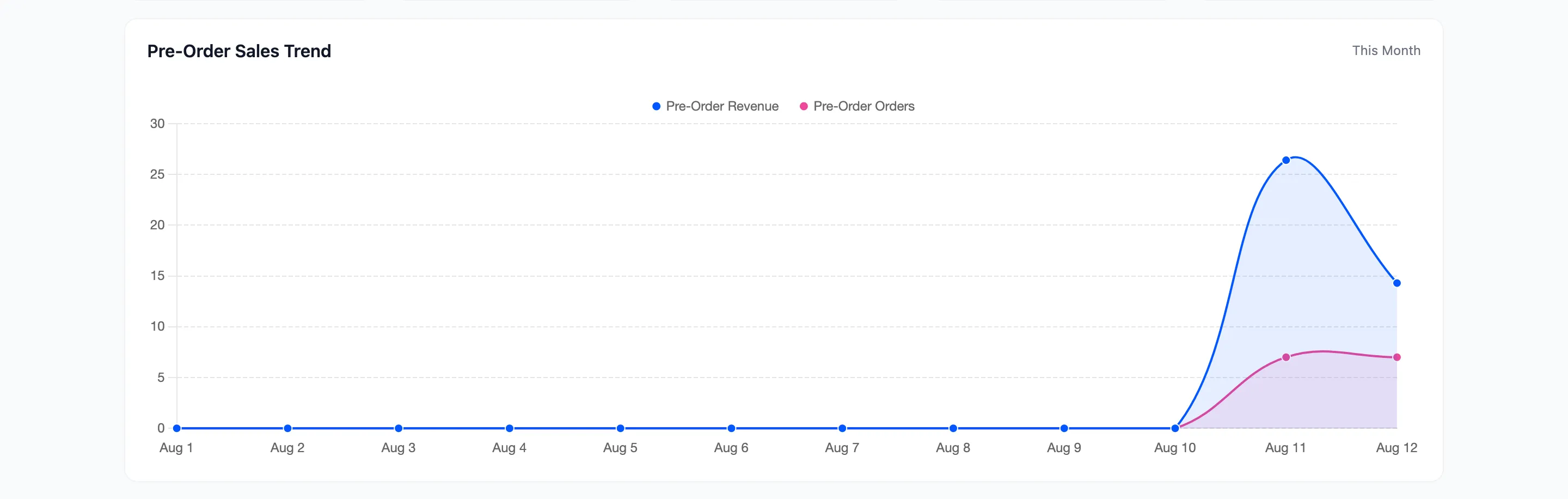
Two lines over the selected range: Pre-Order Revenue and Pre-Order Orders. Read them together. Revenue rising while orders stay flat means people are reserving more per order, which is usually a deposit product doing its job.
A flat line at zero on a store with active products is a storefront problem, not a settings one. Check that the licence is active and that the product page really shows the Pre-Order button.
Release Status and Payment Mode Mix
Section titled “Release Status and Payment Mode Mix”Two half-width charts sit under the trend.
- Release Status counts products by availability, so you can see how many are still reserved against how many have gone live.
- Payment Mode Mix splits your pre-order products into full payment and deposit. It counts products, not orders.
The three widgets
Section titled “The three widgets”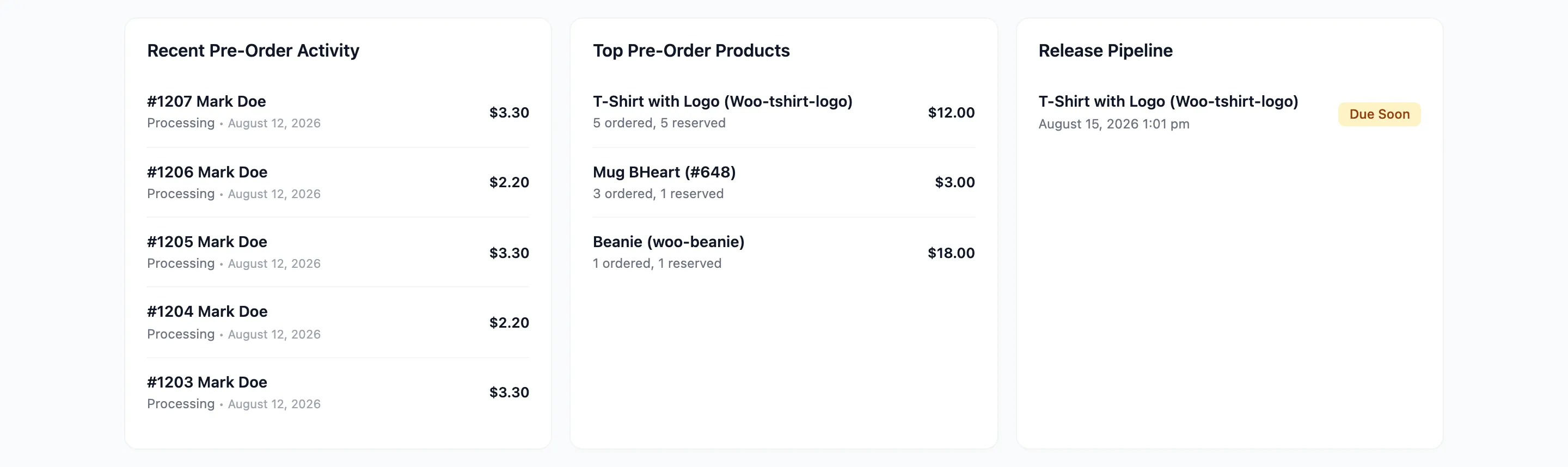
- Recent Pre-Order Activity: The latest pre-order orders, with customer, status and total. Each row opens the order.
- Top Pre-Order Products: Ranked by demand, showing units ordered and units reserved against the pre-order price.
- Release Pipeline: Products due to go live, each tagged Due Soon or Overdue.
Overdue means the date has passed and the product is still on pre-order. That happens when Automatically Set Available is off, or when the hourly job has not run yet on a quiet store. Either way the customers who reserved it are still waiting, so it is the widget worth checking first thing.
The date range
Section titled “The date range”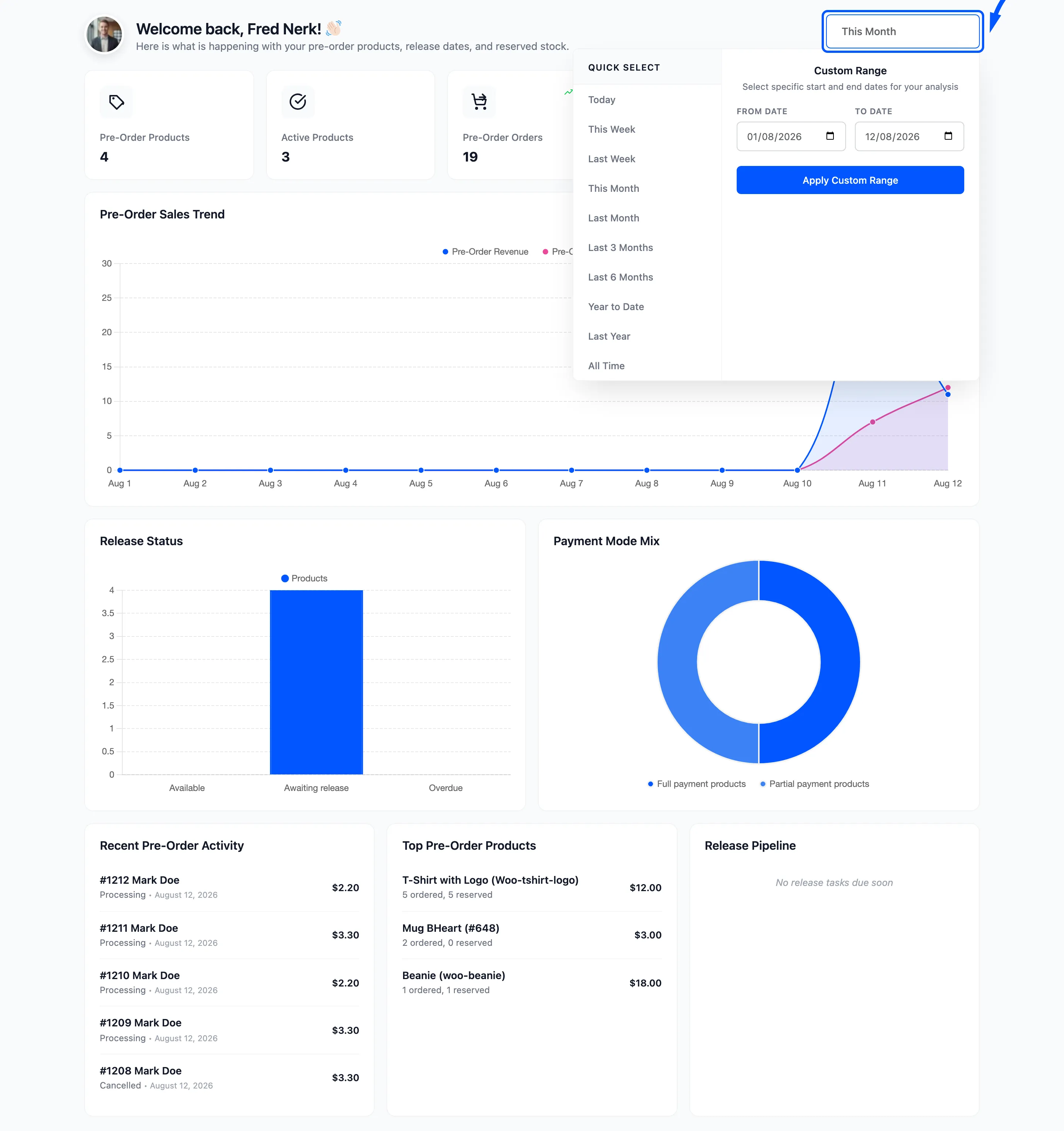
The control in the header sets the range for the counters and the charts. It offers presets from Today through All Time, plus a custom range.
The Release Pipeline is not affected by it. That widget looks forward from today whatever range you pick, because a release that is overdue does not stop being overdue when you view last month.