

Shortcode Settings
One field, one shortcode. It prints the same pre-order block the product page shows, anywhere you want it.
Go to Configuration → Shortcodes.

Template Shortcode
Section titled “Template Shortcode”Default [ddwcpo_preorder_template_shortcode].
The field holds the shortcode’s name. Change it and the old name stops working immediately, so any page still using it prints nothing. Rename it once, early, or leave it alone.
The brackets and spaces are stripped when it registers, so [my_preorder], my_preorder and
[ my_preorder ] all produce the same tag.
What it prints
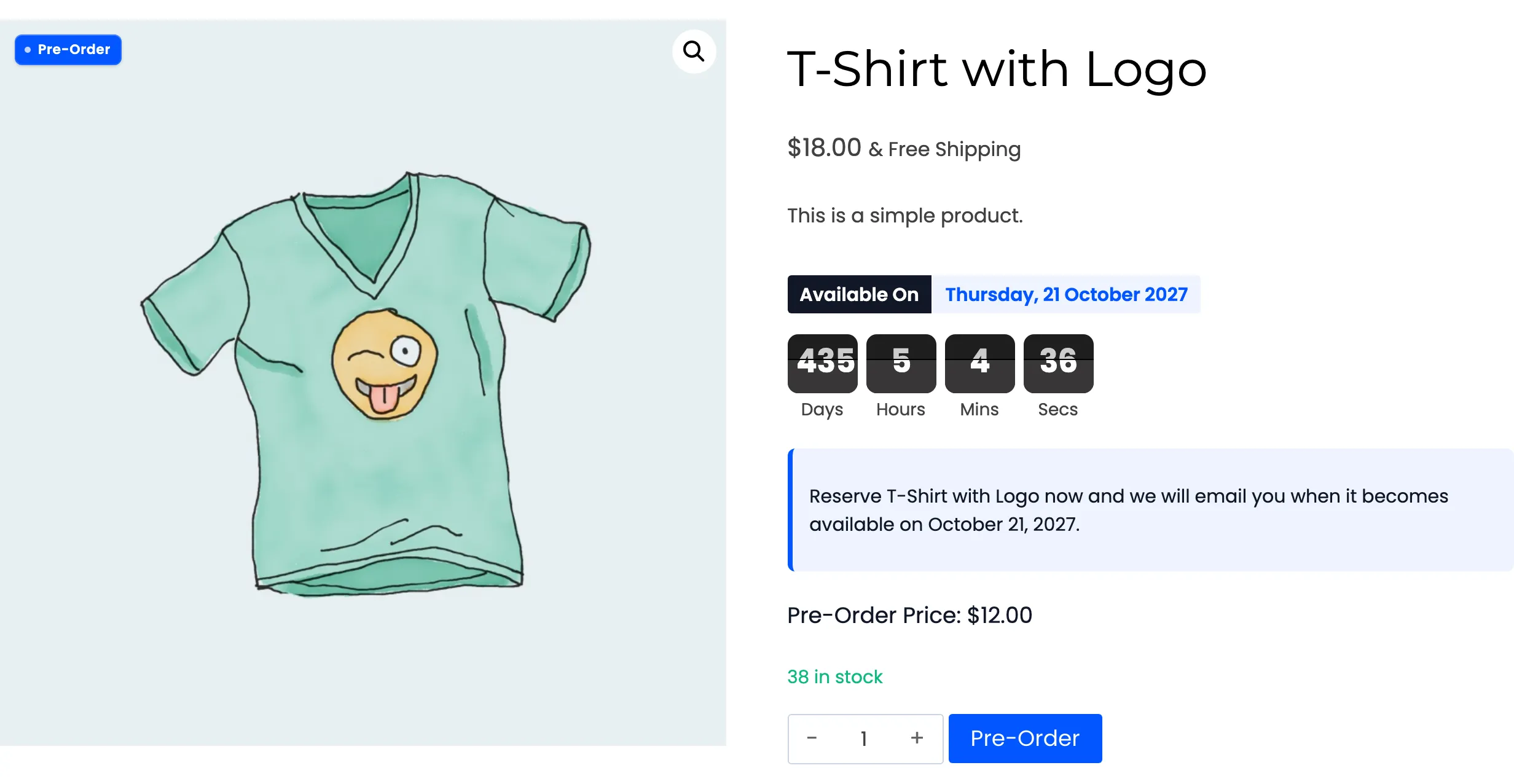
Section titled “What it prints”The release date, the countdown, your notice, the pre-order price, the stock line and the pre-order button. In other words, the block from the product page.
Using it
Section titled “Using it”On a product page, with no attribute, it uses that product:
[ddwcpo_preorder_template_shortcode]Anywhere else, name the product:
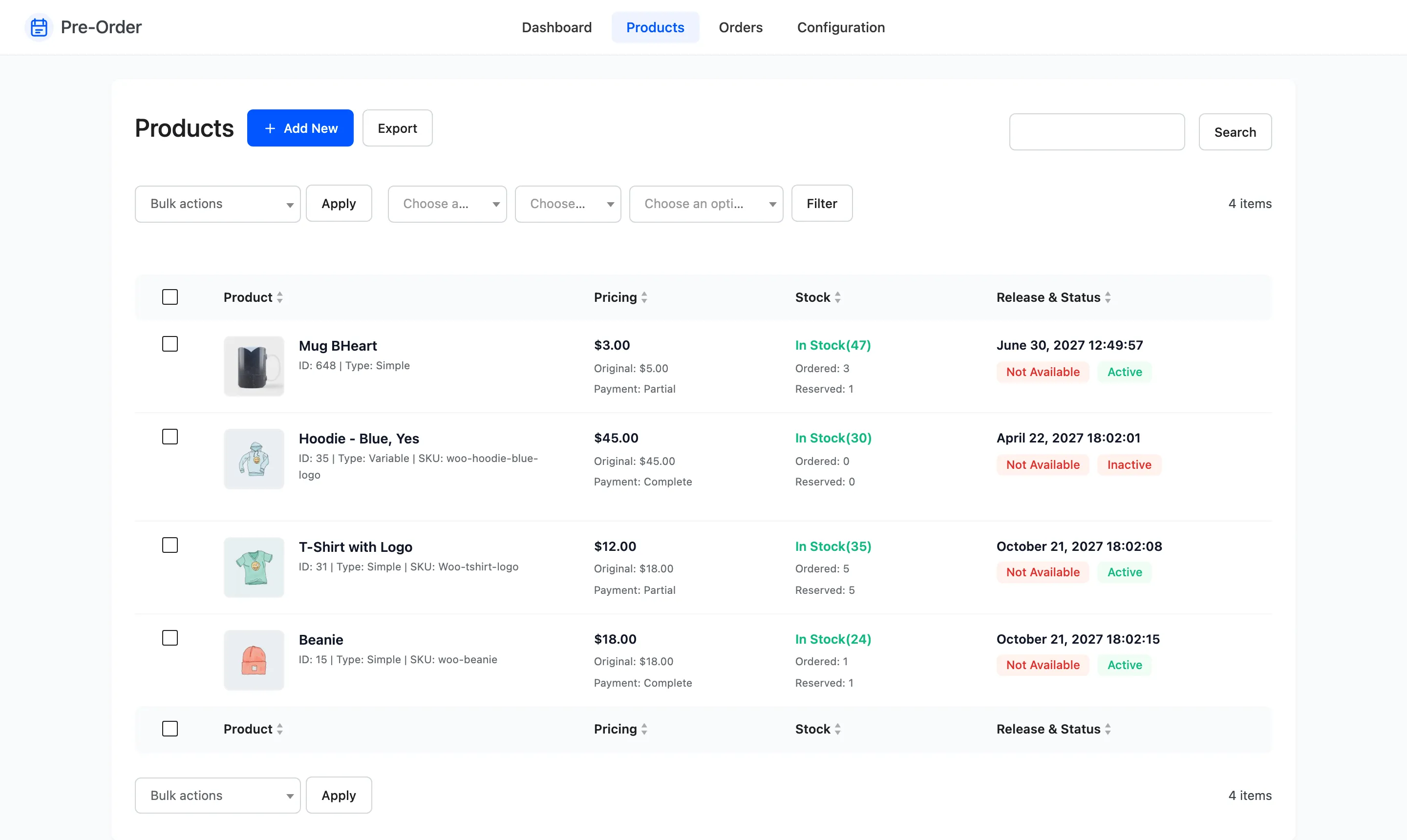
[ddwcpo_preorder_template_shortcode product_id="648"]The product ID is on the products list, in the line under each product name.
What it needs to render
Section titled “What it needs to render”The shortcode is not a way around the plugin’s rules. It prints nothing at all unless the product it names is currently taking pre-orders: pre-order settings present, status Active, availability Not Available.
That is deliberate. A landing page carrying this shortcode empties itself the moment the product releases, instead of showing a countdown to a date that has passed.
The other requirements are the usual ones. The licence has to be active and Enable pre-orders ticked, since the storefront half of the plugin does not load otherwise.
Where to use it
Section titled “Where to use it”- A launch landing page built in the block editor, with the reservation block under your own copy.
- A category or campaign page listing several upcoming products, one shortcode each.
- A sidebar or footer widget promoting the next release.