How Pre-Orders Work
A pre-order runs from the moment you set a release date to the moment the last customer finishes paying. This page follows that chain in order, so the settings pages make sense when you meet them.
Stage 1: a product becomes a pre-order
Section titled “Stage 1: a product becomes a pre-order”You pick a product on Pre-Order → Products → Add New, give it a release date and press Save.
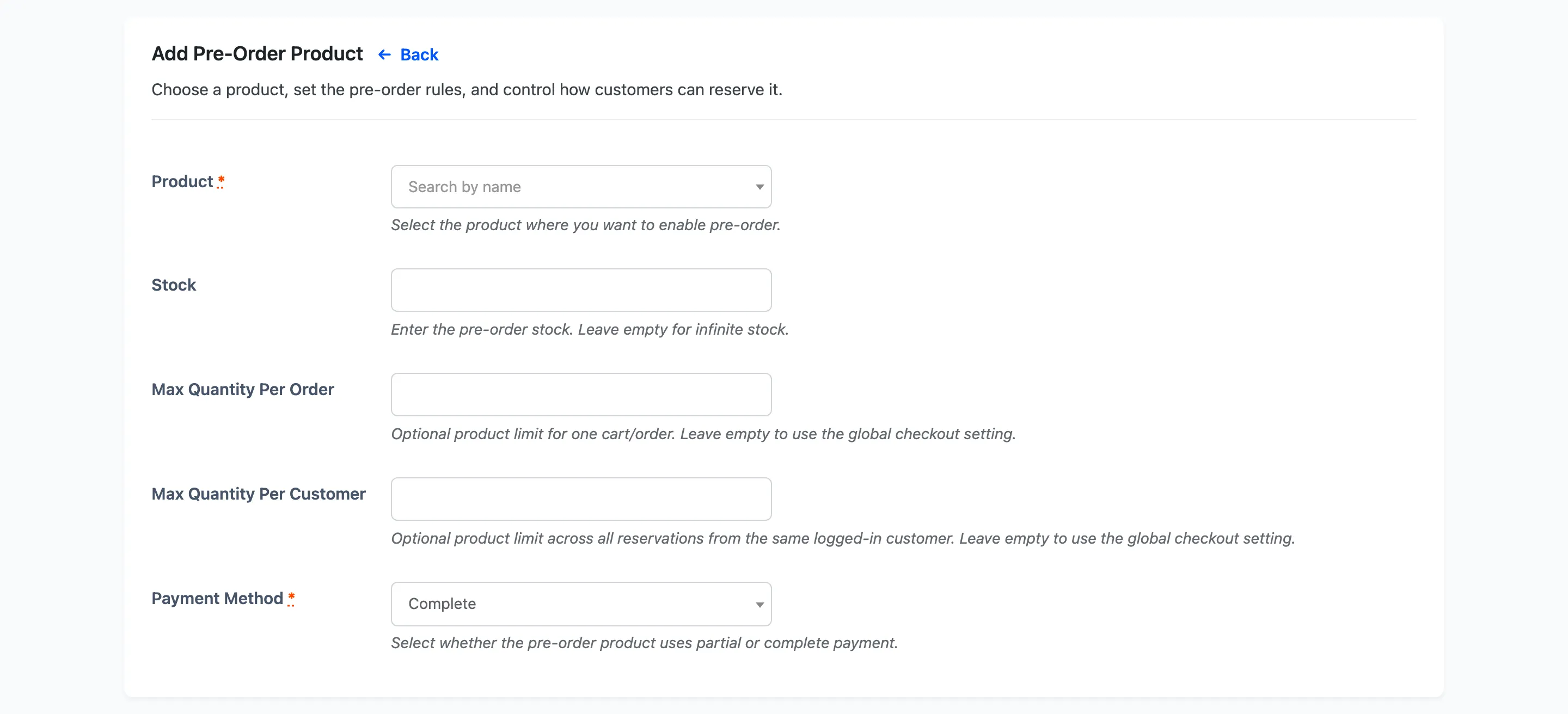
Three things happen at once.
- The plugin records the product’s current stock state so it can put it back later.
- It overwrites that stock with the pre-order stock you entered, so the product is buyable again even if it was out of stock.
- It marks the pre-order Not Available, which is the state that makes the storefront show a reservation instead of a sale.
The product itself is untouched apart from stock. Its title, price and category stay exactly as they were.
Stage 2: the storefront changes
Section titled “Stage 2: the storefront changes”With the product Not Available and its pre-order Active, the shop swaps its buying controls.
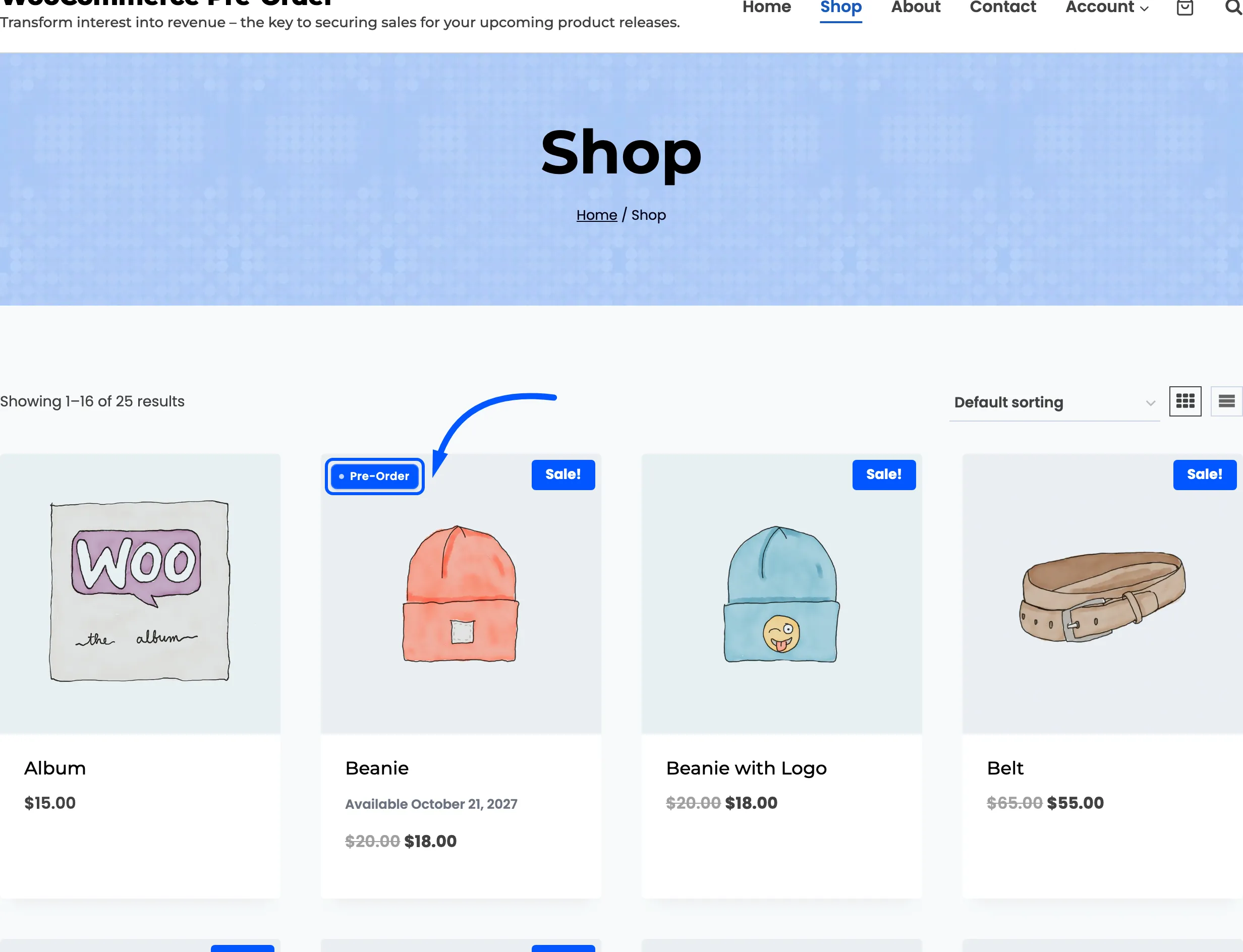
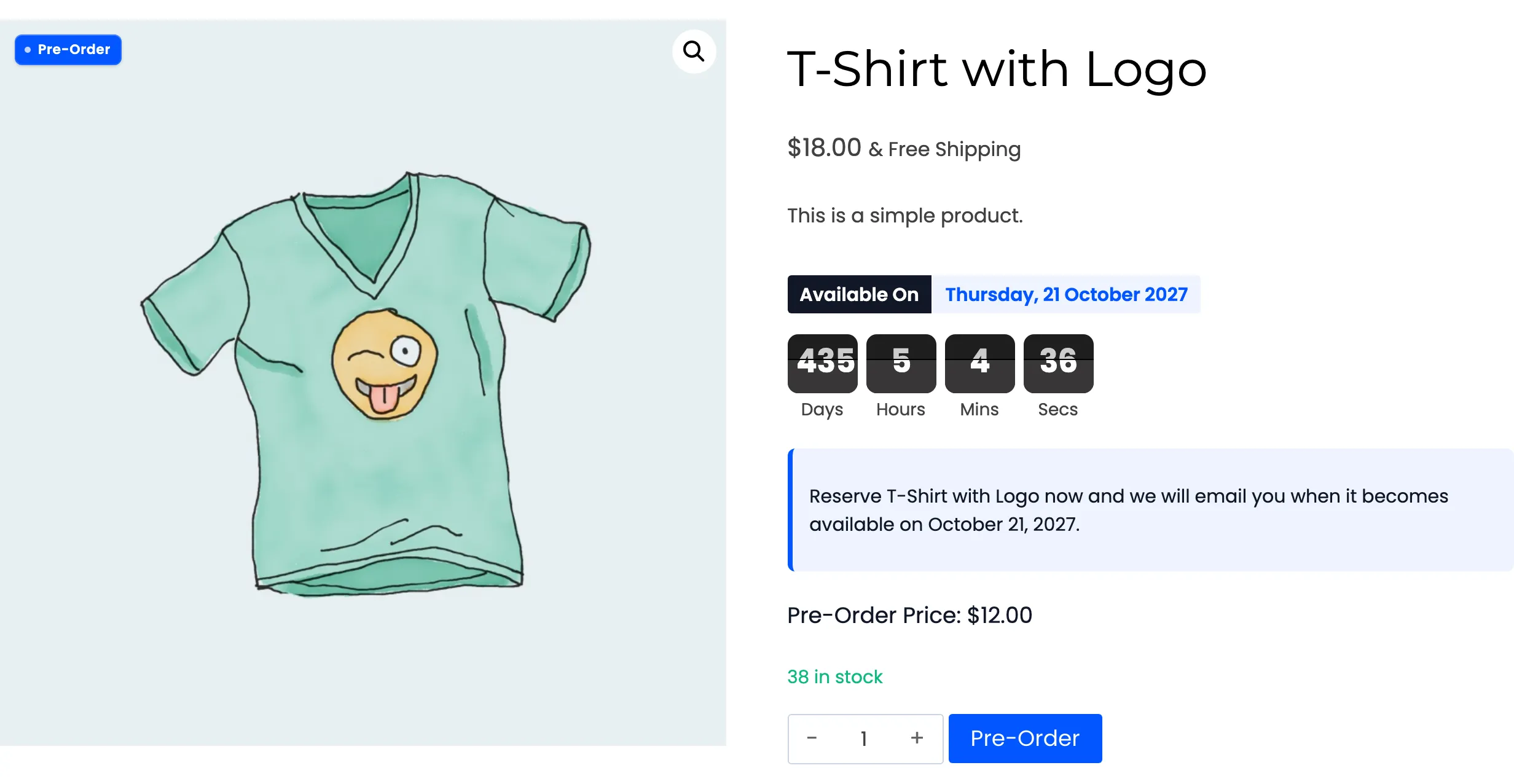
On the product page the Add to cart button is removed and the plugin’s own block takes its place: the release date, a countdown, your notice, the pre-order price, stock, and a button carrying your Pre-Order Button Text.
On a variable product the block waits for a choice. Pre-order settings belong to a variation, and a parent page has no single release date to show, so nothing appears until the shopper picks every attribute. The moment the variation resolves, the plugin swaps its own block in for the add to cart row.
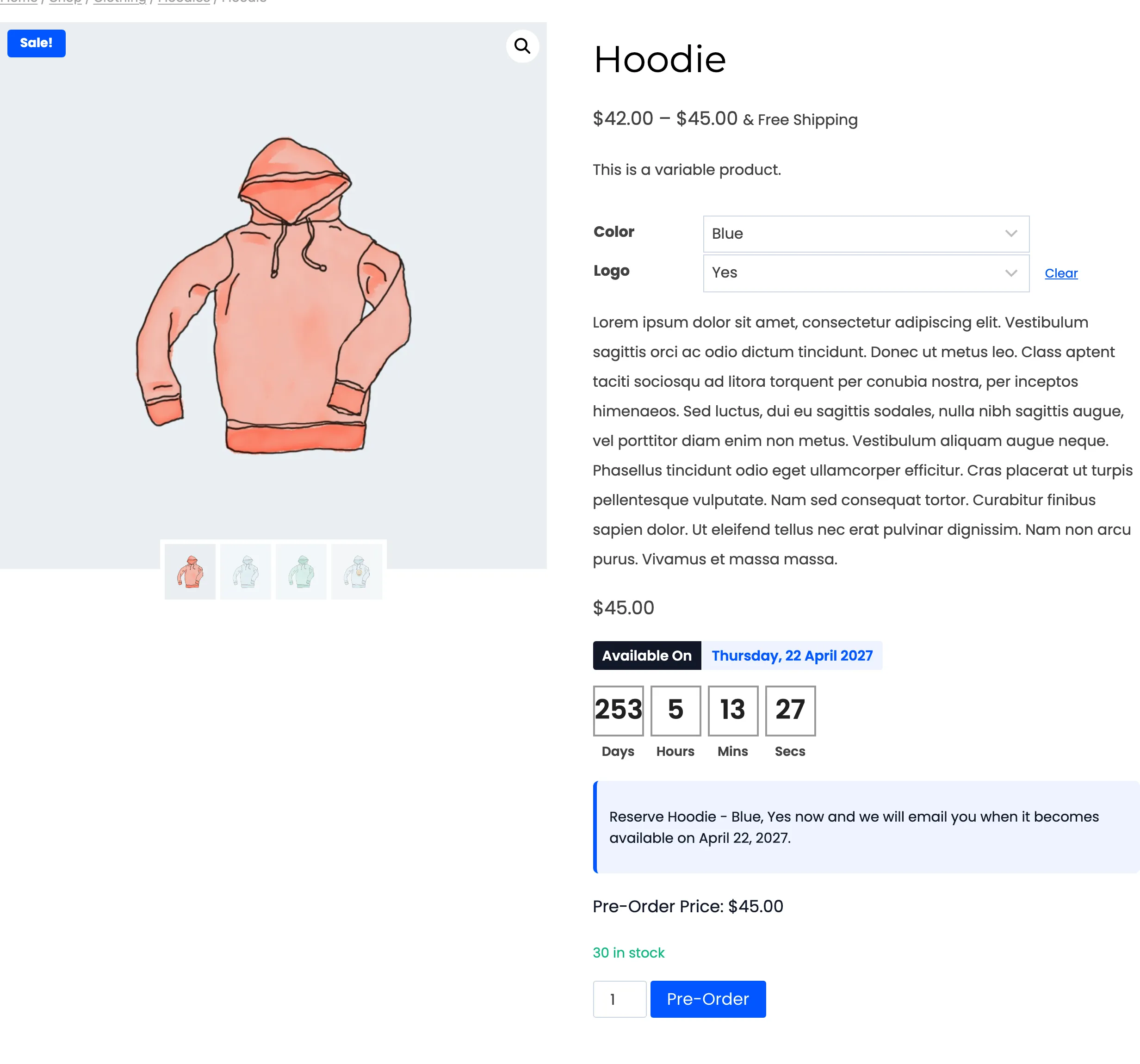
A variation that is not on pre-order behaves normally, so one size can be a reservation while the rest of the range sells today.
Stage 3: the reservation goes into the cart
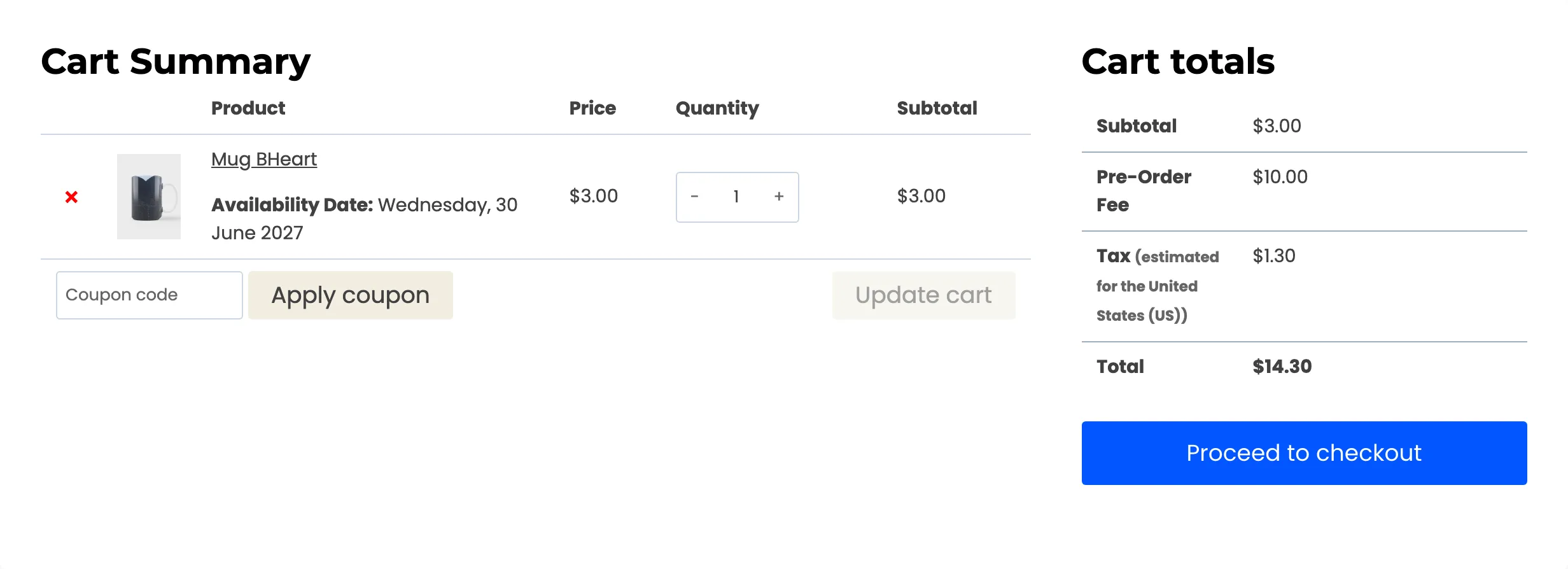
Section titled “Stage 3: the reservation goes into the cart”Pressing Pre-Order adds the product to the cart like any other line, with three differences.
- The line is priced at the pre-order price, not the product price. On a full-payment pre-order those are the same number.
- It carries an Availability Date meta line the customer can see.
- It is tagged as a pre-order, which is what the fee, shipping and gateway rules key off.
Stage 4: checkout
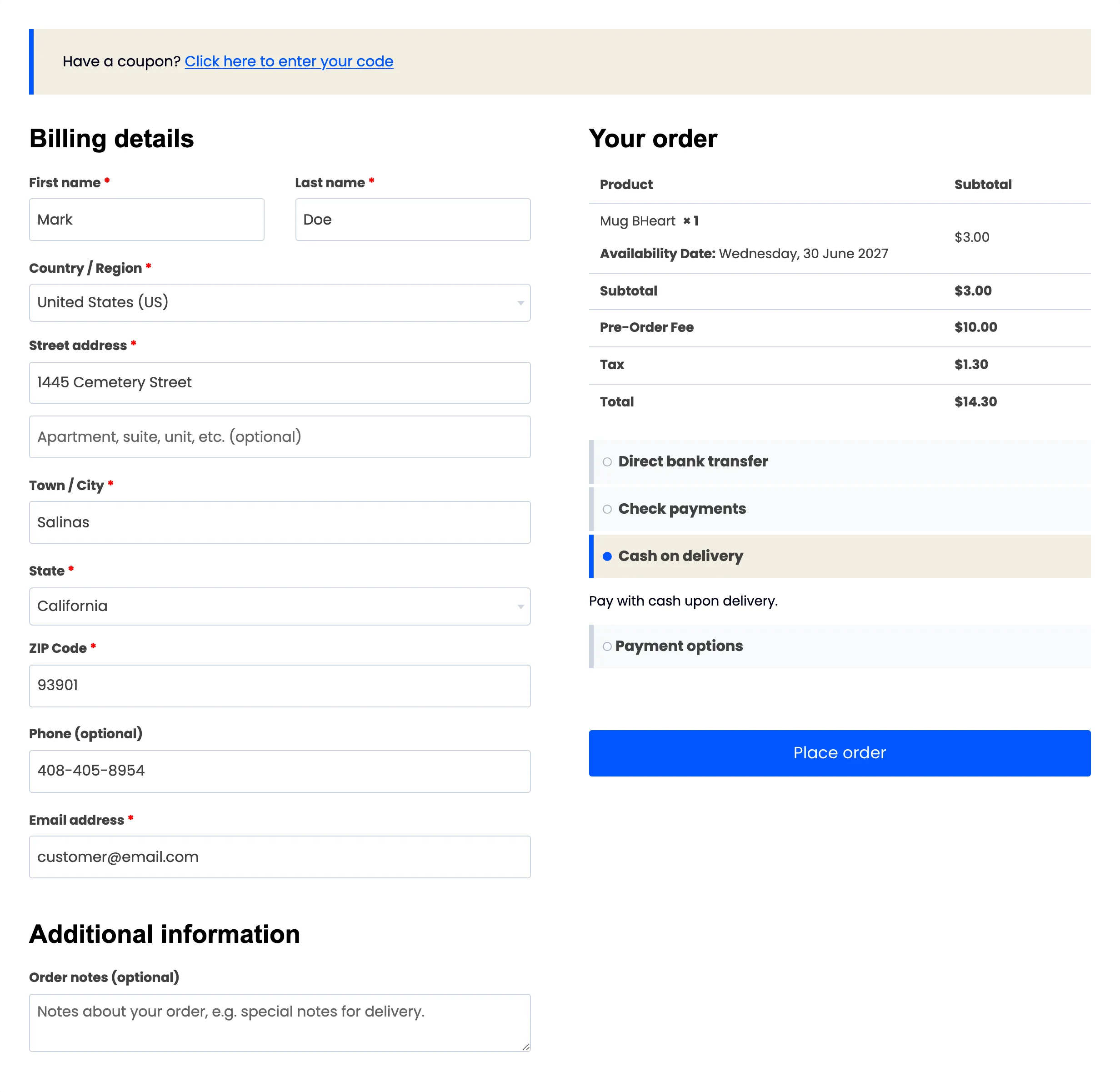
Section titled “Stage 4: checkout”Four checkout rules can apply, and all of them are configured on the Checkout tab.
- Shipping: With shipping off for pre-orders, a reservation-only cart is never asked for a shipping address at all.
- Mixed carts: Off means a pre-order and a normal product cannot be bought together, and adding a pre-order clears the rest of the cart.
- A pre-order fee, fixed or a percentage, added as its own line.
- Payment gateways, narrowed to the ones you allow for reservations.
Stage 5: the order is recorded
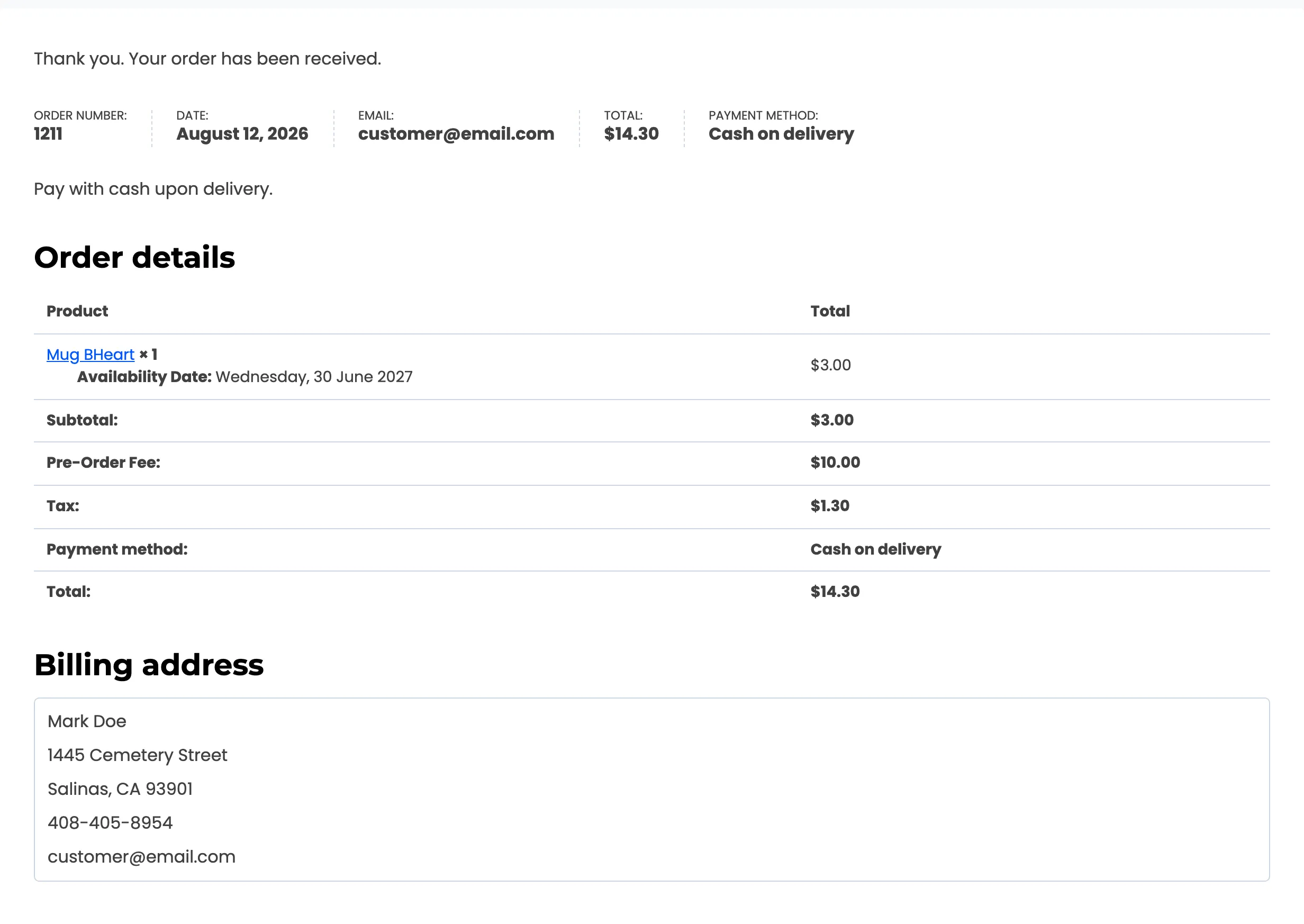
Section titled “Stage 5: the order is recorded”When the order goes through, the plugin writes four things.
- The order is flagged as a pre-order, which is what puts it on the Orders screen and adds the Pre-Order column to the customer’s own order list.
- The product’s ordered quantity goes up.
- For a deposit pre-order, its reserved stock goes up too. A full-payment pre-order reserves nothing, because it is already paid.
- The customer is added to the product’s notify list, which is who gets emailed on release day.
Two emails go out at this point: a confirmation to the customer, and a notice to the store admin.
A guest can pre-order. Their email joins the notify list exactly like a logged-in customer’s, so they still get told when the product lands. What they do not get is a My Pre-Orders page, because that reads a per-account record.
Stage 6: release day
Section titled “Stage 6: release day”The plugin checks hourly. When a product’s release date has passed and Automatically Set Available is on, it releases it.

Releasing does four things:
- Availability flips to Available.
- The pre-order itself is switched off, so the product stops taking new reservations.
- The product’s original stock state is restored, exactly as it was before stage 1.
- Everyone on the notify list is emailed once, and marked as told.
You can do the same thing at any time by hand, with the Set Available bulk action. See How to Release a Pre-Order Product.
Stage 7: the balance, on deposit pre-orders
Section titled “Stage 7: the balance, on deposit pre-orders”A full-payment pre-order is finished at stage 6. A deposit one is not, because the customer still owes the difference between the deposit and the product’s price.
That difference is shown to them as Remaining on their My Pre-Orders page from the moment they order.
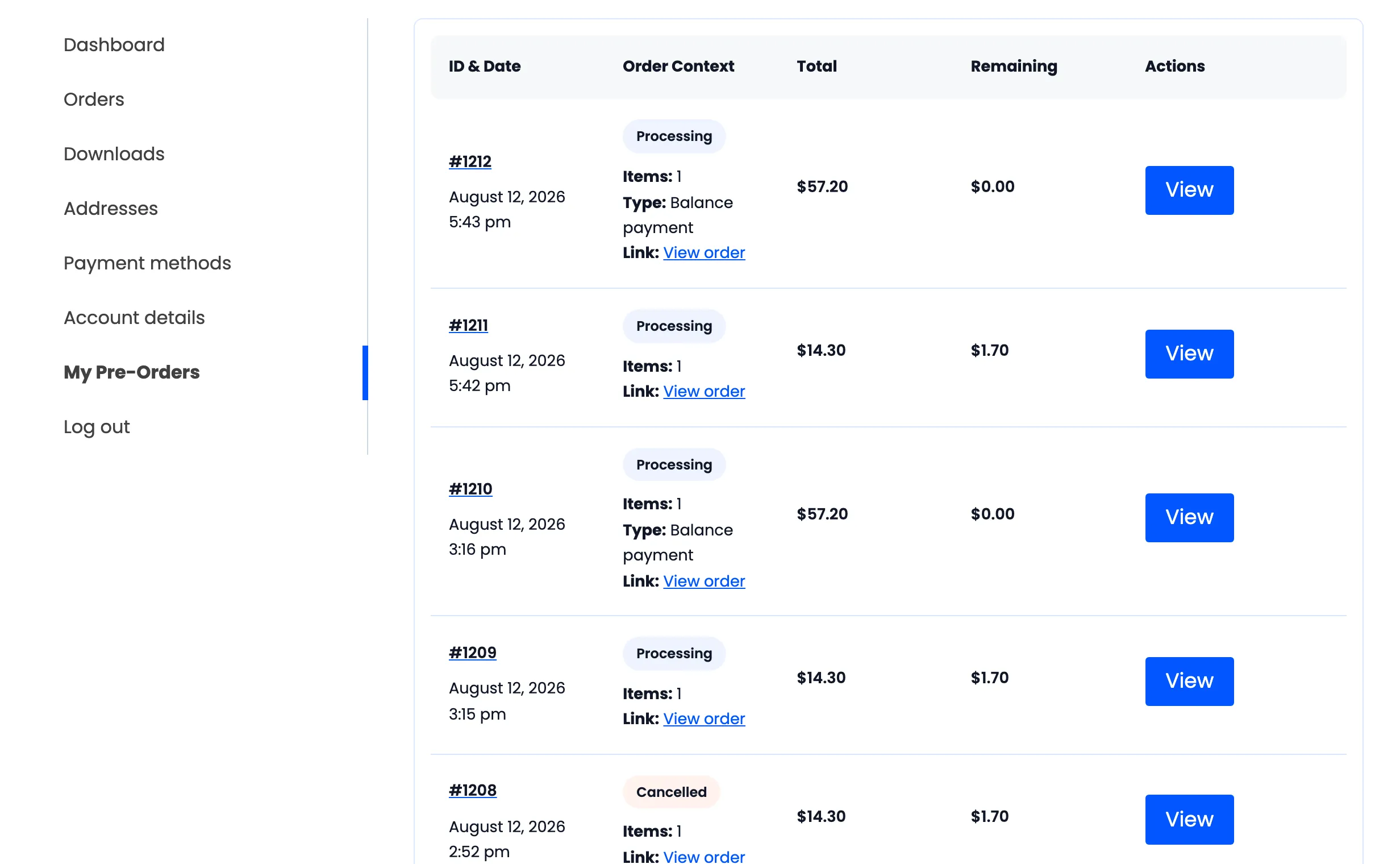
There are two ways it gets paid.
- Automatically, if Auto-Charge on Release is on and the original order left a reusable saved card. The plugin builds a second order for the balance and charges that card, then notes the result on the first order.
- By hand, otherwise. The customer gets a Complete Pre-Order action that puts the remaining amount in their cart to check out normally.
Stage 8: the reservation closes
Section titled “Stage 8: the reservation closes”When the balance is paid, the product’s reserved stock drops by that quantity and the unit stops being held back.
Cancelling or refunding does the same thing from the other direction: the reservation is released, the customer’s record is removed, and the counts come back down. See How to Handle a Cancelled or Refunded Pre-Order.
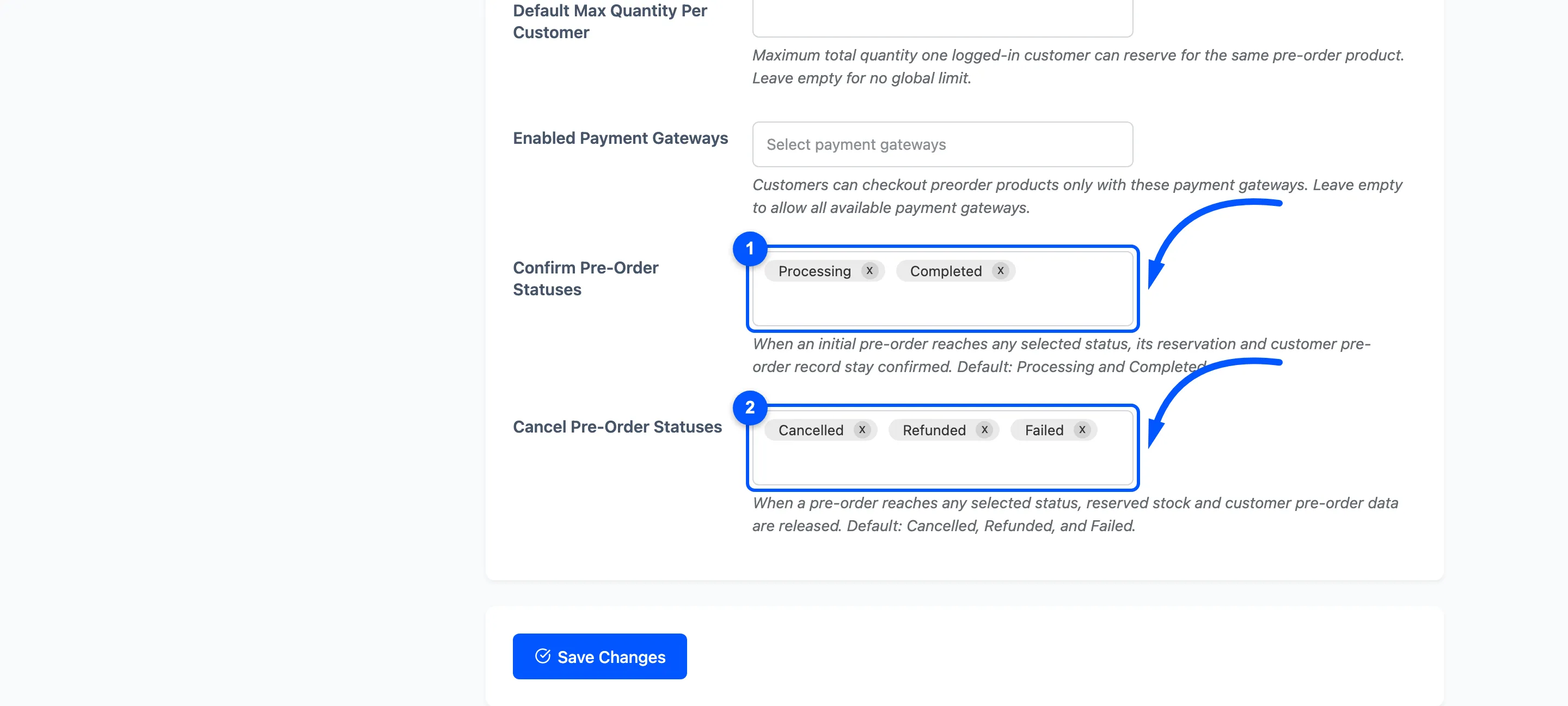
Which statuses count
Section titled “Which statuses count”Two lists decide when the plugin treats an order as confirmed and when it treats it as gone. Defaults are Processing and Completed for confirmed, Cancelled, Refunded and Failed for released.