

The Customer Experience
Most of this plugin is customer-facing. This page follows one shopper from the shop grid to the balance payment, so you know what they see before you change any of it.
In the shop
Section titled “In the shop”A pre-order product carries a badge over its image and its release date under the title.
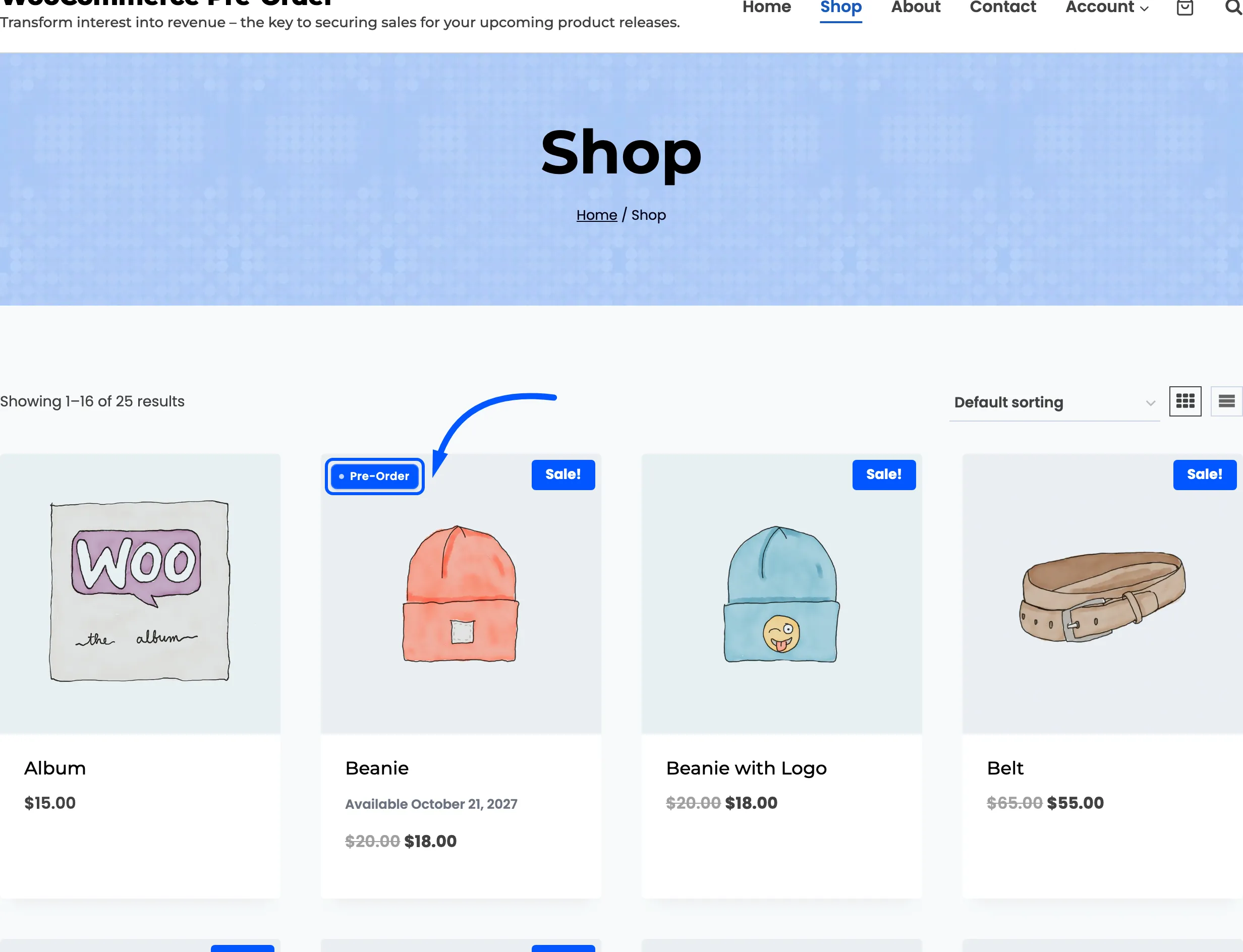
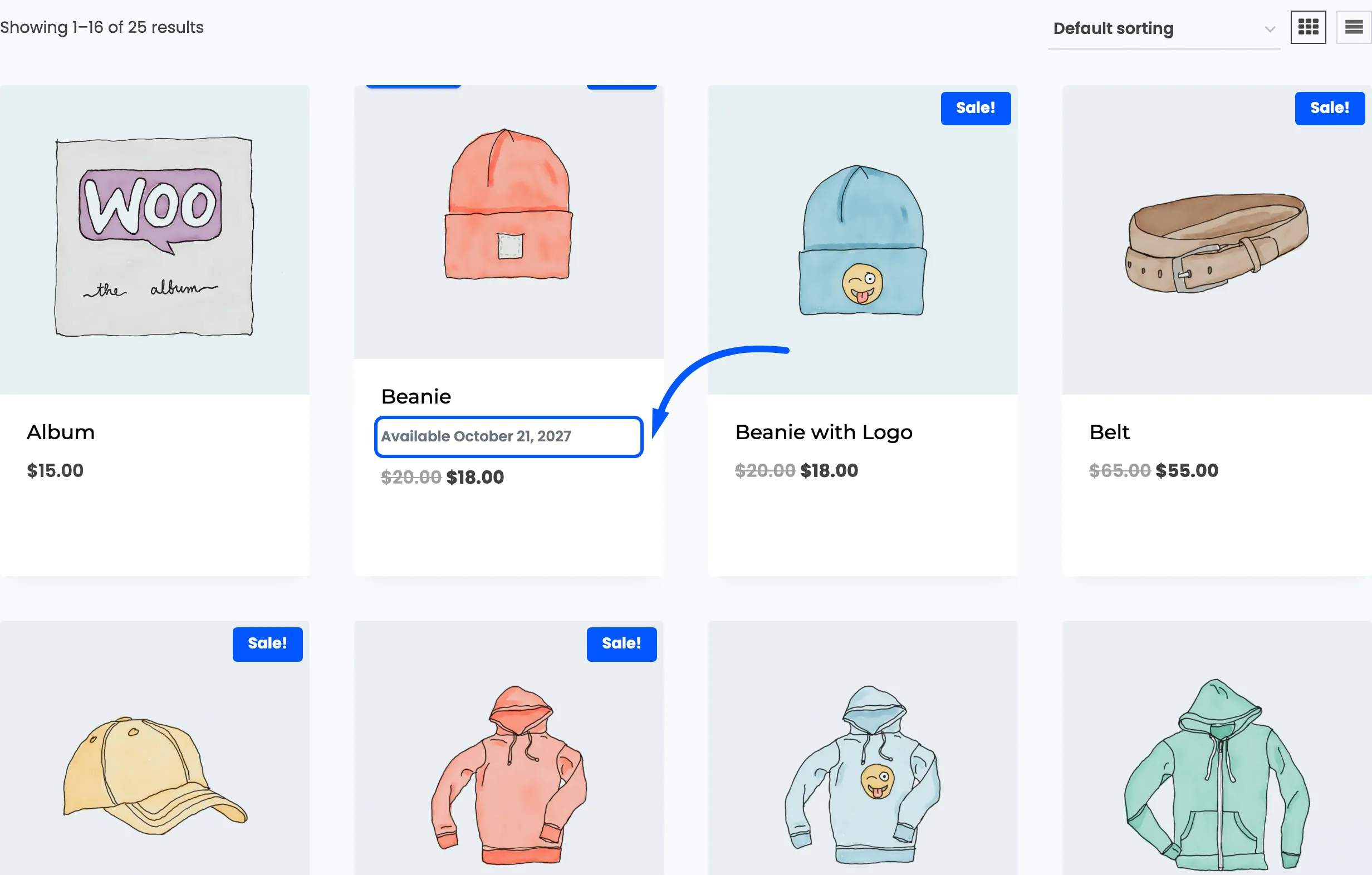
The Add to cart button is replaced by one carrying your pre-order wording, and it does not add anything to the cart. It opens the product page, because a reservation needs the date and the price in front of the shopper before they commit.
All three of those parts can be switched off or restyled on the Display tab.
On the product page
Section titled “On the product page”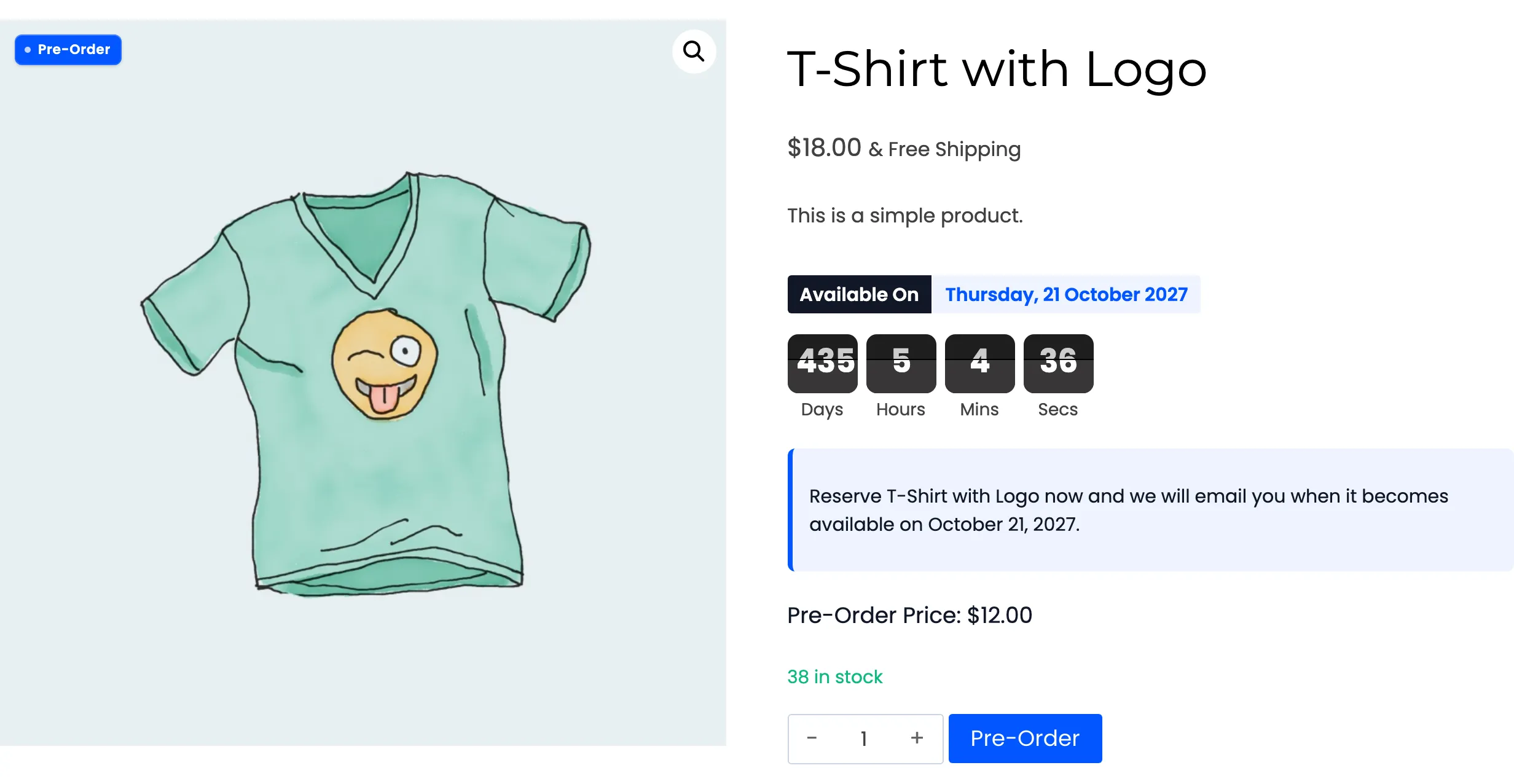
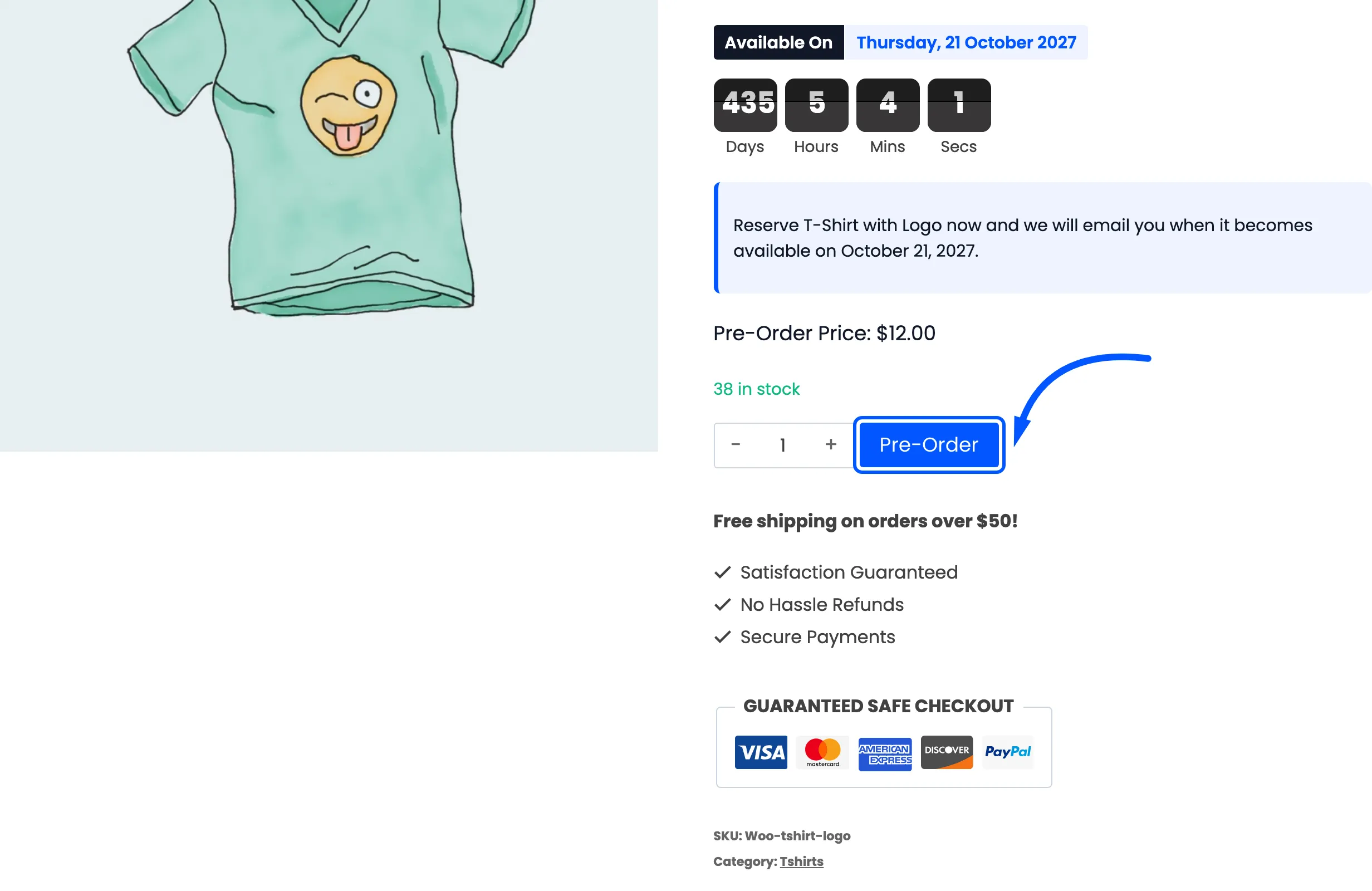
Five things appear, in this order.
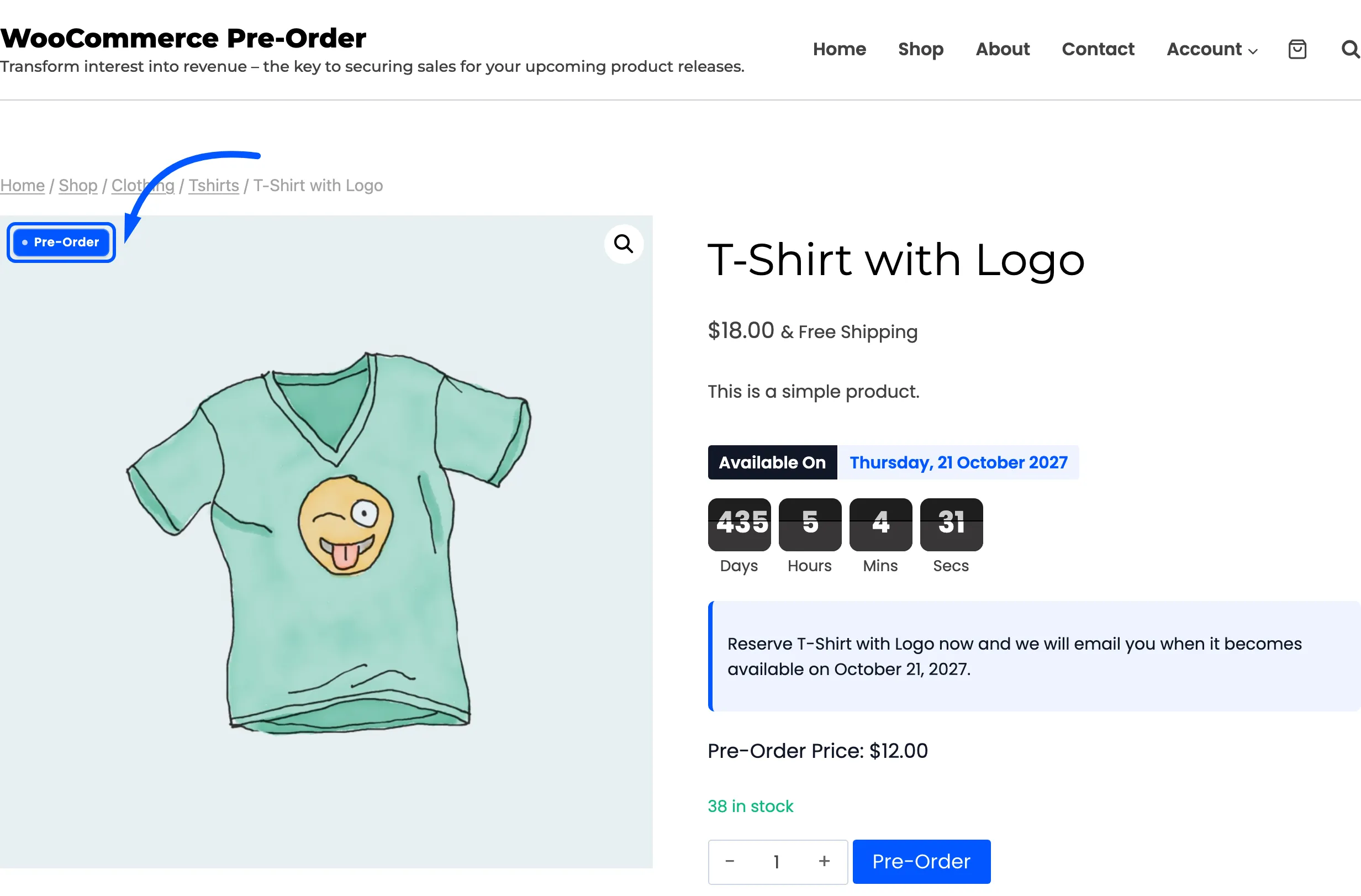
The badge, over the product gallery.
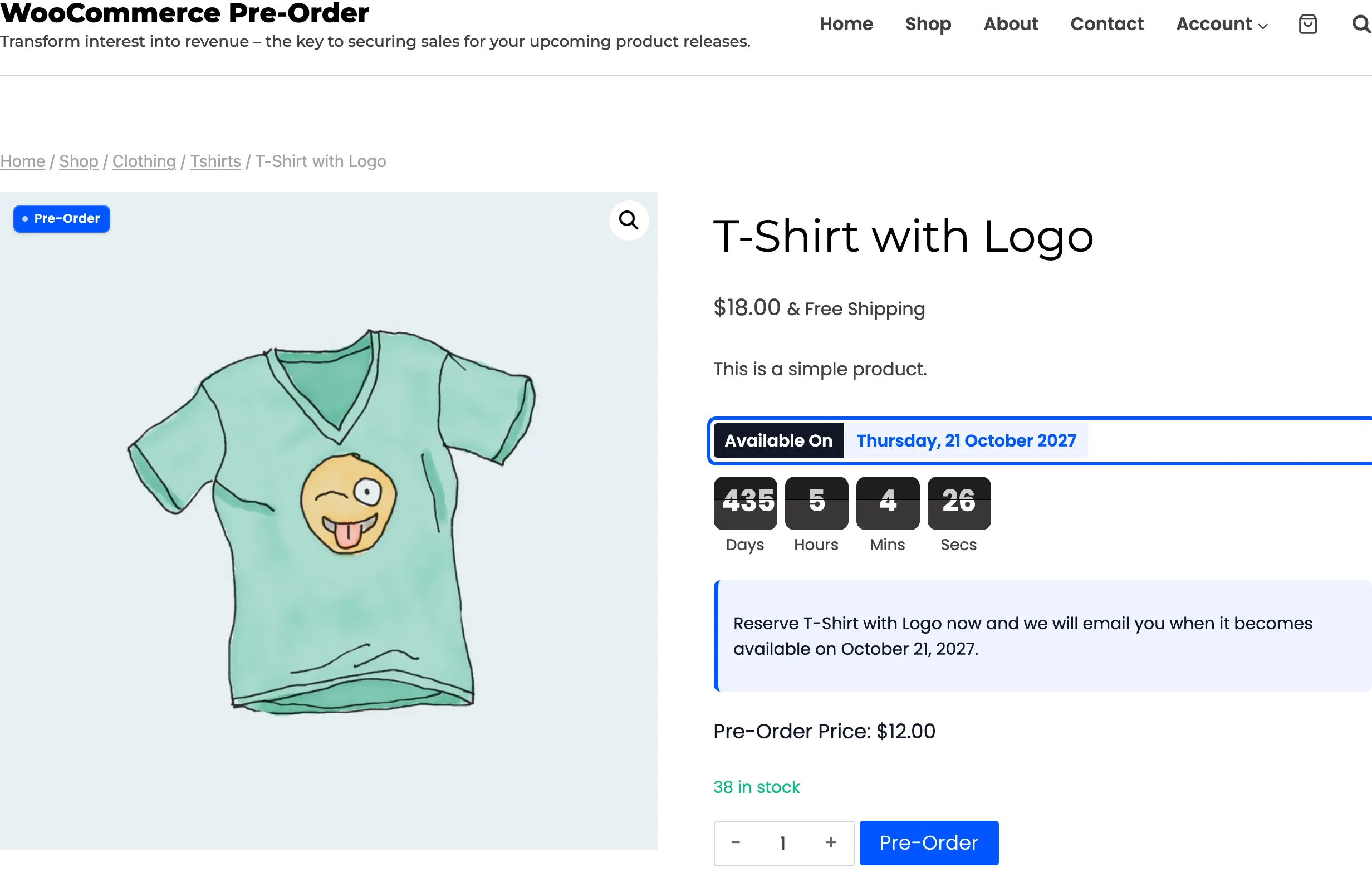
Available On, with the release date written out in full.
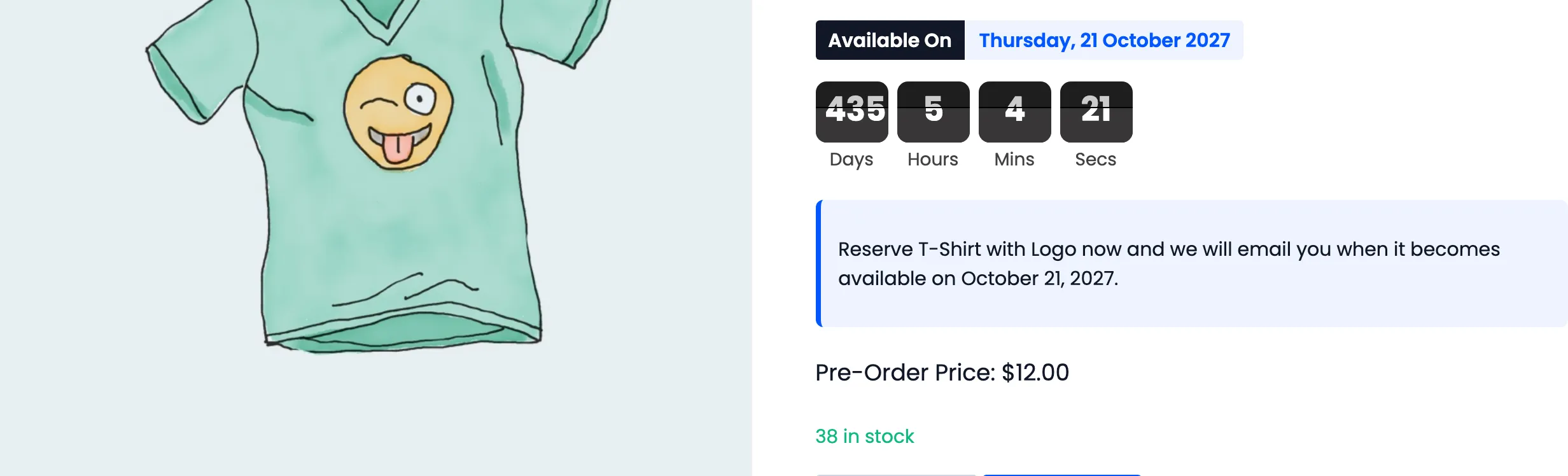
A countdown to that date, in days, hours, minutes and seconds.
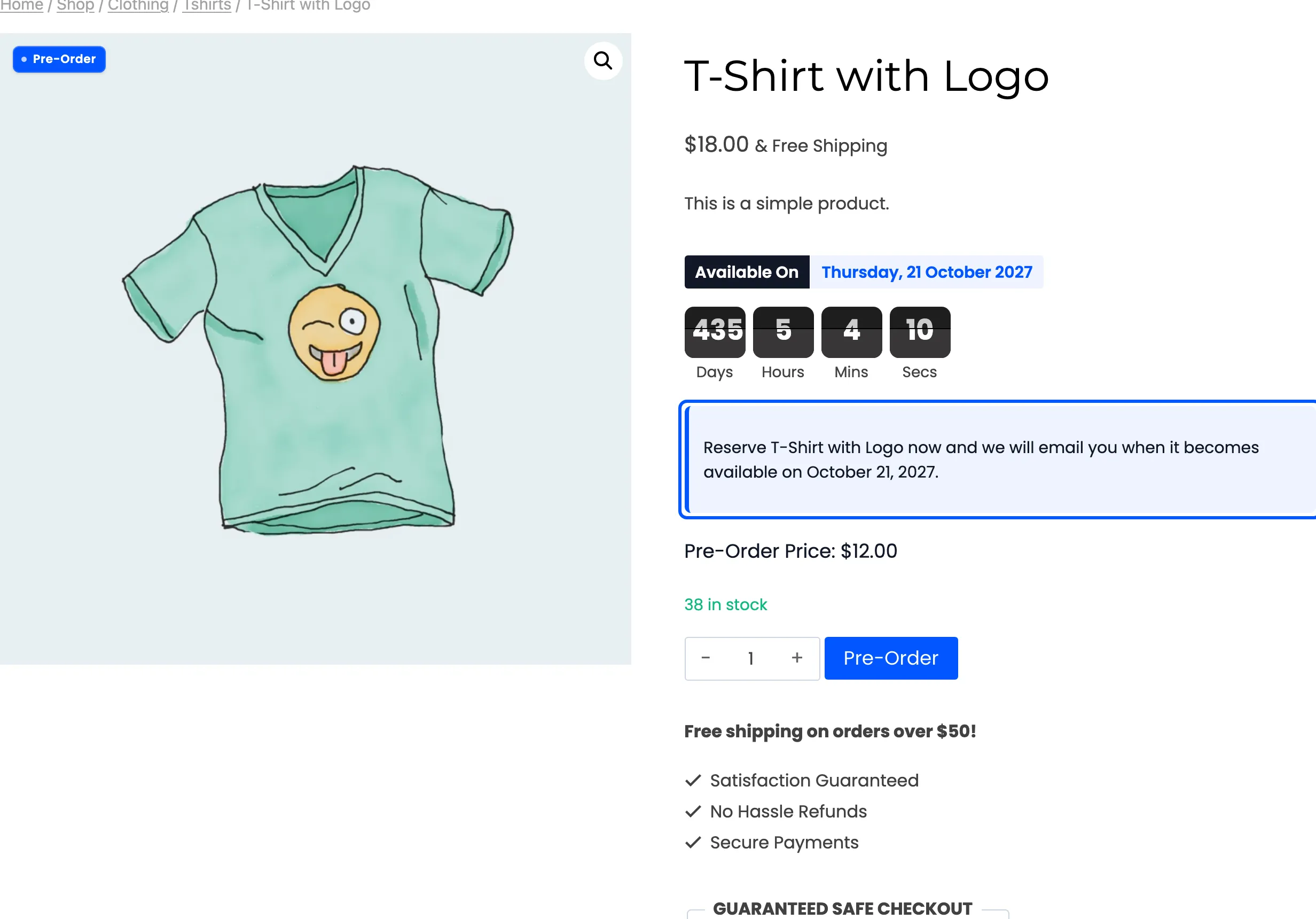
Your notice, a short line you write. It can name the product and the date, so one message covers the whole catalogue.
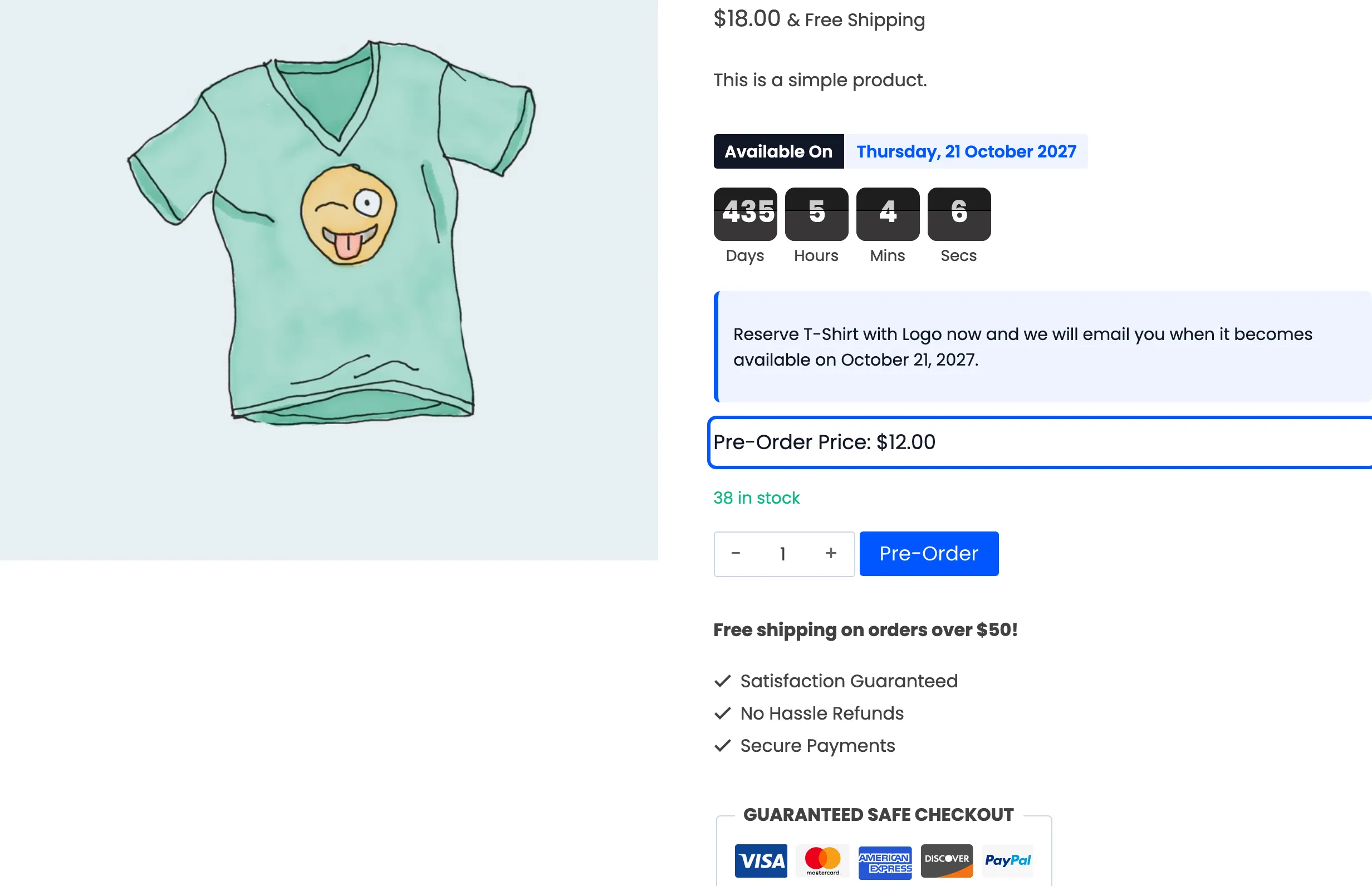
Pre-Order Price, which is what they pay today. On a deposit product this is lower than the price at the top of the page, and that gap is the balance they will owe.
Below it sits the quantity box and the pre-order button.
In the cart
Section titled “In the cart”The reservation looks like an ordinary cart line with one extra row: Availability Date.
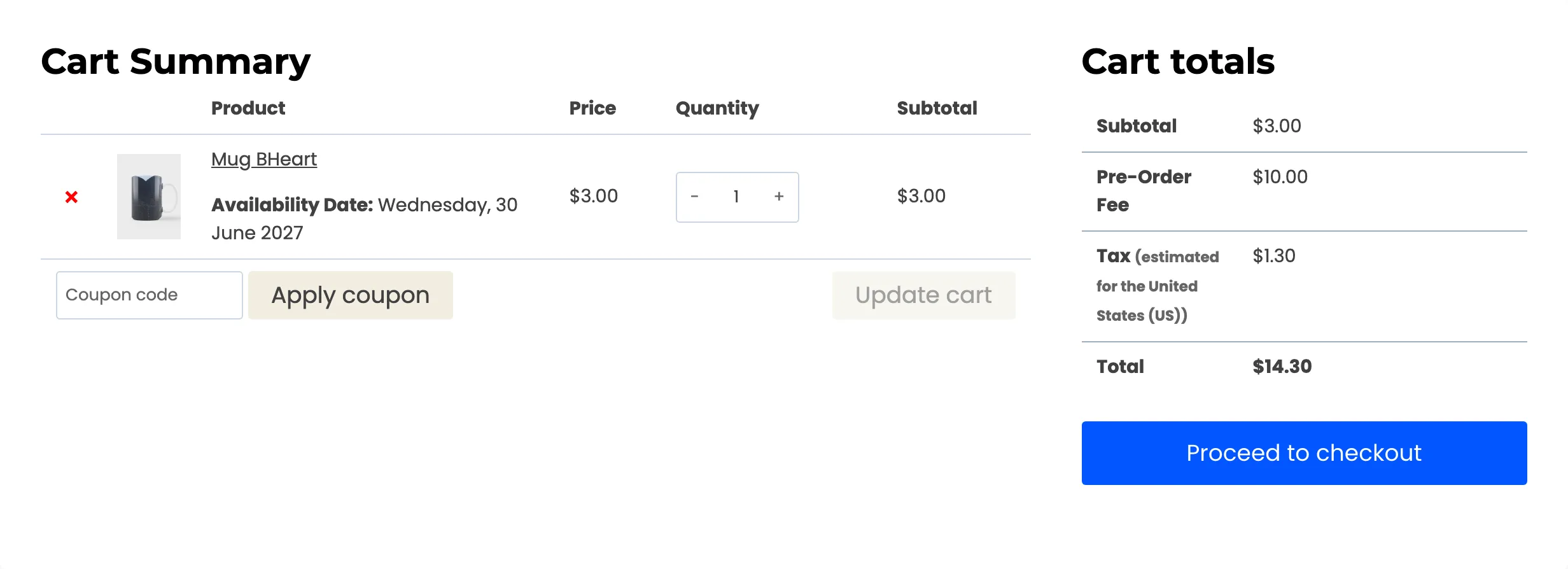

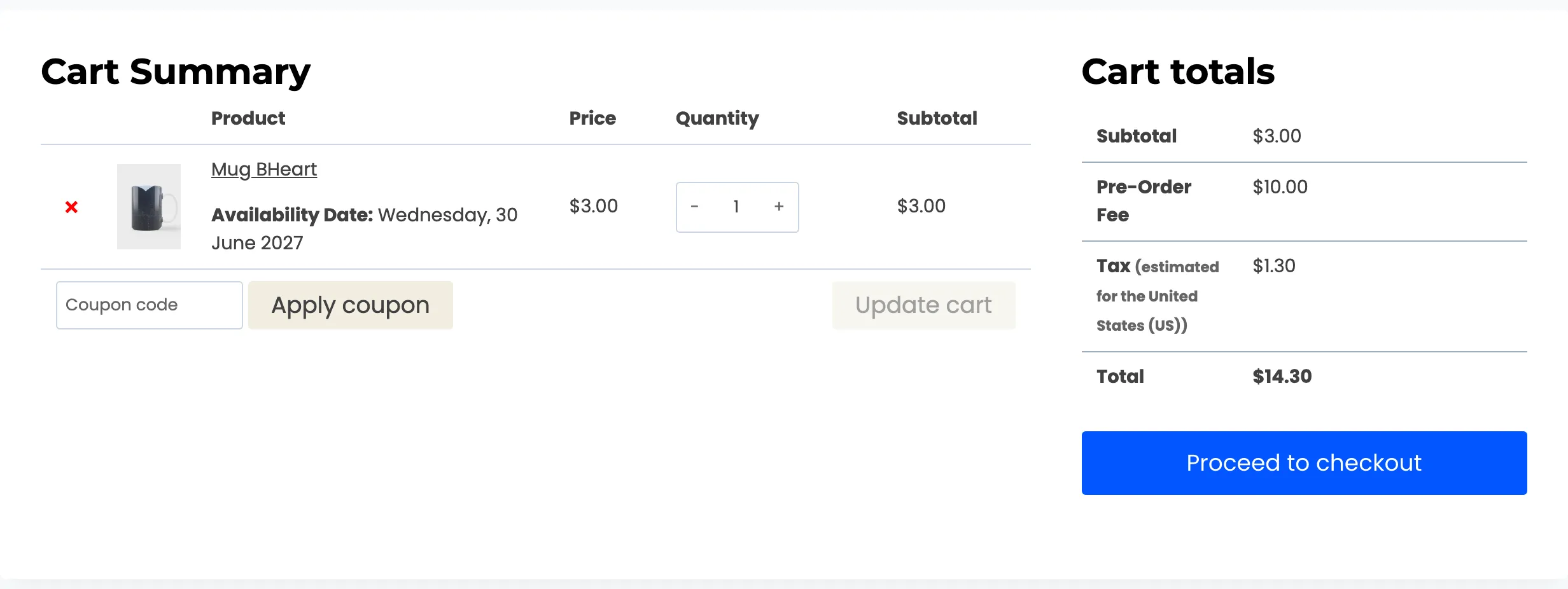
If you charge a pre-order fee it appears in the totals under your own label.
At checkout
Section titled “At checkout”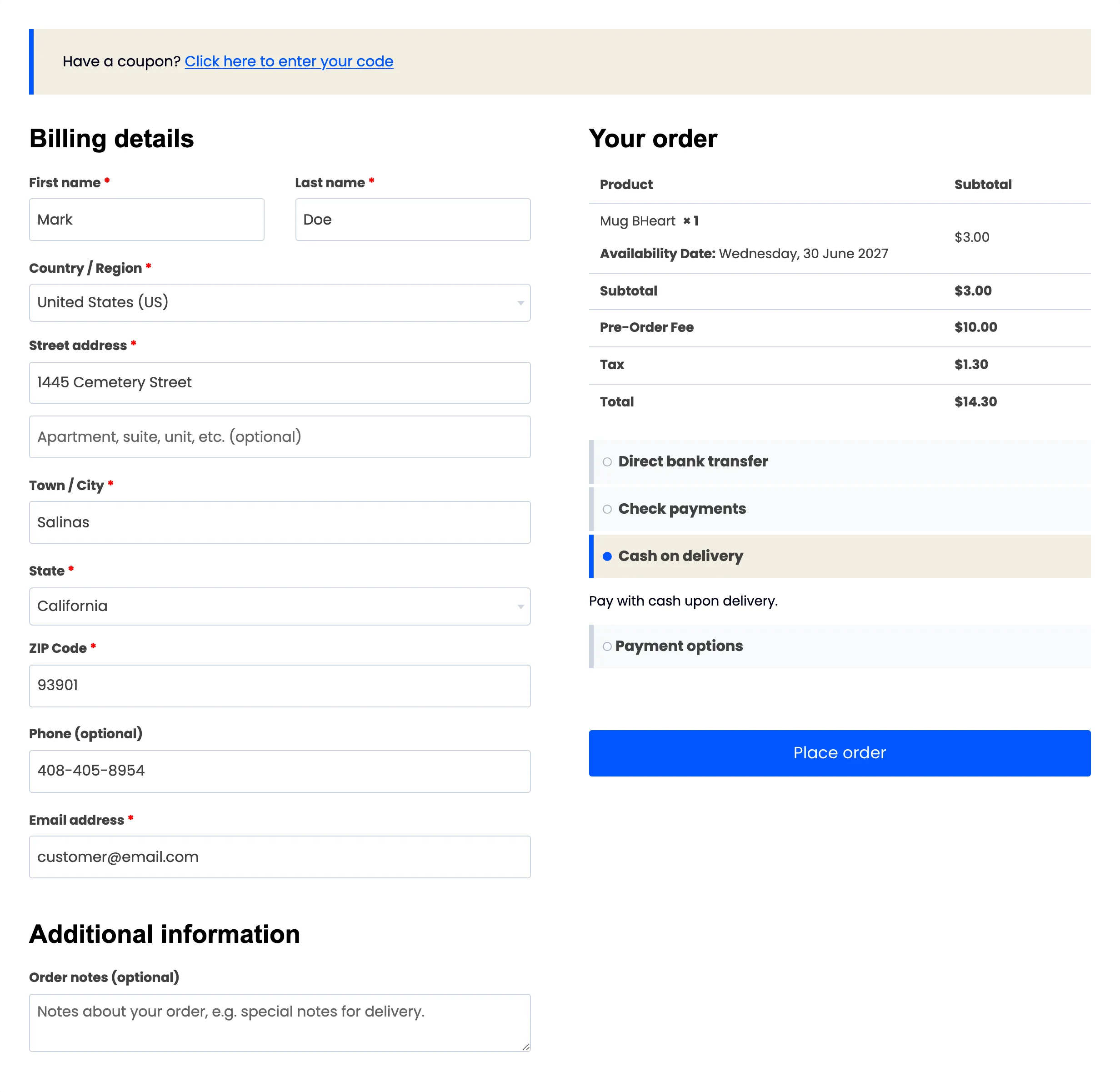
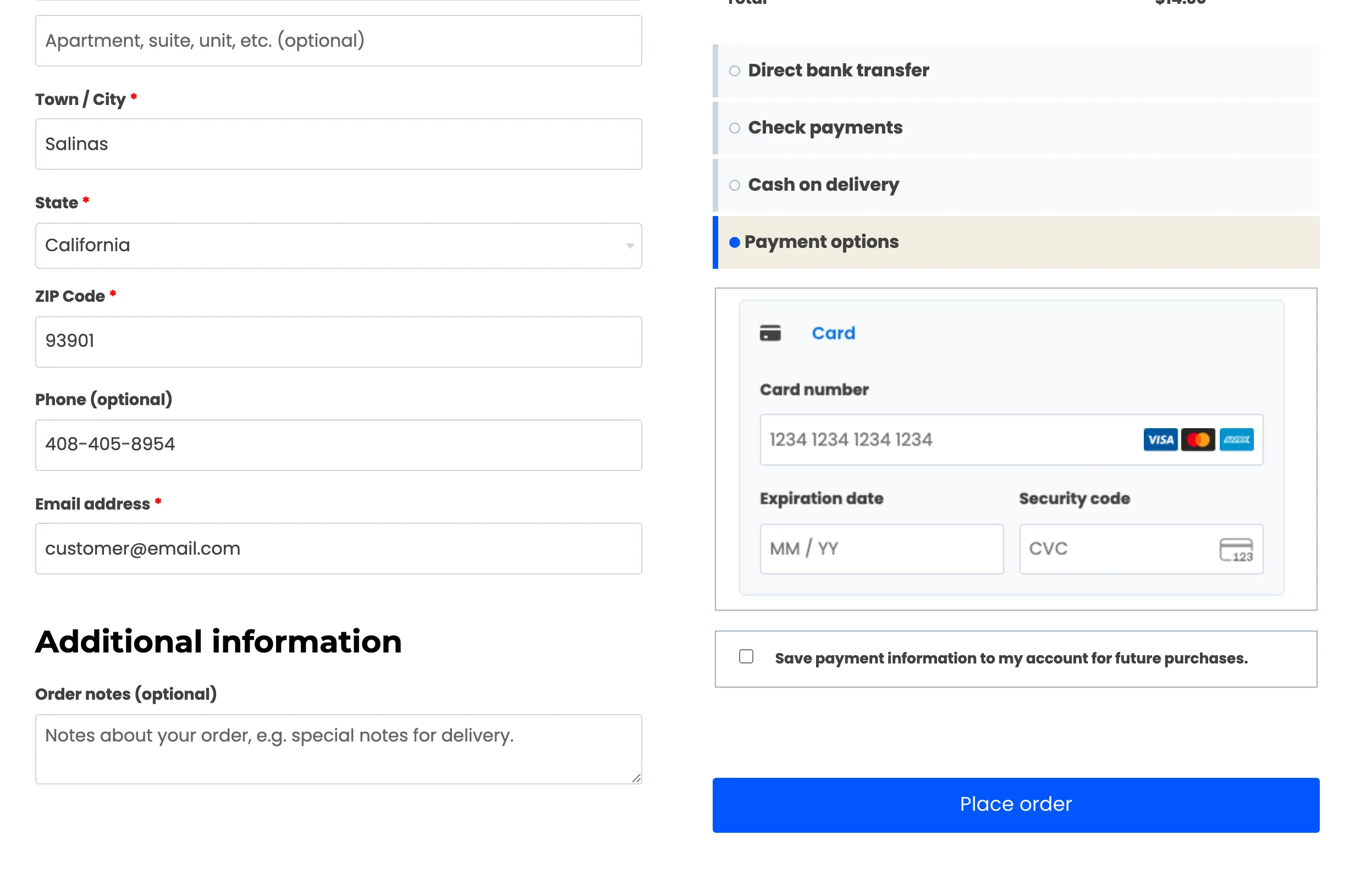
Two things a shopper notices. There is usually no shipping section, because a reservation ships nothing yet. And the payment methods may be shorter than usual if you have limited which gateways accept pre-orders.
The confirmation
Section titled “The confirmation”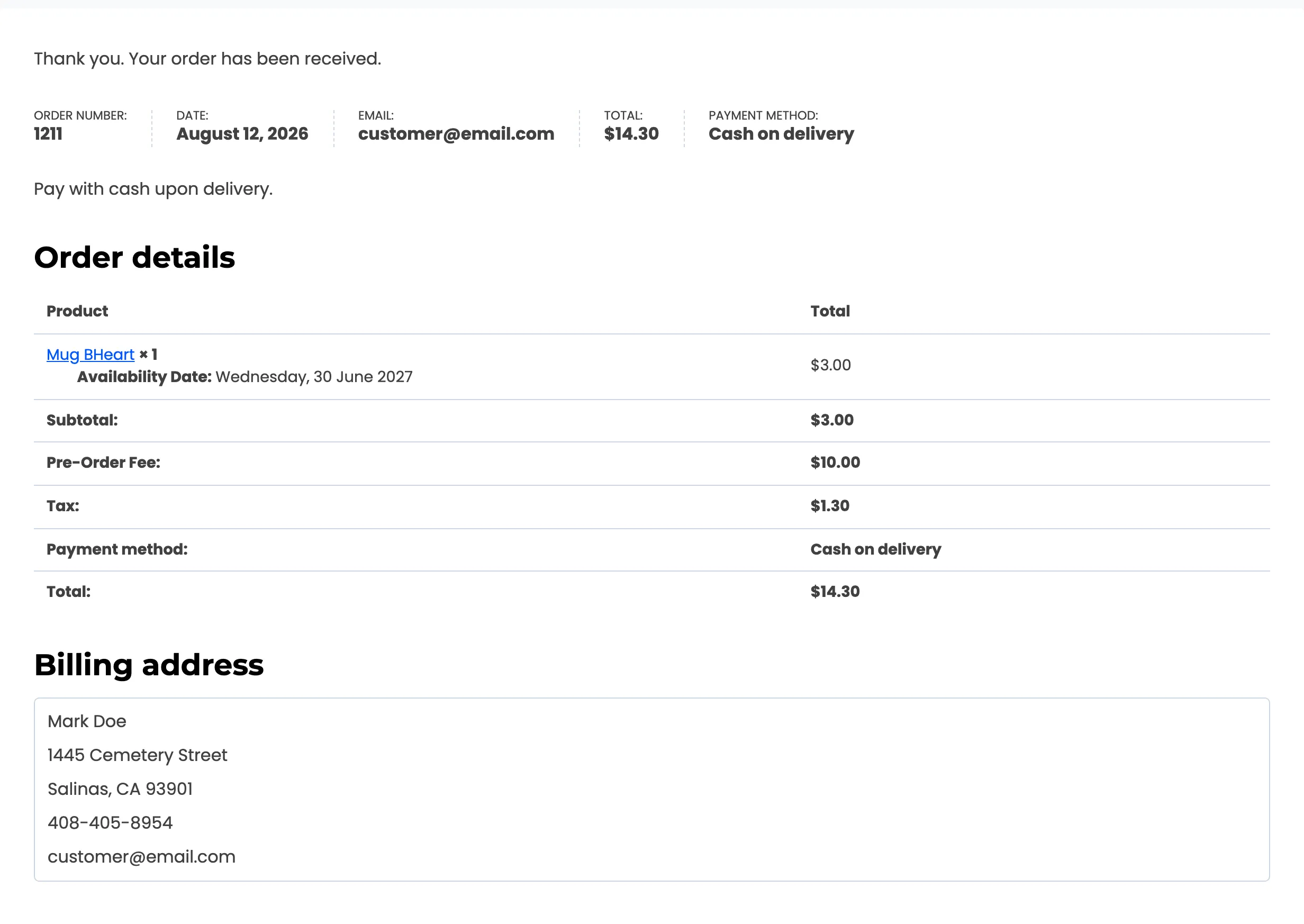
An ordinary WooCommerce confirmation, with the availability date carried through onto the line item so the shopper can see what they are waiting for.
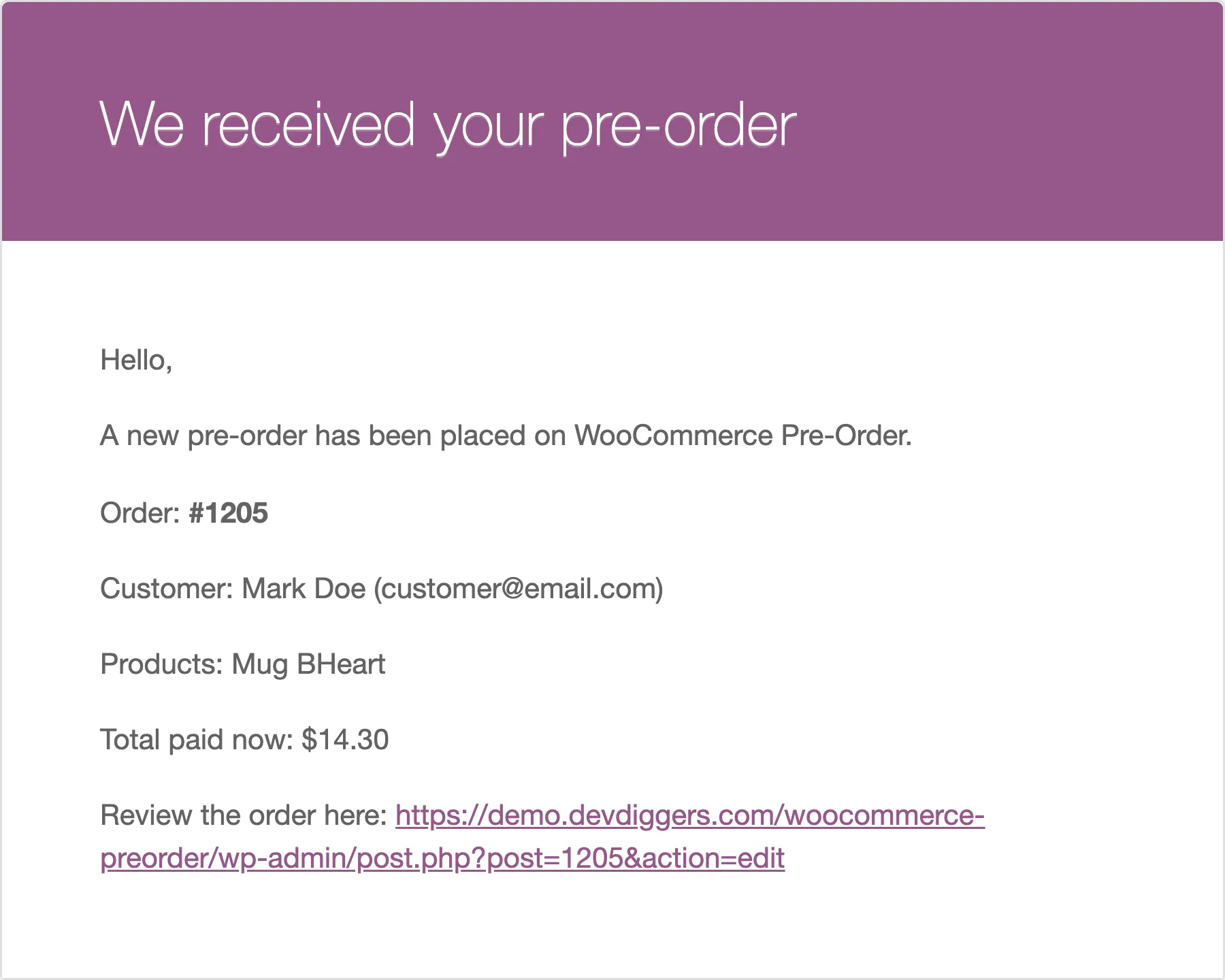
An email follows straight away.
In their account
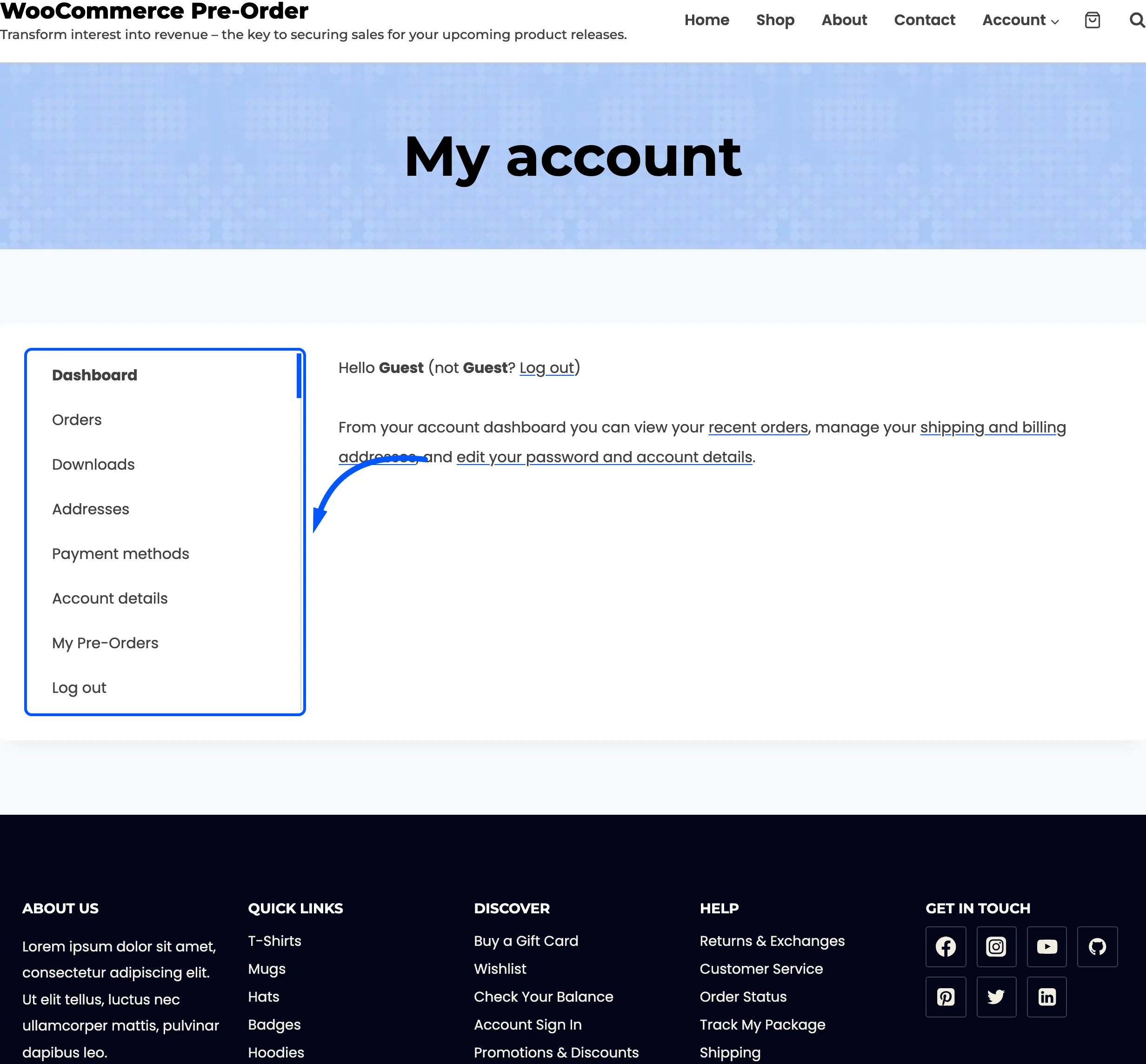
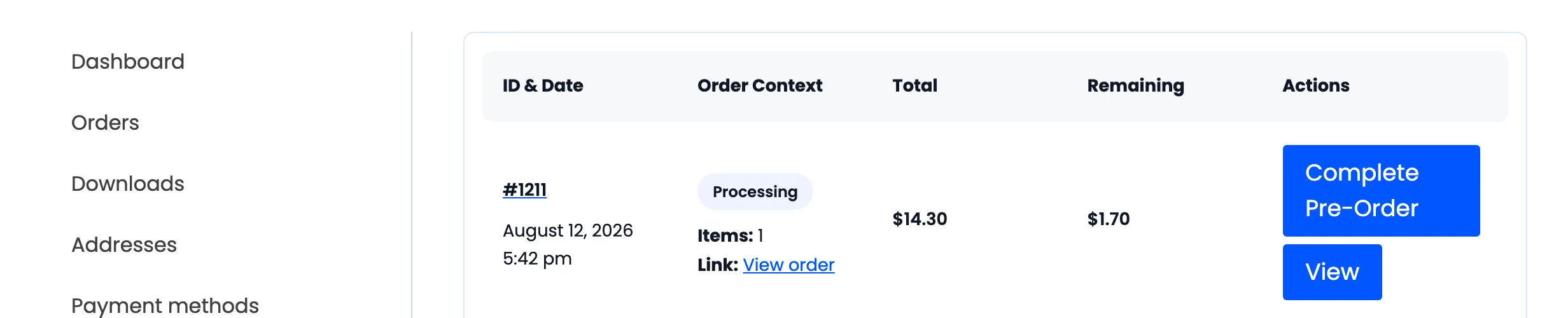
Section titled “In their account”The plugin adds a My Pre-Orders entry to the account menu.
It lists every pre-order they have placed, with what they paid and what is left.
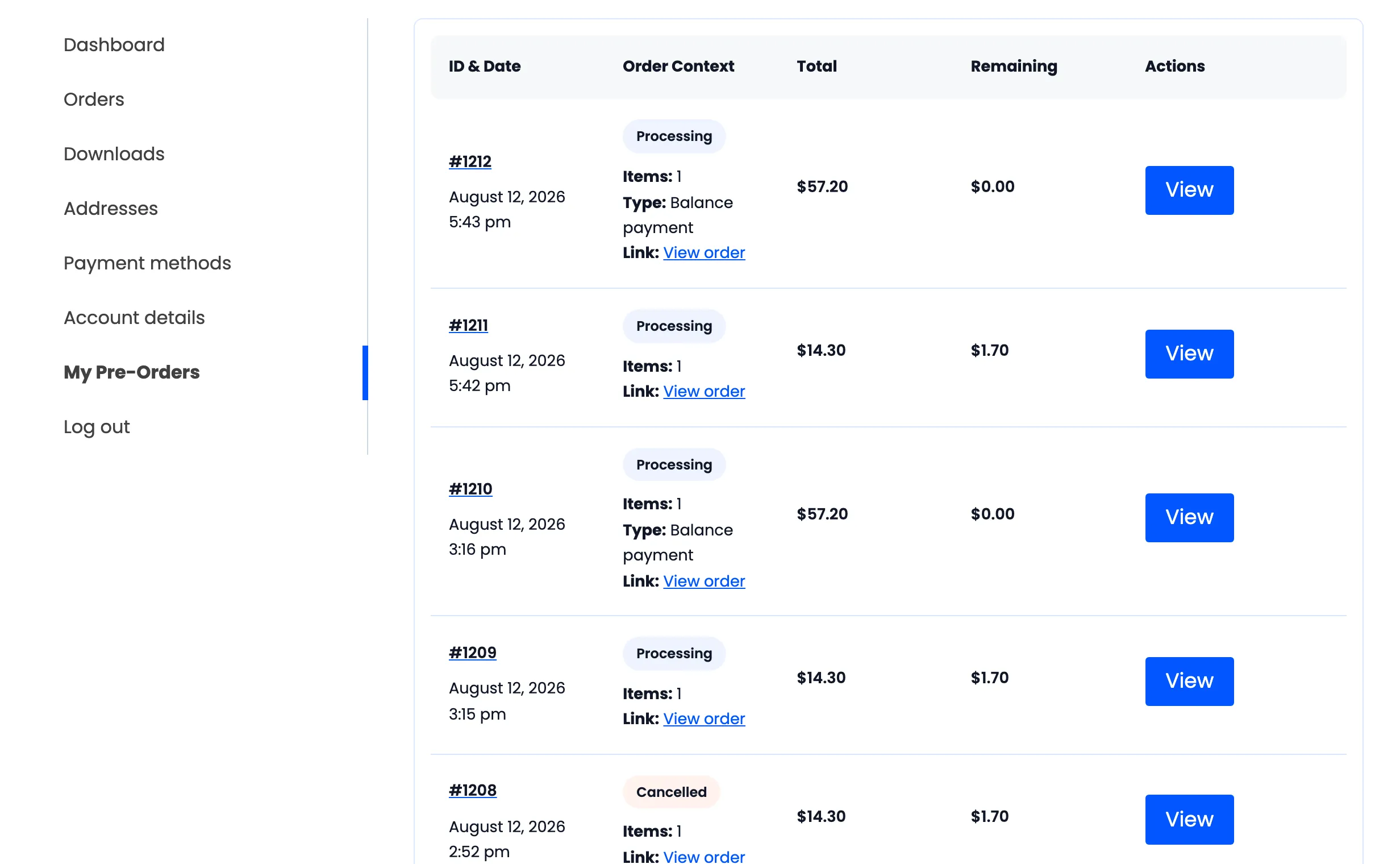
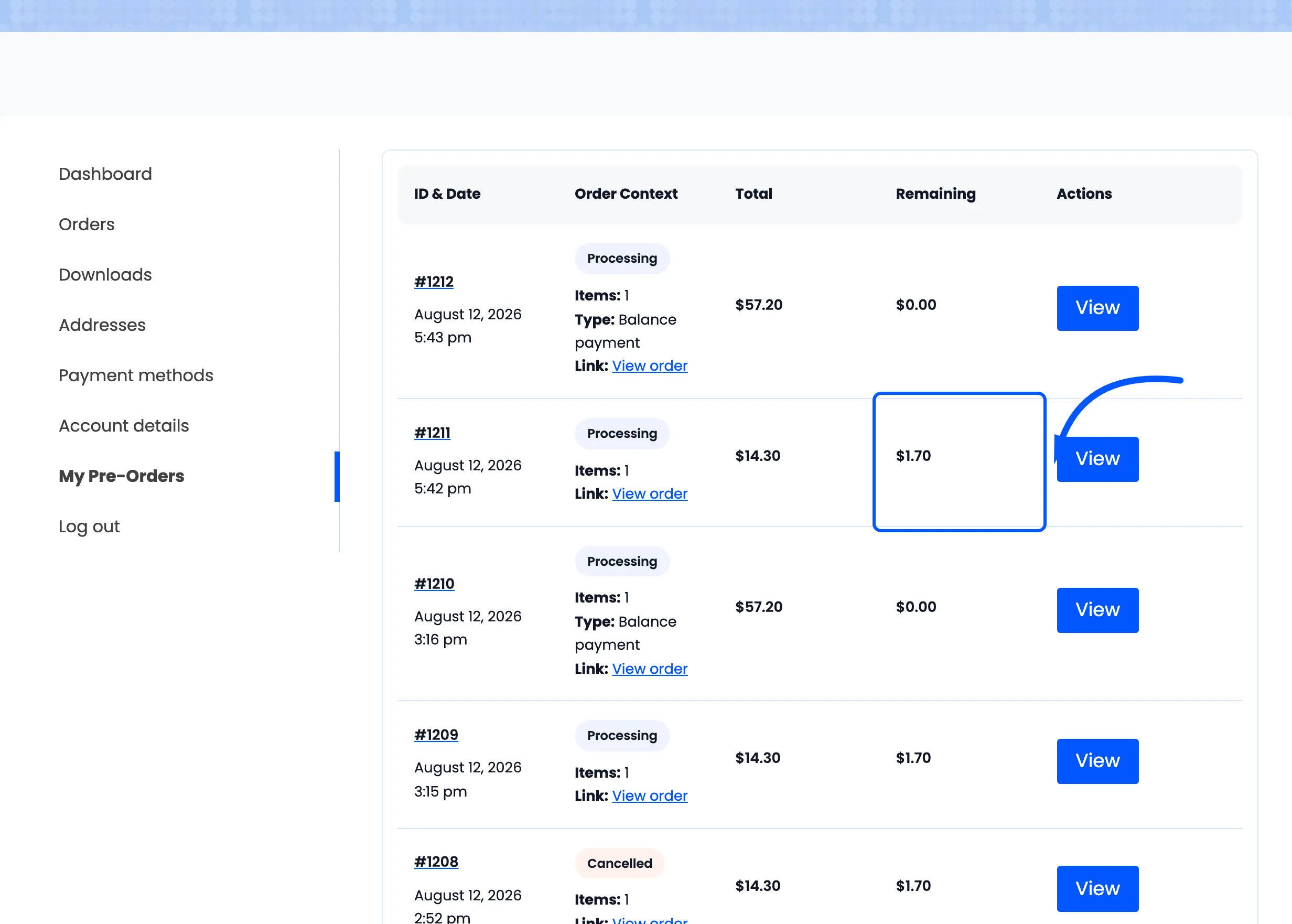
Remaining is the product’s full price minus what this order actually took for that line, tax included. On a full-payment pre-order it is always zero.
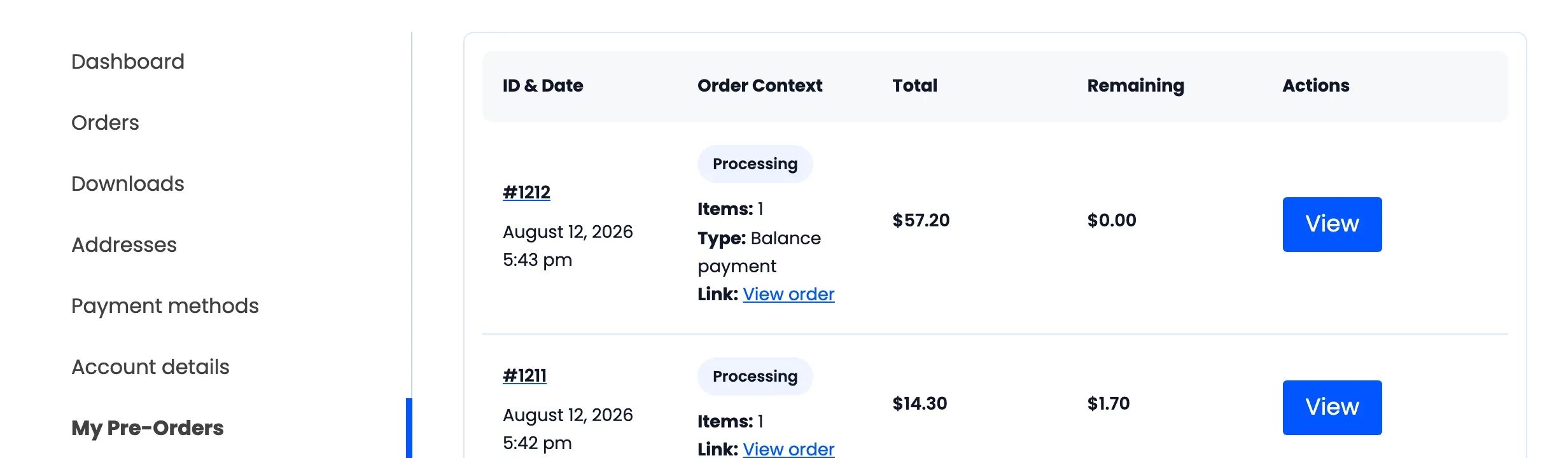
Once a deposit customer settles up, the settling order appears here as its own row, marked Type: Balance payment with nothing remaining on it.
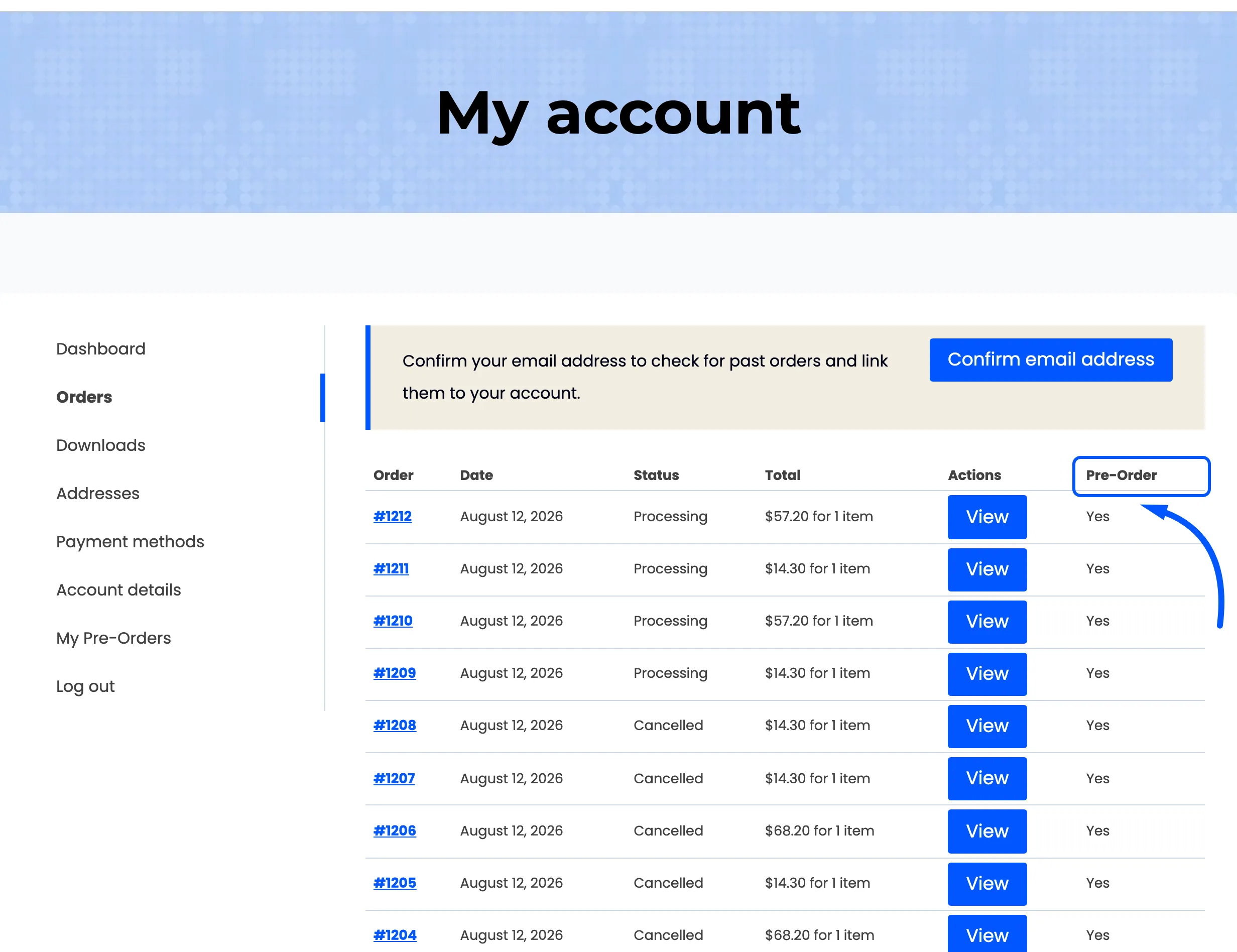
Their normal Orders table also gains a Pre-Order column, so they can tell the two apart at a glance.
You can rename the page and its URL on the General tab.
Release day
Section titled “Release day”The customer gets one email when the product becomes available.
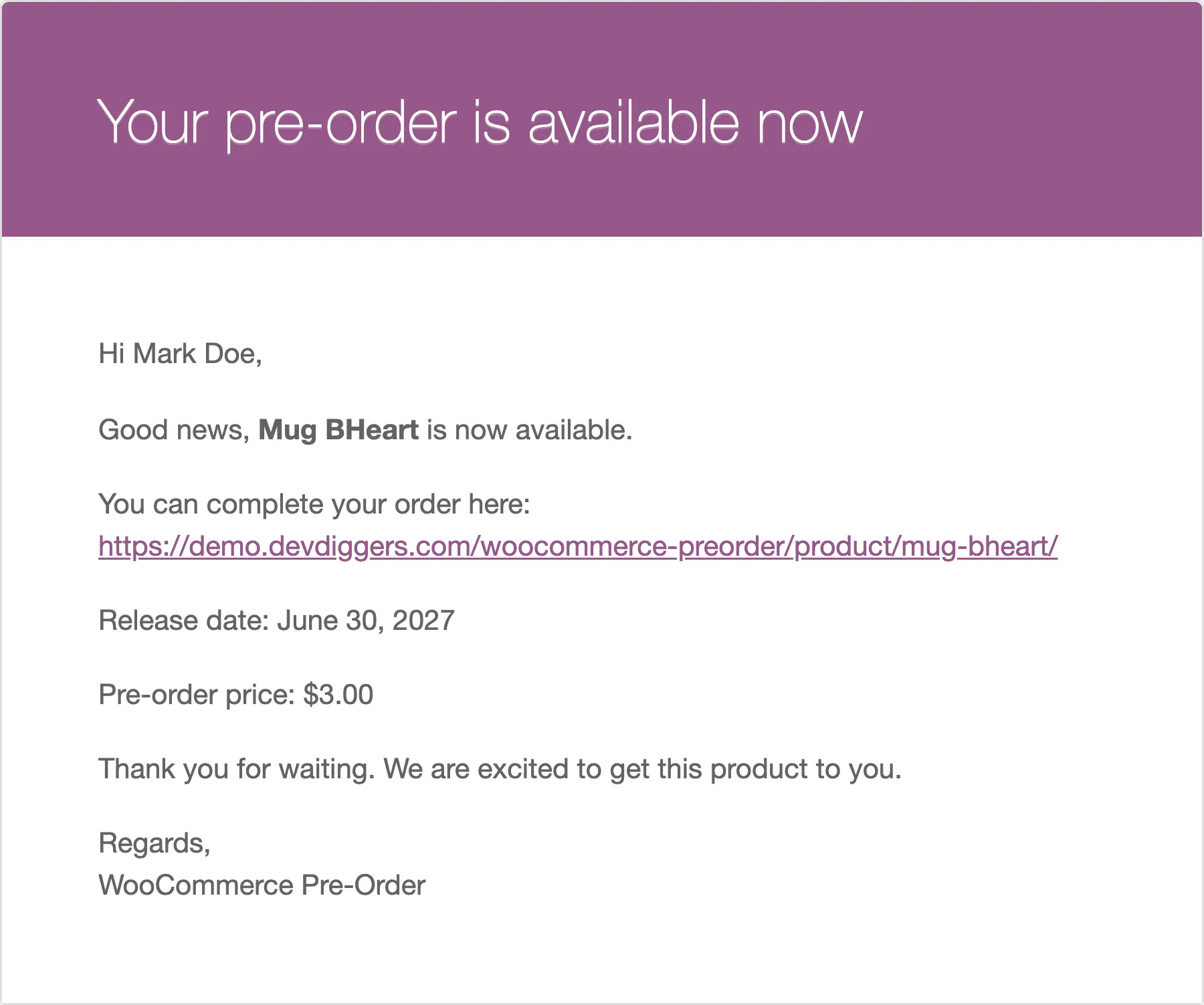
If they paid in full, that is the end of it. If they paid a deposit, one of two things happens.
- The balance is charged automatically, when you have that switched on and their original payment left a reusable saved card. They get a second order for the difference.
- They are given a Complete Pre-Order action in My Pre-Orders, which puts the outstanding amount in their cart to pay normally.
Paying the balance
Section titled “Paying the balance”Pressing Complete Pre-Order drops the outstanding amount into the cart as an ordinary line, at the balance price rather than the product price.
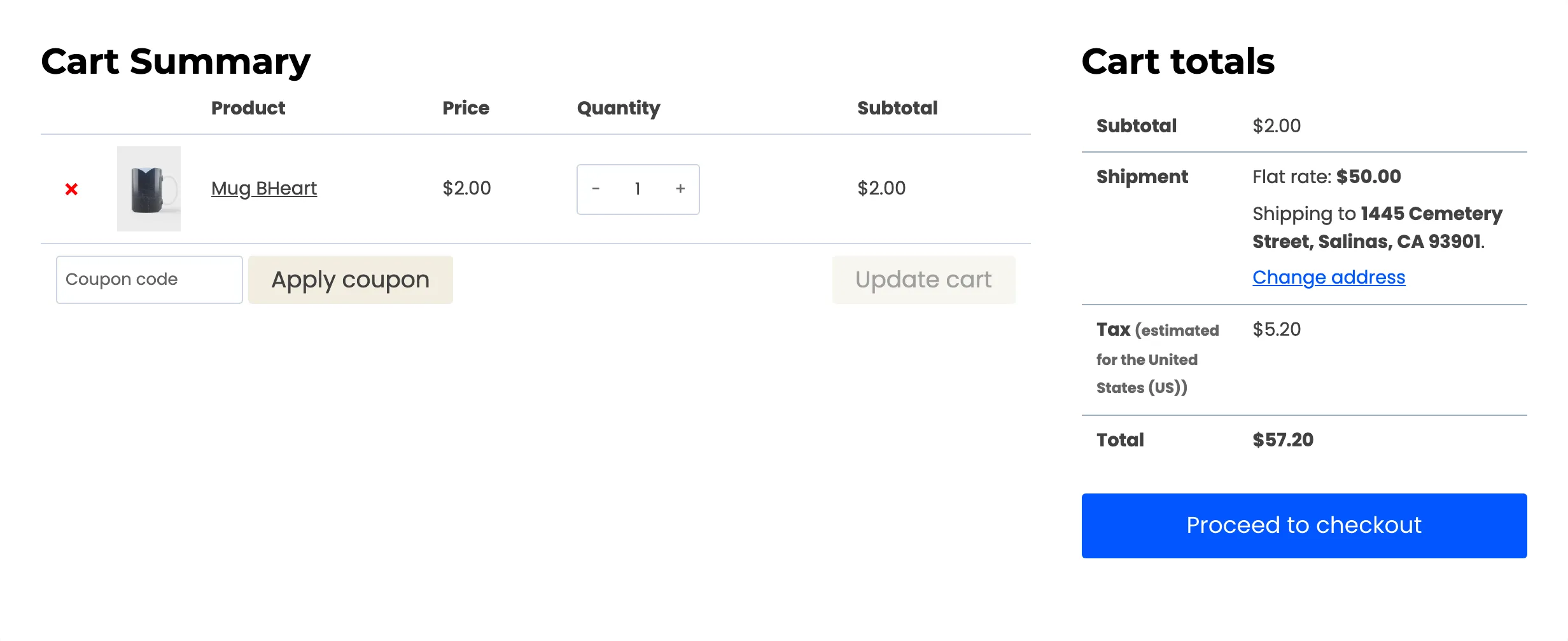
Unlike the reservation, this order does have shipping on it, because it is the one that delivers the product.
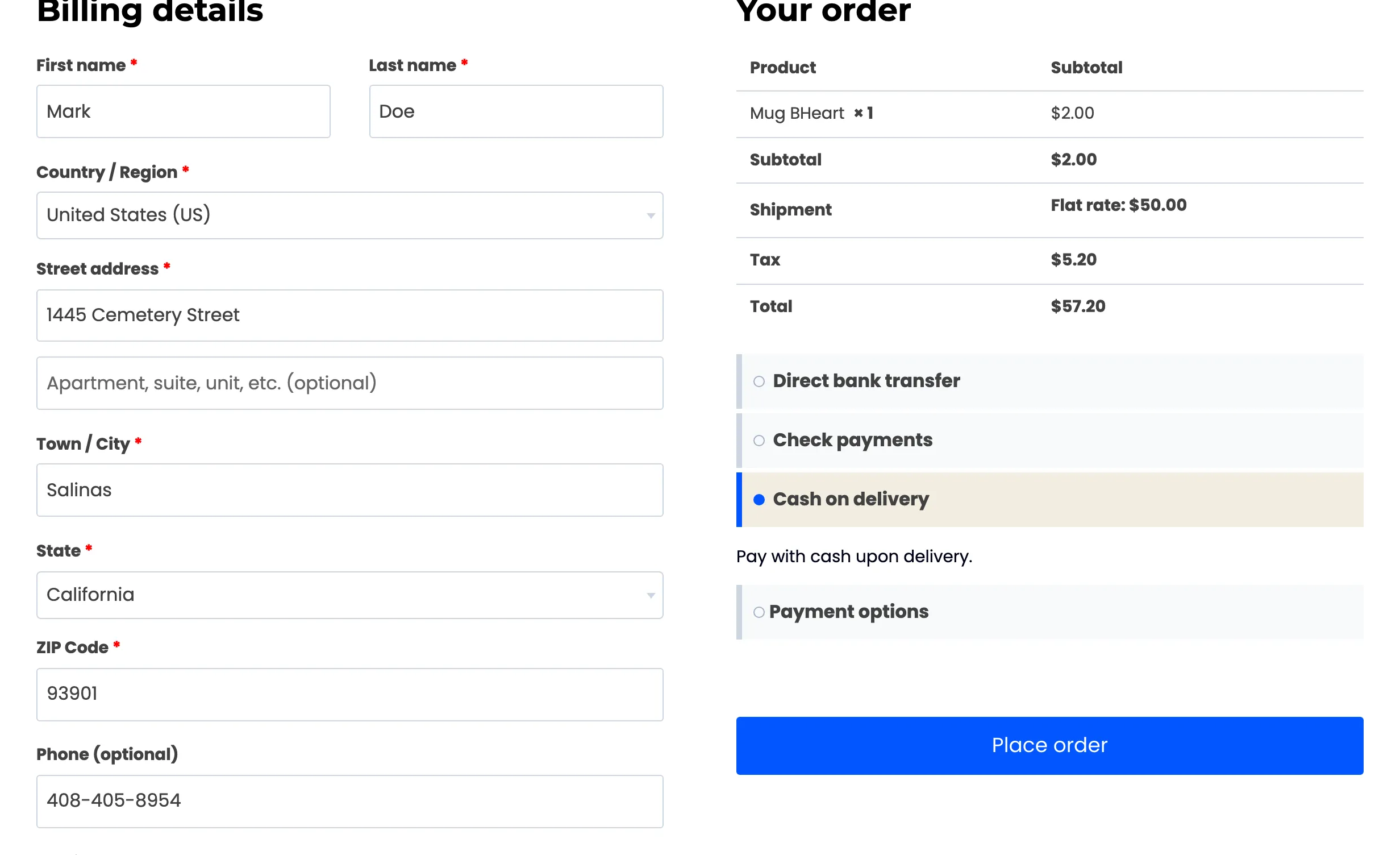
Unlike the reservation, this order carries no pre-order fee. That was charged once, on the deposit.
Once it is paid the reservation closes, and both rows in My Pre-Orders drop back to View with nothing left to do.
What a guest gets
Section titled “What a guest gets”Guests can pre-order, and they still receive the confirmation and the availability email. They do not get a My Pre-Orders page, because that reads a per-account record, and they cannot use the Complete Pre-Order action for the same reason.
If deposits matter to you, require an account: How to Restrict Who Can Pre-Order (Pro).