

How to Handle a Cancelled or Refunded Pre-Order
A reservation is not just a payment. It holds stock, it counts towards a product’s figures, and it puts the customer on a notify list. Cancelling has to undo all three.
The good news is that the plugin does it for you, as long as the order reaches the right status.
Step 1: Find the order
Section titled “Step 1: Find the order”Go to Pre-Order → Orders.
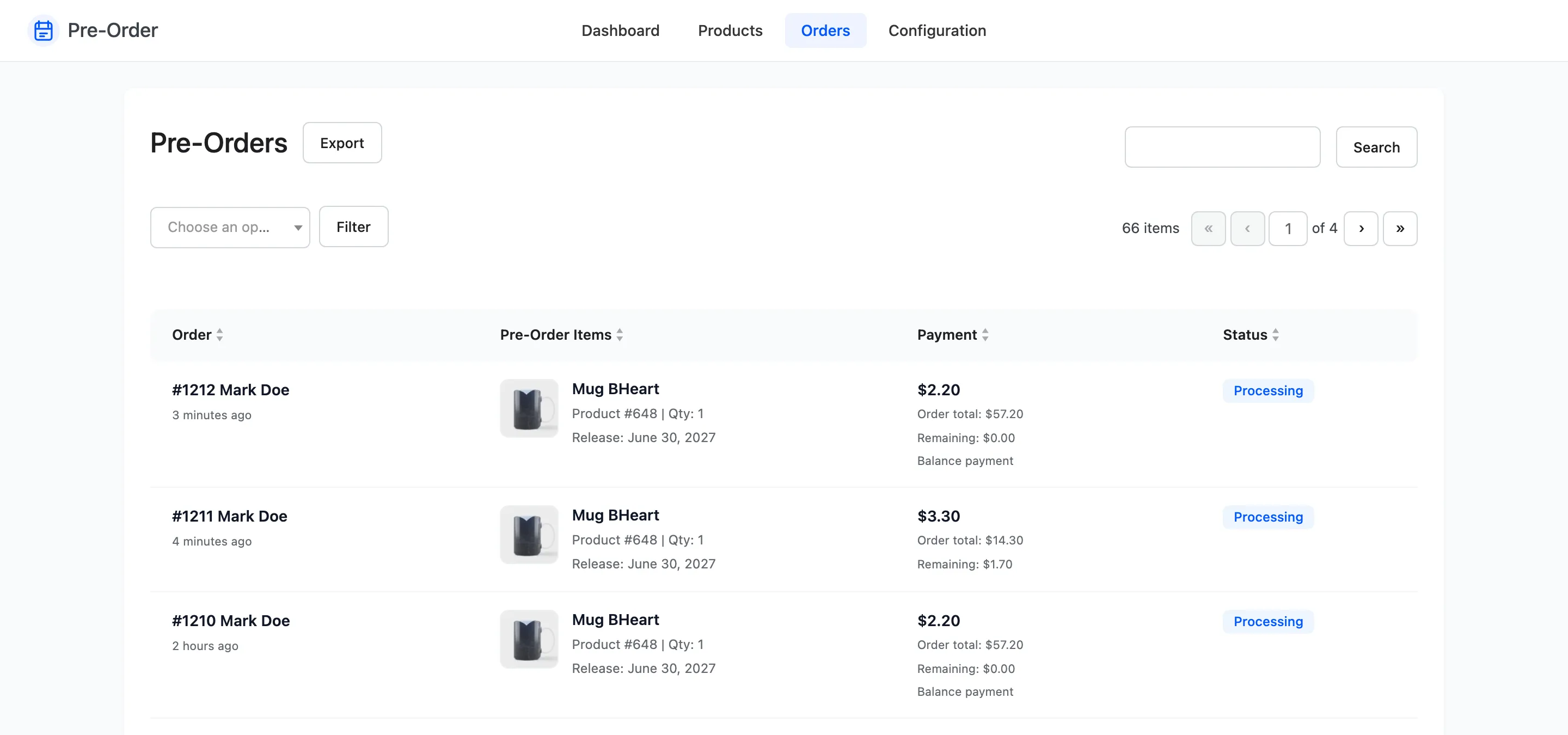
Filter by status or search by order number.
Step 2: Open it in WooCommerce
Section titled “Step 2: Open it in WooCommerce”The order number links through to the full WooCommerce order screen. The refund happens there, not here: this plugin reports on pre-orders, it does not take payments.
Step 3: Refund or cancel
Section titled “Step 3: Refund or cancel”Do whichever suits.
- Refund the payment on the WooCommerce order screen. A full refund is what triggers the cleanup.
- Cancel by setting the order status to Cancelled.
Either way the plugin acts when the order reaches one of the Cancel Pre-Order Statuses.
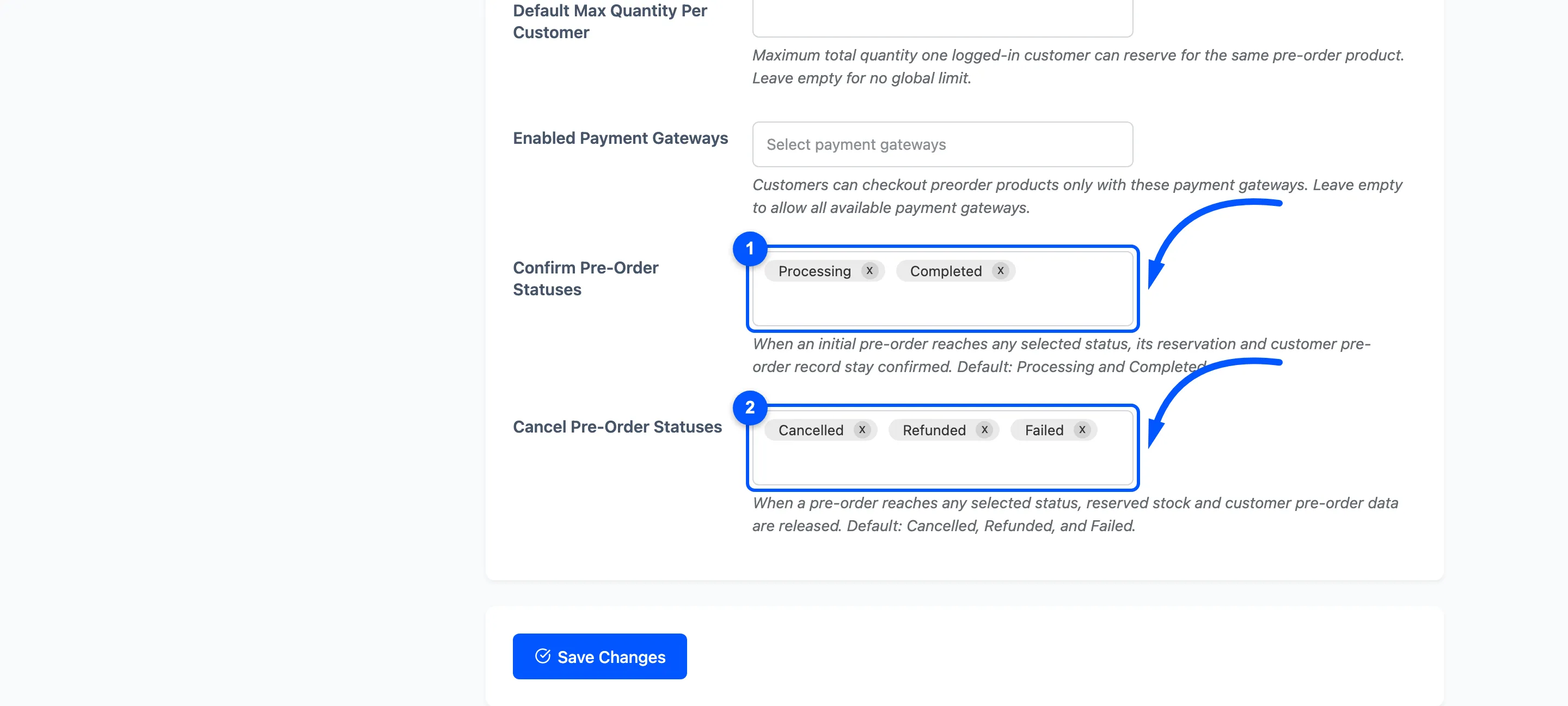
Defaults are Cancelled, Refunded and Failed.
A partial refund is not one of them. Refunding half a deposit leaves the order in its existing status, so the reservation stands and the stock stays held. That is usually right, but it means a part-refund needs the status changing by hand if you meant to cancel.
Step 4: Check the product counts
Section titled “Step 4: Check the product counts”Go back to Pre-Order → Products.
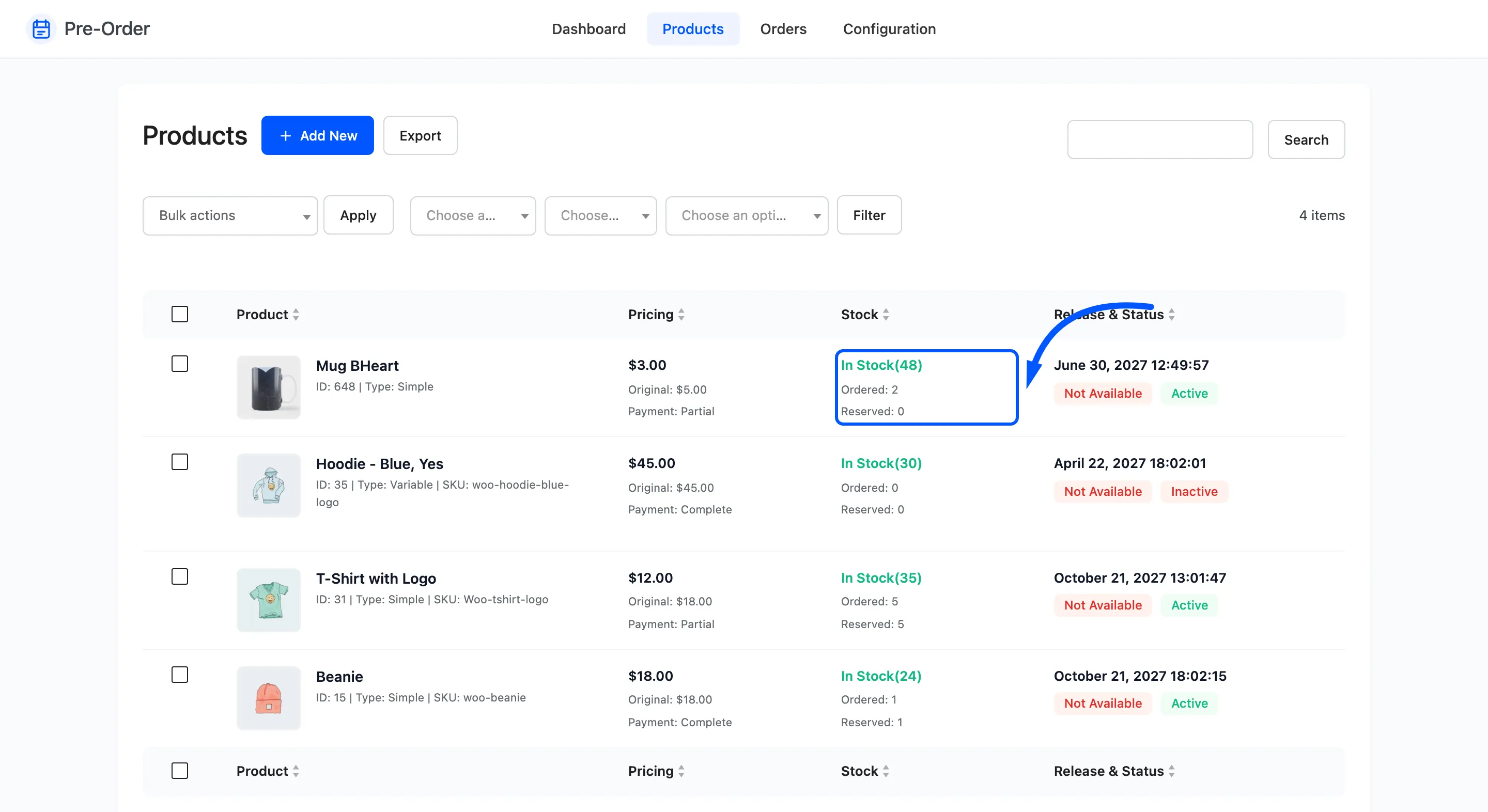
Ordered drops by the cancelled quantity. Reserved drops too, on a deposit pre-order.
The cleanup runs once per order. Cancelling an order that was already cancelled changes nothing, so there is no way to drive the figures negative by moving a status back and forth.
Step 5: Check the customer’s account
Section titled “Step 5: Check the customer’s account”The row stays on their My Pre-Orders page, now marked Cancelled and offering only View.
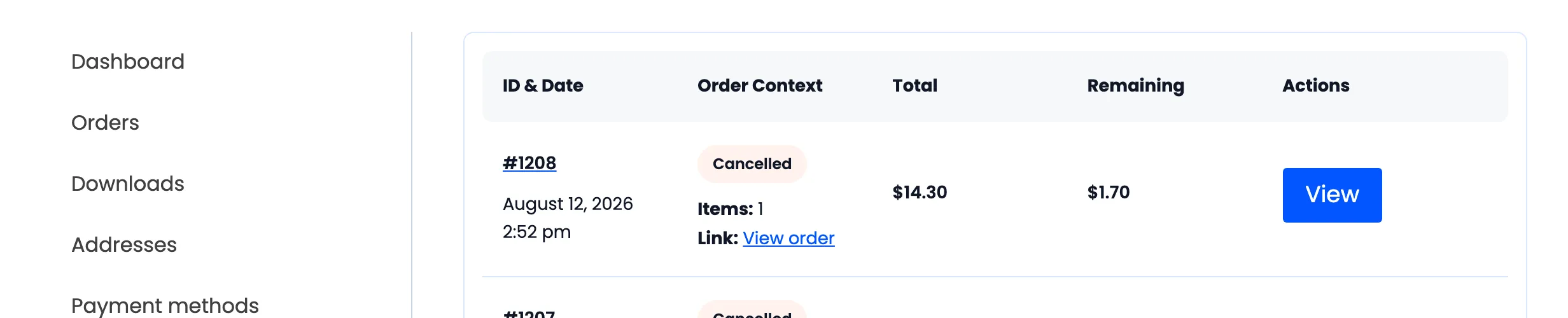
That is the order history, and it is meant to stay. What is removed is the customer’s reservation record for that product, which is the part that drives everything else, and that has two consequences worth knowing.
- They lose the Complete Pre-Order action, which is correct: there is nothing left to complete. The Remaining figure still prints on the row, because it is worked out from the order rather than from the reservation.
- They stay on the product’s notify list, so they may still get the availability email when it releases.
That second one is the thing to watch. If a customer cancelled because they no longer want the product, an email on release day is unwelcome. There is no per-customer way to remove them, so on a small list the answer is to release with Set Available while the availability email is switched off, then email the remaining customers yourself.
What is not undone
Section titled “What is not undone”The stock swap stays as it is. The product keeps whatever stock the pre-order gave it; the cancellation only releases the units held for that one customer.
The order stays on the Orders screen, in its new status. That is deliberate, because a cancelled pre-order is still a record you want.
If a customer cancels themselves
Section titled “If a customer cancels themselves”WooCommerce lets a customer cancel their own order while it is Pending or Failed. That reaches the same cancel status, so the same cleanup runs with no action from you.
Once an order is Processing, only you can cancel it.