

The Setup Wizard
The setup wizard runs once on activation and covers the settings you cannot sensibly leave alone. Everything it asks is also on the Configuration tabs, so nothing here is a one-time choice.
Reopen it any time from Plugins → Setup Wizard on the Pre-Order row, or by adding
&setup-wizard=true to the dashboard URL.
Step 1: Welcome
Section titled “Step 1: Welcome”
Nothing to fill in. Skip Setup leaves every default in place and closes the wizard.
Step 2: License
Section titled “Step 2: License”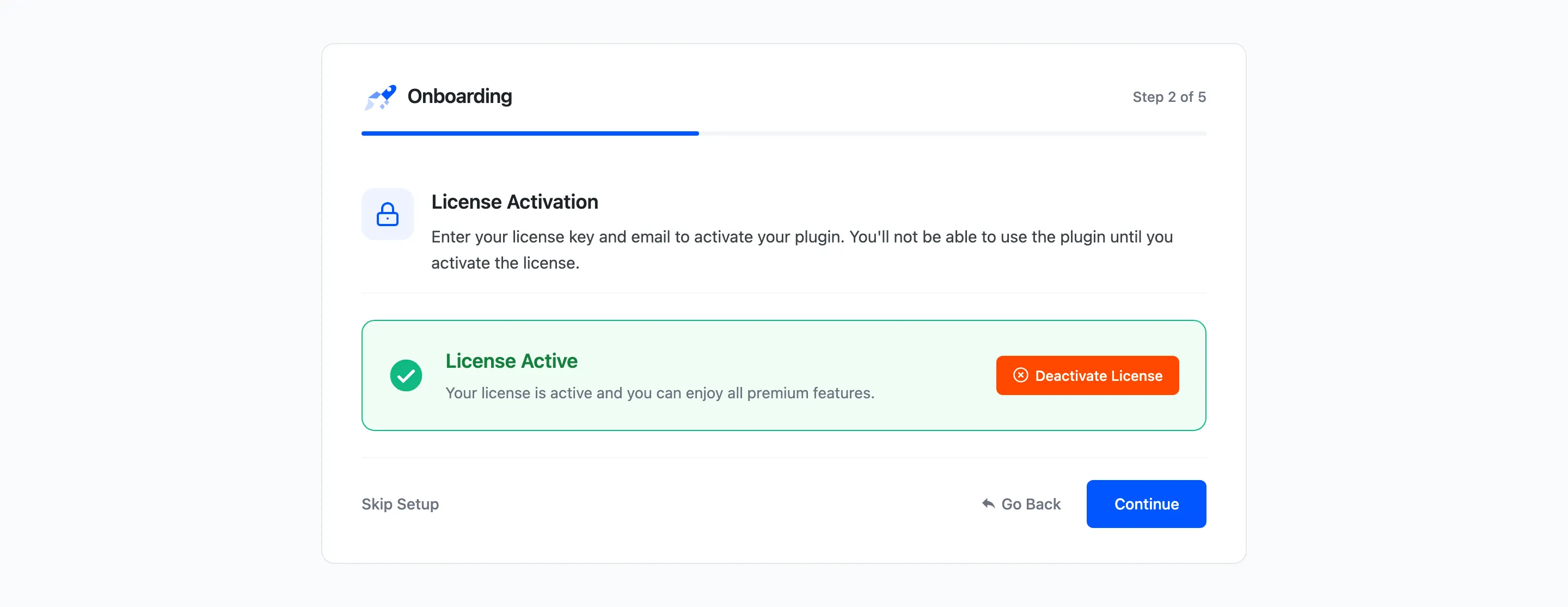
Enter the purchase code and email from your order and press Activate License. An already activated licence shows its status here instead of the form.
Do not skip past this one. The storefront stays empty until the licence is active, so the rest of the wizard would configure a feature nobody can see.
Step 3: Basic Configuration
Section titled “Step 3: Basic Configuration”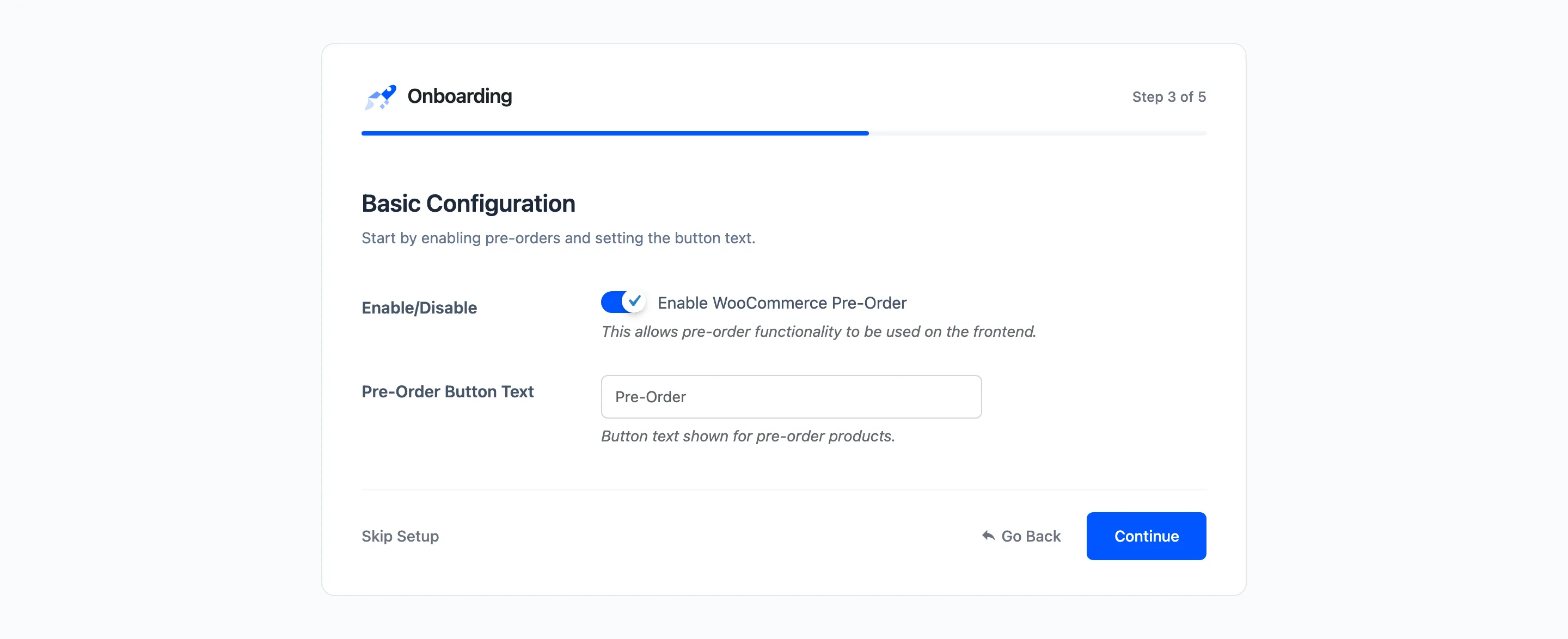
Two fields.
- Enable/Disable: The master switch for the whole plugin. Leave it ticked.
- Pre-Order Button Text: What the button says in place of Add to cart. Default Pre-Order.
The button text is worth a moment. It appears on the shop grid, on the product page and on the customer’s Complete Pre-Order action, so it is the phrase shoppers see most. “Reserve yours” and “Pre-order now” both work; anything longer wraps on a phone.
Step 4: Pre-Order Behavior
Section titled “Step 4: Pre-Order Behavior”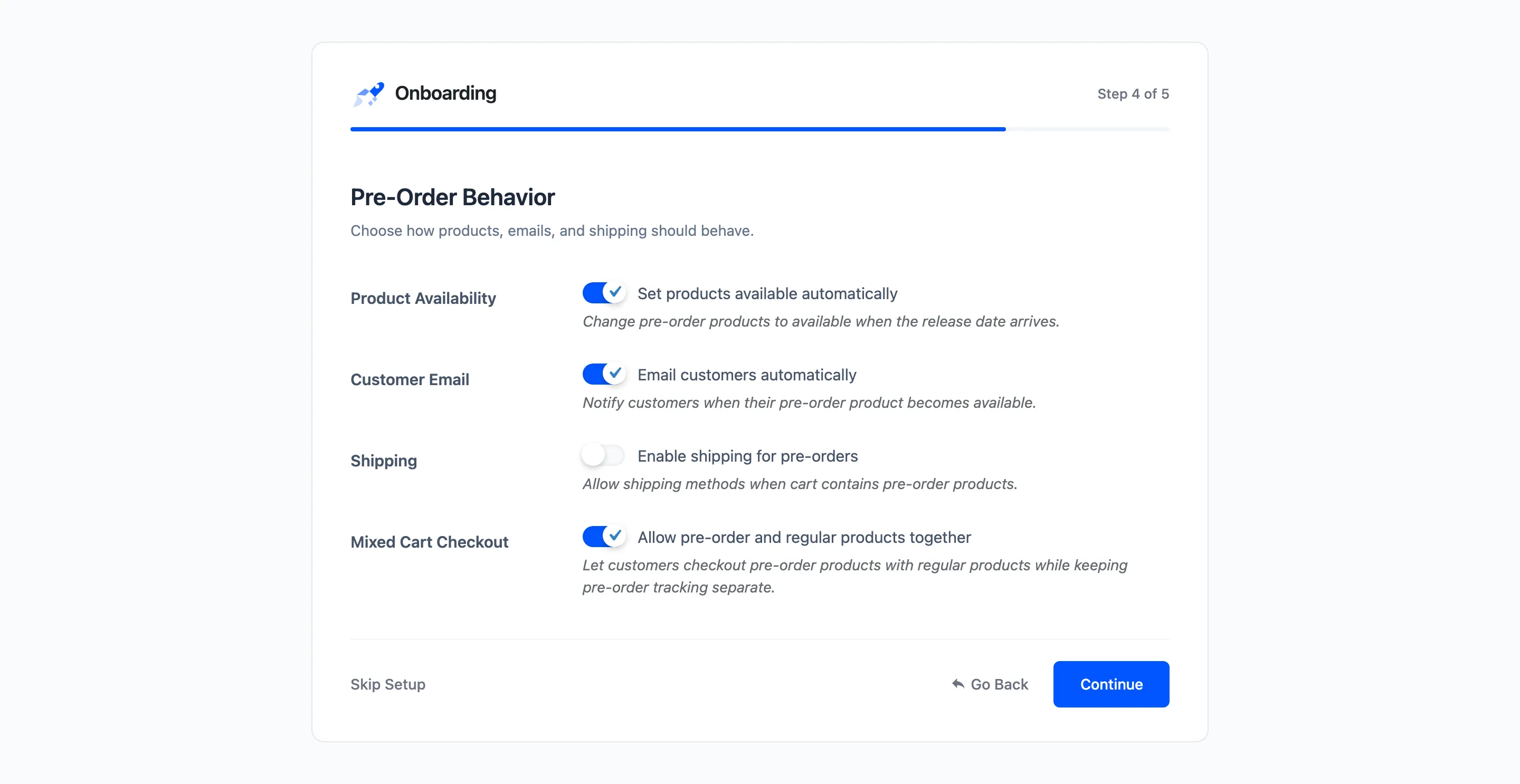
Four decisions, all off unless you tick them.
- Set products available automatically. Lets the release date do its job. With this off a product stays on pre-order until you release it by hand.
- Email customers automatically: Sends the availability email when a product releases. Off means nobody is told.
- Enable shipping for pre-orders: Off is the usual choice, because a reservation ships nothing. See How to Control Shipping on Pre-Orders.
- Allow pre-order and regular products together: Off makes pre-orders exclusive: adding one empties the rest of the cart. See How to Sell Pre-Orders Alongside Regular Products.
Tick the first two. They are what makes a release happen without you watching a calendar.
Step 5: Ready
Section titled “Step 5: Ready”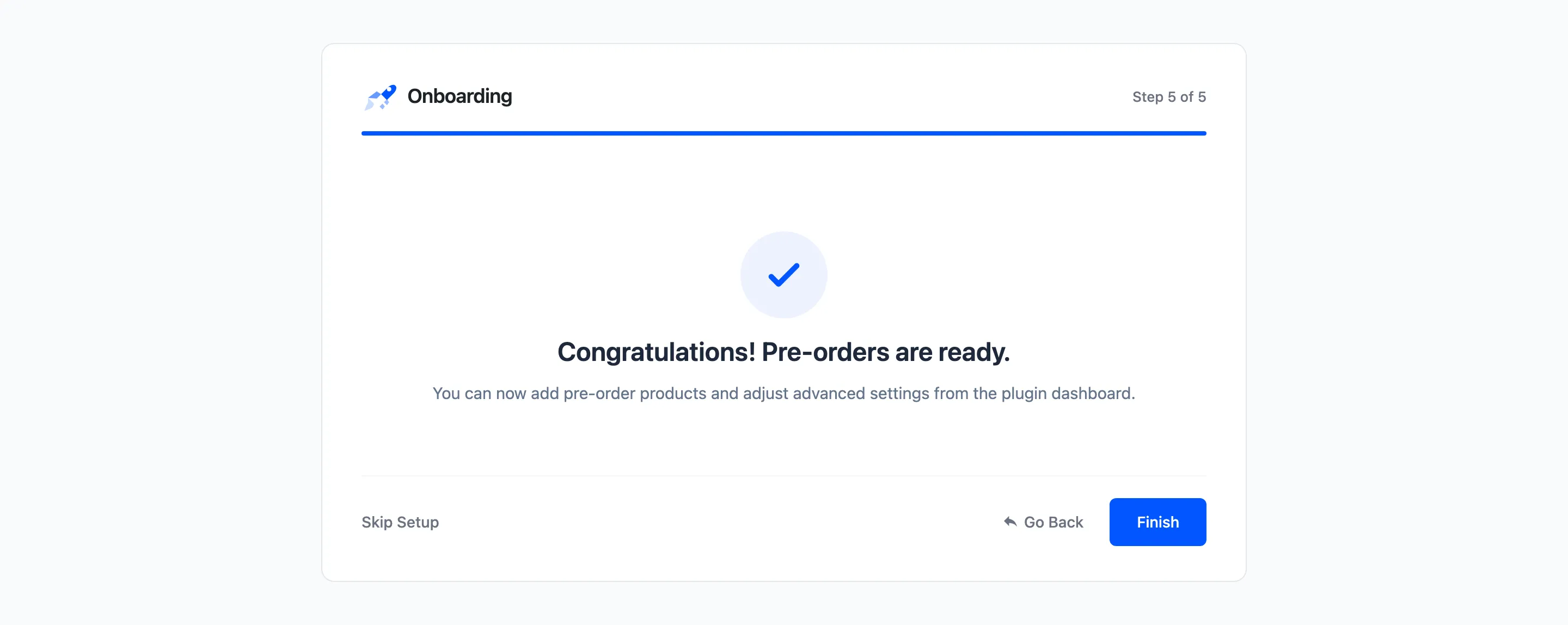
Finish closes the wizard and opens the dashboard.
What the wizard does not cover
Section titled “What the wizard does not cover”Deposits, the pre-order fee, quantity limits, who may pre-order, badge colours and the email wording are all left at their defaults. They live on the Configuration tabs, and none of them blocks a first pre-order.
The one thing to do next is make a product a pre-order: How to Create a Pre-Order Product.