

How to Limit Pre-Order Quantities (Pro)
Limits stop one buyer taking a launch. There are two of them, they work differently, and both can be set globally or per product.
The two limits
Section titled “The two limits”Max Quantity Per Order caps a single cart. It counts what is already in the cart plus what is being added.
Max Quantity Per Customer caps a customer’s total across all their pre-orders of that product. It counts what they have already reserved, plus their cart, plus what they are adding.
The second only works for a logged-in customer, because a guest cannot be counted across orders. If it matters, require an account: How to Restrict Who Can Pre-Order (Pro).
Step 1: Set the store-wide limits
Section titled “Step 1: Set the store-wide limits”Go to Configuration → Checkout.
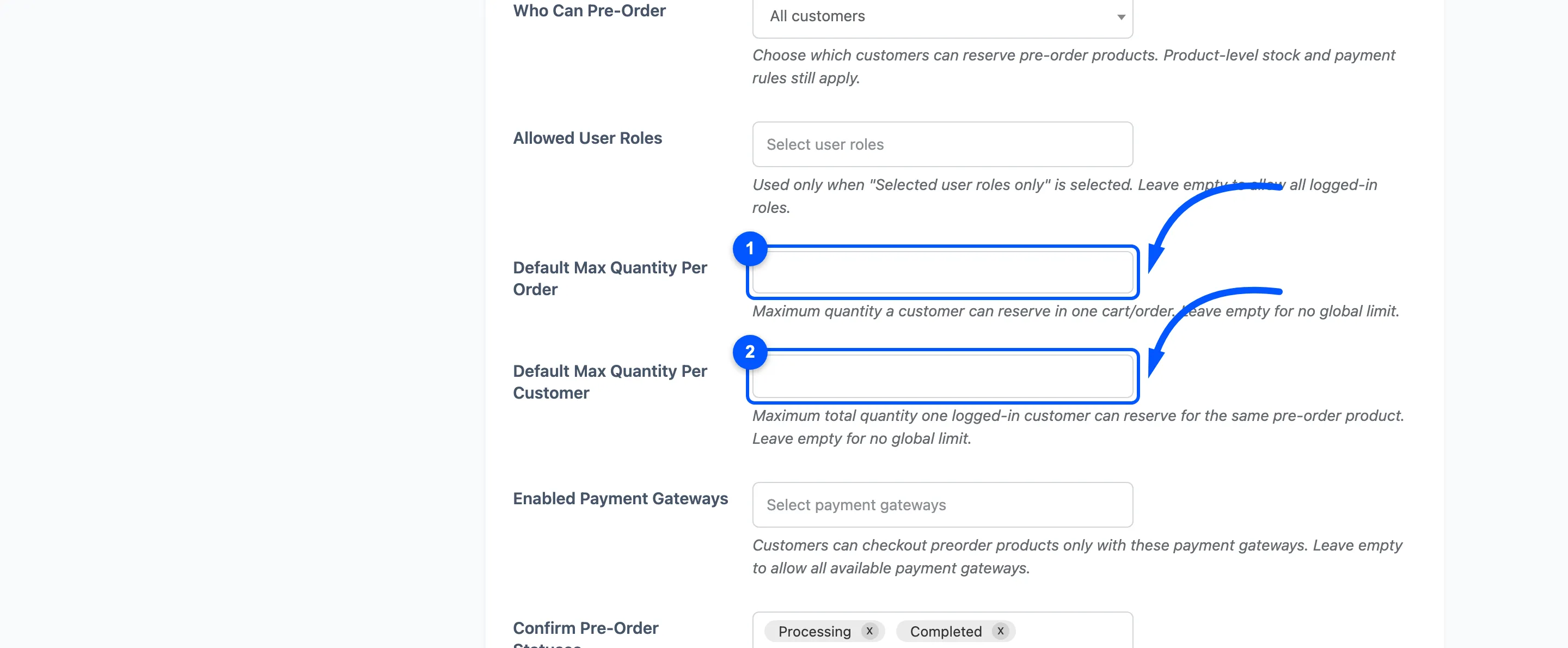
Default Max Quantity Per Order and Default Max Quantity Per Customer. Both empty by default, meaning no limit. Zero also means no limit.
Step 2: Save
Section titled “Step 2: Save”Press Save Changes. The limits apply to every pre-order product that does not set its own.
Step 3: Override a single product
Section titled “Step 3: Override a single product”Edit a pre-order product from Pre-Order → Products.
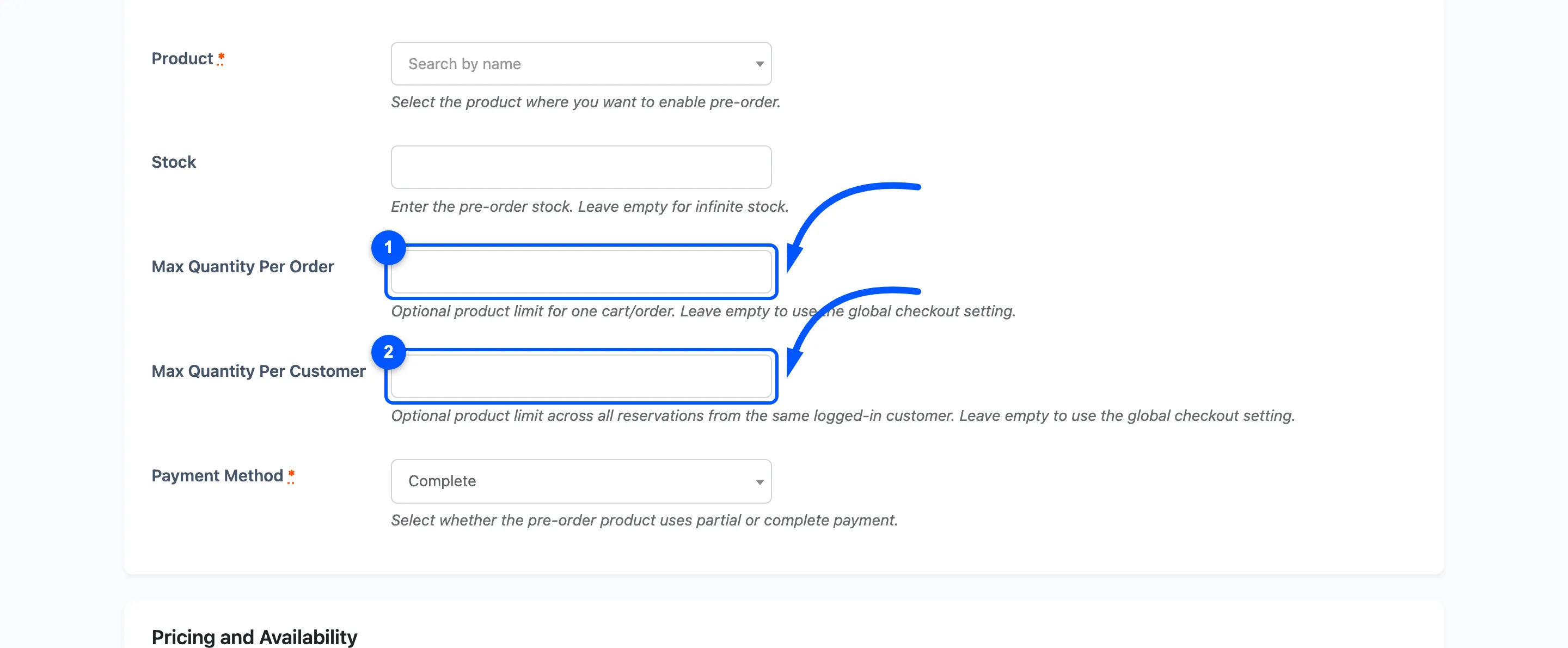
A product’s own limit wins over the global one whenever it is filled in. So the global fields are the fallback, not a ceiling: a product set to 10 allows 10 even when the store default is 2.
Leave a product’s field empty to inherit.
Step 4: Test the cart limit
Section titled “Step 4: Test the cart limit”Set the per-order limit to 2, then try to reserve 5 on the storefront.
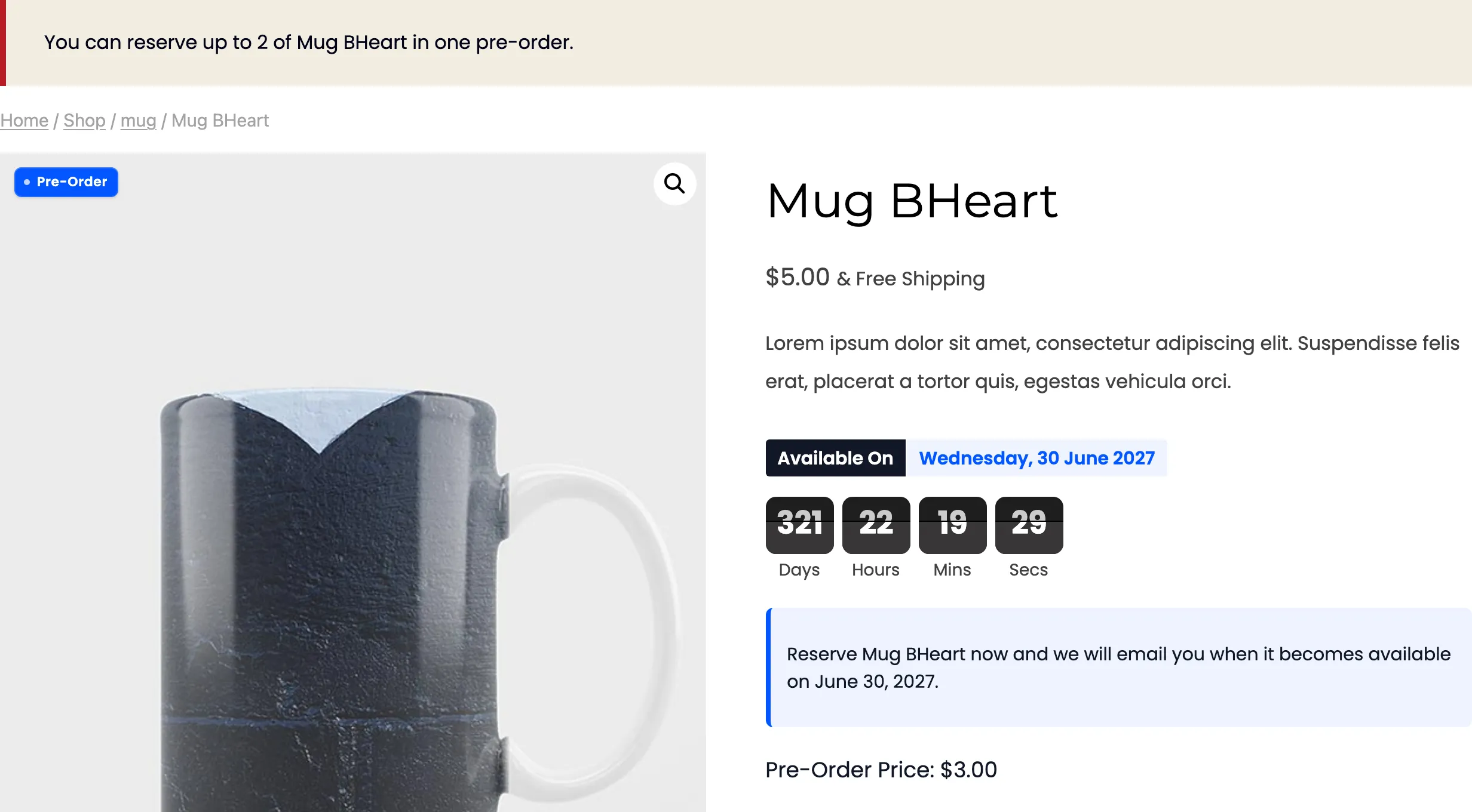
Nothing is added, and the message names both the limit and the product:
You can reserve up to 2 of Mug BHeart in one pre-order.
Step 5: Test the customer limit
Section titled “Step 5: Test the customer limit”Set the per-customer limit instead, as a customer who already holds reservations of that product, and try to add more.
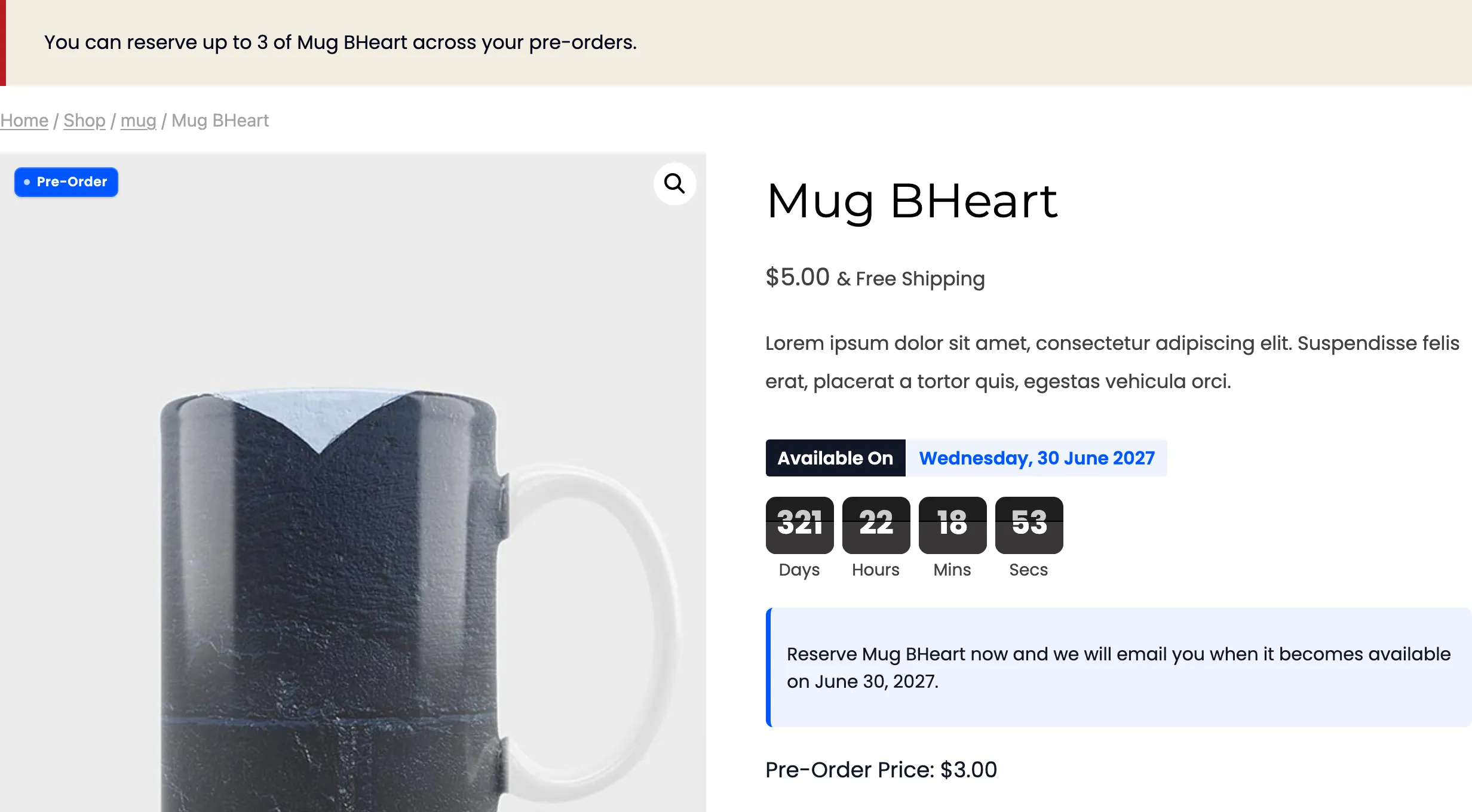
You can reserve up to 3 of Mug BHeart across your pre-orders.
The two messages differ by three words. “In one pre-order” means this cart is too big and a smaller one will go through. “Across your pre-orders” means the customer has reached their total and no cart will go through until something is cancelled. Worth knowing before you answer a support email about it.
Where the limits are enforced
Section titled “Where the limits are enforced”Twice, and both matter.
- On add to cart, so the shopper is told immediately.
- Again at checkout, so a cart that was built before the limit changed, or in another tab, cannot slip through.
The second check is why a customer can occasionally see an error at checkout for a cart that was accepted earlier.
Limits against stock
Section titled “Limits against stock”These are separate from the Stock figure on the pre-order form.
- Stock is how many units exist to promise, across everybody.
- The limits are how many any one cart or customer may take of them.
Use both. Stock protects your production run; the limits stop one buyer emptying it.