

How to Export Pre-Order Data (Pro)
Two exports: what you have set up, and who has reserved it.
Step 1: Open the wizard
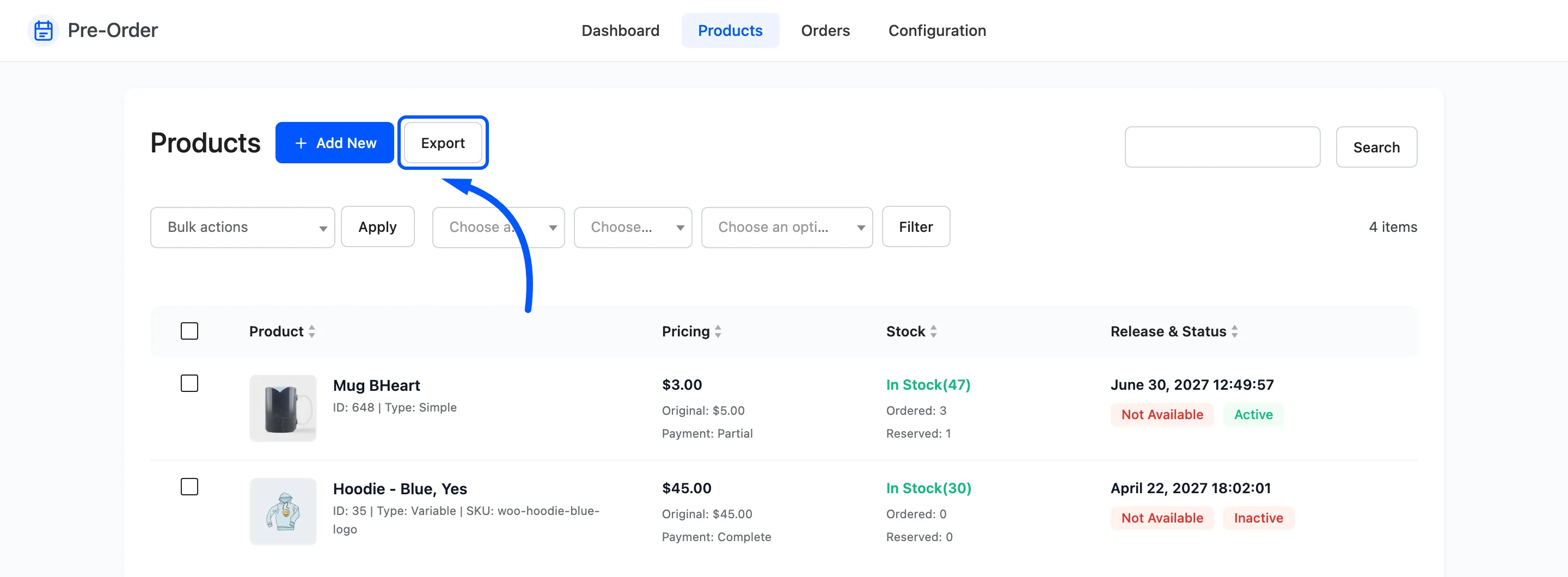
Section titled “Step 1: Open the wizard”Export sits beside Add New on the Products screen, and alone on the Orders screen. Which screen you start from decides which export you get.
Step 2: Choose the options
Section titled “Step 2: Choose the options”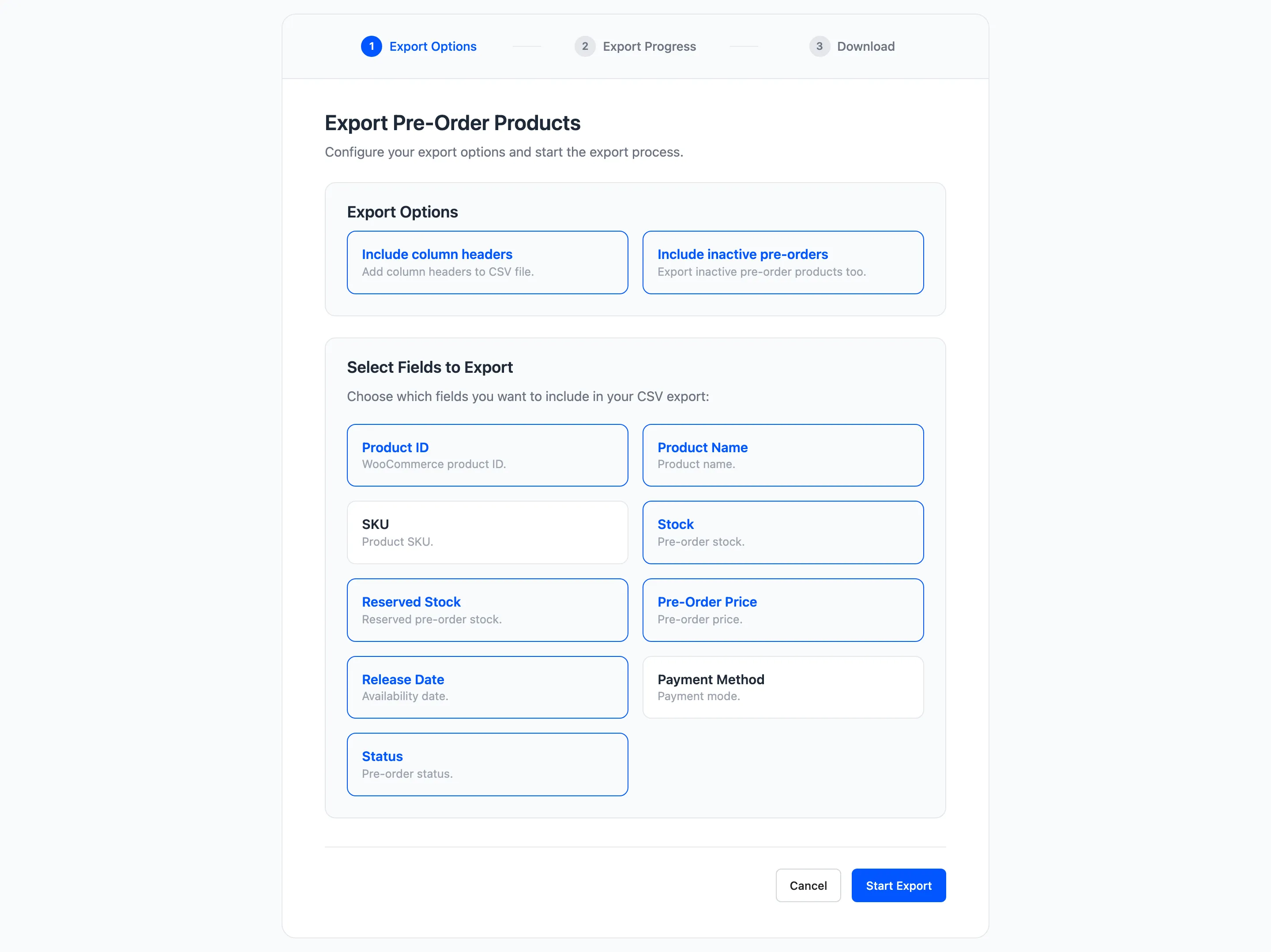
Include column headers, on by default. Leave it on unless you are appending to a file that already has them.
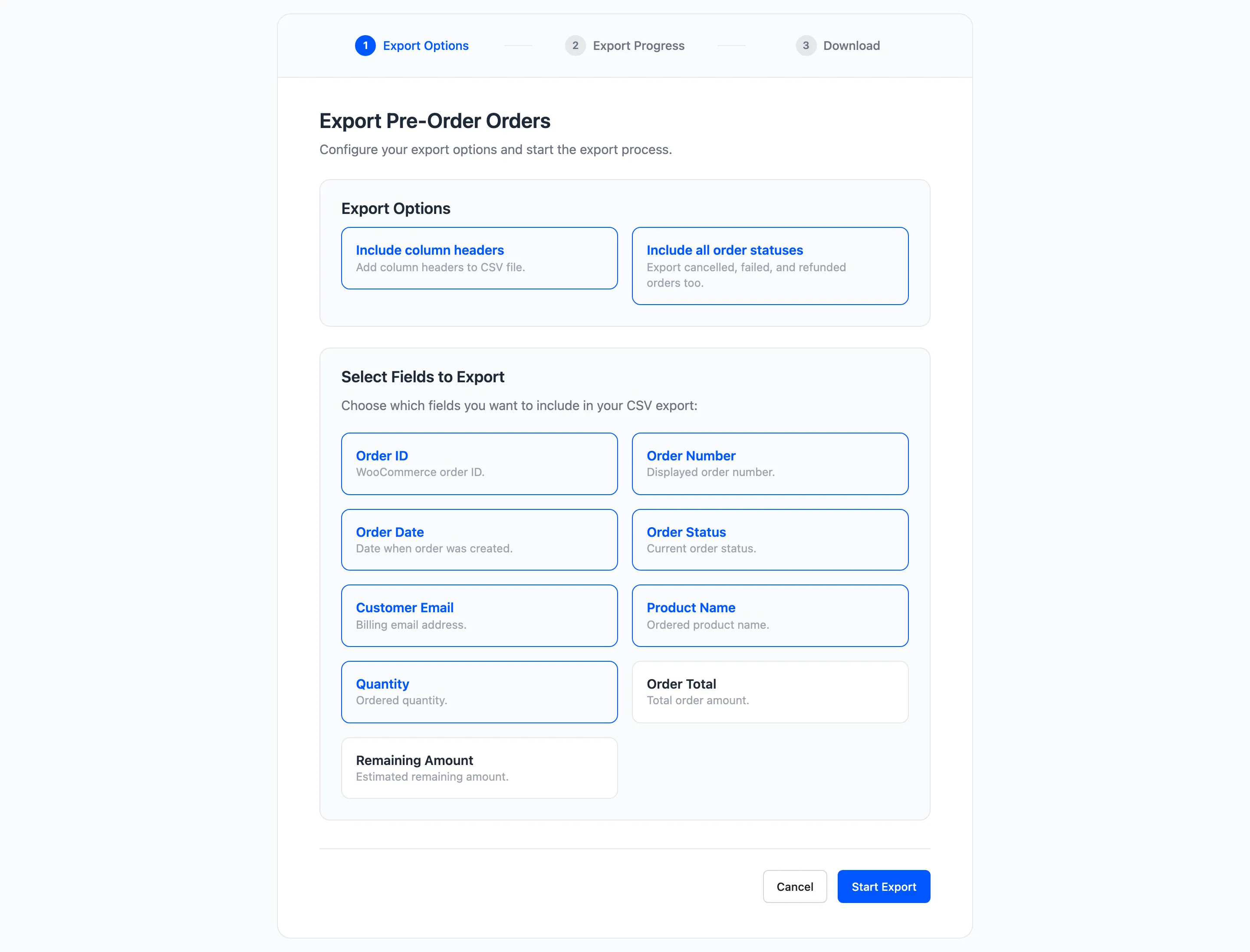
Include inactive pre-orders, or Include all order statuses on the orders export, also on. Turning it off drops inactive products, or cancelled, failed and refunded orders.
Turn it off when you want a working list rather than an archive. A production list should not include pre-orders you switched off.
Step 3: Pick the fields
Section titled “Step 3: Pick the fields”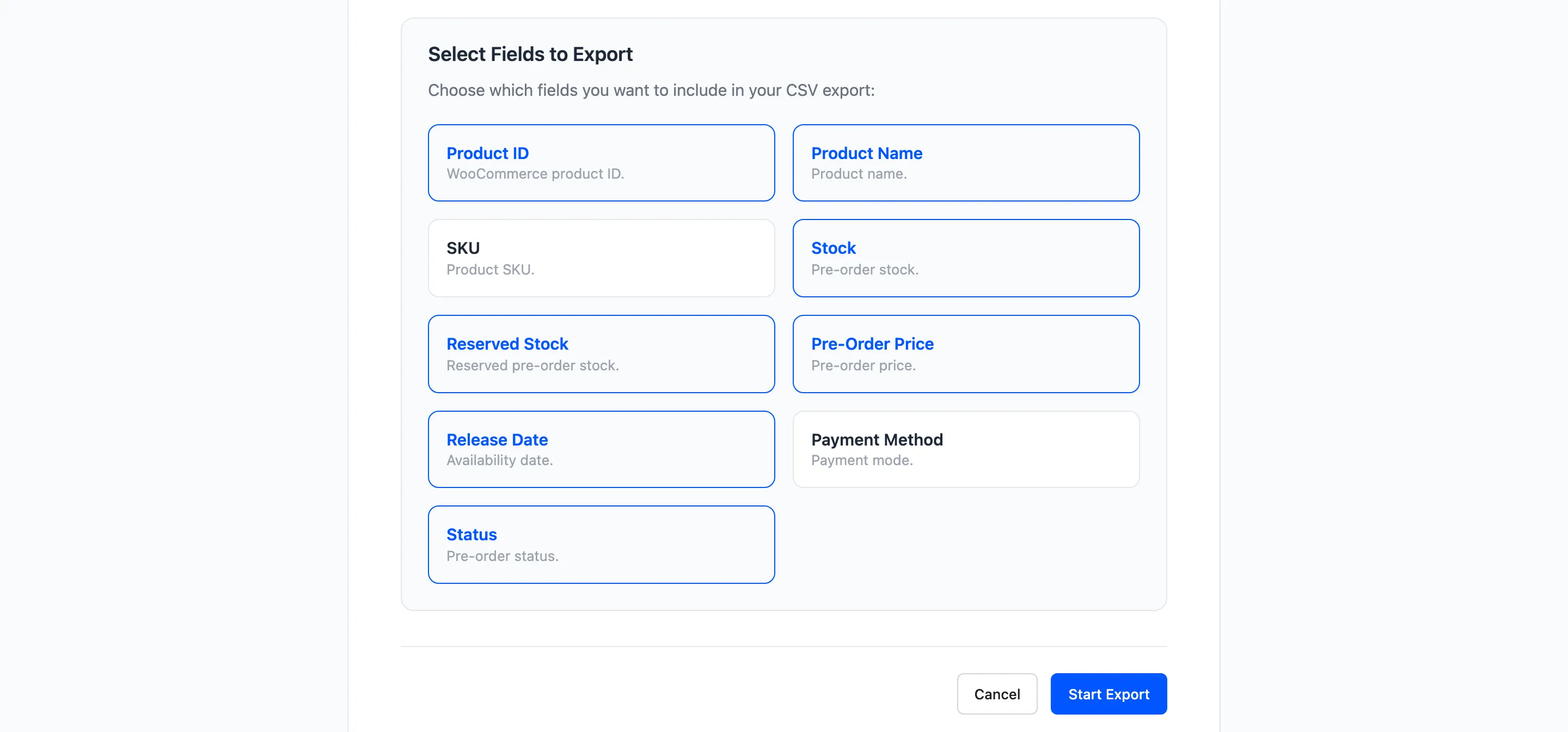
Most are ticked already. The export refuses to run with none selected.
Products offers Product ID, Product Name, SKU, Stock, Reserved Stock, Pre-Order Price, Release Date, Payment Method and Status.
Orders offers Order ID, Order Number, Order Date, Order Status, Customer Email, Product Name, Quantity, Order Total and Remaining Amount.
Step 4 and 5: Run it and download
Section titled “Step 4 and 5: Run it and download”Press Start Export. It runs in one pass and lands on the download step.
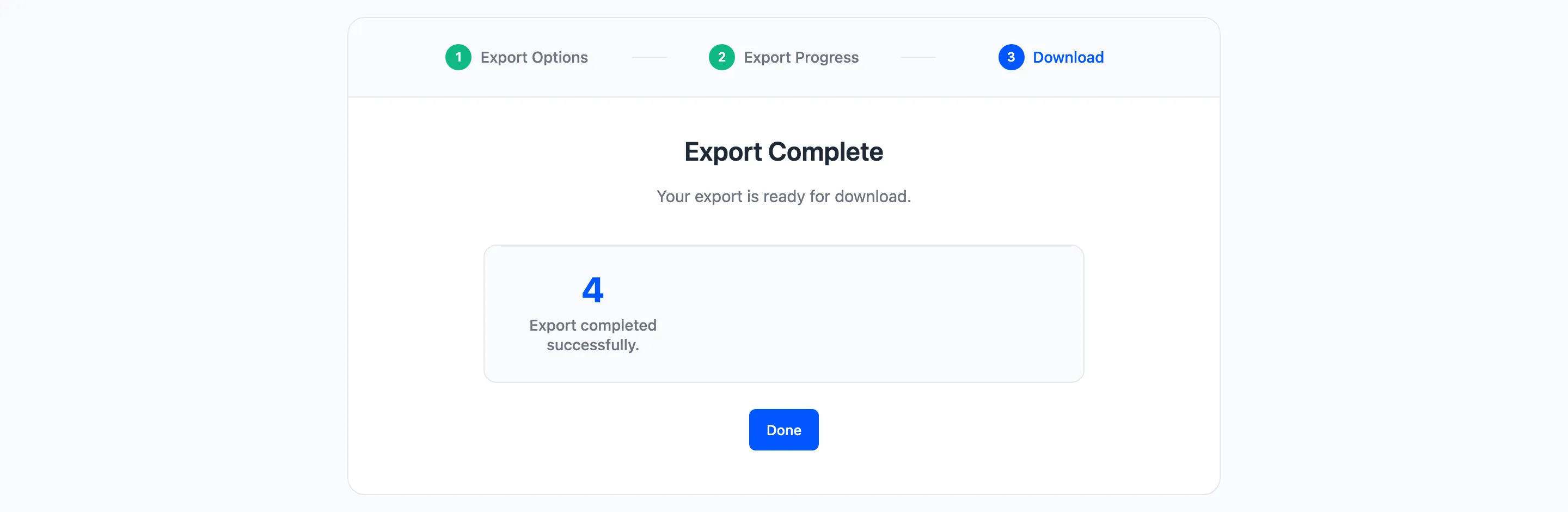
The file is named for its type and today’s date, so preorder-orders-export-2026-08-11.csv.
How to read the file
Section titled “How to read the file”The products export is one row per product. Straightforward.
The orders export is one row per order line. An order with three pre-order products becomes three rows sharing an order number. That is what makes it usable in a pivot table, and it is also the trap: summing the Order Total column double counts, because the order total is repeated on every one of its rows.
Sum Remaining Amount instead. That one is per line, so its total is your real outstanding balance across the store.
Four things to do with it
Section titled “Four things to do with it”- A production list: Export products, filter to Not Available in your spreadsheet, sort by release date. That is what to make and when.
- Outstanding balances: Export orders and total Remaining Amount.
- A launch mailing list: Export orders, filter to one product, take the customer emails.
- A record before a bulk change. The products export captures every pre-order setting, so you can see exactly what changed afterwards.
Limits
Section titled “Limits”It reads everything in one request, so a very large catalogue takes a while. There is no scheduling and no email delivery: the file downloads in your browser.
Dates come out as stored, in your site’s timezone. Convert in the spreadsheet if you need something else.