

How to Choose Payment Gateways for Pre-Orders (Pro)
Not every payment method suits a reservation. A bank transfer cannot be charged again in six months, which matters a great deal if you take deposits.
Step 1: See what your store offers
Section titled “Step 1: See what your store offers”The list here is built from the gateways you have already enabled in WooCommerce → Settings → Payments. Enable one there first if it is missing.
Step 2 and 3: Pick the gateways
Section titled “Step 2 and 3: Pick the gateways”Go to Configuration → Checkout and find Enabled Payment Gateways.
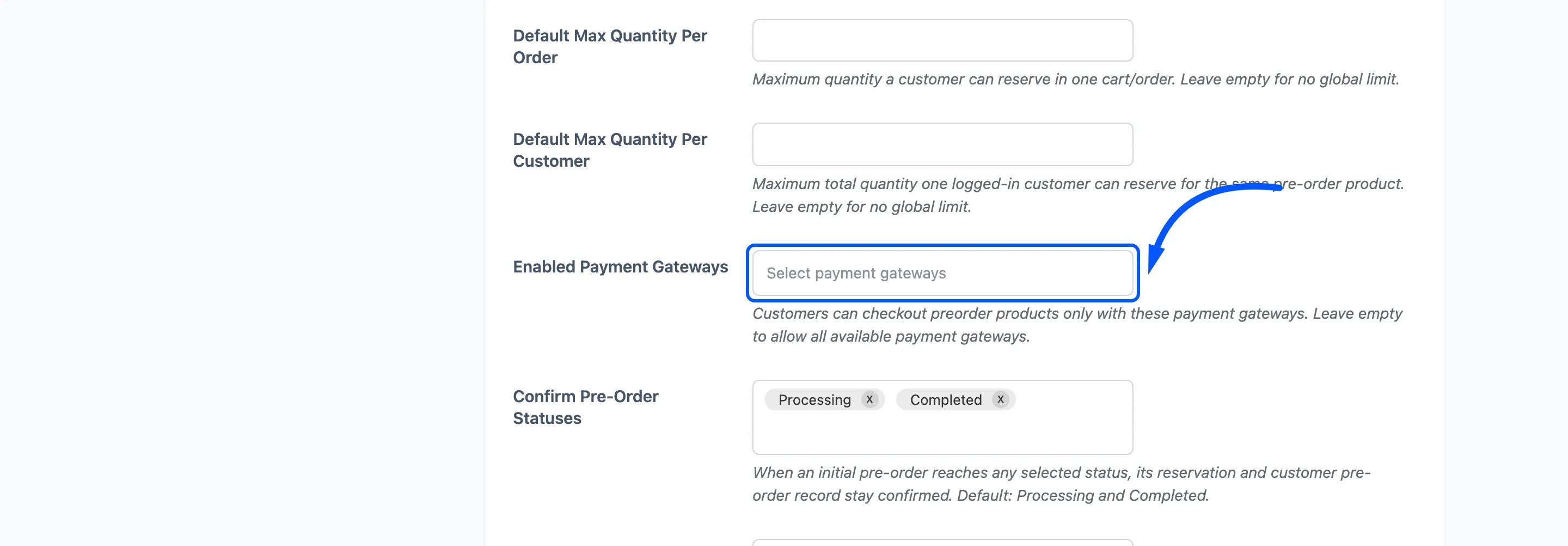
It takes several. Leaving it empty offers every available gateway, which is the default and is fine on a store that takes full payment up front.
Step 4: Save
Section titled “Step 4: Save”Press Save Changes.
Step 5: Check a pre-order checkout
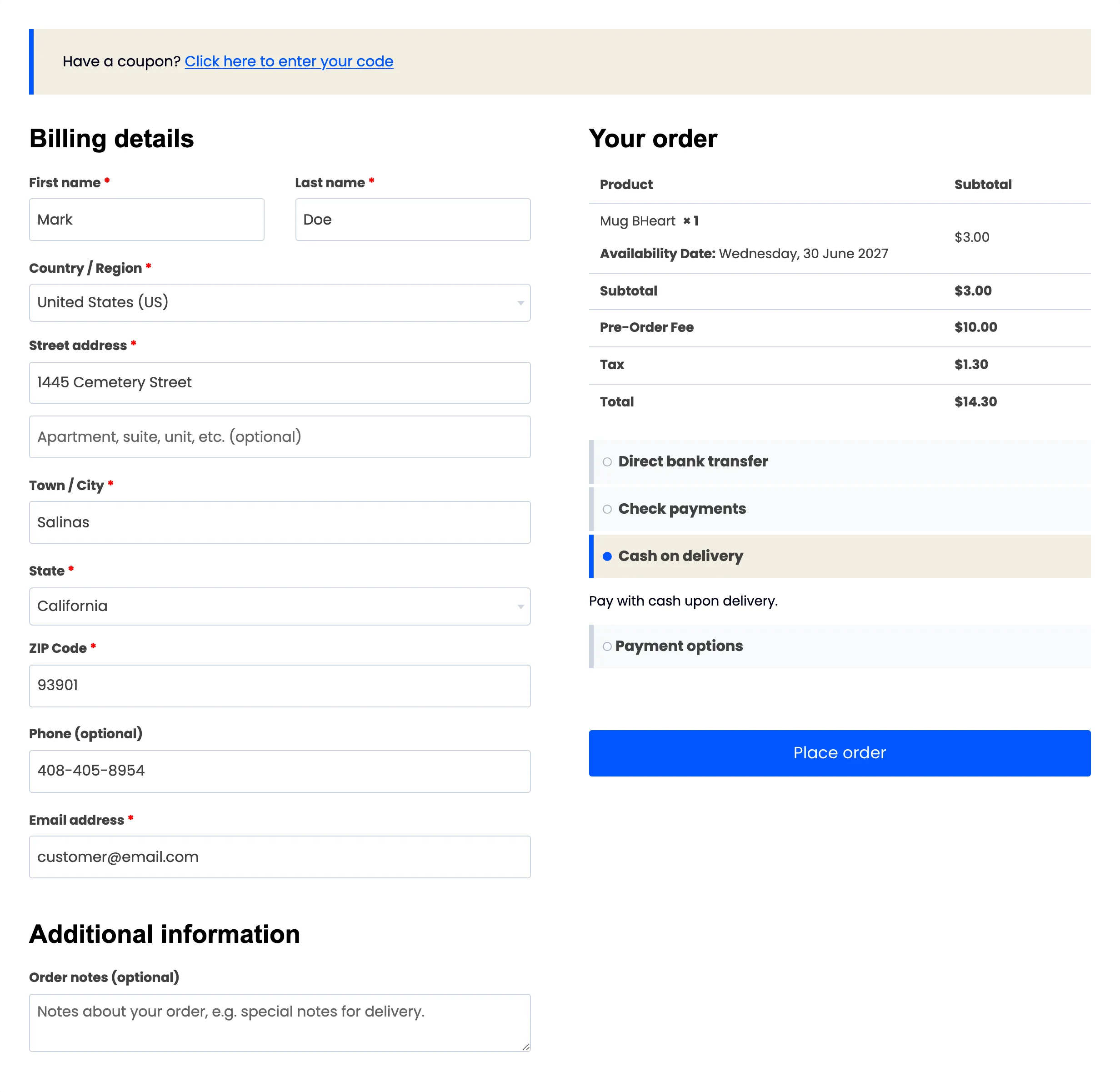
Section titled “Step 5: Check a pre-order checkout”Put a reservation in the cart and go to checkout.
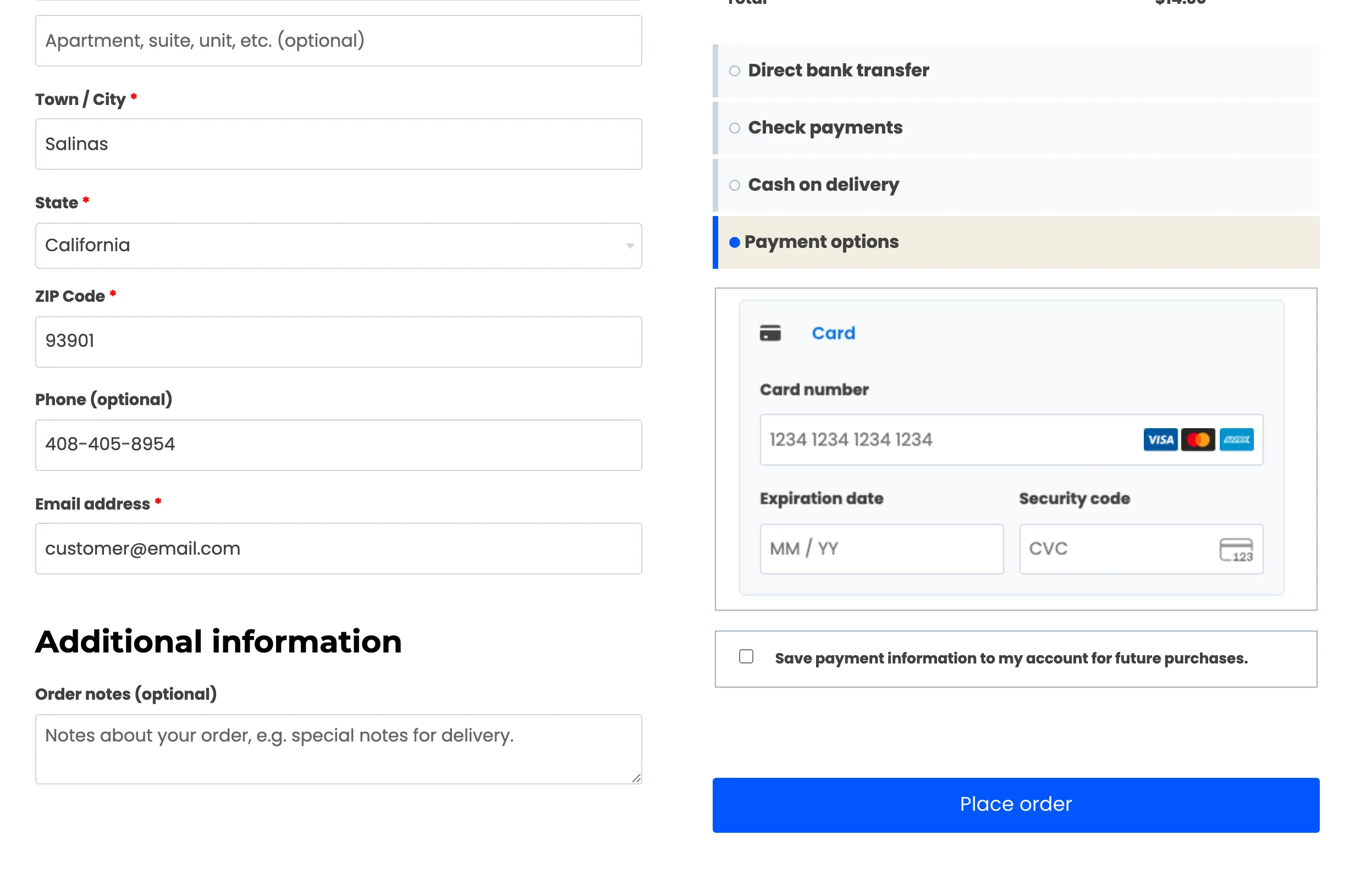
Only the methods you chose should appear. Compare against an ordinary cart, which is unaffected.
The rule looks at the whole cart. One pre-order among several ordinary products narrows the methods for the whole order, which is worth knowing if you have mixed carts on.
Why this matters for deposits
Section titled “Why this matters for deposits”The automatic balance charge on release needs a payment method that can be reused without the customer present. A card gateway that stores a token can do it; an offline method cannot.
What a card gateway looks like at checkout
Section titled “What a card gateway looks like at checkout”Pick a card gateway and its own form opens inside the payment panel. This is Stripe, which the demo store runs.
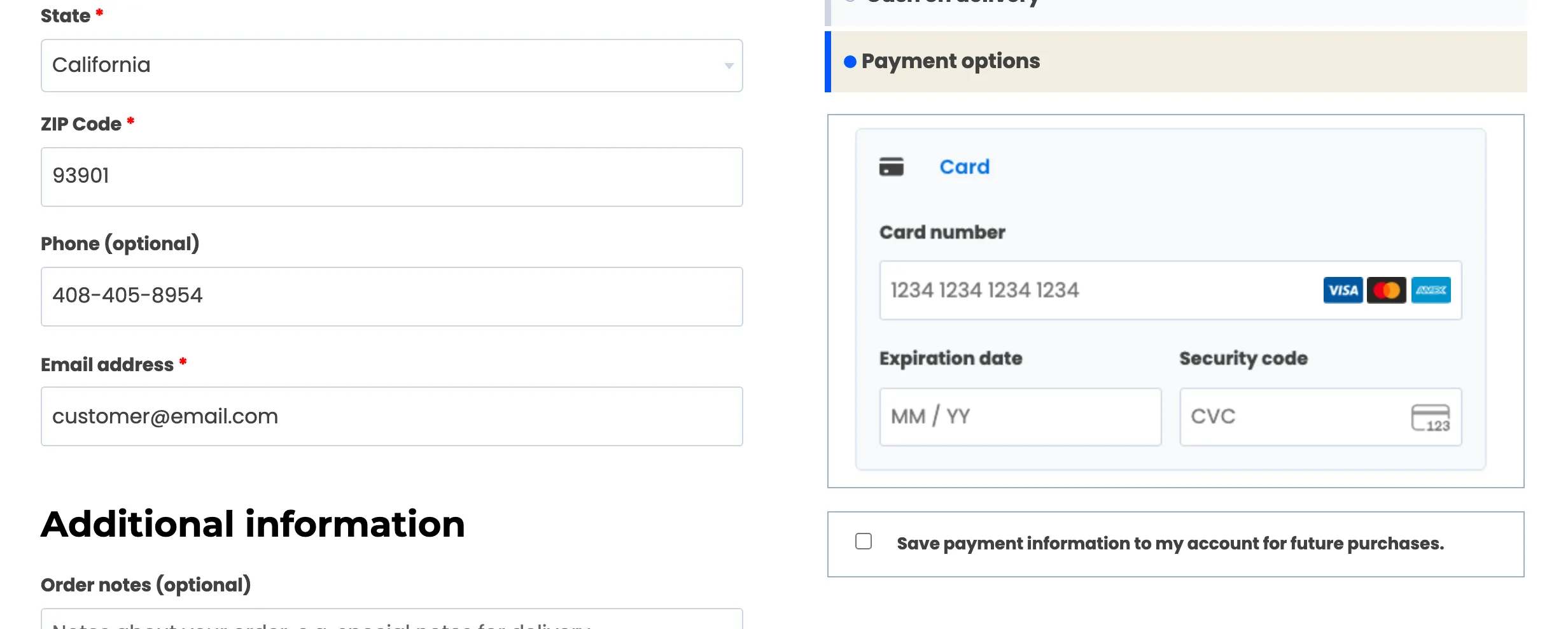
Save payment information to my account for future purchases is the line that matters. Ticking it is what stores a reusable payment method against the order, and that stored method is the only thing the release charge has to work with months later.
How the release charge finds a card
Section titled “How the release charge finds a card”On release day the plugin looks for a stored payment method in this order:
- The one saved on the pre-order itself: This is what the checkbox above produces.
- The customer’s default saved method, but only when it belongs to the same gateway as the order. A card saved through one gateway cannot be charged by another.
If it finds one, the charge is made without the customer present. Stripe publishes a dedicated release path for exactly this, so the plugin uses that rather than the ordinary checkout path, which would stop and ask for a card verification nobody is there to answer. A gateway with no such path is charged through its normal saved-card flow instead.
If it finds nothing, no charge is attempted. The customer keeps the manual route and a note goes on the original order saying what happened.
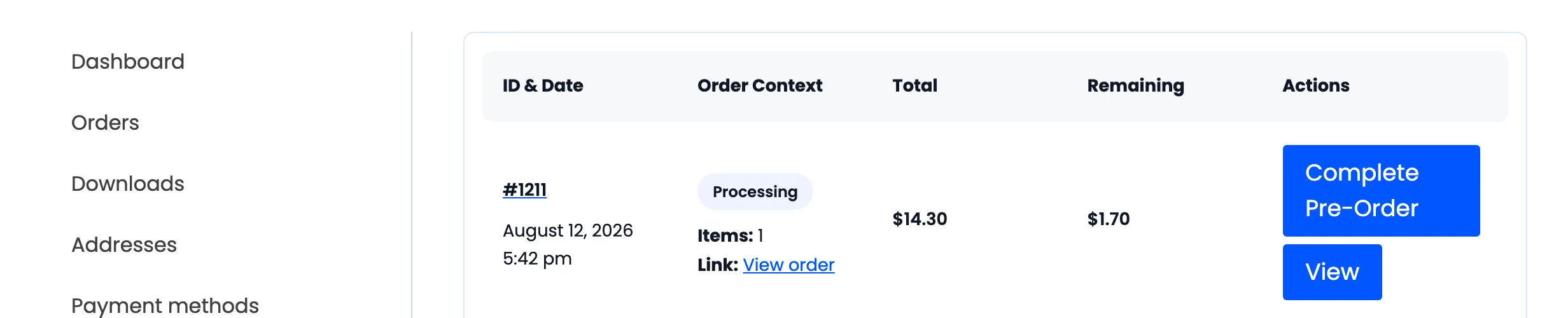
So restricting this field to card gateways is half the job, and the other half is out of your hands: a customer who leaves that checkbox unticked is a manual balance whatever gateway they used. Say so in your pre-order notice.
See How to Take a Deposit and Collect the Balance (Pro).
Other reasons to narrow the list
Section titled “Other reasons to narrow the list”- Cash on delivery makes no sense on a reservation, since there is nothing to deliver.
- A gateway with a long dispute window is riskier on an order that will not ship for months.
- A gateway that charges a fixed fee per transaction costs you twice on a deposit, once for the deposit and once for the balance.
What to check afterwards
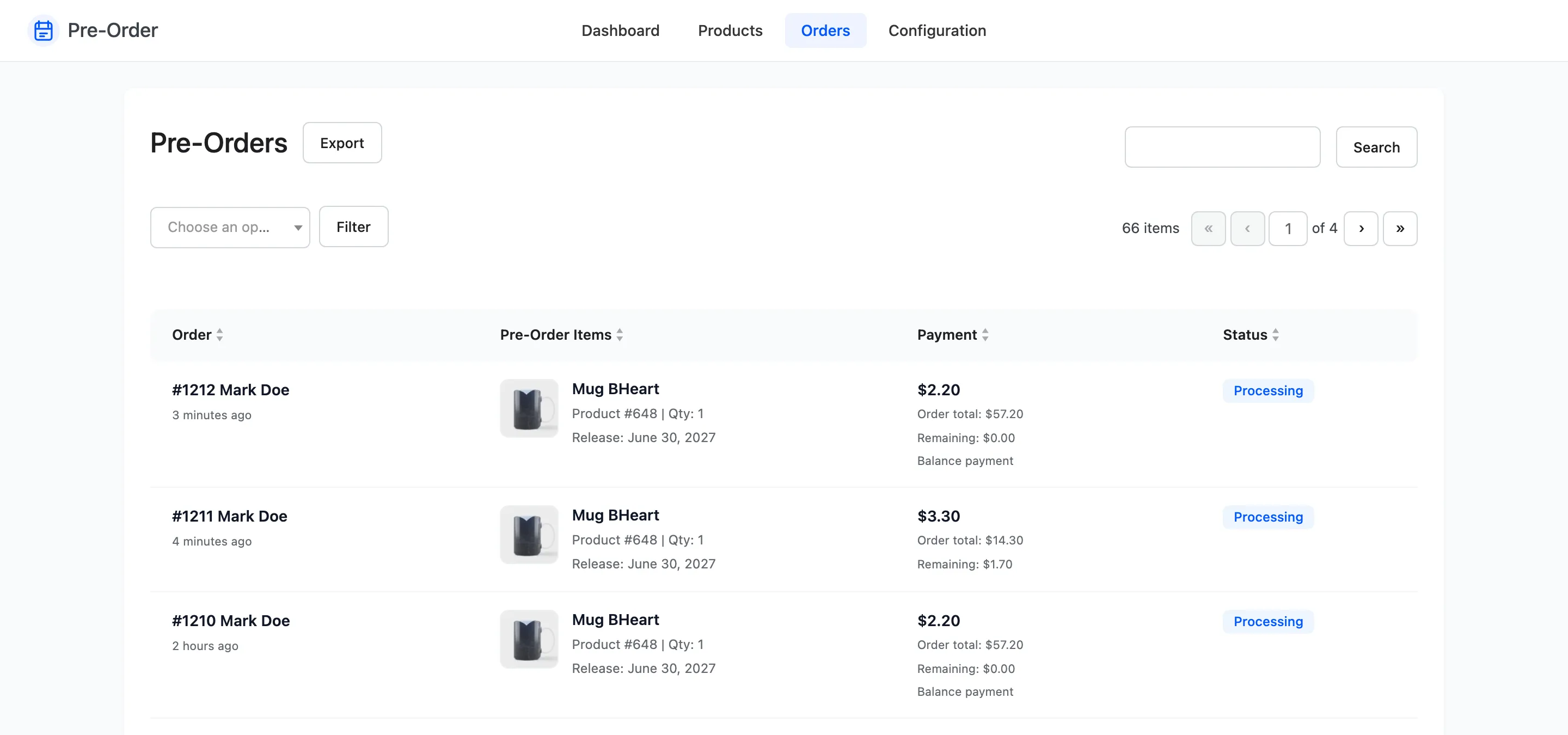
Section titled “What to check afterwards”Place one test reservation with each method you have allowed and follow it to the order screen. That is the only way to be sure a gateway behaves the way you expect on an order that ships later.