

How to Hide Only the Add to Cart Button
Some stores want visitors to see what things cost, and to buy only after logging in, applying for an account or calling. What to Hide does this in both editions: the price stays, and only the add to cart button is replaced.
Step 1: Set What to Hide
Section titled “Step 1: Set What to Hide”Go to Configuration → General. Under Plugin Settings, set What to Hide to Add to cart button only (keep the price). Click Save Changes.
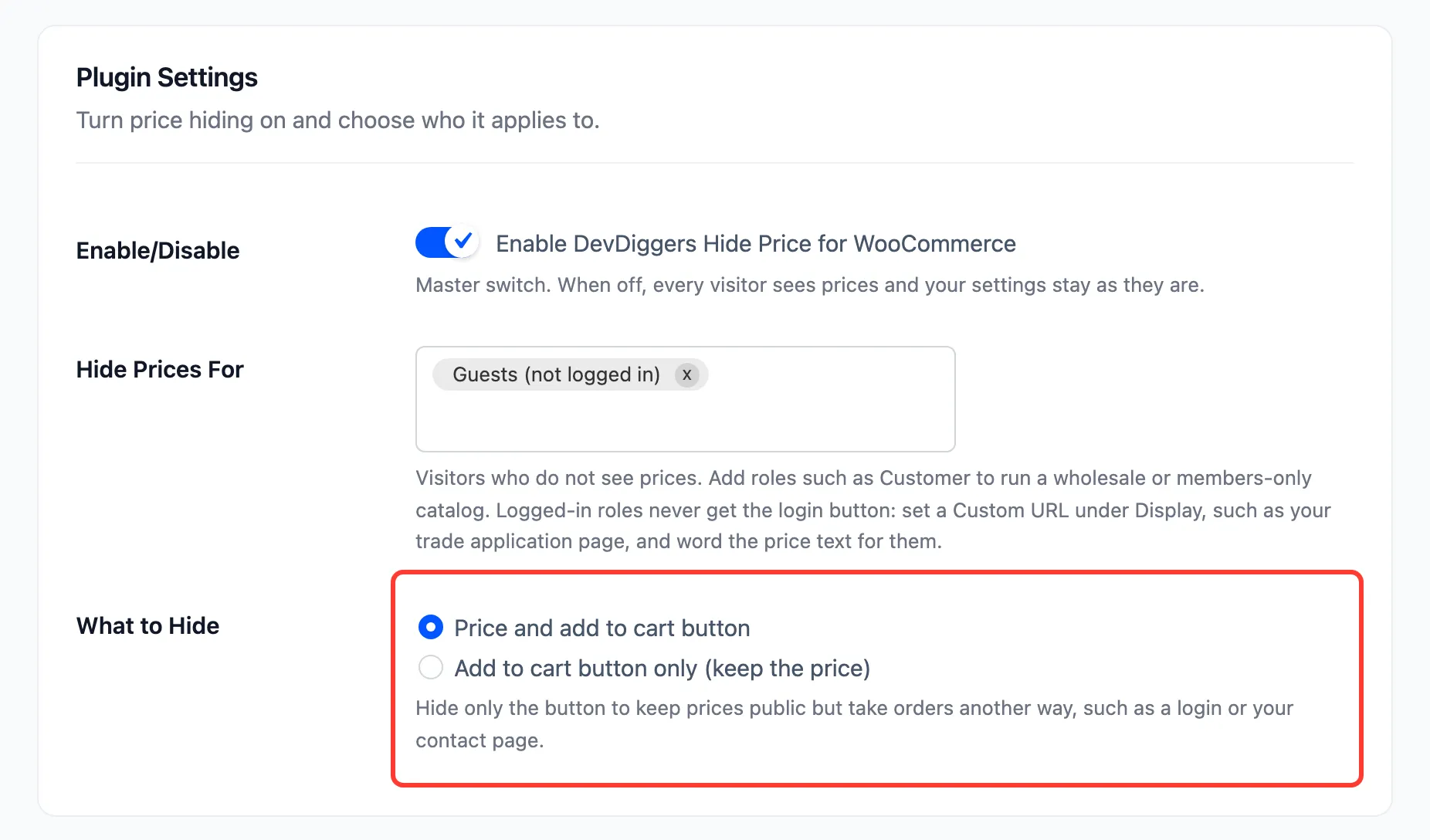
The audience, Hide Prices On (free) or your rules (Pro), and exclusions decide which products this applies to, the same as when prices are hidden.
Step 2: Choose the replacement button
Section titled “Step 2: Choose the replacement button”Go to Configuration → Display and pick the Button Action:
- Login to see the price: the usual choice. Visitors log in, then buy.
- Go to a custom URL: a contact form, a booking page or a trade application.
- No button: nothing in place of the button, for a catalog that does not sell online.
Pro adds Request a quote. Hidden Price Text is not shown in this mode, because the price is.
Step 3: Check as a guest
Section titled “Step 3: Check as a guest”Open a protected product in a private window. The price shows as usual, and the login button sits where Add to cart was.
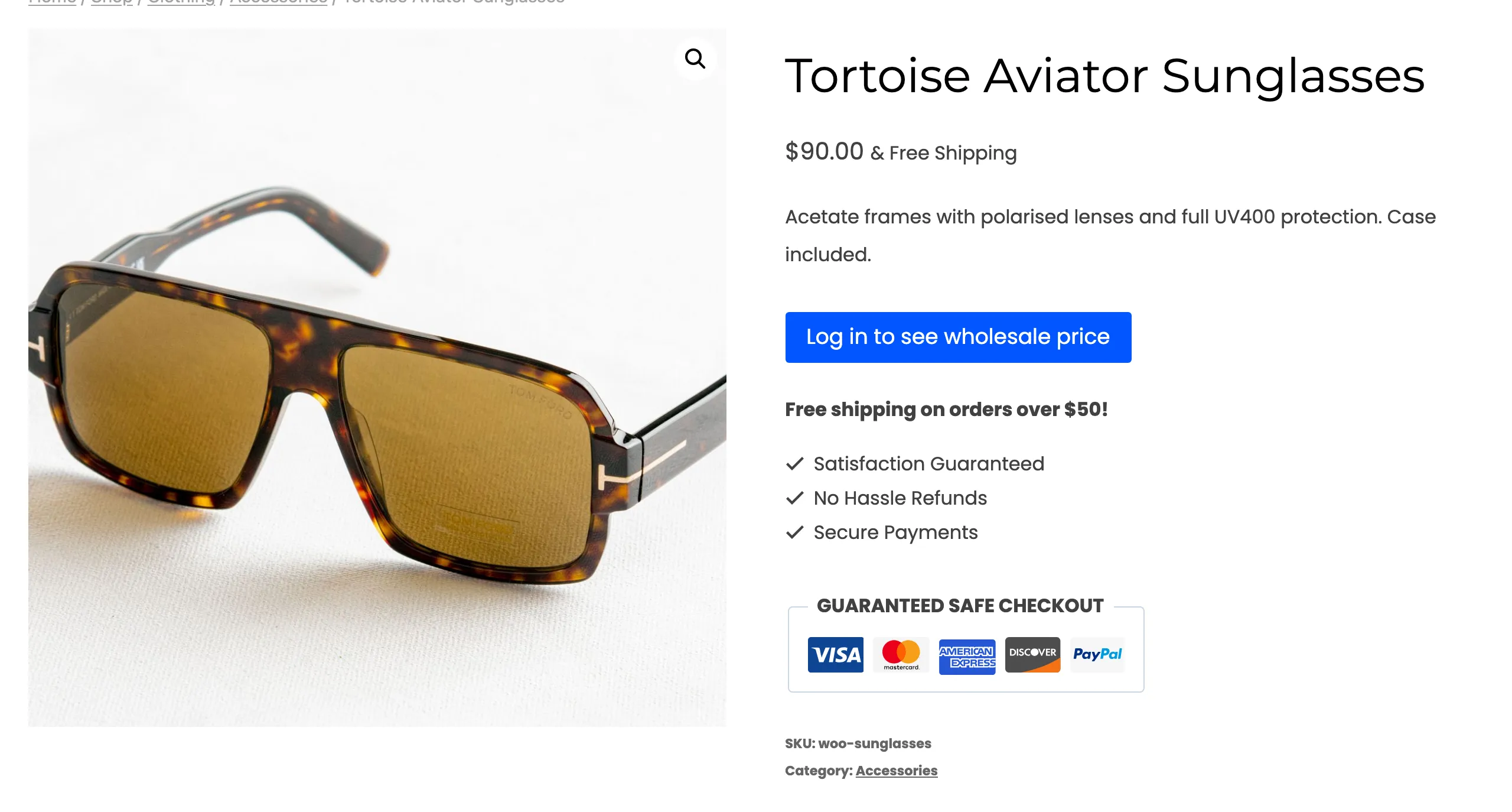
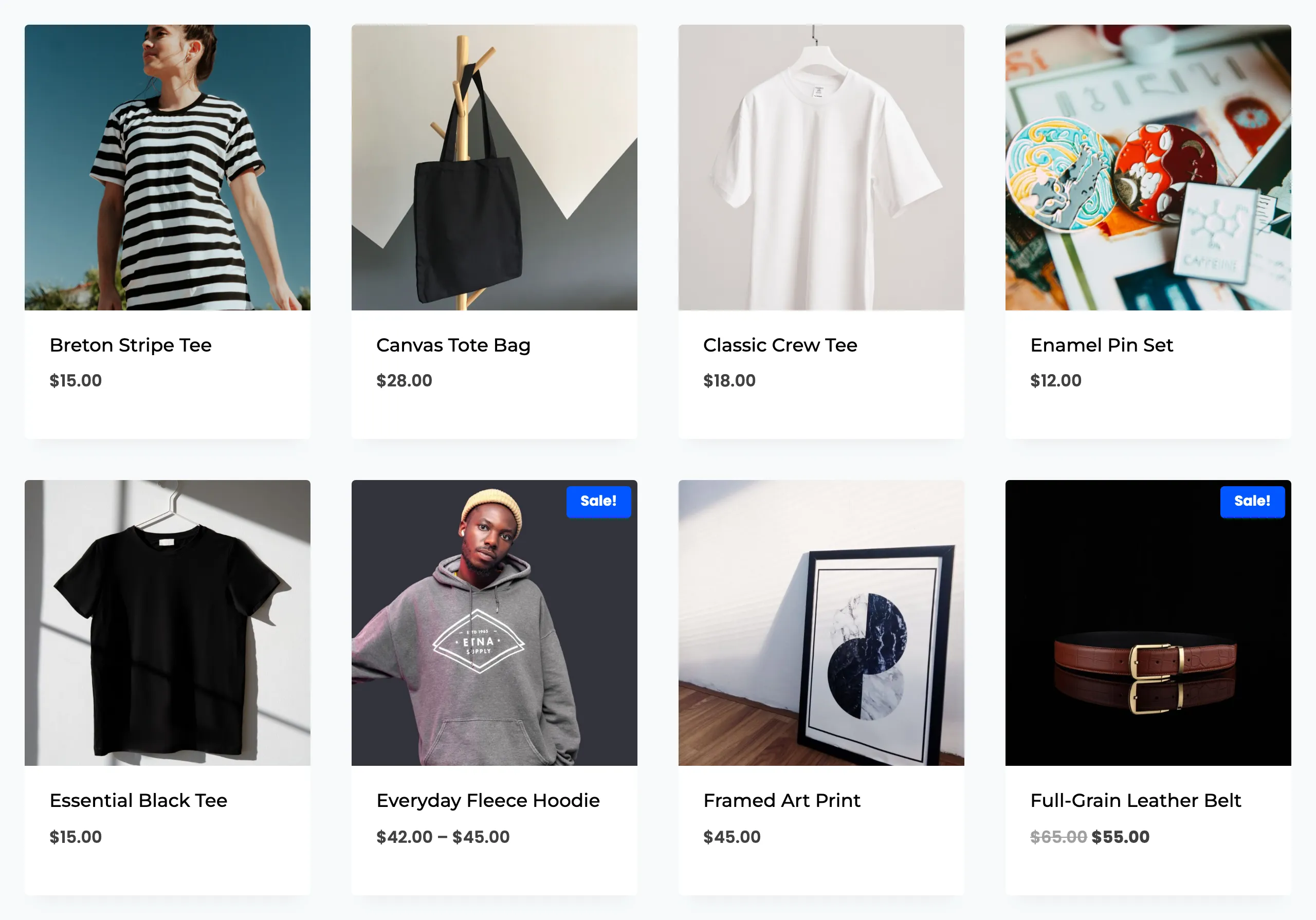
The shop does the same on every protected product.
Things to know
Section titled “Things to know”- Buying is still blocked. With Block Purchases on, a direct
?add-to-cart=link or the block cart cannot add a protected product, even though its price is public. - Prices stay in search results and blocks. Search Results and Blocks and Store API only act when the price is hidden, so in this mode the price stays in the schema data and the Store API. That is what you want when prices are public.
- Signed-in visitors in the audience get a Learn more button to the Display tab’s Custom URL instead of a login button.
- It applies to the whole store’s setting. In Pro, the choice is on the General tab, not per rule, so every rule follows it.