

How to Hide Prices Above a Set Price
A common setup: small items keep their price so guests can buy on impulse, and anything that costs more needs an account. The demo store draws the line at $20.
Step 1: Add a rule with a Price condition
Section titled “Step 1: Add a rule with a Price condition”Go to Rules → Add New. Name it “Trade catalog: $20 and over”. Click + Add Condition and choose:
- Type: Price
- Operator: is at least
- Value: 20
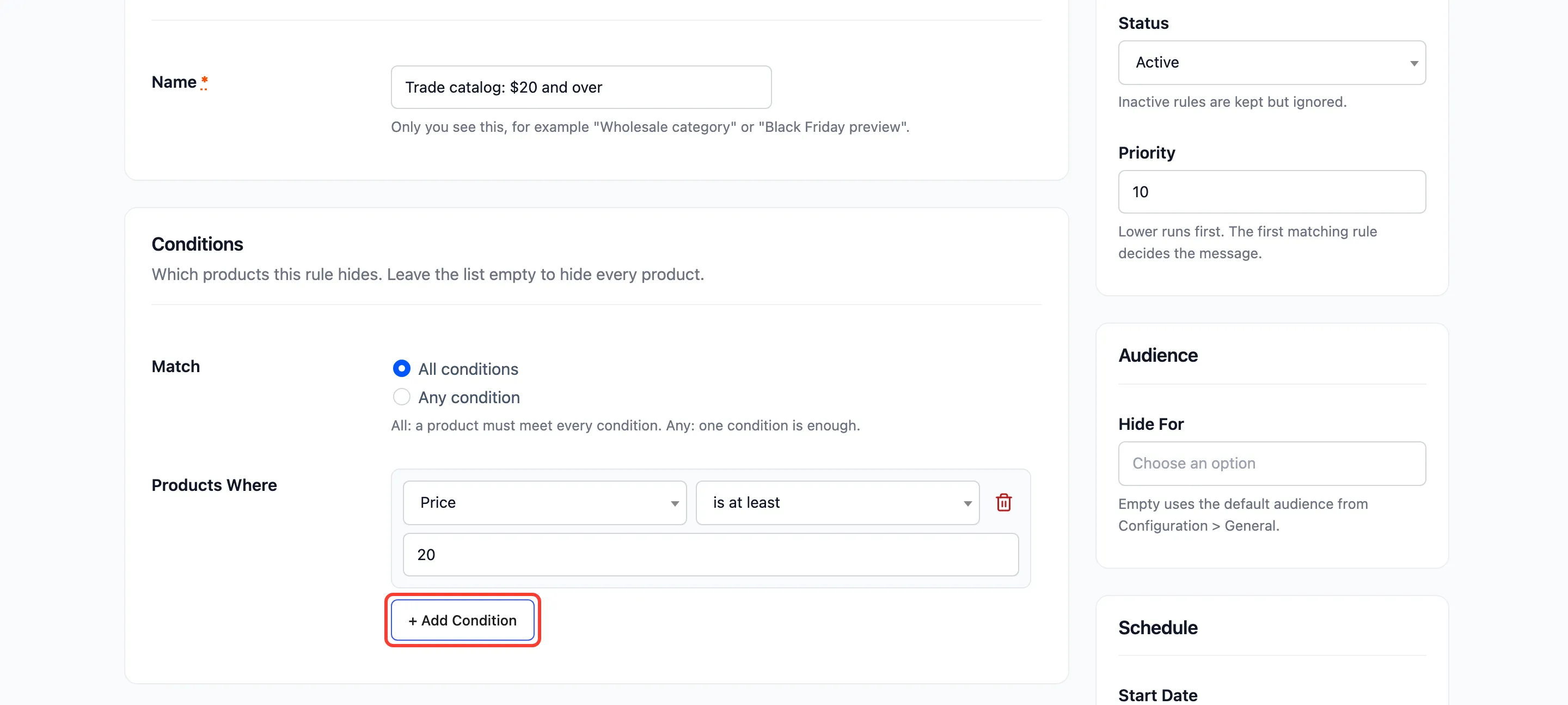
“At least” includes the number itself, so a $20 product is hidden. To hide only what is cheaper, use is at most instead.
The price compared is the one the customer pays today. A product on sale is compared at its sale price, so it can drop below the line during a sale and show its price, then hide it again when the sale ends.
Step 2: Leave the display to the defaults
Section titled “Step 2: Leave the display to the defaults”Leave What Visitors See empty. The Display tab’s message and login button are used.
Step 3: Give it a broad priority
Section titled “Step 3: Give it a broad priority”Set Priority to 10 or higher. A price rule catches products from every category, so narrower rules (a quote button for accessories, a launch message for hoodies) need lower numbers to win for their products. Click Create Rule.
Step 4: Check both sides of the threshold
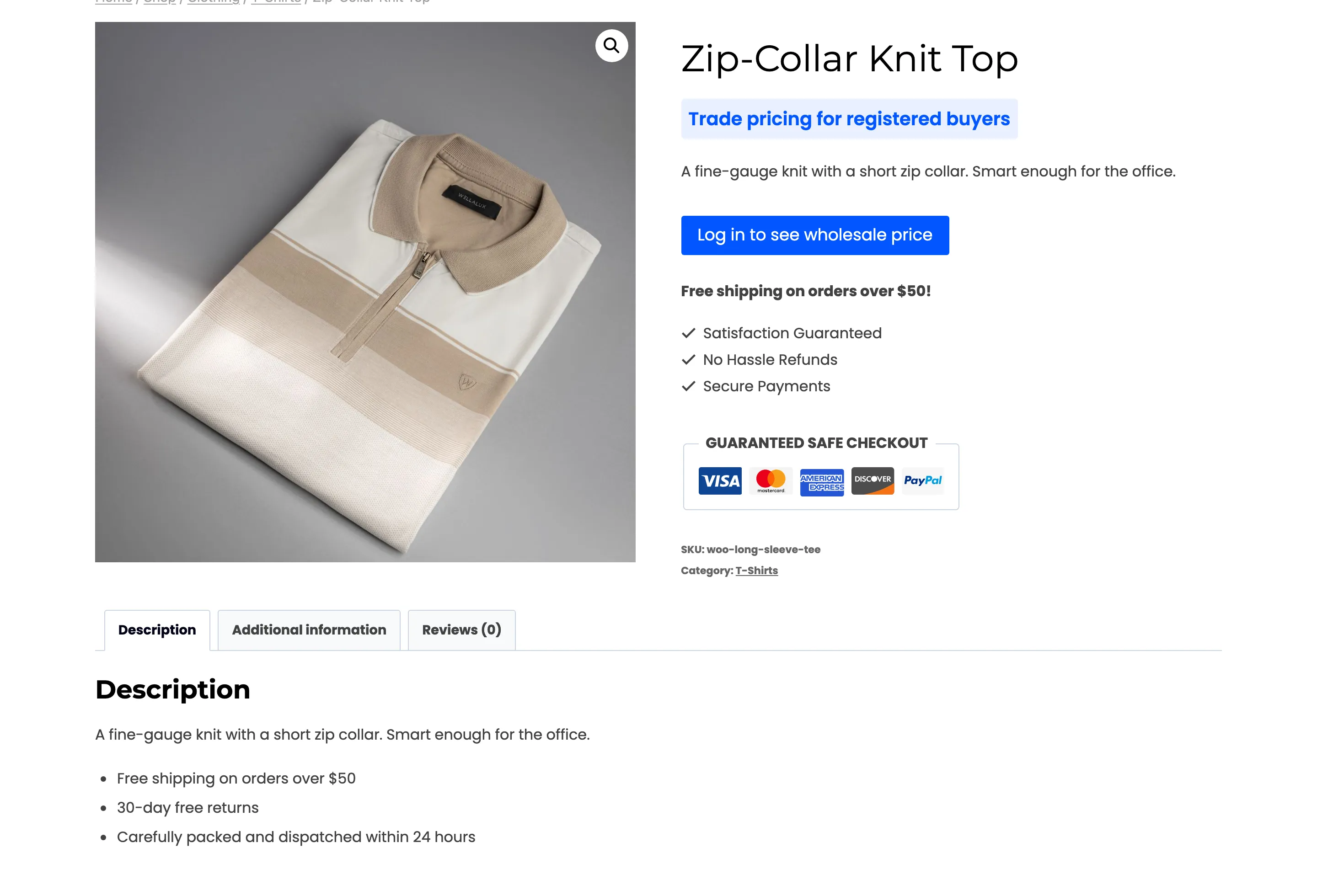
Section titled “Step 4: Check both sides of the threshold”As a guest, the $25 Zip-Collar Knit Top is hidden:
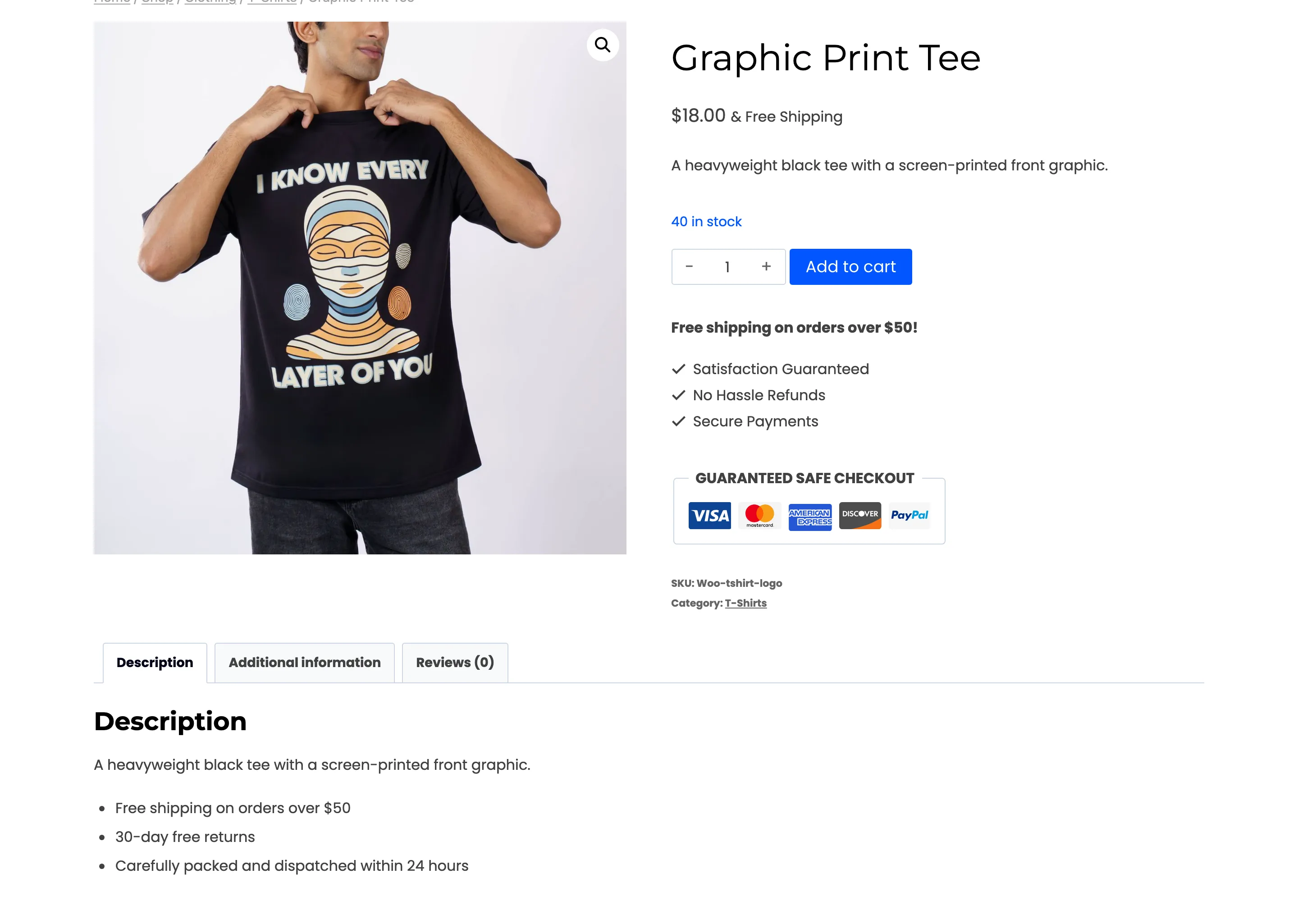
and the $18 Graphic Print Tee is not:
Variable products
Section titled “Variable products”Each variation is compared at its own price. On Organic V-Neck Tee, Red costs $20 and is hidden, while Blue costs $15 and shows its price.
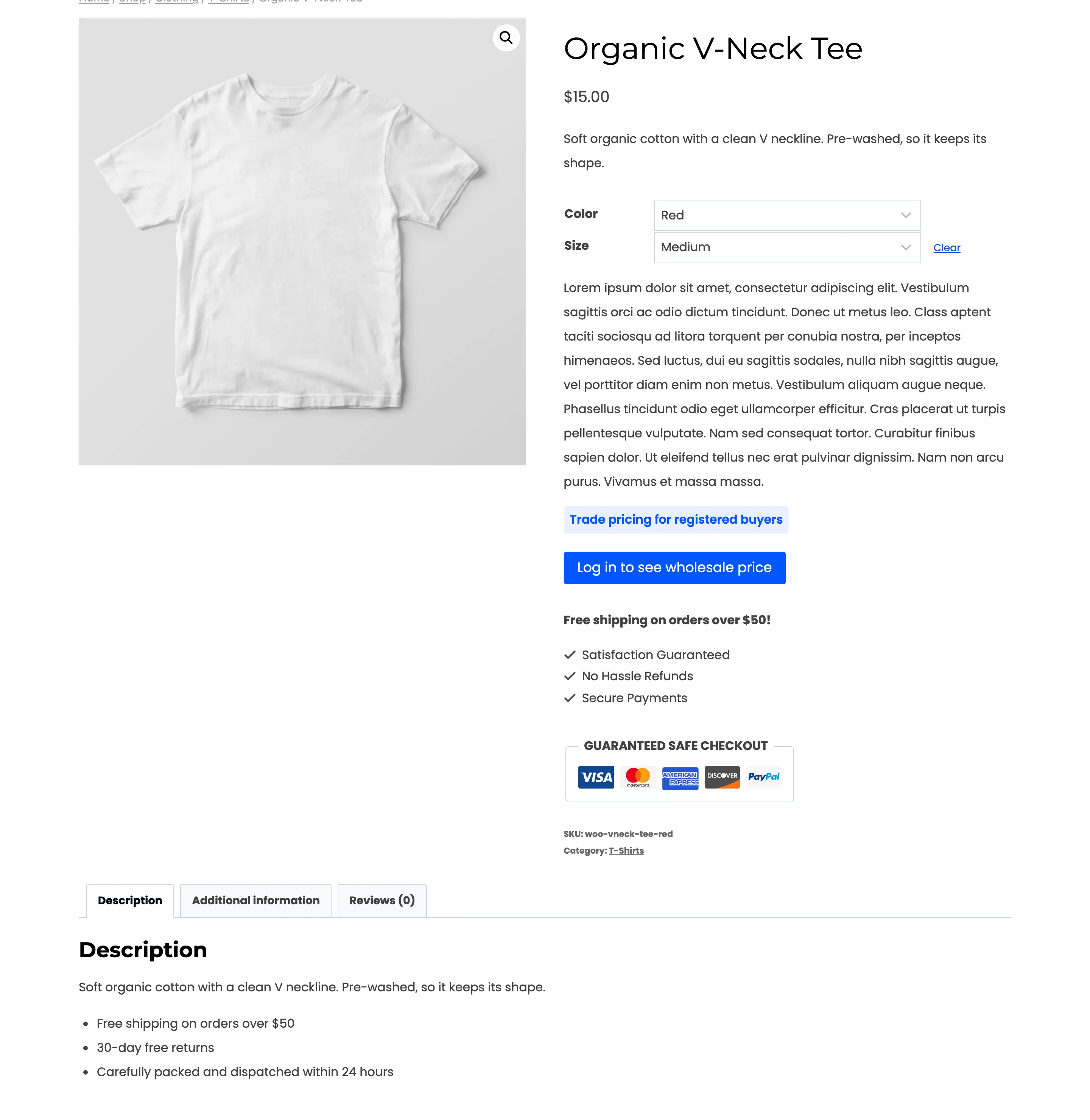
The product’s own price is its cheapest variation, $15, so the product itself does not match. Its range is rebuilt from the open variations, so the shop and the product page show “$15.00”, and a guest can still buy Blue.
To hide the whole product instead, add it to a rule of its own: a Product condition naming it, or Product type is any of Variable product to cover every variable product. How to Hide Prices on Variations covers both.
Stock quantity works the same way
Section titled “Stock quantity works the same way”Stock quantity is at most 5 hides the price of nearly sold-out items. It only matches products with Manage stock? ticked. A product that does not track stock has no quantity to compare and never matches.