

How to Reply to Quote Requests
The plugin collects quote requests. The answer itself is an ordinary email from you. This tutorial keeps the two in step.
Step 1: Open the New tab
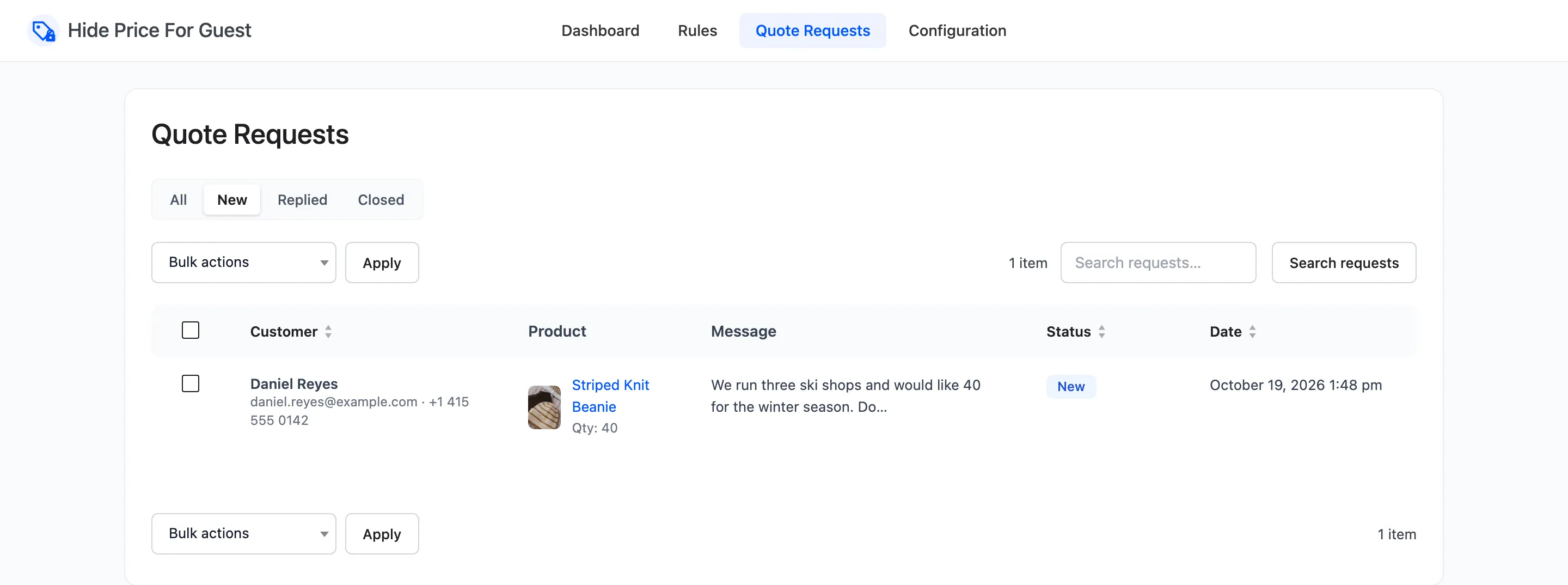
Section titled “Step 1: Open the New tab”Go to Hide Price For Guest → Quote Requests and click New. These are the requests nobody has answered.
Step 2: Read the request
Section titled “Step 2: Read the request”Hover the request and click View.
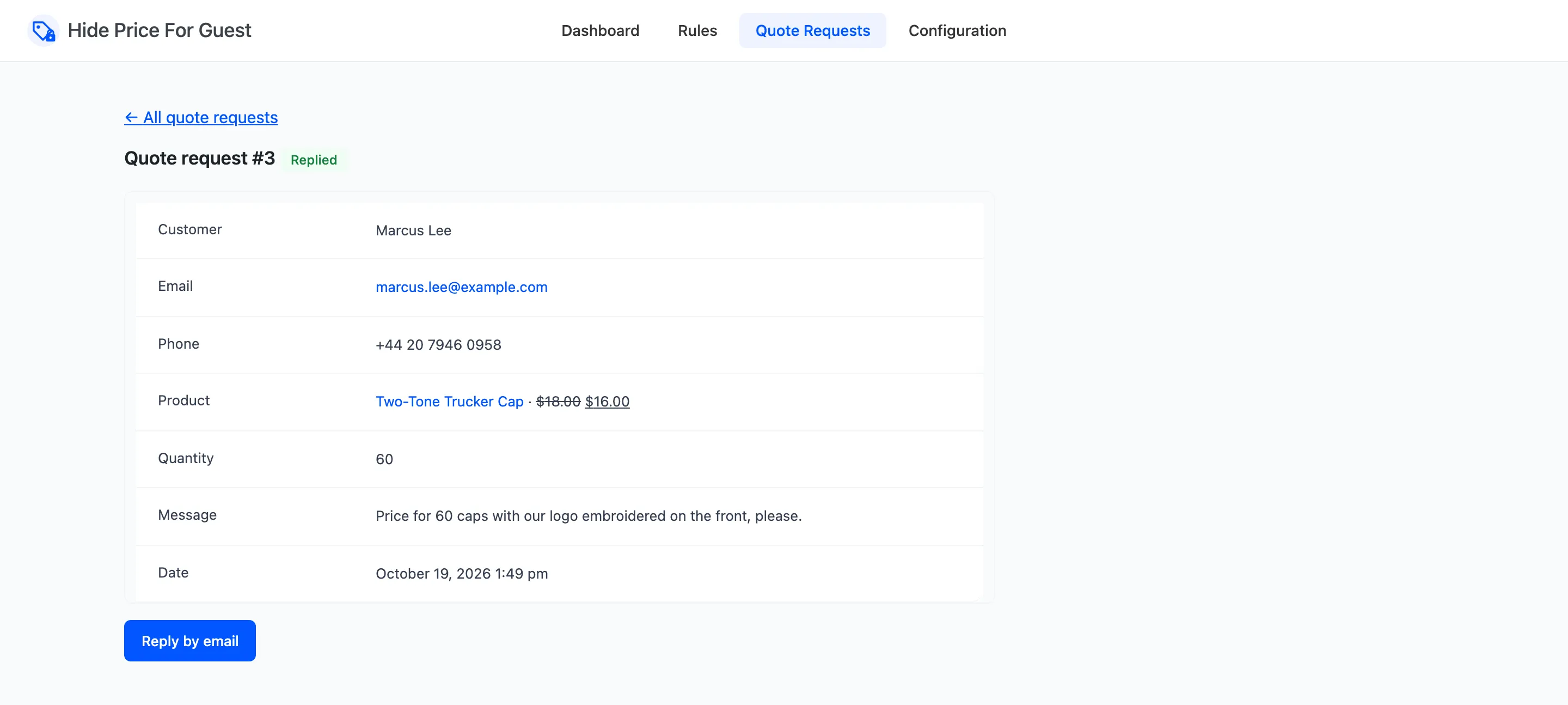
The product line shows today’s price, which is the starting point for your quote. The quantity and the message say what the customer wants.
Step 3: Reply by email
Section titled “Step 3: Reply by email”Click Reply by email. Your email app opens with the customer’s address and a subject naming the product. Write your price and send it.
You can also reply from the notification email in your inbox: its Reply-To is the customer.
Step 4: Mark it replied
Section titled “Step 4: Mark it replied”Back on the request, click Mark as replied. The plugin cannot see email you send from elsewhere, so this is always a manual step. The request moves to the Replied tab.
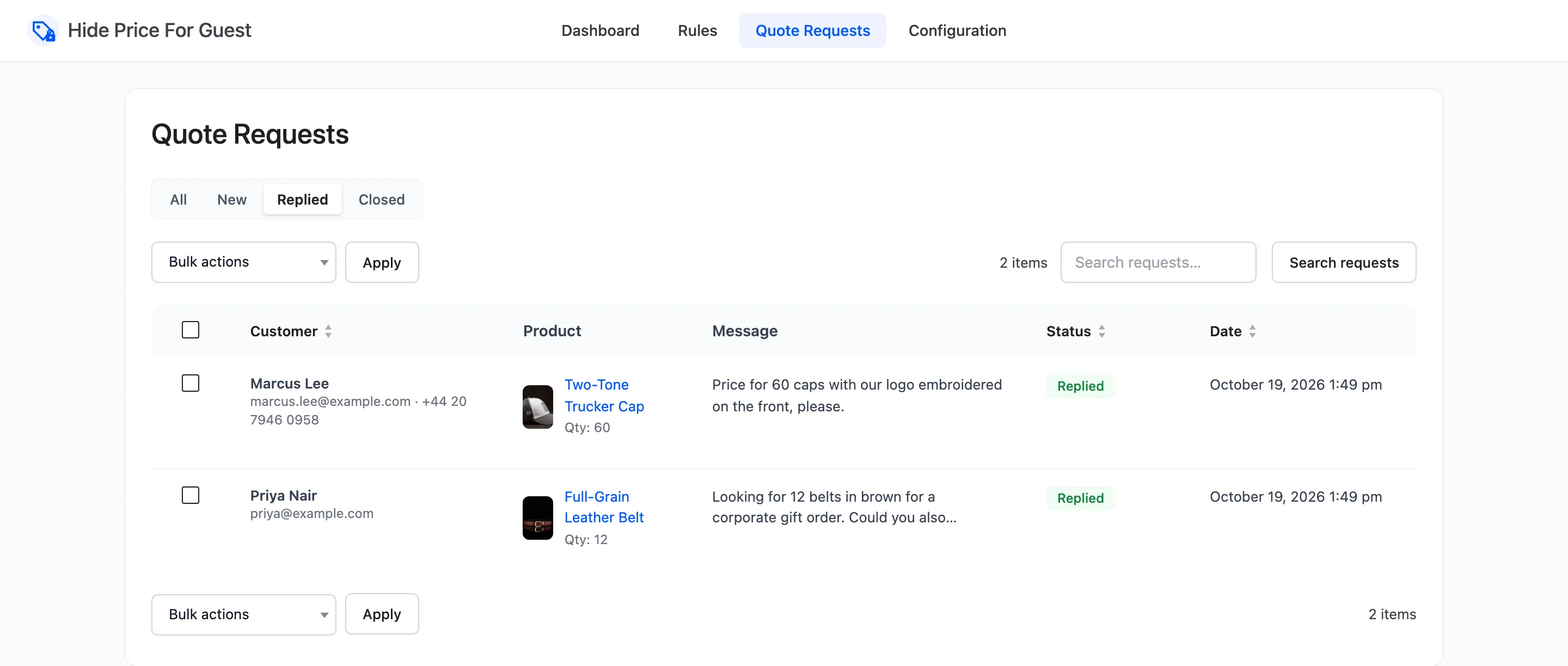
Changing a status sends nothing to the customer.
Step 5: Close finished requests
Section titled “Step 5: Close finished requests”When the customer orders, or says no, close the request: hover it and click Close. To close several, tick them, choose Mark as closed under Bulk actions and click Apply.
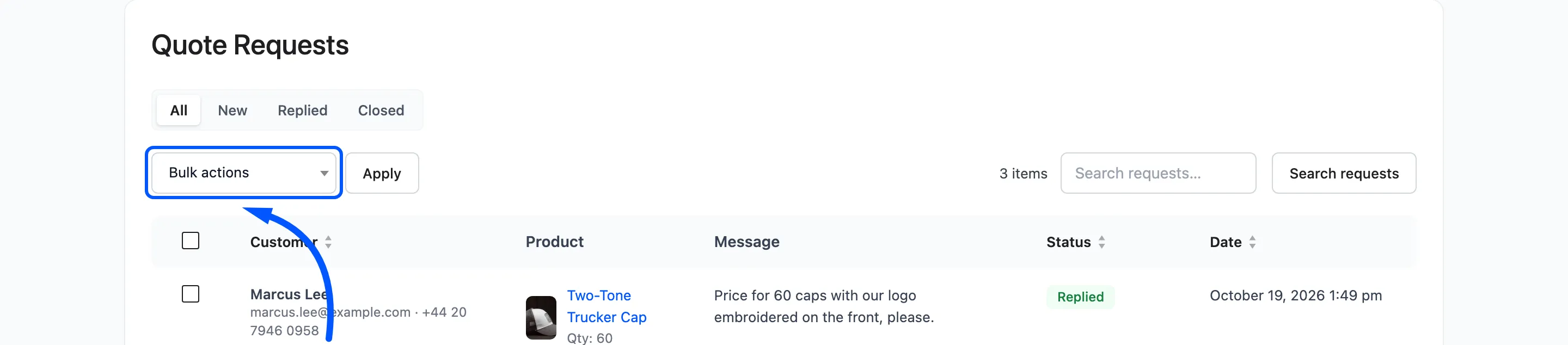
Delete removes a request for good. Close it instead if you might want the record later. Closed requests also keep the dashboard’s Quote Requests by Status chart honest.
Finding an old request
Section titled “Finding an old request”Search requests looks through names, email addresses and messages. Click the Customer, Status or Date heading to sort.