

Installing and Activating Hide Price for Guest
The plugin installs like any WooCommerce extension. Two steps are easy to miss: the license, and switching price hiding on. Until both are done, every price stays visible.
Before you start
Section titled “Before you start”WooCommerce must be active first. Without it the plugin shows a notice and does nothing.
- WordPress 6.5 or newer.
- WooCommerce 9.0 or newer.
- The zip file from your DevDiggers order.
Install from the zip
Section titled “Install from the zip”-
Go to Plugins → Add New Plugin.

-
Click Upload Plugin at the top of the screen.

-
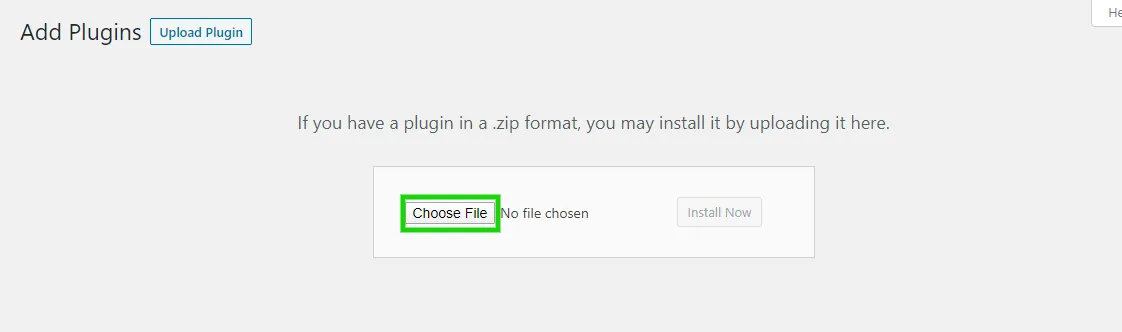
Click Choose File and select the plugin zip.
-
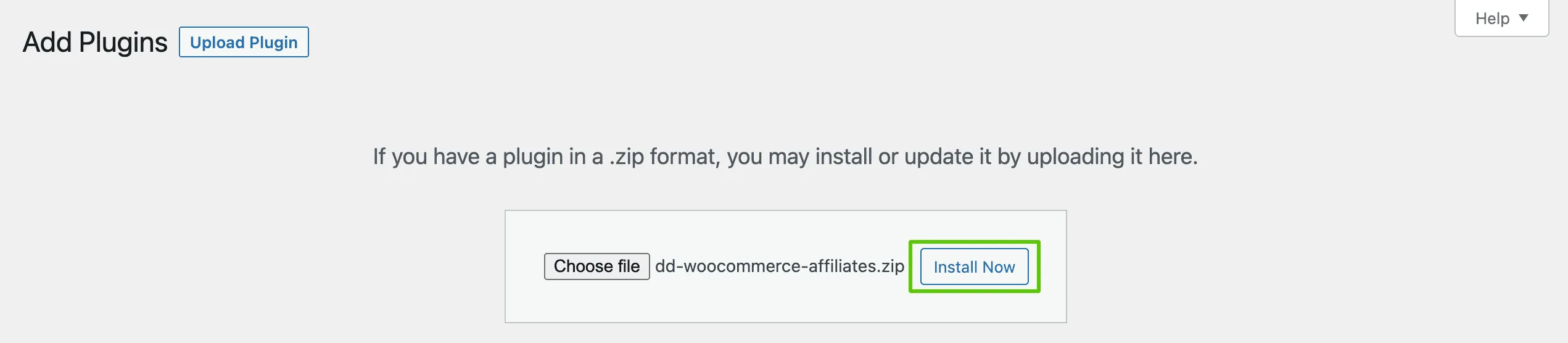
Click Install Now.
-
When the install finishes, click Activate Plugin.

Do not unzip the file first. WordPress expects the zip itself.
What activation sets up
Section titled “What activation sets up”A first activation opens the Setup Wizard. It also creates two tables, one for quote requests and one for the dashboard’s click and login counts.
Activation does not switch price hiding on, and it creates no rule. The wizard does both. If you skip it, tick Enable Hide Price For Guest under Configuration → General and add a rule on the Rules screen yourself.
The settings start from these defaults:
- Prices are hidden from Guests (not logged in), in all countries.
- The message reads “Login to view price” and the button “Login to purchase”. The button opens a login popup.
- Block Purchases, the schema and Store API protection, and click tracking are all on.
Activate your license
Section titled “Activate your license”The wizard’s second step asks for it. You can also go to DevDiggers Plugins → Hide Price For Guest → Configuration → License, enter the purchase code and the email address from your order, and click Activate License.
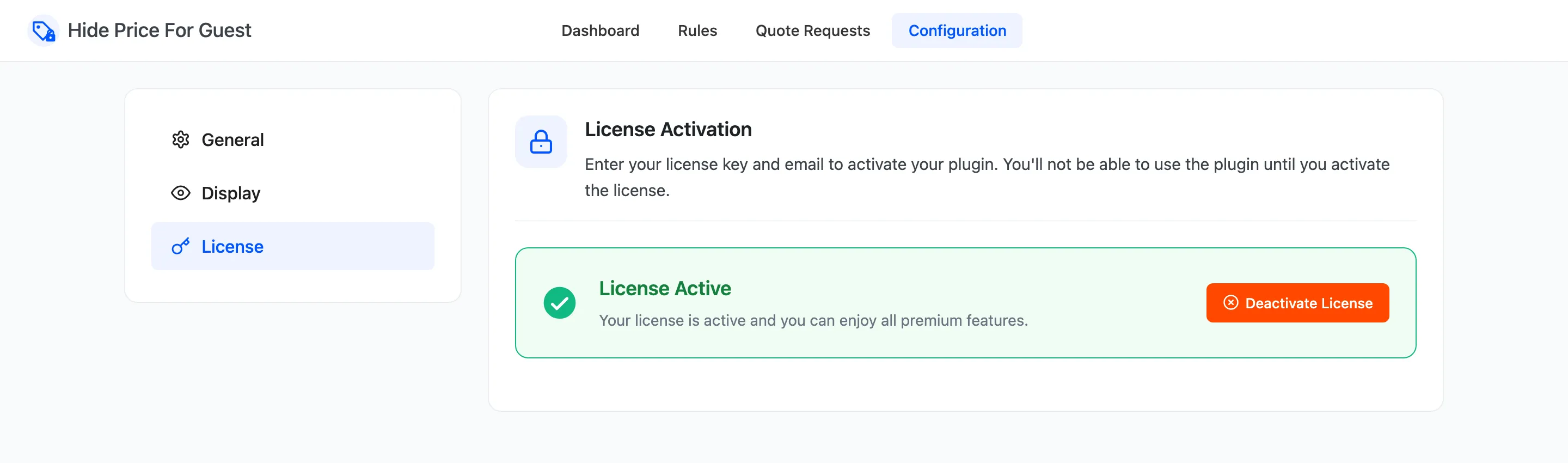
Until the license is active, nothing from the plugin runs on the storefront. Prices show, buttons work, and the admin screens still open as normal. License Activation has the detail.
Updating from version 1
Section titled “Updating from version 1”Version 2 replaced the old settings screen with rules. On the first load after the update, your old product, category, type, price, stock, review, sale, virtual and downloadable settings are turned into one rule named Migrated rules, set to match any condition. An old date range becomes a second rule, Migrated date range. A store that hid prices on every product gets one rule named All products.
Your storefront keeps hiding the same products. Open the Rules screen afterwards to rename the rule or split it up.
Check that it works
Section titled “Check that it works”You are logged in as an administrator, so the store shows you every price. Check as a guest:
- Open a private or incognito window.
- Visit a product that your rule covers.
- Look for your message where the price was, and the replacement button.
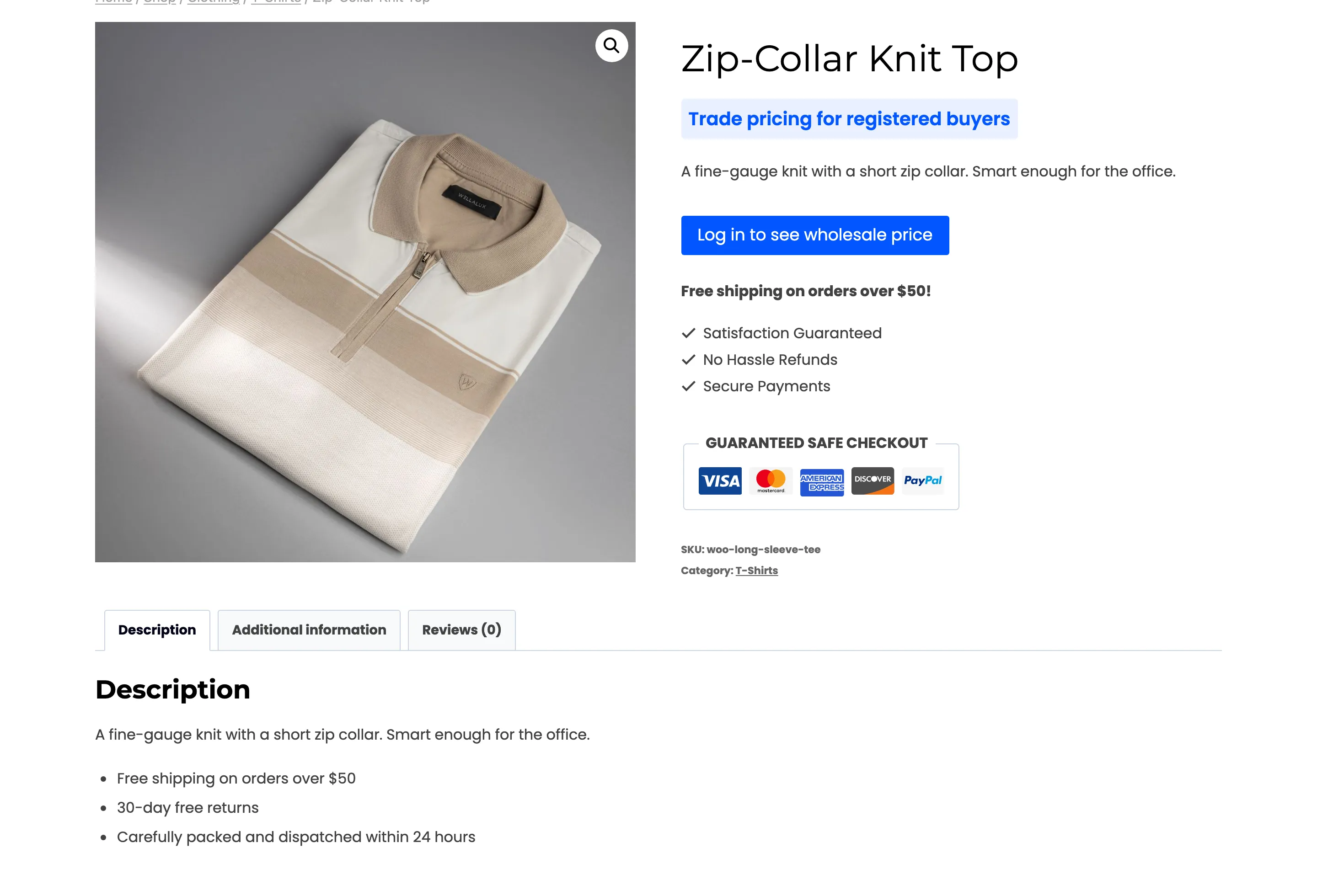
If you still see the price, work through these in order:
- The license reads License Active.
- Enable Hide Price For Guest is ticked under Configuration → General.
- At least one rule is Active, and today is inside its dates.
- The product is not excluded under Configuration → General, and its own Guest price visibility is not Always show price.
- Apply In is not limiting hiding to countries you are not in.
- A caching plugin or your host is not serving an old copy of the page.