

How to Let Guests Log In From the Product Page
The login button is the default action, and for most stores the right one: a returning buyer is two fields away from the price.
Step 1: Set the login action
Section titled “Step 1: Set the login action”Go to Configuration → Display. Set Button Action to Login to see the price and write the Button Text. The demo uses “Log in to see wholesale price”.
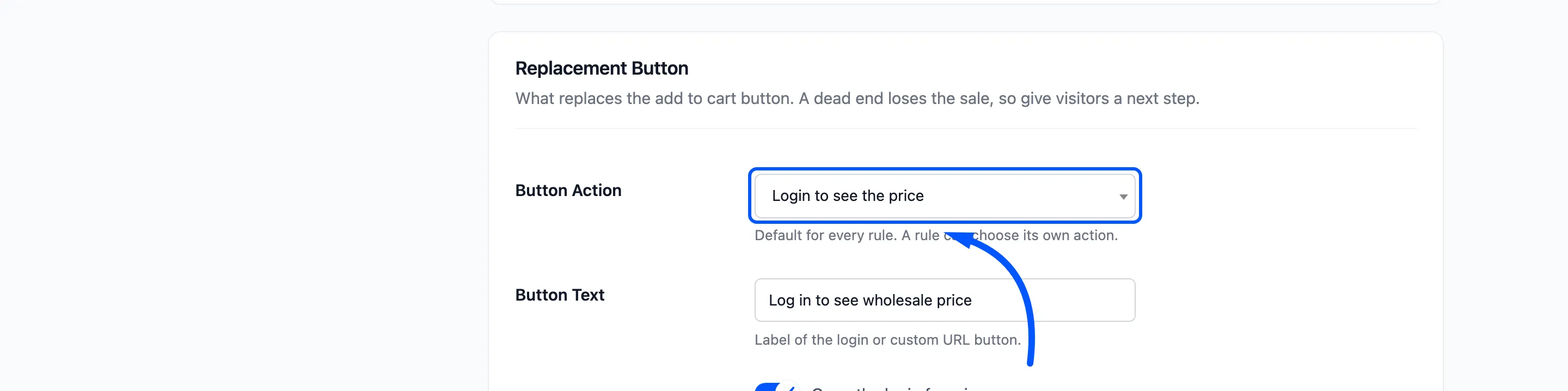
A rule uses this unless it sets its own action.
Step 2: Keep the popup on
Section titled “Step 2: Keep the popup on”Login Popup (“Open the login form in a popup”) is on by default. The button opens WooCommerce’s login form over the product.
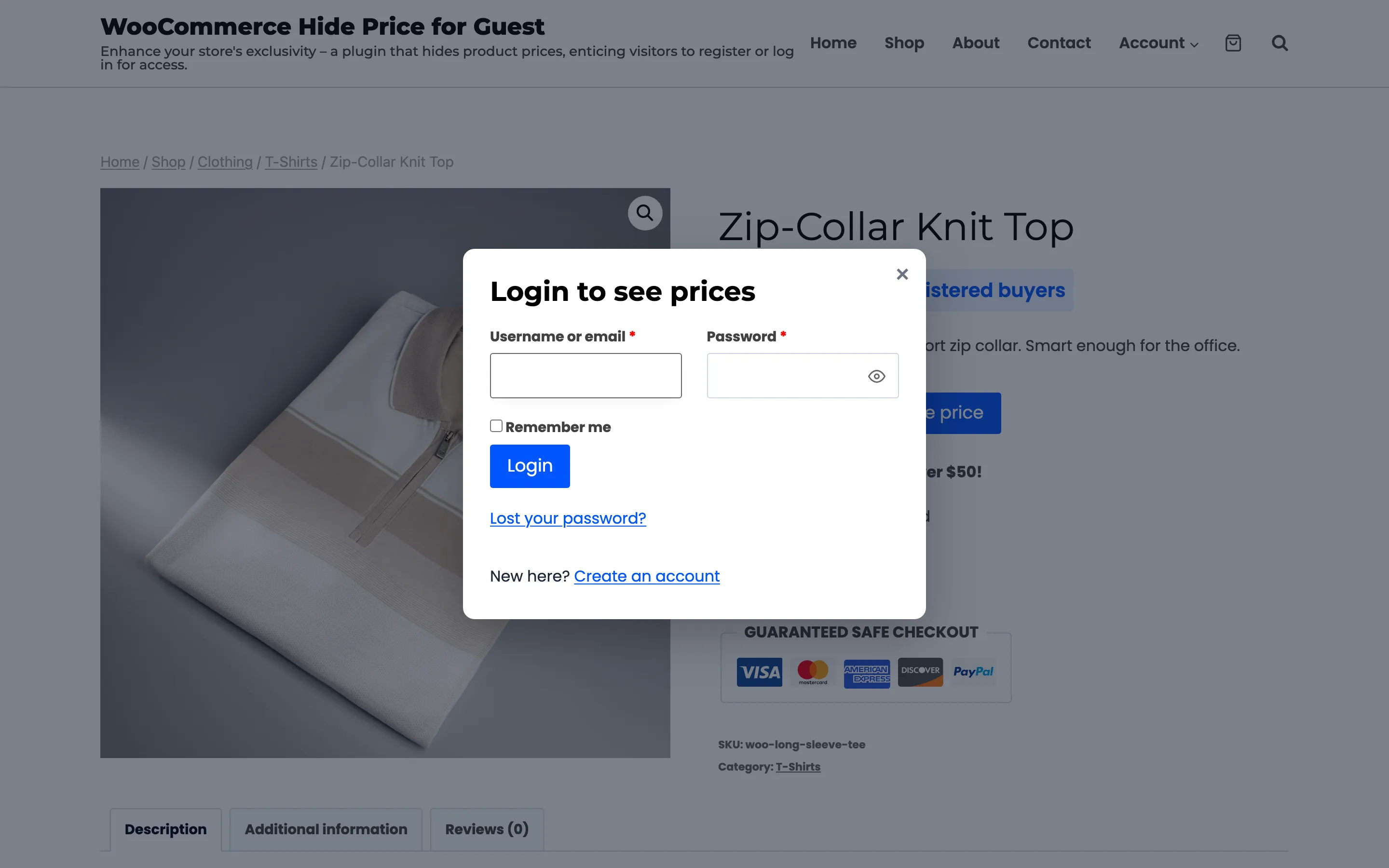
With it off, the button opens the My Account page. The visitor still comes back to the product after logging in, but leaves the page to do it.
Step 3: Allow account creation if you want signups
Section titled “Step 3: Allow account creation if you want signups”The popup is for logging in. If WooCommerce allows customers to create an account on the My Account page (WooCommerce → Settings → Accounts and Privacy), the popup adds New here? Create an account, which opens My Account. New accounts made there are counted as signups on the dashboard.
Step 4: Test it as a guest
Section titled “Step 4: Test it as a guest”In a private window, open a hidden product and click the button. Log in with a customer account.
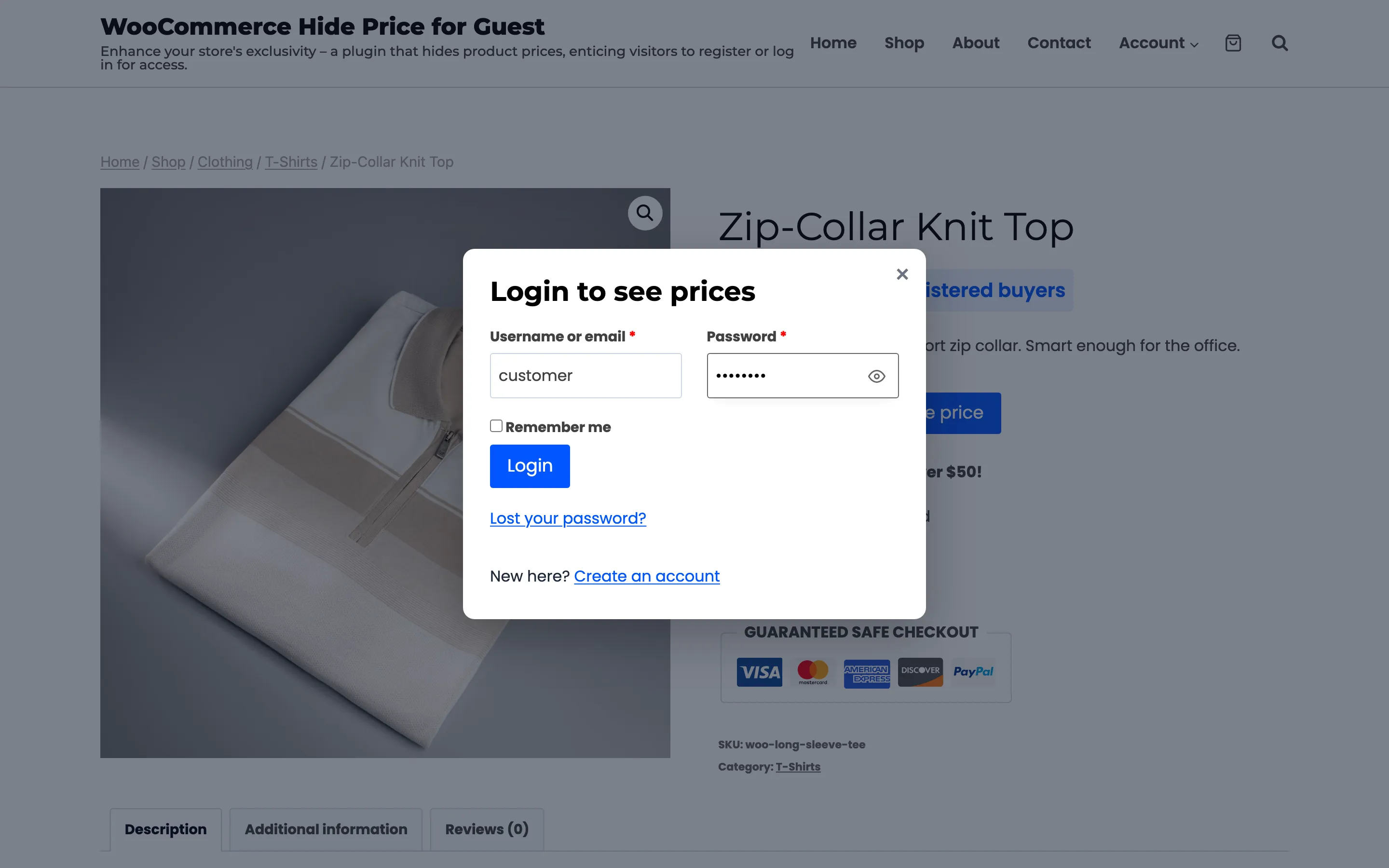
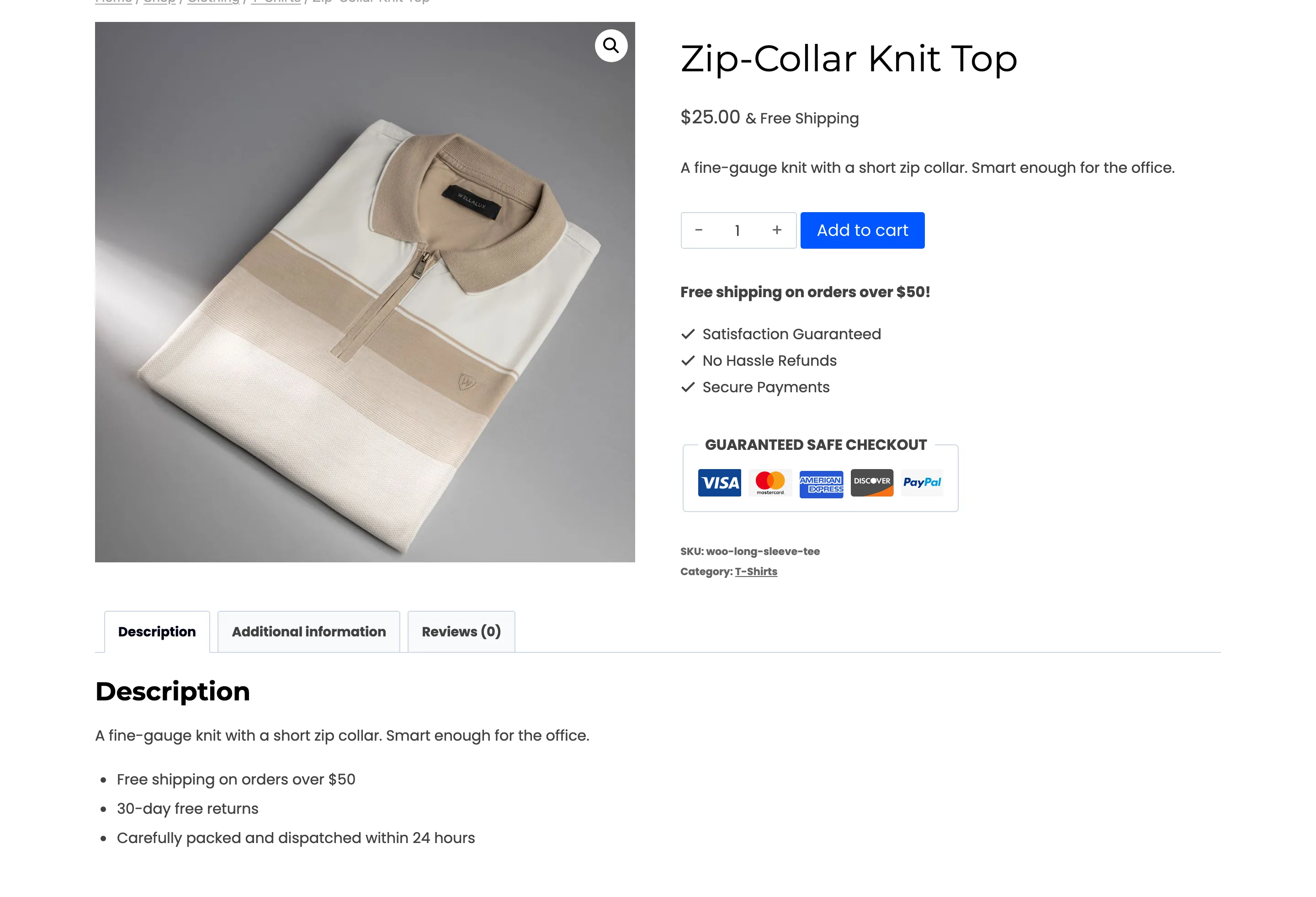
You land back on the same product. A customer is not in the default audience, so the price and Add to cart are there.
Things to know
Section titled “Things to know”- The return trip stays on your site. The page a visitor returns to must be on your own domain. A link that tries to send them elsewhere after login goes to the usual My Account page instead.
- Signed-in visitors never see a login button. If a rule hides prices from a role, people with that role see the message and no button. Give that rule a custom URL action instead.
- A login counts on the dashboard when it follows a click on the button in the same browser.