

The Rules Screen
A rule decides which products hide their price, from whom, when, and what the visitor sees instead. You can have as many as you need. Open DevDiggers Plugins → Hide Price For Guest → Rules.
The list
Section titled “The list”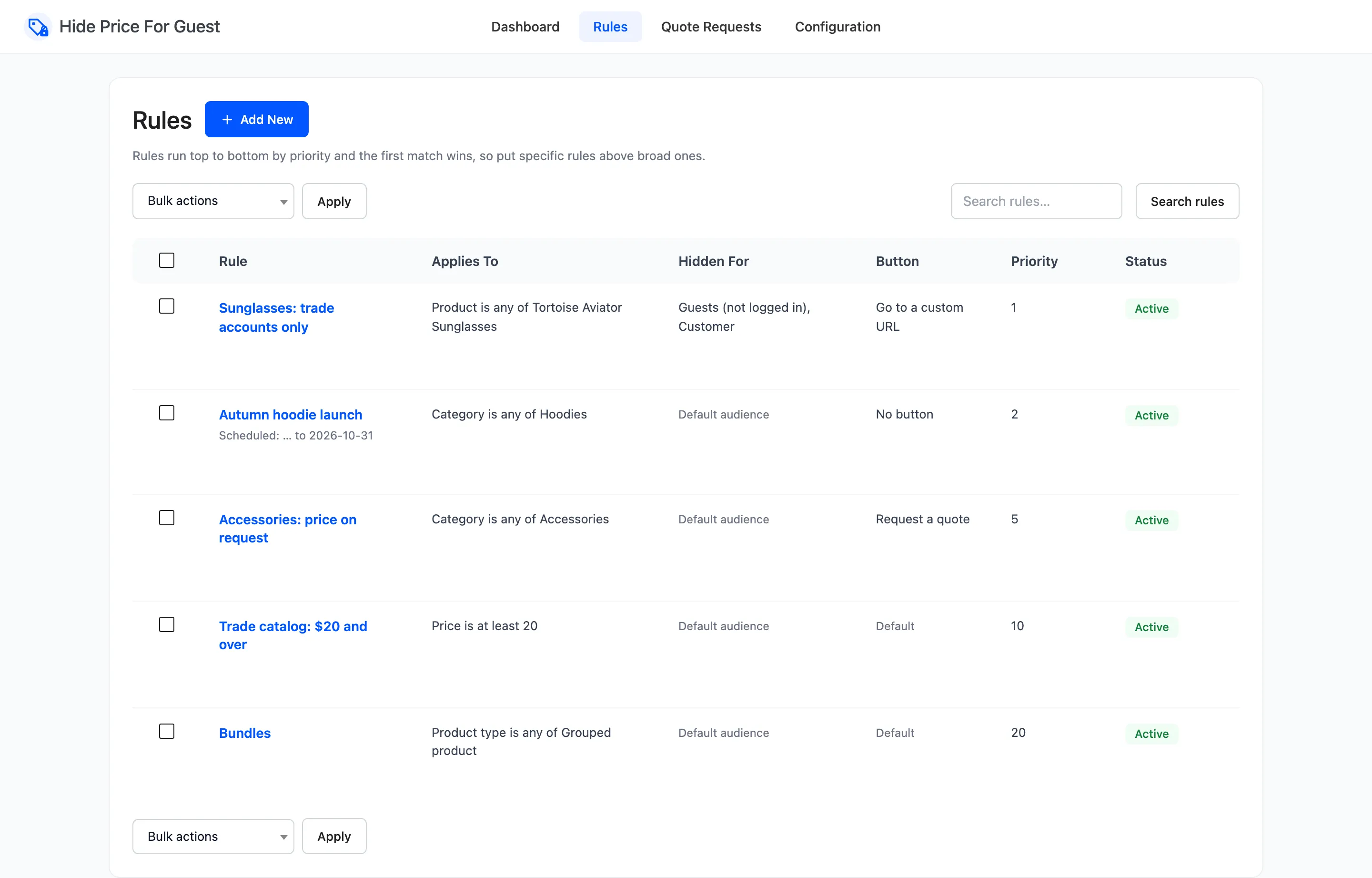
Rules are listed in the order they run: by Priority, lowest first.
- Rule: The name. A rule with dates shows them underneath, for example “Scheduled: … to 2026-10-31”.
- Applies To: The conditions in words, such as “Category is any of Accessories”. All products for a rule with no conditions.
- Hidden For: The rule’s own audience, or Default audience when it uses the one on the General tab.
- Button: The rule’s action, or Default when it uses the one on the Display tab.
- Priority and Status (Active or Inactive).
Hover a row for its actions:
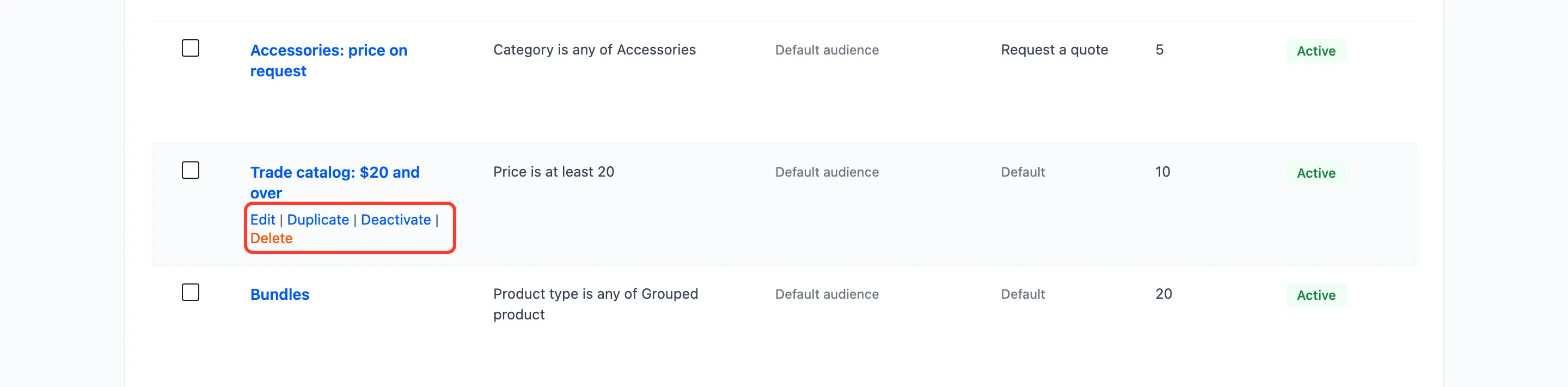
- Edit opens the form.
- Duplicate makes a copy named “(copy)”, saved as Inactive so it changes nothing until you edit and activate it.
- Deactivate or Activate switches the rule off or on. An inactive rule is kept but ignored.
- Delete removes the rule. There is no undo.
Tick several rows and use Bulk actions to activate, deactivate or delete them together. Search rules finds rules by name.
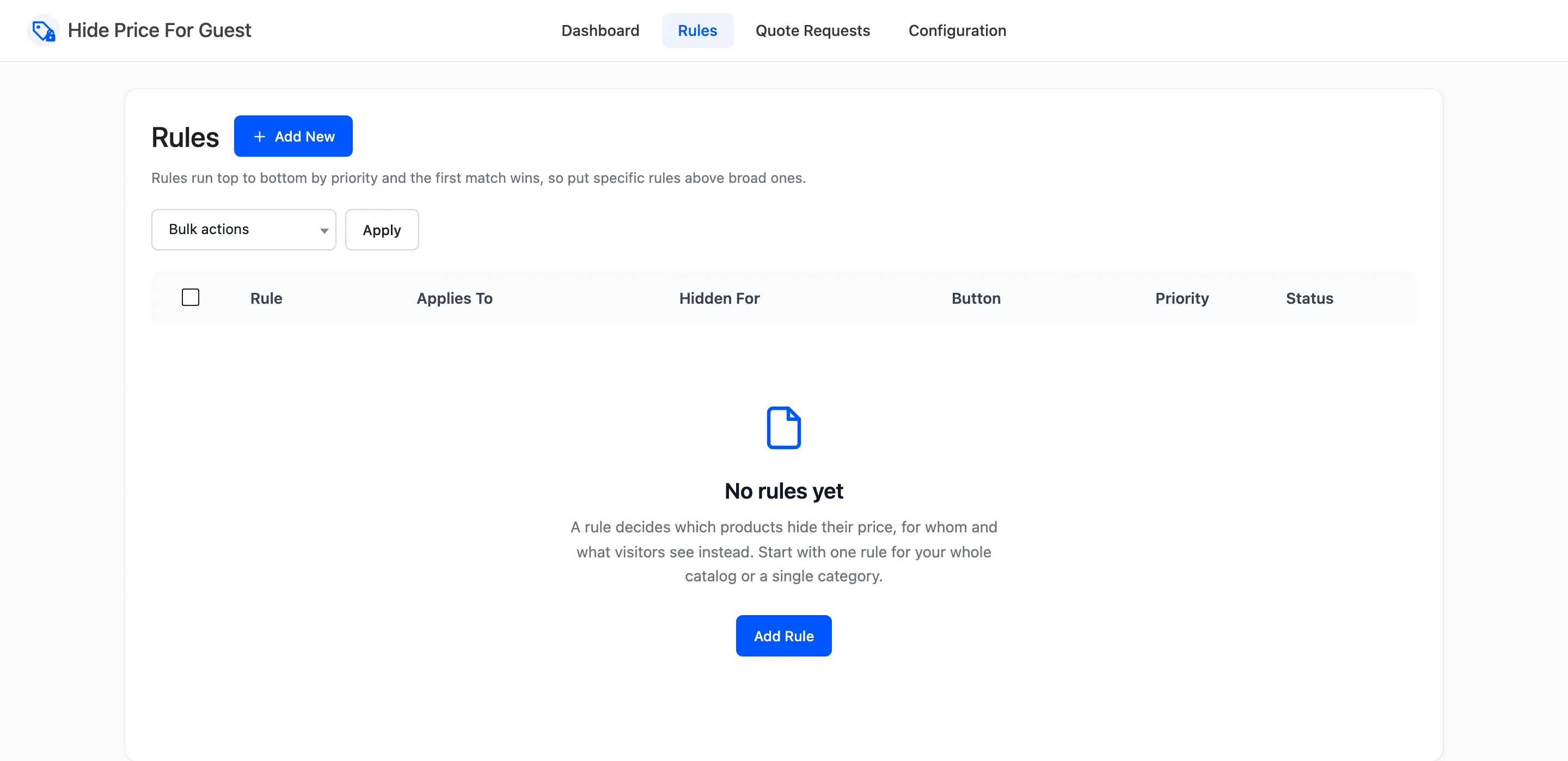
With no rules yet, the screen says so and offers Add Rule.
The Add Rule form
Section titled “The Add Rule form”Click Add New. The form has a main column and a side column.
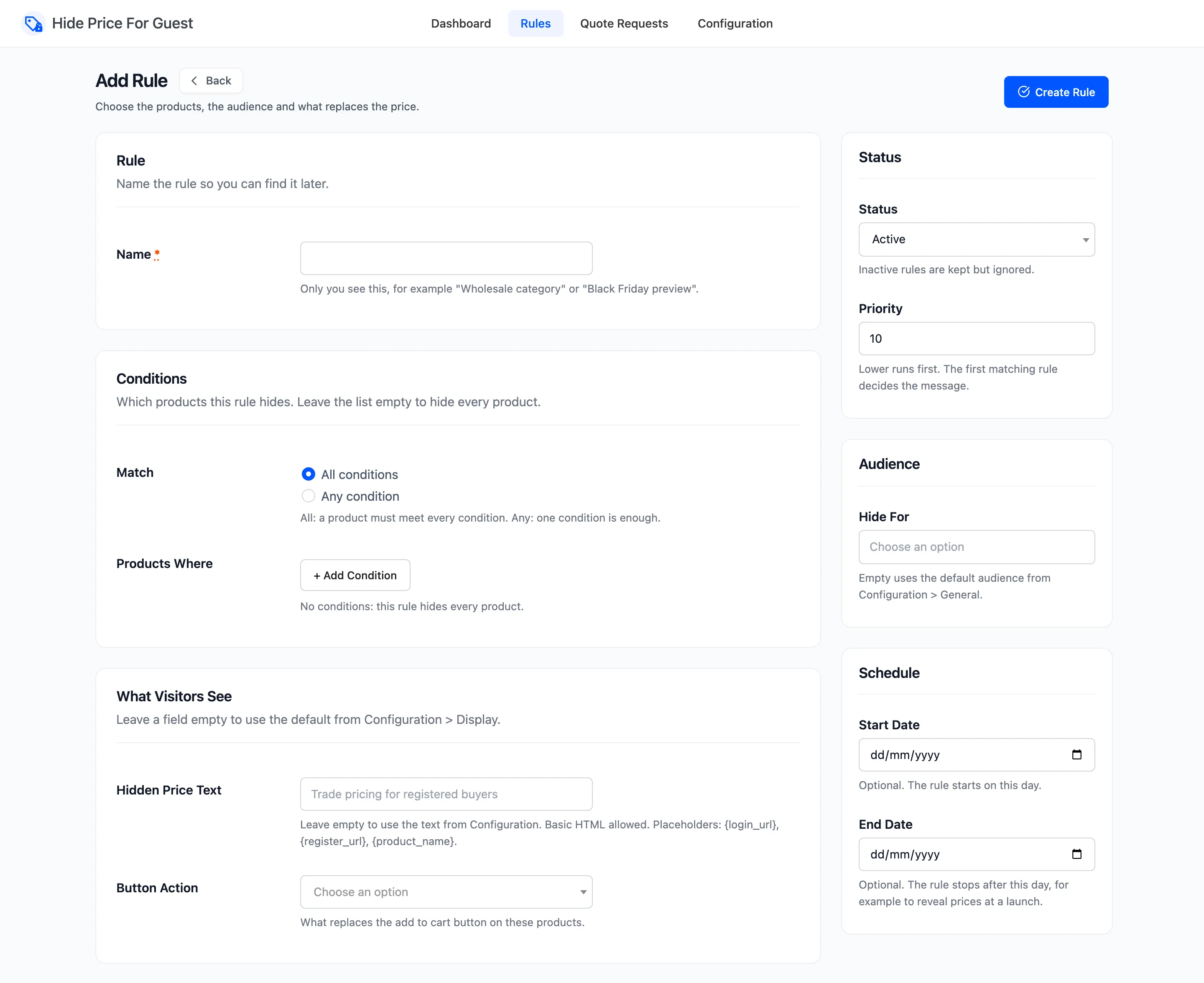
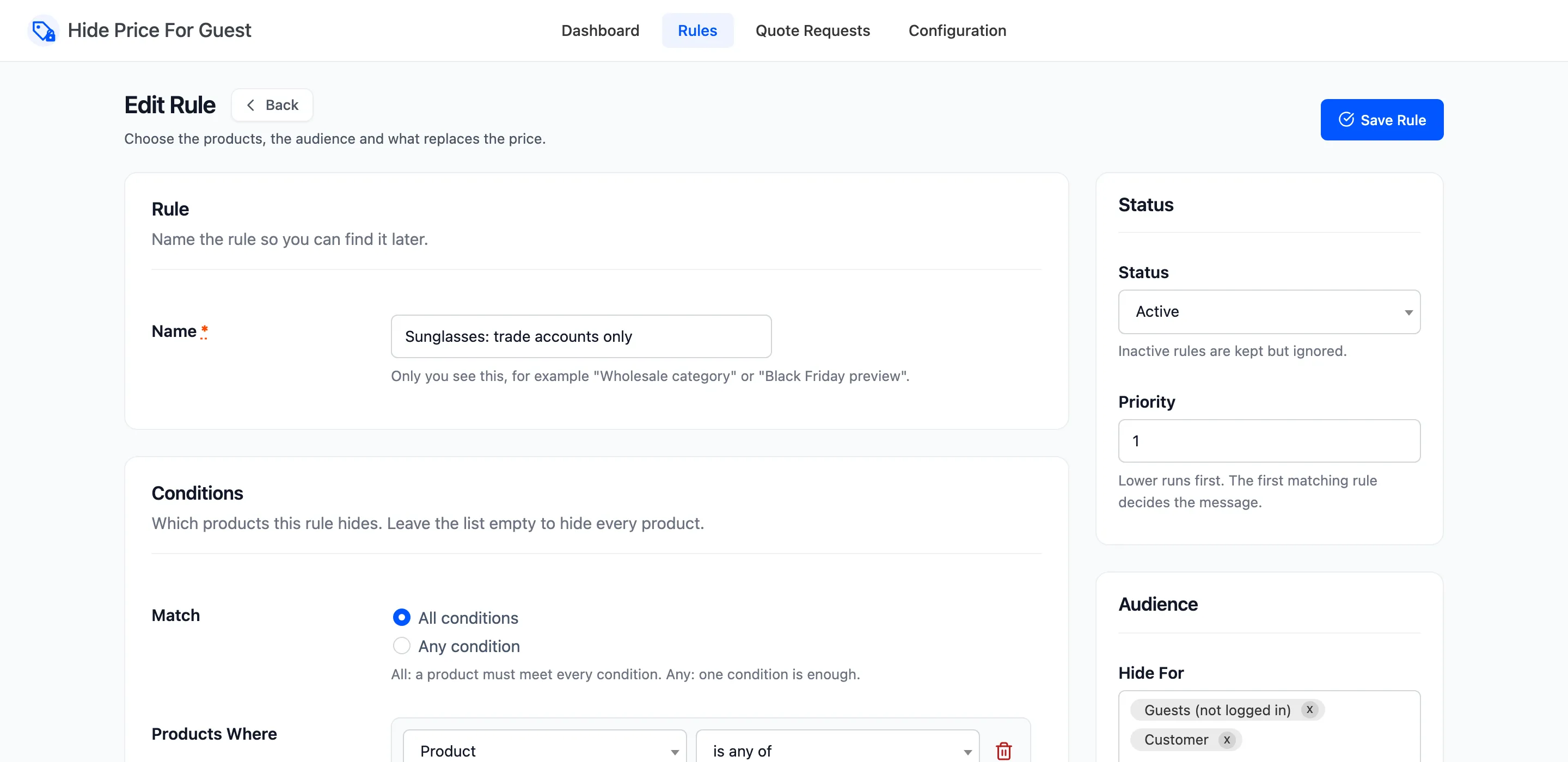
- Name: For you only, for example “Wholesale category”. Saved as “Untitled rule” if left empty.
Conditions
Section titled “Conditions”- Match: All conditions (default) means a product must meet every condition. Any condition means one is enough.
- Products Where: Click + Add Condition for each condition. Leave the list empty to hide every product.
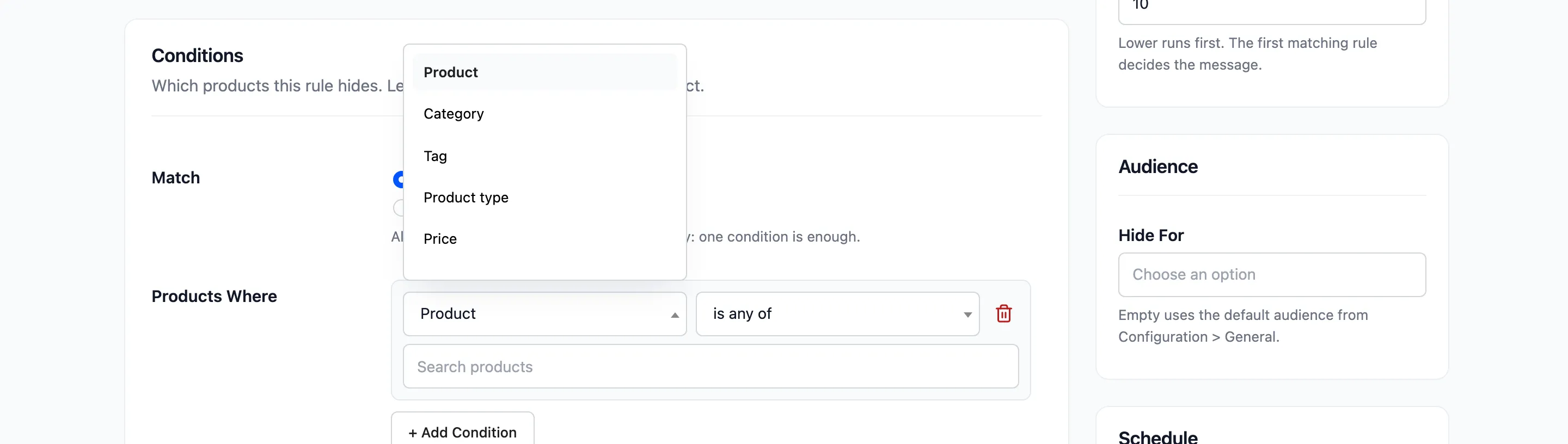
Each condition is a type, an operator and a value:
| Condition | Operators | Value |
|---|---|---|
| Product | is any of, is none of | Products, searched by name |
| Category | is any of, is none of | Product categories |
| Tag | is any of, is none of | Product tags |
| Product type | is any of, is none of | Simple, Grouped, External/Affiliate, Variable, Variation |
| Price | is at least, is at most | A number |
| Stock quantity | is at least, is at most | A number |
| Stock status | is any of, is none of | In stock, Out of stock, On backorder |
| On sale | is | Yes or No |
| Featured | is | Yes or No |
| Virtual | is | Yes or No |
| Downloadable | is | Yes or No |
| Review count | is at least, is at most | A number |
| Average rating | is at least, is at most | A number |
| Published date | is on or after, is on or before | A date |
How a few of them read a product:
- Price is the price the customer would pay: the sale price while a sale runs. “At least” and “at most” include the number itself.
- Stock quantity only matches products that track stock. A product without Manage stock? ticked never matches, whichever operator you choose.
- Product matches a variation when you pick its parent.
- Category, Tag and Featured are read from the parent of a variation.
- Product type treats a variation as both Variation and its parent’s type, so Variable product covers a variable product and all its variations.
- A condition with no value is dropped when you save.
What Visitors See
Section titled “What Visitors See”Leave a field empty to use the default from the Display tab.
- Hidden Price Text: The message. Basic HTML and the
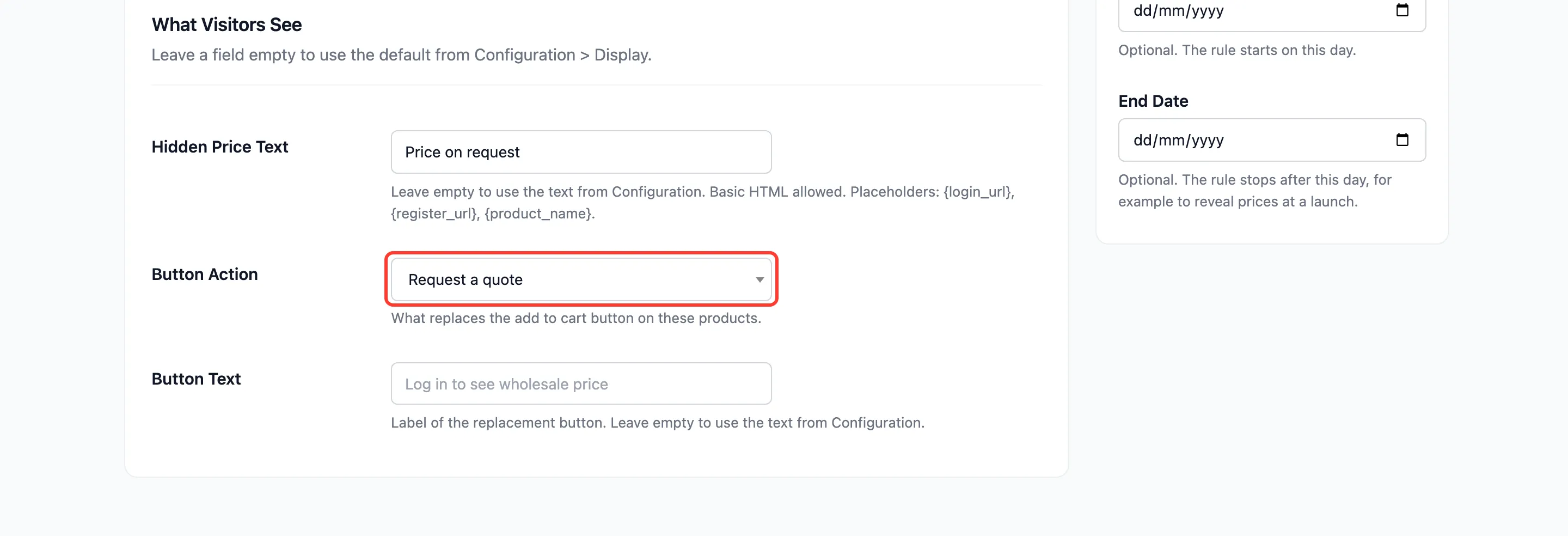
{login_url},{register_url}and{product_name}placeholders work. - Button Action: Use the default from Configuration, or one of the four actions.
- Button Text: The button’s label.
- Custom URL: Where a custom URL button goes.
The quote form’s emails and success message always come from the Display tab.
Status
Section titled “Status”- Status: Active (default) or Inactive.
- Priority: Default 10. Lower runs first, and the first rule that matches a product decides what the visitor sees.
Audience
Section titled “Audience”- Hide For: Guests and any roles. Empty uses the default audience from the General tab. A list here replaces the default for this rule, it does not add to it.
Schedule
Section titled “Schedule”- Start Date: Optional. The rule starts on this day.
- End Date: Optional. The rule stops after this day.
Both days are included, in your site’s timezone under Settings → General.
Click Create Rule (or Save Rule when editing) at the top right. The form reloads with “Rule saved.”
Where to go next
Section titled “Where to go next”- How Hidden Prices Work explains how rules combine with exclusions and the per-product setting.
- How to Create a Price Hiding Rule builds one step by step.