

The Per-Product Setting
Rules work on groups of products. When one product needs to be the exception, set it on the product itself. Edit the product and open Product data → General. The field is Guest price visibility.
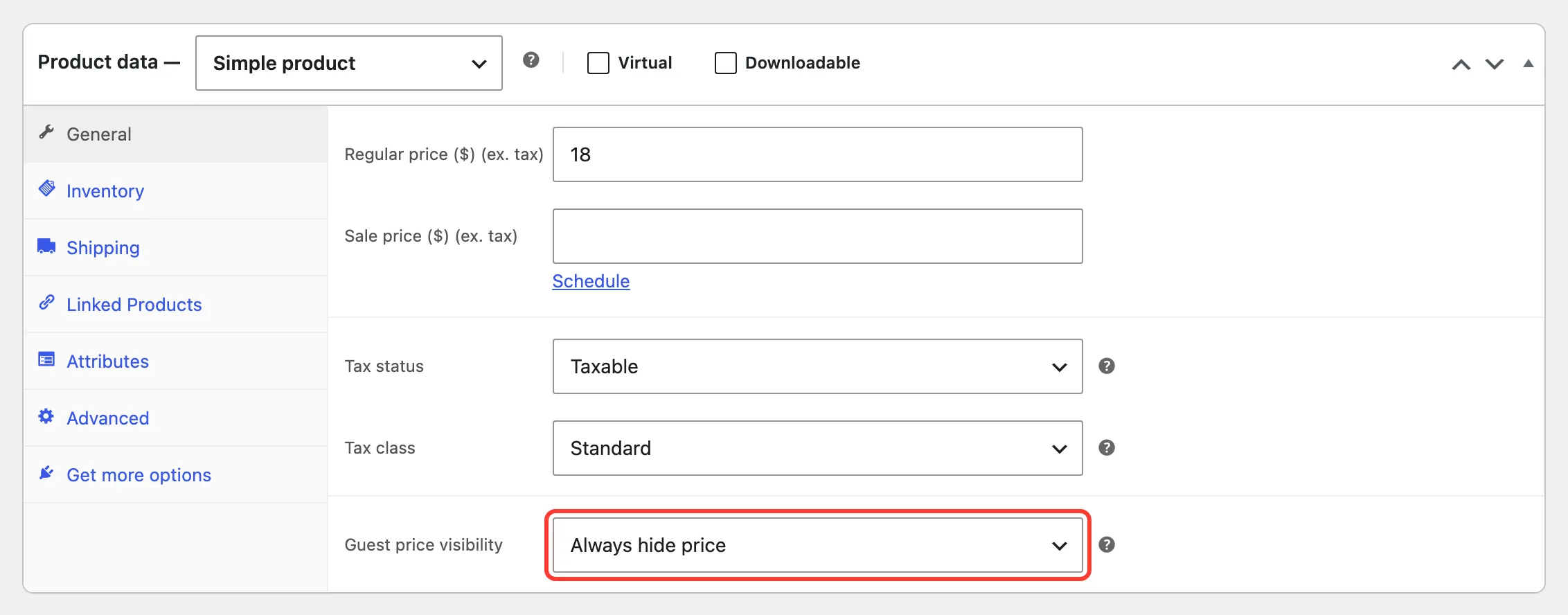
The three choices
Section titled “The three choices”- Follow plugin rules: The default. Rules and exclusions decide.
- Always hide price: Hidden from the default audience on the General tab, with the default message and button from the Display tab.
- Always show price: Shown to everyone.
Click Update to save.
It wins over everything else
Section titled “It wins over everything else”Both settings are checked before exclusions and rules. Always show price shows the price even when a rule matches the product, and Always hide price hides it even when the product is excluded on the General tab.
On the demo store:
-
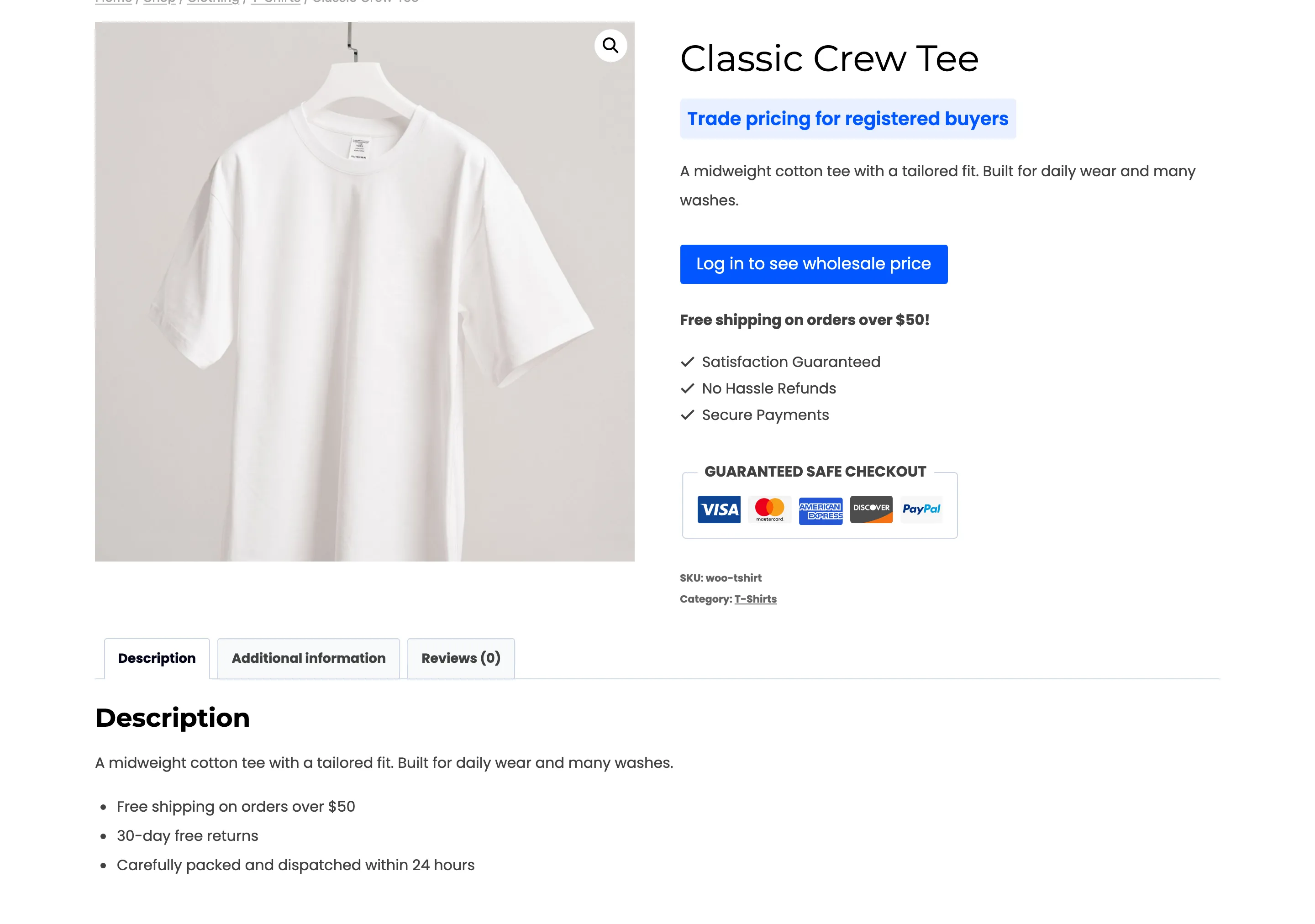
Classic Crew Tee is $18. No rule hides products under $20, so its price would show. It is set to Always hide price.
-
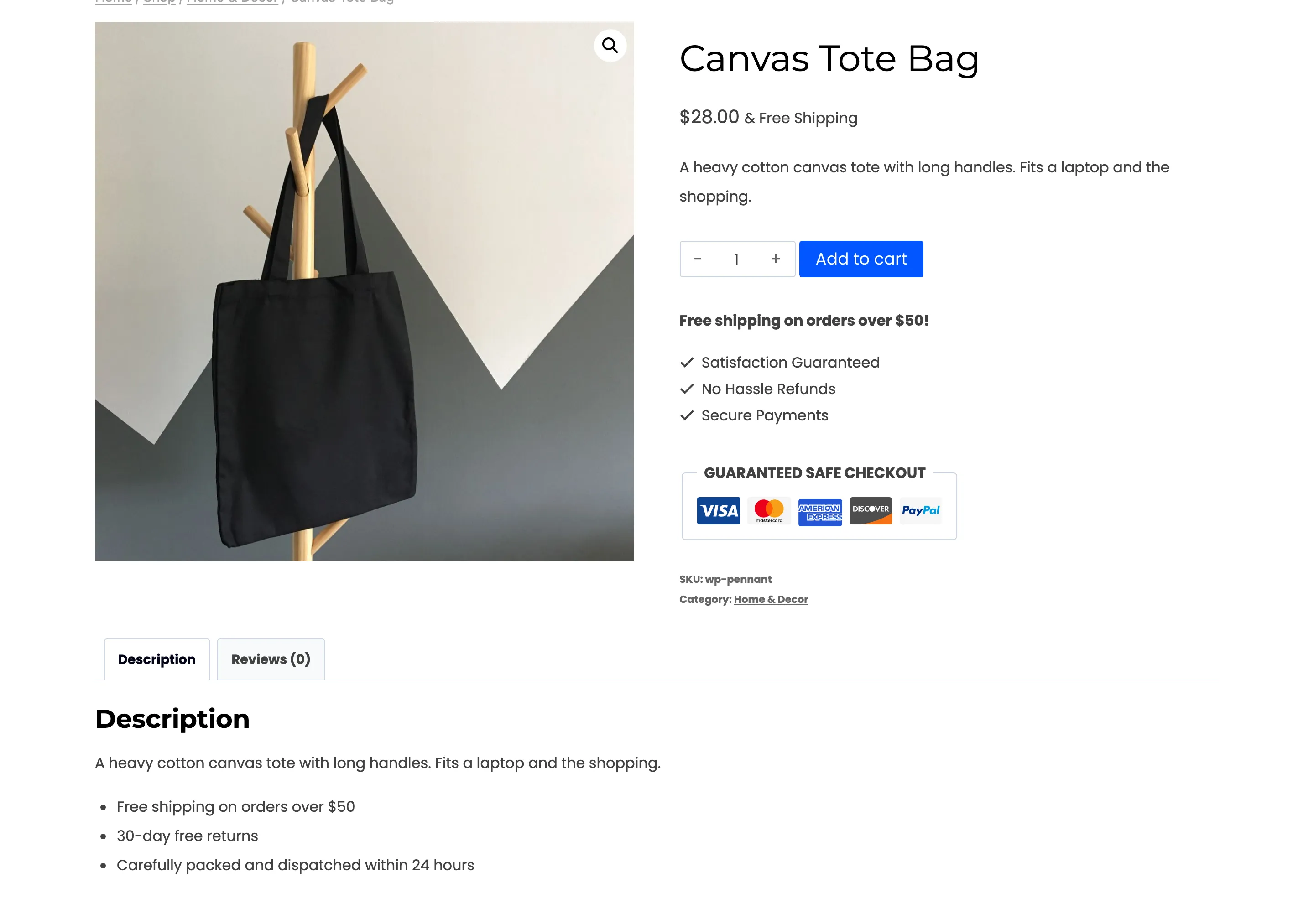
Canvas Tote Bag is $28, so the $20 rule would hide it. It is set to Always show price.
Two things to know
Section titled “Two things to know”- Always hide price ignores rule audiences and wording. It always uses the General tab’s audience and the Display tab’s message and button. To hide one product from a different role, or with different words, add a rule with a Product condition instead.
- The country setting still applies. A visitor outside the countries in Apply In sees the price, even on a product set to Always hide price.
The setting lives on the parent product, so a variable product’s choice covers all its variations.
The dashboard’s Why Prices Are Hidden chart counts products hidden this way as Per-product setting.