

How to Hide Prices for a Category
The demo store hides prices on its Accessories category and asks for a quote instead. The rest of the shop is untouched by this rule.
Step 1: Add a rule
Section titled “Step 1: Add a rule”Go to Rules → Add New. Name it “Accessories: price on request”.
Step 2: Add a Category condition
Section titled “Step 2: Add a Category condition”Click + Add Condition and choose:
- Type: Category
- Operator: is any of
- Value: Accessories. Pick more than one category to cover them all with this rule.
is none of turns it around: every product outside the chosen categories.
A category condition matches products assigned to that category. A product only in a sub-category does not match the parent, so pick both if your catalog uses sub-categories.
Step 3: Give it its own message and button
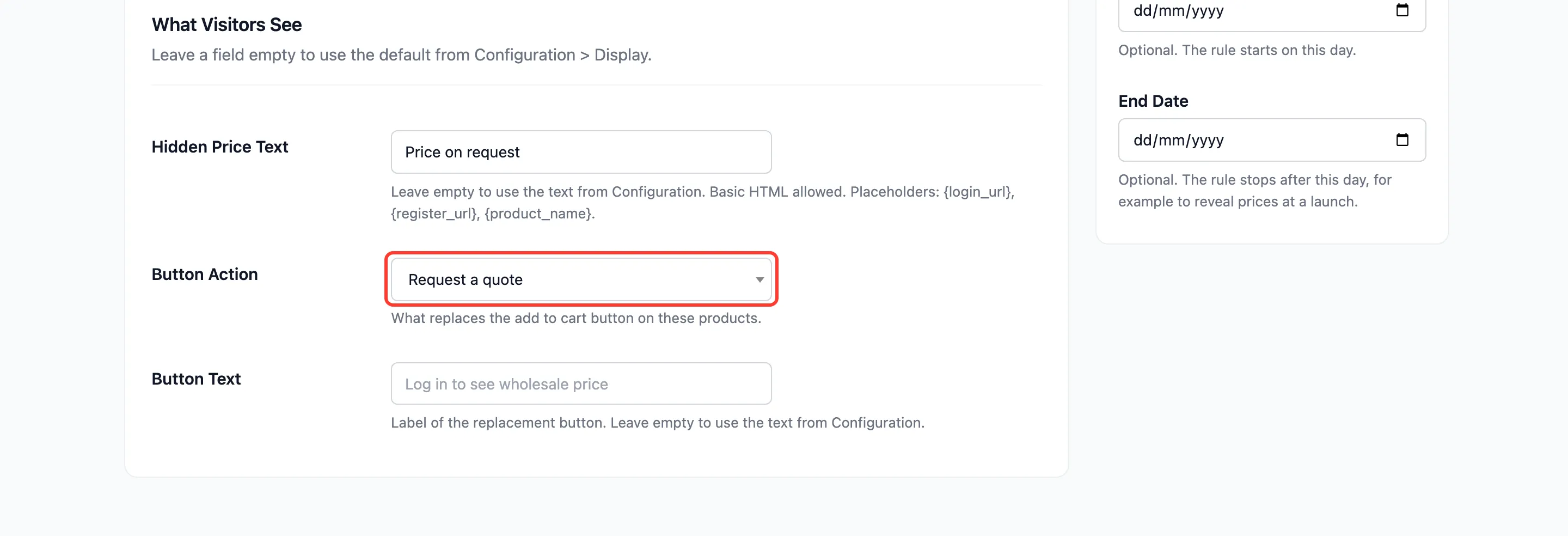
Section titled “Step 3: Give it its own message and button”Under What Visitors See:
- Hidden Price Text: “Price on request”.
- Button Action: Request a quote.
- Button Text: leave empty, so the quote button reads “Request a Quote” from the Display tab.
Step 4: Set a priority
Section titled “Step 4: Set a priority”Set Priority to 5. The demo also has a broad rule at priority 10 that hides everything priced $20 and over. Without the lower number here, a $55 belt would match the broad rule first and show a login button instead of the quote button.
Click Create Rule.
Step 5: Check the category as a guest
Section titled “Step 5: Check the category as a guest”Open an accessory in a private window.
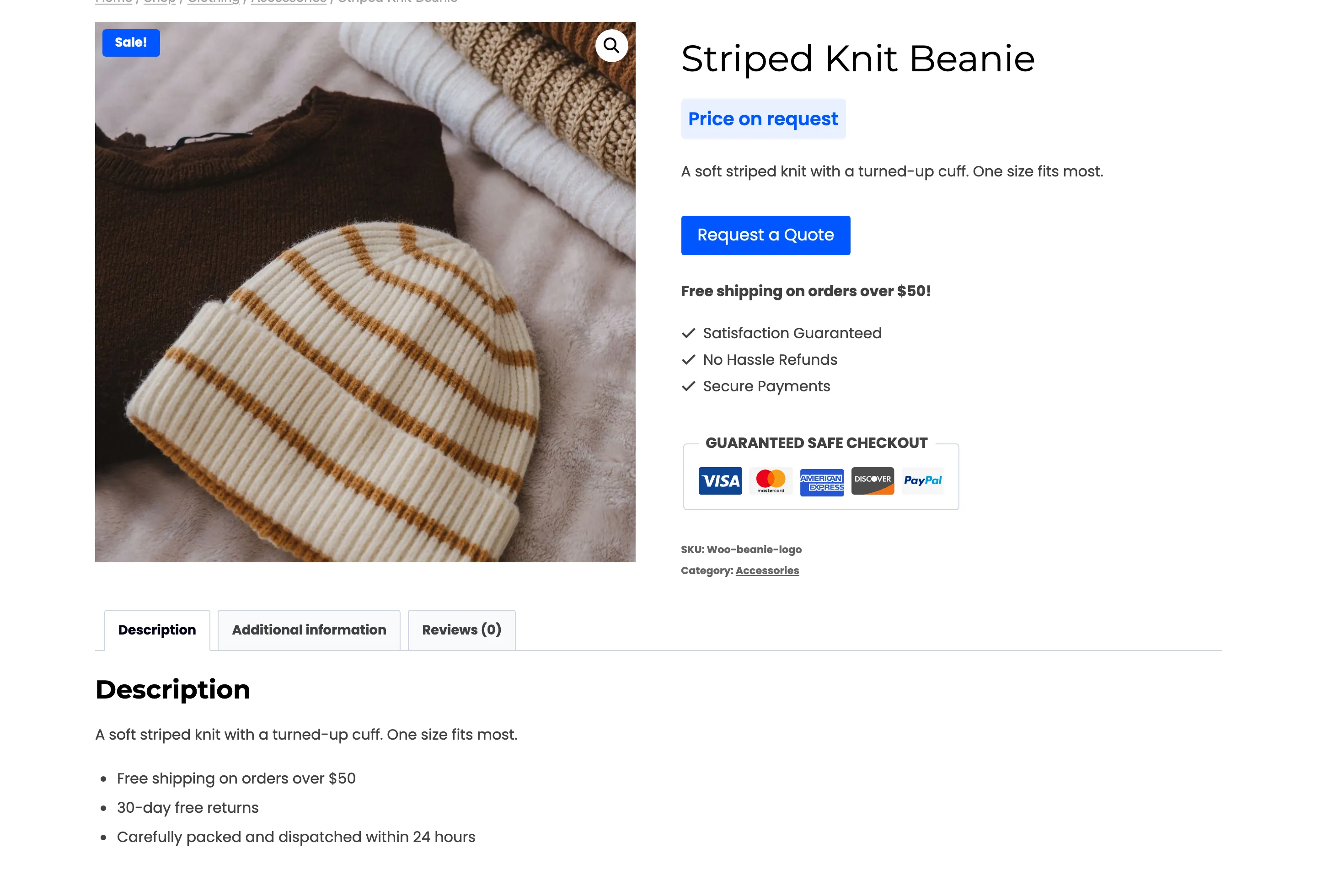
Every accessory now shows “Price on request”, including cheap ones the $20 rule would have left alone. Products in other categories are decided by the other rules.
Showing a category instead
Section titled “Showing a category instead”To keep one category’s prices public while a broader rule hides the rest, do not add a rule. Add the category under Exclude Categories on the General tab. See How to Always Show or Hide One Product.